office 365
20540 Topics
microsoft excel import text file template
I used the Text Import Wizard to create an excel document from a text file. My data does not have nice commas, semicolons, tabs, or spaces. My data is a fixed width. My data is by the columns like 5, 10, 12, 14, 20 column. It takes a long time to set the correct columns. I then saved it as a .xltx file to create a template. Then I expected to be able to use the template in the future. I tried to create a new excel file with the .xltx template I just created. When I pasted data into the new excel document my data was not organized. What am I doing wrong? Save as an Excel Template: Go to File > Save As, and select Excel Template (*.xltx) from the "Save as type" dropdown. This saves your layout in the custom templates folder. Use the Template: When you want to import data in the future, open this template (File > New > Personal), then use the import steps above to place the external data into your predefined format.36Views0likes1Comment
Error al modificar una antigua formula
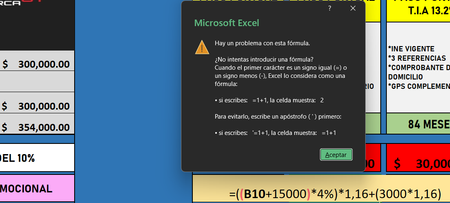
Estoy intentando modificar una formula que tenia antes unicamente cambiando lo que es la cantidad por la que se sumaba a la que tenia la anterior, lo demas de la formula esta completamente igual, pero por alguna razon me salta esa pestaña diciendo que hay algun problema con la formula, estuve buscando si hay algun tipo de error pero no lo encontre, inclusive llegue a copiar la primera formula original y no funciona aun asi, por mas que lo intento siempre me salta la misma advertencia y no me deja agregar la formula como es debido. cabe decir que la formula es la que esta abajo de la pestaña de advertencia y la celda "B10" es la de la cantidad de "300,000" que esta encima de los "354,000"21Views0likes1Comment
# OneDrive AutoSave Stopped Working After Update to Version 26.007.0112 on macOS
**Product:** Microsoft 365 and Office | OneDrive | For home | macOS ## Summary Since OneDrive automatically updated to version 26.007.0112 (26007.0112.0002) a few days ago, I am experiencing multiple issues with how Office files interact with OneDrive on my Mac. AutoSave no longer works, files that are stored locally now take noticeably longer to open, and attempting to work around the problem through Word/Excel directly results in upload failures and outdated file versions. Prior to this update, everything was working perfectly. ## Environment - **macOS version:** Tahoe 26.1 - **OneDrive version:** 26.007.0112 (26007.0112.0002) - **Office version:** Version 16.105.2 (26012530) - **Account type:** Business ## Symptoms ### 1. AutoSave no longer activates when opening files from Finder Opening any .docx or .xlsx file from the OneDrive folder in Finder results in AutoSave being off. The title bar shows "Saved on My Mac" instead of the OneDrive location. Attempting to toggle AutoSave on prompts me to "upload" the file — even though it is already in the OneDrive sync folder and marked as "Always Keep on This Device." ### 2. Files that are stored locally now open slowly Previously, opening an Office file from the OneDrive folder in Finder was instantaneous, as you would expect for a file stored on the local drive. Now, even though the files are marked as "Always Keep on This Device" and should be fully available locally, there is a noticeable delay when opening them. It appears that OneDrive or the Office app is downloading or re-fetching the file from the cloud rather than simply opening the local copy, which defeats the entire purpose of keeping files on the device. ### 3. Opening from within Word/Excel results in "Upload Failed" and serves an older version As a workaround, I tried opening files from within Word using File > Open and selecting the OneDrive location. However, this now produces an "Upload Failed" error message, and the file that opens is an older version — not the most recent version I had been working on. This is extremely concerning, as it suggests the sync between the local copy and the cloud copy may be broken, and there is a real risk of data loss or overwriting recent work with outdated content. ## Steps to Reproduce 1. Ensure files are in the OneDrive folder and marked as "Always Keep on This Device." 2. Open a .docx or .xlsx file by double-clicking it in Finder. Notice: the file takes several seconds to open (previously instant), AutoSave is off, and the title bar says "Saved on My Mac." 3. Close the file. Open Word or Excel, go to File > Open, and navigate to the OneDrive location. Open the same file. Notice: an "Upload Failed" message appears, and the file that opens is an older version, not the most recent one. ## Expected Behavior - Files stored locally via "Always Keep on This Device" should open instantly, just as any local file would. - AutoSave should be enabled automatically when opening files from the synced OneDrive folder. - Opening a file from within Word/Excel via the OneDrive location should open the current version of the file without upload errors. All of this worked exactly as expected before the update to version 26.007. ## What I've Tried - Verified that "Always Keep on This Device" is enabled for the affected folders. - Confirmed I am signed into the same Microsoft account in both OneDrive and the Office apps. - Verified files are in modern formats (.docx, .xlsx), not legacy formats. - Checked that OneDrive sync is not paused. ## Impact This is a severe workflow disruption. The combination of broken AutoSave, slow file access, and the "Upload Failed" error serving stale file versions means I cannot trust that I am working on the latest copy of my documents. There is a genuine risk of data loss — if the cloud version is out of sync with the local version, saving could overwrite recent work with an older copy. I am currently unable to rely on OneDrive for day-to-day work on my Mac. ## Additional Notes This appears to be a regression introduced by the recent OneDrive update to version 26.007. I have seen numerous other users reporting similar AutoSave and sync issues across Microsoft Q&A, Apple Community forums, and MacRumors, dating back to the original Files On-Demand changes on macOS. However, my setup was working correctly until this latest update. Relevant threads with related issues: - https://learn.microsoft.com/en-us/answers/questions/5419331/onedrive-says-saved-on-mac-autosave-not-working - https://learn.microsoft.com/en-us/answers/questions/5371608/one-drive-auto-save-no-longer-working-on-mac-os - https://learn.microsoft.com/en-us/answers/questions/5402091/onedrive-app-on-mac-not-working-for-autosave-and-t - https://forums.macrumors.com/threads/onedrive-autosave-disabled-when-opening-files-from-onedrive-folder.2442775/ I would appreciate any guidance from the community or the Microsoft team. Is this a known regression in version 26.007? Is a fix in progress? Is there a way to roll back to a previous OneDrive version that was working? Thank you.177Views2likes1Comment
Missing Auto Refresh In Pivot Table
Before updating to the latest version in the Beta Channel, there was Auto Refresh button appear in the PivotTable Analyze tab. After the update to version 2604 (Build 19826.20002) the Auto Refresh is missing, and I have to revert to manually refreshing the pivot table. Any idea why is this happening and how to get it back?34Views0likes3CommentsOffice365 Autoupdate on Mac
Last week I had an issue with Autoupdate on Microsoft365 where OneNote failed to update, other app were fine. I tried selecting just this app and updating it but got a download error. Autoupdate indicates "some apps have encountered errors" and retrying just repeats the download error. I've tried machine based fixes but none have worked and I suspect it's something else as I have a Mac mini and MacBook doing the same along with my wife who has a Mac desktop. The issue is still the same a week on.51Views0likes1CommentMicrosoft Teams – “Save this message” feature missing in both Desktop and Web clients
a { text-decoration: none; color: #464feb; } tr th, tr td { border: 1px solid #e6e6e6; } tr th { background-color: #f5f5f5; } Hello, We are experiencing an issue in our Microsoft 365 tenant where the “Save this message” feature in Microsoft Teams is not available, neither in the Teams desktop app nor in Teams Web. Details The feature should be available globally, as Microsoft planned full rollout between August and October 2025 (Microsoft 365 Roadmap ID 496369). This is confirmed in multiple official and community‑published sources. https://m365admin.handsontek.net/microsoft-teams-users-can-save-chats-channel-messages-later/, https://supersimple365.com/teams-save-chats-and-channel-messages-for-later/ Microsoft also stated that no admin controls exist to disable this feature and no configuration is required in the tenant. https://m365admin.handsontek.net/microsoft-teams-users-can-save-chats-channel-messages-later/ Despite this, the option does not appear at all in the message overflow menu (… → More actions) in both: Microsoft Teams Desktop (version 26032.206.4355.6508) Microsoft Teams Web (teams.microsoft.com) Troubleshooting already performed Full cache removal for the new Teams client under: %localappdata%\Packages\MSTeams_8wekyb3d8bbwe\LocalCache Log out / sign‑in cycle Full Teams desktop restart Verification across different clients (desktop + web) Verification from multiple messages and channels74Views0likes2Comments
File always corrupt
Anyone have the same problem with me? I use microsoft excel 365 on my mac. At the beginning everything alright, until i use formula and then save the file. When i want to re-open the file, the messagebox showed up "we found something wrong in your content...". It gives 2 option, yes and no. If i click no, the file wont open. If i click yes, the file open, the excel do the recovery, the file open but end up with all the formulas is gone, deleted by excel and just left the value. What should i do? Do the file can still be fixed?84Views0likes3CommentsWord - Same Line Page Breaks Visibly Change Formatting
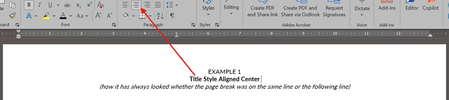
Within the last week or so, Word suddenly has started changing the formatting of visible text when a page break is used on the same line. How can this be corrected? (To be clear, yes, a page break could moved to the next line or deleted if there is not room for the extra line, but this impacts dozens of templates I have been using for years and I just want to set the formatting back to how it has worked in the past, where a page break inserted at the end of a line with centered text did not change the formatting of the visible text in said line.) Example 1 below is how it always used to appear whether the page break was on the same line as the centered title text or not. Example 2 below is how it looks now when the page break is on the same line.Solved300Views2likes10Comments
Side load office add-in?
I've created an office.js add-in that I can test with debugging in VS Code. I have deployed it including the manifest to a web site, but now I can't find the option to add it to my Excel anymore, where has that option gone? I'm on Microsoft® Excel® for Microsoft 365 MSO (Version 2602 Build 16.0.19725.20126) 64-bit Thanks GJ53Views0likes1Comment