files
670 Topics
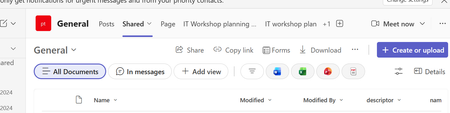
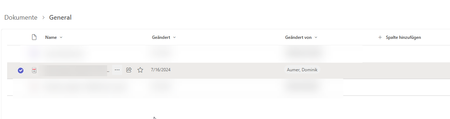
missing crumb trail in Teams channel, cant get back to highest document level
hi discovered yesterday that the crumb trail in teams channels is no longer available, so i cant navigate to the highest document level, however i can get access to the crumb trail from the corresponding sharepoint site, but most of my 5,000 are mainly using teams, can you point me to any documentation to say when this change was happening, screenshots below one from Teams channel other from SharePoint188Views0likes1Comment
Microsoft Teams File Permissions: Why Can't I Remove Direct Access?
While working with files stored in Microsoft Teams, I recently encountered an issue related to file permissions that may affect other users as well. A file was uploaded to a Microsoft Teams channel, which means it is physically stored in the SharePoint document library connected to the Team. At some point, direct access permissions were granted to an individual user using the Manage Access feature. Later, when attempting to remove this direct permission, the option was no longer available. What Happened? The file's permission overview shows that the user has Direct Access (View Only) permissions. However, when opening the permission details, SharePoint displays the following message: "Grant access is unavailable because you are not the owner of this item." Although the file was originally uploaded by the user attempting to manage permissions, SharePoint does not recognize that user as the owner of the item for permission management purposes. As a result: The granted permission remains visible. Permission levels (View, Edit, Block Download) can be selected. The Remove Access option is missing. Changes cannot be applied because the user is not considered the owner.416Views0likes2CommentsDon't expire attached chat files | Show a warning.
Teams allows users to upload files to share with others in a chat. These files inherit the organization's sharing policy. So whether you use Share or Copy Link in SharePoint or OneDrive or you use Attach File in Teams, the same default policy is applied. The issue, what makes the Teams experience different from SharePoint / OneDrive, is that the message with the attached file persists in the chat. A file that was attached to a conversation two months ago appears to still be in the chat. However, the default policy blocks access to the file that appears present. Moreover, there is no method for the sender to alter the sharing policy using the Attach function. When this an issue, this is a HUGE issue. Suggestions: Actually attach the attached file and store in the recipient's Attachments folder. Don't use a paperclip icon that says "Attach file" for files that aren't actually attachments. Warn the sender that the attached file inherits the organization's 'Share with anyone' policy and may expire. Prompt the sender to alter the sharing link before sending. Put a timer on the attachment showing the countdown to expiration. After the expiration date, the file should be labeled "Your organization's sharing policy has expired access to this file". Add a button for the recipient to request access to the file again.134Views0likes1Comment
Transforming Microsoft Teams into a Project Management Hub
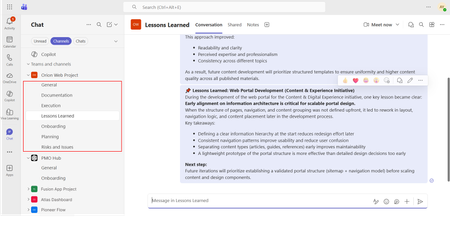
If you use Microsoft Teams only for chats and meetings, you’re missing much of what it can actually do. While Microsoft Teams is often seen as a communication tool, it can also function as a central workspace for managing projects - from planning and brainstorming to execution and documentation - all in one place. When combined with tools like Microsoft Planner, SharePoint, and Microsoft Loop, Teams can become a practical project management hub that keeps work organized and reduces the need to switch between systems. This article walks through a clear, practical approach to setting up and using Teams for real-world project delivery. Why Use Microsoft Teams for Project Management? Organizations often hesitate to introduce new tools due to cost, training effort, or resistance to change. Microsoft Teams offers a strong advantage: it is already widely adopted in many organizations as part of Microsoft 365. Using Teams for project management allows you to: Centralize communication and documentation Reduce tool fragmentation Improve team visibility and collaboration Leverage existing infrastructure without additional cost Instead of switching between multiple platforms, teams can manage conversations, files, tasks, and workflows in one place. Structuring Your Project in Teams A well-structured Team is the foundation of successful project management. Create a Dedicated Team Start by creating a Team specifically for your project. Avoid mixing multiple projects in one Team, as it leads to confusion and poor organization. Recommended channels structure: General (announcements and overview) Planning (timelines, scope, requirements) Execution (daily work discussions) Risks and Issues Documentation Onboarding Lessons Learned This structure ensures clarity and separates strategic discussions from operational ones.178Views0likes0Comments
attach file option not visible with bot joined call
I have created bot using azure and recall.ai When bot joins adhoc or schedule team meetings, it is appearing as an external user. While we have created bot email as well in azure AD. And I think due to this we are not able to see attach file option in teams chat when bot gets invited into the adhoc or schedule meeting109Views0likes0Comments
Teams Planner Duplication
Does anyone know if you can duplicate Microsoft Teams Planners for onboarding tasks? I am trying to create an easily replicable Teams Planner with links to files in Sharepoint folders, for example. I want to be able to copy this planner for each new hire and have a copy of all the files and planner tasks in the new copy. Any advice or expertise would be much appreciated!142Views0likes3Comments
Auto-saving transcription files in a folder?
I'm currently working in a project which requires the usage of meeting transcription files (not recordings!), and I couldn't find a foulder at OneDrive, or Sharepoint that contains the transcription files (.vtt), I know I can manually download it at the meeting recap but manually downloading it would make my project kinda pointless, is there any way that I can configure it to automatically save the transcription file at a folder like it happens with recordings? Thank you!Solved3.6KViews0likes4CommentsDocument Library Settings
Many times when someone opens a document from a teams document library, it shows the document as modified even though no actual changes were made to the document. The default at my company is that documents open in edit mode and they auto save so one solution would be to set it to open in view only mode, but my company doesn't want to change that at the company wide level. Is there any way to do this at the SharePoint library level? I also don't want to make document checkout mandatory.187Views0likes1CommentTeams crops previewed image
On Teams app for Mac, the previewed image in chat is being cropped. The image preview itself displays full image as shown below (see all numbers 1-7 visible): However, after clicking on the image itself to view it, the image is cropped (notice the number 7 no longer being displayed): You have to manually click a zoom out button and then the image becomes uncropped.58Views0likes0Comments