files
3326 Topics
fichiers supprimés de onedrive
Bonjour, Suite à une mauvaise synchronisation entre deux appareils, des fichiers importants ont été effacés de mon onedrive. Le problème est que je m'en suis rendue compte après les 30 jours requis. Ils étaient également enregistrés sur mon disque dur mais ont été supprimés de tous mes appareils après leur effacement des serveurs. J'ai tenté de les récupérer via des logiciels de récupération, avec windows file recovery, j'ai essayé de remonter dans l'historique de mon ordi et de mon onedrive, de chercher dans la mémoire de tous les appareils qui étaient connectés à mon compte microsoft, mais rien n'y fait, je ne parviens pas à récupérer ces documents. Est ce que quelqu'un aurait une idée de génie à laquelle je n'aurais pas pensé? Merci pour votre aide30Views0likes1CommentMGDC for SharePoint: Increased Changes in SizeInBytesWithVersions
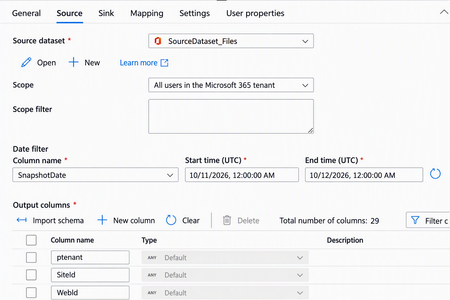
We noticed recently a change in behavior for the SizeInBytesWithVersions column in the SharePoint Files dataset exposed by Microsoft Graph Data Connect (MGDC). This column used to change only when there were changes to the file. It is now possible for this column to be changed when internal processes in the SharePoint infrastructure optimize the storage of file metadata, without a matching change in any other column exposed via the MGDC SharePoint Files dataset. This change is generally not a concern, but it could cause a larger number of SharePoint Files objects to show in MGDC as updated. This would in turn cause an increase in the size of deltas (a feature of MGDC where only changed objects are pulled) and a corresponding increase in cost for pulling SharePoint File deltas. If this becomes a concern, there is a simple workaround. In the copy task definition for the MGDC SharePoint Files dataset, in the Source tab, under the Output columns list, you can delete the SizeInBytesWithVersions column to filter it out of the results. This way, the deltas will see a corresponding reduction.
How can I enable local deletion
In order to use co-pilot, it is required to store my files in OneDrive. However, when I want to get rid of some files, I am getting a warning message: "Deleting an online-only file permanently removes it from your PC without sending it to the Recycle Bin. Are you sure you want to continue?" When right-clicking on the file, there is no "View this file online/on Sharepoint" button anymore. So Microsoft makes it very difficult to declutter my file explorer - which is the reason I did not use it much in the first place. Is there any workaround to this, i.e. to delete files permanently without having to click through Sharepoint? And to the OneDrive developers: Do you plan on improving this - or at least re-adding the "View online" button? Thank you!176Views0likes2Comments
I NEED HUMAN HELP -- I am having issues with my Microsoft business email, I can't access Word
888 319 8920 I am having issues with my Microsoft business email, I can't access Word. I've tried calling multiple numbers and haven't been able to reach a human and the automated machine is no help. If someone would please give me a good number to call or an email address, I'd greatly appreciate it.177Views0likes2Comments
OneDrive Basics
I'm wondering if someone could help me determine what went wrong. I have a new laptop ("New Laptop") and the goal was to migrate all my files (documents, pictures, etc) from the old laptop ("Old Laptop") to New Laptop. So I created a Microsoft OneDrive account and called it [olduserlaptop]@hotmail.com. I then uploaded everything from Old Laptop onto Onedrive, then logged into New Laptop, signed in under the same account, and downloaded everything. I came as a Zip file onto New Laptop and I extracted it. So far so good, right? Well when I look at the new laptop and the extracted files, the only thing that was there was the folders and directories - NO ACTUAL FILES. Does this make sense to anyone? If so, can someone explain? While I don't Old Laptop immediately available, I can get to it and access the old files but to me I shouldn't have to do this. Thanks in advance for any help.272Views1like2Commentstrying to restore one drive to 3 weeks ago but keep getting error messages about personal vault
I appear to have lost a file from Onedrive which i accessed a week ago. So trying to restore onedrive to 2 weeks ago but keep getting error maessages re personal vault etc. Any one know how to restore one drive?289Views0likes2Comments
OneDrive for Mac, can't log in
Brand new mac (Mini M5), brand new install (macOS 27.0), all other office apps log in perfectly. But I can't get OneDrive to log in. I enter my email address, click on next, it says loading for a few seconds, then quits. Open onedrive again, same again. That's it, that's all I get. I need to be able to access my OneDrive files from the filesystem, the same as I did on my old system. I'm not after temporary workarounds such as using web, I'm seeking to get this actual problem fixed. Any suggestions?150Views0likes0Comments
OneDrive storage bugged
My OneDrive is displaying that I have used 293% of my storage space but when I go to my plan, it says I should have 1Tb of storage. This recently changed so nothing backs up anymore because it thinks I'm over my limit. Does this have anything to with OneDrive not working with Samsung sync after this month or is there something else going on?312Views0likes1CommentOneDrive won't allow installation on fixed D: drive
Since 24 Sep 2026, OneDrive refuses to use my internal D:\ drive, even though the OneDrive build and Windows haven't changed. This applies to my Personal OneDrive and institutional OneDrive accounts. Build 26.168.0830.0006 (per-machine install, installed 20 Sep 2026) synced both of my accounts to D:\ normally from 20 to 23 Sep. At the 24 Sep morning boot, OneDrive could not find either folder. Setup now rejects D:\ with "Your OneDrive folder can't be created in the location you selected," and Learn More links to the article on external drives. The rejection persists with my existing folders (after renaming them) and with a brand-new empty folder (D:\ODTest). E:\, an identical Crucial T500 4TB NVMe in the motherboard's native M.2 slot, is accepted. The only difference is that D:\ is attached through an M.2-to-PCIe adapter card in an internal PCIe 4.0 slot (in place since Nov 2025). Windows reports D:\ as Fixed and NTFS (Get-Volume, DriveInfo, Win32_DiskDrive), and it does not appear in Safely Remove Hardware. Dropbox on the same drive is unaffected. With the build unchanged and Windows Update paused, this looks like a server-side change in how OneDrive classifies drives. Please restore support for internal NVMe drives attached through PCIe adapter cards.486Views2likes2Comments