office 365
20707 Topics
Need to Restore PST Files to Office 365 Mailboxes - What's the Best Approach
Hey everyone, I have a task coming up where I need to restore several PST files back into Office 365 mailboxes. Haven't done this before at this scale and honestly not sure where to begin. I've looked at Microsoft's native import service through Purview but I have a few concerns: Some of the PST files are quite large — not sure how well it handles that I need to restore only specific folders for some users, not the entire PST I'm worried about data consistency after the restore Would prefer something that doesn't require too many admin roles or complex setup For those who have done PST to Office 365 restores — what approach worked best for you? Any tools, tips, or things to watch out for that you wish you knew before starting?23Views0likes1Comment15 productivity features in the new Outlook for Windows
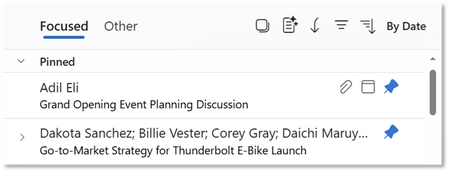
Hello, Outlook community. I’m Vicki Milton, a Principal Product Manager on the Outlook team. Over the last year, we’ve added important capabilities across areas such as offline support, shared mailboxes, and PST files. Alongside those milestones, we've continued to deliver smaller improvements that help people work more efficiently throughout the day. This article highlights 15 productivity features in the new Outlook for Windows that can help you stay organized, reduce routine effort, and keep important work moving. Mail features Email remains central to how many people manage communications, priorities, and follow-up. Outlook includes familiar tools for composing and organizing messages, along with newer capabilities that can help reduce friction and make inbox management more efficient. Pin a mail: Keep important messages easy to find. The Pin feature keeps a selected email at the top of your inbox so it remains visible as new messages arrive. This can be useful for items you need to reference often or do not want to lose track of, such as travel details, approvals, or active requests. By keeping priority messages in view, Pin can reduce time spent searching and help you stay focused on current work. Snooze a mail: Return messages when they are relevant again. Snooze lets you temporarily remove an email from your inbox and have it reappear at a time you choose. This can help keep your inbox focused on messages you can act on now while ensuring follow-up items come back when they are timely. It is particularly useful for requests that depend on additional information, scheduled tasks, or work you plan to handle during dedicated focus time. Add multiple categories at the same time: Organize messages with fewer steps. If you use categories to manage incoming mail, Outlook makes it possible to apply more than one category in a single action. This can help when you need to capture multiple types of context, such as project, priority, or follow-up status, without reopening menus repeatedly. It is especially useful when processing a large number of messages. Sweep: Reduce repetitive inbox cleanup. Sweep lets you create automatic actions for messages from a specific sender. For example, you can delete promotional mail after a set period, keep only the latest message in a thread, or move recurring updates to a folder. This can help reduce manual cleanup and keep your inbox more focused on items that need attention. Schedule Send: Write on your schedule and deliver at the right time. Schedule Send lets you prepare messages when it is convenient for you and send them later at a time that works better for the recipient. This can improve visibility, support more intentional communication, and reduce the need to rely on reminders or leave messages in Drafts. Simplified folder sharing: Share folders more simply. Sharing a mail folder has traditionally required extra permission steps, especially for nested folders. Now, when you share a folder, Outlook can automatically apply the visibility permissions needed for its parent folders. This can reduce setup effort, help avoid access issues for recipients, and make folder sharing easier to complete with confidence. Calendar and meeting features For many people, the workday is shaped by meetings, schedule changes, and the need to stay aligned on what comes next. Outlook includes calendar and meeting capabilities that can help simplify planning, reduce coordination overhead, and make follow-up easier. Follow a meeting: Stay informed without attending live. The Follow RSVP option lets you indicate that you will not attend a meeting but still want access to the recap. This can be helpful when schedules overlap or when a meeting is useful to monitor without joining in real time. It can help you stay connected to outcomes and shared materials while keeping your calendar more manageable. Save calendar views: Return to the calendar setup you need more quickly. Saved Views let you store specific calendar combinations and switch back to them without rebuilding the same view each time. This can save time for people who move frequently between personal, team, and project schedules. It also can make it easier to review the right set of calendars for different planning tasks. Improved meeting tracking: Work with meeting responses more efficiently. Outlook includes tools that make it easier for organizers to review and manage meeting responses. You can sort attendee lists, search for names in the Tracking view, and copy or download response details when needed. These capabilities can be especially useful for larger meetings where attendance information needs to be reviewed quickly. Meeting recap: Find follow-up materials in one place. After a Teams meeting, the calendar event in Outlook can surface a Meeting recap with links to the recording, transcript, and shared files. This can make it easier to review what was discussed, confirm details, or catch up afterward. By keeping these materials together, Meeting recap can reduce the time it takes to get oriented after a meeting. Filtered views: Reduce visual clutter in your calendar. Filters let you hide meetings you are not attending and limit the distraction of declined or informational events. This can make it easier to scan your schedule, identify conflicts, and focus on the meetings that need your attention. For people with full calendars, it can help make planning more straightforward. Change a recurring event: Update future meetings while preserving earlier ones. When plans change, Outlook lets you edit the current event and all following events in a recurring series. This can make it easier to adjust details such as time, location, or agenda going forward without changing the record of past meetings. It can simplify updates for organizers and reduce disruption for attendees. Personalization and settings Settings can play a practical role in day-to-day productivity. A few adjustments can make it easier to focus, move between accounts and calendars, and work in a way that fits your preferences. Here are several settings-related features that can help make Outlook feel more streamlined and manageable. Rename your email accounts: Make the right inbox easier to recognize. If you use multiple accounts in Outlook, you can assign each one a custom name. This can help you tell accounts apart more quickly, reduce the chance of sending from the wrong inbox, and make navigation simpler as you move between accounts during the day. Modern themes: Choose a look that supports comfort and clarity. Outlook includes theme and color options that let you tailor the experience to your preferences. Visual settings can influence readability and comfort, especially for people who spend much of the day in email and calendar. Options such as Dark Mode and color customization can help make the interface feel easier to use over time. Keyboard shortcuts: Keep familiar ways of working. In Outlook, you can choose the shortcut style you prefer in Settings. This can help you maintain existing habits, reduce adjustment time, and complete common tasks with fewer steps. For people moving from classic Outlook or Outlook on the web, shortcut flexibility can make the transition more consistent. These features reflect a broader effort to help people work more efficiently in the new Outlook for Windows. Whether you are managing a high volume of email, coordinating a full calendar, or tailoring the experience to match your workflow, these updates are designed to reduce effort and improve day-to-day productivity. For more information and step-by-step guidance, see the Microsoft Support articles and the Learning Path.3.1KViews1like6CommentsRestrict Editing of styles, allow new breaks, TOCs, etc.
I've restricted editing to a selection of styles in my Word template. This, however, also restricts some key essential functions, for example, you can't add in a new Table of Contents or add in page or section breaks. Is there any way to just limit the Font and Table styles, while allowing everything else?28Views0likes1Comment
How can I remove the shortcuts with AltGr?
Guys, I have to use a new keyboard (Greek one) for some academic research and some accents conflicts with the AltGr + shortcuts. There's a way that I can just remove them all? I've tried to find and remove the shortcuts for Add a New Commentary (AltGr + A) and the topic structure (AltGr + o) but I can't find them in the list of shortcuts (Options > keyboard shortcuts > Personalize) I really need that ;(20Views0likes1Comment
Access VBA performance dramatically slowed since June Update
We are running an access based application with a large vba project. One customer with four different instances of this project experience extreme slow down in performance on all instances during the last week. We made no changes. The Microsoft Office Update was applied automatically. We believe the problem happened then. We have tried reverting to several different previous versions of Office but symptoms still remain.229Views0likes7Comments
Excel worksheet protected but can't use text to column function
HI I have a worksheet that several people use that I need to protect. There are formulas and a pivot table. I have been able to lock what I need and am able to refresh the pivot table but I can not use the "text to column" function in the raw data as its greyed out. The area in question are not locked cells but the function is still unavailable. We need to be able to use the text to column function but I also need the sheet locked to protect the formulas.36Views0likes2Comments
Unable to access Global Admin, username not recognised, need tenant recovery billing active
Unable to access Global Admin account for Microsoft 365 tenant. Username not recognised and I need tenant recovery. Billing is still active. I am the billing owner of a Microsoft 365 Business subscription for yutoriacupuncture.com.au but I have lost access to all Global Admin accounts. The original admin account email is returning “username may be incorrect”. No other admin or business emails are recognised. I have a business email associated with the admin account i can still log into. I recently briefly cancelled and reinstated my domain which may have affected tenant linkage. I also recently joined a university Microsoft 365 organisation which may be affecting sign-in routing? I have tried login.microsoftonline.com, admin.microsoft.com, password resets, and incognito browsers with no success. I have tried contacting support via phone and email but keeps cutting out, saying it can't identity me, or sends me into a loop hole with the support chat bot. I need Microsoft to escalate this to tenant recovery or Data Protection team to restore Global Admin access using billing and domain ownership verification.29Views0likes1CommentSignature Line - Cannot use certificate to sign
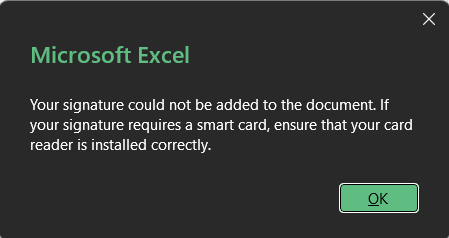
Hello, I work for an IT support section and am having difficulties with resolving an issue with signature lines. The users have recently received new Windows 11 devices with Office 365 enterprise applications installed (Excel, Word etc.). Signing signature lines on Excel workbooks worked when they were on Windows 10 on their older devices. They had generated user certificates on their previous devices that were able to be used to sign signature lines with. I've used our Networks trusted CA to publish new certificates to the Personal > Certificates on the current user certificates. I've done this the same way as I did when on W10. What I've found is that the certificate is able to be used to sign documents in Word but not Excel. Version of Office: Microsoft 365 Apps for enterprise 2605 16.0.20026.20182 I have found the following error in the diagnostic log for Excel relating to the error code -2147418113 which the Microsoft error code tool advised it was a Catastrophic failure referenced as "E_UNEXPECTED". None of the information obtained so far has helped me fix the issue. The only clue I can see is htat it works in Word and not Excel. Can anyone advise?25Views0likes0Comments