Forum Widgets
Latest Discussions

Tab header font issue when the "new zoom" feature is enabled
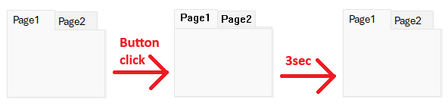
We found a curious font display issue, which can only be reproduced if the "new zoom" feature flag is active: We can reproduce it with build 20026.20076 with the zoom slider visible (e.g. in the "Current Channel (Preview)"), but we cannot reproduce it on the same build with the zoom slider invisible (e.g. on a freshly updated system in the Current Channel, which has not received the staged rollout yet) or with older builds (e.g. the current Monthly Channel build). The problem itself is unrelated to zooming. Repro 1. Create a new Access database. 2. Create a new form in Design View. 3. Add a Tab Control. 4. Set the tab control's "Use Theme" property to "No". 5. Add a button with the following code: Private Sub Command3_Click() Dim start As Double ' Localize the page name, if you use a non-English version of Access Me.Page2.Visible = True ' Simulate long-running operation (3 seconds) start = Timer Do Until Timer > start + 3: Loop End Sub 6. Save and open the form in Form View. 7. Click the button. Expected result: Nothing happens for 3 seconds. Actual result: The tab header's font switches to some old raster system font (MS Sans Serif?). After 3 seconds, the form returns to the 21st century. This issue is easy to work around: just do the long-running operation before setting the Visibility property, this will reduce the font-change to a short flicker. Still, this appears to be an unintended side effect of the changes made for the "new zoom" feature, so I thought it might be helpful to report it while that feature is still being worked on.HeinziATMay 26, 2026Iron Contributor56Views0likes2Comments
Access selecting specific date on a calendar
I'm pulling my hair out because everything I've found through my research says my VBA code should work, but it doesn't! Here's the story. I have a calendar (form) that shows events going on for each month. What I want is for a person to click on a specific day and have a pop-up form appear showing more details of the events for whatever day they clicked on. I used the below code, which mostly works... When I click on a date, the month and year will be correct, but not the day of the month. The day of the month is always today's day. For example, let's say I click on the day Feb. 2, 2024 and today's date is May 21, 2026. My pop-up form will show the events for Feb. 21, 2024. This is the code I have: Private Sub lblTue3_Click() Dim txtSelectDate As Date (probably don't need this) Dim iDayOfMonth As Integer Dim iMonth As Integer Dim iYear As Integer Dim dSelectDate as Date iDayOfMonth= Format(Me.txtSelectDate.Value, "d") iMonth = Format(Me.txtSelectDate, "mm") iYear = Format(Me.txtSelectDate, "yyyy") dSelectDate = CDate(iMonth & "/" & iDayOfMonth & "/" & iYear) DoCmd.OpenForm "frmThatContainsMyData", acNormal, , "[DateOnFormUsedForFilter]=#" & dSelectDate & "#", , acDialog Instead of Format, I've tried using the code Day(Me.txtSelectDate), but that didn't work either. It always defaults to the day of the month that's today. Can anyone tell what I'm doing wrong? I've checked the formatting, and everything is set to 'Short Date'... I'm just at a complete loss! Any help is greatly appreciated!nicoleethierMay 21, 2026Brass Contributor146Views1like11Comments
How do I get support with Authentication when it doesn't work?
I have a business 365 account but changed address and so my credit card payments stopped. However, I can't log in to my account because I have an authentication problem (my authentication app on iPhone is still working but the entry for this account has gone and there is a new one called "Microsoft Entra ID" but when I go to get the authentication code this "Entra ID" authenticator does not produce it). To get help from Microsoft it always asks for authentication. I would like to keep this account and start paying again but I can't find a way to get help to fix the authentication problem because raising a ticket or talking to an agent requires authentication.worklessMay 02, 2026Copper Contributor88Views0likes3Comments
Stumped on auto populate staying in a combo box
This is embarrassing. I’ve been building databases since 1999 and now I’m stumped I have an MS Access database with a combo box that is used to select specific records. These records have two particular fields. A primary key named “Track” and a value associated with it called FTitle. Track is a numeric field and FTitle is text. FTitle shows the job title. I had this working beautifully on a database for six years. Go into the combo box, start typing in the FTitle and it would auto populate with an FTitle name. I've checked everything. Auto expand and everything else Two things are happening here. I cannot get an autopopulate combo box to work. It works when I make it. Then when I reopen the form it stops working. I tried to add options to the existing front end which autopopualted perfectly. It seems that when I added a subform to the form the combo box auto populate on stopped working. Any advice??Robert_MassieMay 01, 2026Copper Contributor77Views0likes2Comments
SQL Query editing UI issue
Hi everyone. For a couple of weeks now, my Access hasn't let me edit queries within the SQL option. Version: Access 2604 (Build 19929.20090) Basically, when I access the SQL View, I see the SQL code but can't select it or move the cursor to easily edit the text. It's difficult to explain, but I hope the following video helps: https://drive.google.com/file/d/1knAAwVS48m8WsarmhLeOVFWOdFuCqaUz/view?usp=sharing I've already tried restoring and resetting the installation, but to no avail. I hope you can help. Bets Regards, EmilianoEmiliano76Apr 27, 2026Copper Contributor81Views0likes4Comments
version 2604,new bug?
access 365 updated to version 2604, does it destory odbc cache? system show sql login windows continuously. using odbc dns-less to link azure sql database. After the upgrade, the system became completely unusable.Weichen YangApr 15, 2026Copper Contributor609Views0likes9Comments
Edge Browser Control stealing Focus
I am facing an issue with the Microsoft Access Edge (WebView2) browser control in VBA Office 365. I have two forms displayed side by side: The first form contains a grid/list of records. The second form contains an Edge browser control that loads an HTML file. When a record is selected (or navigated using arrow keys) in the grid, I dynamically delete and recreate an HTML file with details of the selected record, and then call the Edge browser control’s Navigate method to load that file. The problem is: Arrow key navigation works correctly in the grid when the Edge browser control is not used. Once I add the Edge browser Navigate call, the browser control takes focus. After that, arrow key navigation in the grid stops working because focus shifts to the browser. Attempts to manually set focus back to the grid (SetFocus, timers, etc.) are not reliable. Tried this in documentcomplete event also, but not working. The issue seems to be related to the asynchronous behavior of the Edge browser control, which keeps reclaiming focus. What is the best way to reliably prevent or reclaim focus from the Edge browser control so that keyboard navigation in the grid continues to work smoothly?udaythejaApr 04, 2026Copper Contributor142Views0likes1CommentMulti-line Text Box misleading text and cursor display
Starting with 365 Version 2603 on 4K monitor, in a multi-line text box, typing multiple words followed by line feeds (Enter key) then moving cursor back up to previous line causes trailing characters to disappear, entering characters at the end of the line shows the new character with the cursor in front of it, and other bizarre behavior. Selecting all the text shows it is all there but trailing characters at the end of a line can disappear depending on cursor position. If I change the monitor resolution to 2K, the issue goes away. If I rollback to version 2602 the issue goes away. This is an issue with version 2603 on 4K monitors. We have many customers reporting the same issue.RJBrenemanTooApr 03, 2026Copper Contributor285Views1like8CommentsAccess adds brackets to text in quotes in Iif statement
I have a query of 1 short text field. If the field has the value "NOCOV" I want to return Null, otherwise I want the value in the short text field. The problem is that Access add brackets around "NOCOV" and treats it like a parameter. I enter: PRM_PreMedicare_Plan_ID: IIf([PRM Pre-Medicare Plan ID]=“NOCOV”,Null,[PRM Pre-Medicare Plan ID]) The result is: PRM_PreMedicare_Plan_ID: IIf([PRM Pre-Medicare Plan ID]=[“NOCOV”],Null,[PRM Pre-Medicare Plan ID]) It doesn't matter if I use <> or Like instead of = or Switch instead of IIf. The same problem occurs. I don't know how to prevent Access from adding brackets. I'm using Access for Office 365 Version 2603.WoodyWhite981Apr 01, 2026Copper Contributor88Views0likes2Comments

Tags
- access1,707 Topics
- office 365393 Topics
- 2016205 Topics
- developer198 Topics
- Access Web Database104 Topics
- Access Web App59 Topics
- sharepoint55 Topics
- 201354 Topics
- admin45 Topics
- 201044 Topics