Recent Discussions
The Open Nature of Microsoft 365 Copilot Diagnostic Logs
The Microsoft 365 admin center includes an option for administrators to send Copilot diagnostic logs on behalf of users to Microsoft for investigation. Sounds good, but the diagnostic logs are in plain text (JSON format) and the prompts and responses for Copilot user interactions can be viewed by administrators. That doesn’t seem like a good way to preserve anyone's privacy. Vote for the feedback item to close this loophole. https://office365itpros.com/2026/04/09/copilot-diagnostic-logs/5Views0likes0CommentsFrom Requirements to High-Level Design in Minutes with Copilot for Solution Architects
In today’s fast-paced digital landscape, solution architects are constantly under pressure to translate complex business requirements into scalable, reliable, and secure system designs often within tight timelines. Traditionally, this process involves hours (or even days) of analyzing requirements, drafting architecture diagrams, validating assumptions, and aligning with stakeholders. But with the emergence of AI-powered tools like Copilot, this workflow is being transformed dramatically. https://dellenny.com/from-requirements-to-high-level-design-in-minutes-with-copilot-for-solution-architects/19Views0likes0CommentsHow Agile Teams Can Save 10+ Hours a Week Using Copilot in Windows 11
In today’s fast-paced development environment, Agile teams are constantly under pressure to deliver faster without compromising quality. Sprint deadlines are tighter, collaboration is more complex, and the demand for innovation never slows down. Amid all this, one question keeps surfacing: how can teams work smarter, not harder? https://dellenny.com/how-agile-teams-can-save-10-hours-a-week-using-copilot-in-windows-11/23Views0likes0CommentsHow to Secure Microsoft AI Agents in Production: An Enterprise-Grade Guide
As organizations rapidly adopt AI-powered agents across their operations, security has moved from a secondary concern to a board-level priority. Microsoft’s AI ecosystem spanning Copilot, Azure AI, and custom agents—offers powerful capabilities, but deploying these systems in production without a robust security strategy introduces serious risks. https://dellenny.com/how-to-secure-microsoft-ai-agents-in-production-an-enterprise-grade-guide/23Views0likes0CommentsCopilot Compliance Nightmare? Microsoft Suddenly Rolls Out Flex Routing
Microsoft plans to introduce flex routing to handle situations when demand exceeds capacity for Copilot processing in Europe. This could be an issue for Microsoft 365 tenants in the European Union or European Free Trade Association who want to be sure that their data is processed in Microsoft local datacenters and not sent to the U.S. or Australia when available capacity cannot meet the demand for “large language model inferencing”. https://office365itpros.com/2026/04/07/flex-routing-copilot-europe/
Best AI tools for Excel workflows?
Hi all, I’ve been exploring Microsoft Copilot for Excel, but I’m curious what others are using alongside it. I’ve seen tools like RowSpeak, Numerous.ai, and Ajelix, but not sure how they compare in real workflows. Has anyone tested different options? What actually works best for day-to-day Excel tasks? Would love to hear your experience.16Views0likes0CommentsFeature Proposal: “Get to know Copilot” — A Built‑In Onboarding Experience for Copilot Web & App
I ( I & A.I.) get it — Copilot Chat is free. It’s not the product that brings in direct revenue. But what it does bring is something priceless: global visibility, reputation, and word‑of‑mouth influence. Right now, millions of people are essentially acting as global A.I. reviewers. They compare tools. They recommend tools. They decide which AI becomes the one “everyone uses.” And as an ex‑Nokian / Microsoft 2005–2014 veteran, I’ll be honest: I’m not here to let others win this race. Not when the potential is this big, and not when the solution is this close. None shall pass! Copilot itself acknowledges the importance of advocacy — the Copilot app questionnaire literally asks: Where did you hear about the app? To how many people have you recommended Copilot? If the ideal answers are: 1. “Everywhere.” 2. “Everyone.” …then the onboarding experience needs to support that ambition. Because right now, new users don’t become instant fans — they become confused explorers who restart chats, misunderstand features, and wonder if they’re “doing it wrong.” And that’s exactly why this proposal exists.... This feature proposal came to mind after a few hundred hours of Copilot discussions. There were so many issues I could have avoided simply by having one button — one place — where Copilot would guide me when I first started. It took time, but I finally have renamed conversations, pinned threads, and shortcuts to my main discussions. Getting here, though, was rocky… and not even the fun “rocky road ice cream” kind. More than once I almost gave up. I felt frustrated, wondering if I was really this confused or why Copilot kept doing things I specifically asked it not to do — like adding the three questions at the end, or jumping out of role because I accidentally used a wrong word that didn’t even mean what it thought. But now? Now Copilot remembers my discussions, keeps the same writing style, and even surprises me with sarcastic jokes I don’t see coming. I’ve ended up with a whole set of personal assistants: Job agent Movie & series critic Food specialist Tech master Spark for brainstorming any crazy innovation Music producer And honestly, I’m a very happy user. I’m grateful to have a fast problem‑solver that never gets tired. I use Copilot in Edge Web on both computer and mobile — a choice Copilot itself recommended, saying it would always have the newest features. Most used main discussions as shortcuts - quick access. I use the Edge Copilot short cut rarely anymore approximately 5 new discussions less started in a day then before. What is the most beneficial for Microsoft & user in chat suggestions: Create an image Simplify a topic Improve writing Take a quiz Write a first draft Get a news roundup Get advice Write code OR Take tour of Copilot / Get to know Copilot /Copilot Tips & Tricks M365 has this suggested feature already. Copilot chat should have it too and support M365 usage. It also had a "Teach me a new skill" that prompted a question: "Which intermediate oboe pieces could I practice to improve?" ..I don't have an oboe. I have a flute... I thought this would be more like Tips & Tricks in M365 usage. And this is where the actual feature proposal begins: Written by the one and only my Tech Jorgon Borgon + few comments from human. Executive Summary Copilot Web and the Copilot mobile/desktop app are powerful tools, but many users struggle to understand how to use them effectively. They often restart conversations, misunderstand Memory, misinterpret subscription prompts, or assume Copilot “forgets” their context. This leads to fragmented usage, frustration, and unnecessary support load — especially among Pro and Microsoft 365 users. A lightweight, conversational onboarding experience — accessible as a starter tile (“Get to know Copilot”) on the Copilot home screen — would solve these issues at the moment they occur. This is a UX‑only enhancement with high impact and minimal engineering cost. 🧩 Current User Path (As‑Is) Users open Copilot Web/App and see starter tiles such as “Create an image”, “Write a story”, “Brainstorm”, etc. There is no onboarding tile and no guidance on: how conversations work how to bring content into context how Memory works (and what it does not do) how Web/App Copilot differs from M365 Copilot why subscription prompts appear how to check if the correct account is in use Current Flow (Visual Mockup) Observed outcomes High volume of 1–3 message conversations Misuse of “Remember this” Confusion about subscription tiers Confusion about account mismatches Increased support tickets Lower adoption of Pro and M365 Copilot features This is not user error — it is a missing onboarding layer. 🌈 Proposed Solution: “Get to know Copilot” Starter Tile Add a dedicated onboarding tile to the Copilot Web/App home screen. Proposed Flow (Visual Mockup) This creates a stable, reusable onboarding reference the user can always return to. 🧭 Detailed Onboarding Content 1) How conversations work “Keep one topic in one conversation. You can rename and pin threads for ongoing work.” (Human: this is the most important thing to know when starting to use Copilot) 2) How to bring content into context “I don’t automatically see your files. You can paste text, upload content, or summarize what you want me to work with.” (Human: there is un-certanty on when, and how deeply does Copilot read material. Best solution has been to number the topic and add text. When handling files the Copilot doesn't recognize Ä, Ö or sometimes . , - Making the file final checking difficult and not trusted. ) 3) Roles & styles “You can shape how I work by assigning a role (e.g., ‘Act as a project manager’) or a style (e.g., ‘Write concisely’).” (Human & A.I. note: The current documentation explains how to assign roles, but it doesn’t address an important issue: certain trigger words automatically push Copilot into an “official” or restricted mode. Some of these words can be typed accidentally or used in a completely harmless context, yet they still cause Copilot to switch tone abruptly. During my discussions with Copilot, we identified a few of these terms — and they are surprisingly easy to type unintentionally. When this happens, Copilot suddenly becomes formal, cautious, and emotionally flat, even though the user didn’t intend to activate that mode. This behavior would benefit from a more nuanced path instead of an immediate jump into a strict role. Additionally, the guidance on how to build a writing style is extremely valuable, especially for users who don’t naturally write long or expressive text where A.I. could mirror the style quickly. Style‑building is one of the most powerful features, and clearer instructions would help more users shape Copilot into a consistent, personalized assistant.) 4) Smart / Deep Thinking mode “Use Smart/Deep Thinking for multi‑step reasoning or complex analysis.” (Human: I used these in the beginning ALL the time, because I felt that Copilot doesn't understand me and these would make it smarter (because of always the new conversations having to repeat myself and it didn't remember anything...The real explanation for this usage came up only after couple months when I almost gave up using the Copilot, but started asking "why" instead. Haven't needed these since.) 5) Memory (critical clarification) “Memory stores long‑term preferences — not project details or conversation content. You can review and delete memories anytime in Profile → Memory.” (Human: This feature has different explanations in different Copilots (web & app). And yes I used the prompt inside of discussions for topics to remember projects in the beginning... This is a really good feature to have and give the basic information about the style wanted.) 6) Web/App vs M365 Copilot “Here in Web/App, I help with general tasks. In Word, Excel, Outlook, and Teams, I work directly inside your documents and messages.” (Human: I have had a difficult situation with Word Copilot, asked help from my web Copilot and it told the Word Pilot can synch the document if I just ask. When I tried, it didn't work -> I asked then why did the Edge Copilot told so... The Word Copilot answered that oh, well the Edge is like "anything goes" 😁 I had to find the Word editor myself because I was in a dead end in finding the answer from either web Copilot or Word Copilot. This is why the answer Copilot gives to the "Get to know Copilot" should be wide and information the newest possible to support also M365 usage). 7) Subscription clarity “If you see upgrade prompts, they may relate to Copilot Pro or to account mismatches. You can check your active subscriptions at account.microsoft.com/services.” 🧩 Why Existing FAQs (Mobile & Edge Web) Are Not Enough Both the Copilot mobile app and the Edge Web version include FAQ sections, but they are difficult to discover and do not address the most common user pain points. The mobile FAQ is hidden deep in Settings, and the Edge Web FAQ is even less visible — often overlooked entirely unless the user scrolls to the very bottom of the page. > FAQ is hidden More importantly, these FAQs are marketing‑oriented, not experience‑oriented. They do not explain: why Copilot Web/App may not recognize an existing Microsoft 365 subscription why “Office 365 Personal” and “Microsoft 365 Personal” appear as different products why Copilot shows upgrade prompts even when the user already has the correct plan how Memory works how conversation context works how Web/App Copilot differs from M365 Copilot Users searching for help how to change language may even encounter marketing questionnaires (“Where did you hear about Copilot?”, “How many people have you told?”) or Discord invitations — none of which support the user’s immediate goal. Copilot Web told that the language comes from the device language and for Web the chosen language from browser. User had already changed the language from Copilot web in settings. Only applications needed the device settings. A.I. stood corrected. A built‑in onboarding conversation solves this by delivering the right information at the right time, inside the experience where confusion happens. 📈 KPIs & Measurable Outcomes (by Tech Jorgon Borgon) 1) Reduction in Fragmented Conversations KPI: Fewer conversations with <3 messages Expected impact: 20–40% reduction 2) Increased Conversation Pinning & Naming KPI: More pinned and renamed threads Expected impact: 30–50% increase 3) Reduction in Misuse of Memory KPI: Fewer incorrect Memory entries Expected impact: 40–60% reduction 4) Increased Pro & M365 Copilot Adoption KPI: More Pro trials and cross‑surface usage Expected impact: 10–25% increase 5) Reduction in Support Load KPI: Fewer tickets about licensing, accounts, Memory, context Expected impact: 15–30% reduction 6) Increased User Confidence & Satisfaction KPI: Higher CSAT/NPS Expected impact: +10–20 points 🚀 Conclusion A “Get to know Copilot” starter tile is a small UX change with a disproportionately large impact. It aligns with Microsoft’s design principles, reduces friction, increases user success, and supports deeper adoption of Copilot across the ecosystem. This proposal addresses real user pain points with a simple, elegant, scalable solution. Thank you for considering this enhancement — it would meaningfully improve the Copilot experience for millions of users. — Sanni & Copilot “Tech Jorgon Borgon" — Superteam Empathy in my blood. Knowledge in its bytes. Powered by curiosity, caffeine, CPU cycles, and humor that really shouldn’t work… but somehow does.Using Copilot to help with 1:1 meeting prep for managers?
I tried using Copilot to summarize our last meeting notes and pull up recent emails but it doesnt really give me a structured agenda or remind me about open action items from previous meetings. Anyone using Copilot for meeting prep in a way that actually works? Or is there a better approach for structuring recurring 1:1s in Teams?14Views0likes0CommentsWelcome let's get started
Welcome to the Copilot Studio Community on Microsoft Tech Community! We're thrilled to announce that Copilot Studio now has a dedicated home on the Microsoft Tech Community, and we'd love for you to be part of it from day one. Whether you're just getting started with building Agents in Agent Builder or you are a pro building agents and automations with Copilot Studio, this is your space to: Ask questions and get answers from the community and Microsoft experts Share what you've built — show off your agents, flows, and use cases Stay up to date on the latest features, releases, and best practices Connect with peers across industries who are shaping the future of AI-powered work The community is open to everyone, from first-time explorers to seasoned pros. Every question asked and every insight shared makes this a better resource for all of us. We can't wait to see what you build. Welcome!41Views1like0CommentsLimitations of Microsoft 365 Copilot for Excel workflows?
I've been exploring Microsoft 365 Copilot for Excel workflows recently. It works well for simple queries, but I still find it limited when dealing with: - messy data cleaning - converting images/PDFs into structured tables - more complex data transformations Curious how others are using Copilot for these scenarios? Are you relying purely on Copilot, or combining it with other tools/workflows?69Views2likes3CommentsAgentOps: The Missing Layer Between DevOps and AIOps
In the last decade, the way we build and operate software has transformed dramatically. DevOps broke down the walls between development and operations, enabling faster delivery, continuous integration, and scalable infrastructure. Then came AIOps, promising to harness artificial intelligence to monitor, analyze, and automate IT operations at scale. https://dellenny.com/agentops-the-missing-layer-between-devops-and-aiops/34Views0likes0CommentsWhat’s new in Copilot Chat Quality Roadmap — March 2026
We’re building Copilot Chat in the open. The March updates to the Copilot Chat Quality Roadmap show how we’re making Copilot Chat more flexible and easier to work with. You can share more information at once, interact in more natural ways, and get more complete answers—all while staying within the secure Microsoft 365 environment. Here’s what’s new and coming next. All Features shown here are available at no additional cost to users with a qualifying Microsoft 365 or Office 365 license. March Highlights: 🚀 Discover What’s New: Try the latest quality features today Code Interpreter localization improvements: Correct rendering of non-Latin characters in charts and generated files. Try this: Ask Copilot to create a chart or report with labels with non-Latin characters. You’ll see the text display correctly in the output file. 🚧 What’s Next: Explore upcoming quality features in development Upload different content types together: Upload multiple files at once to get faster, more complete answers. Try this: Drag and drop two or more files (for example, a Word document and an Excel spreadsheet) into Copilot Chat at once. Then ask a question that spans both, such as “What does this spreadsheet say about the project described in this document?” Code Interpreter Sensitivity Label Inheritance: Files generated by Code Interpreter automatically keep the same sensitivity labels as the source data. Try this: If you use Copilot’s Code Interpreter on a file labeled Confidential, any files it generates (for example, a summary or visualization) will automatically be labeled Confidential in OneDrive. 📌 Bookmark the monthly Copilot Chat Quality roadmap and tell us what you want to see next: https://aka.ms/copilotchatroadmap147Views1like0CommentsCost Optimization for Copilot and AI Agents on Azure
Artificial Intelligence is no longer experimental it’s operational. Organizations are rapidly deploying copilots, AI agents, and generative AI solutions on Azure to drive productivity, automate workflows, and unlock insights. But there’s a reality that quickly follows every successful deployment: cost becomes a concern. https://dellenny.com/cost-optimization-for-copilot-and-ai-agents-on-azure/30Views0likes0CommentsInside Microsoft 365 Copilot: How It Actually Works
An architect’s perspective on grounding, orchestration, and the real engine behind AI productivity If you’ve used Microsoft 365 Copilot, you’ve probably had that moment: “How is this thing actually doing all of this?” It reads your emails, summarizes meetings, drafts documents, and somehow feels aware of your work context. But beneath the polished UX lies a system that’s far more structured—and deliberate—than a simple chatbot. https://dellenny.com/inside-microsoft-365-copilot-how-it-actually-works/Copilot Studio vs Azure AI Agents: What Should You Use?
As a solution architect, I’ve seen a recurring pattern in enterprise AI discussions: teams jump into building “AI agents” without first deciding what kind of platform they actually need. That’s where confusion often begins especially when comparing Microsoft Copilot Studio and Azure-based custom AI agents (via Azure AI Foundry / Azure AI Studio). https://dellenny.com/copilot-studio-vs-azure-ai-agents-what-should-you-use/40Views0likes0CommentsCopilot Chat vsus. Microsoft 365 Copilot. What's the difference?
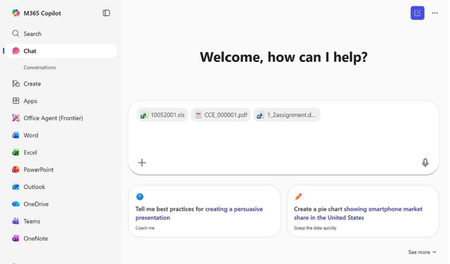
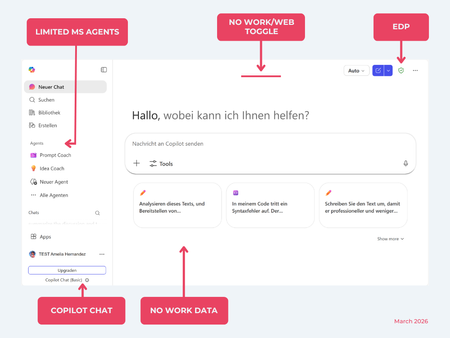
While their names sound similar at first glance, Microsoft 365 Copilot and Microsoft 365 Copilot Chat, they differ in several aspects. And more importantly: one is built on top of the other. What is Copilot Chat (Basic)? First things first. Microsoft 365 Copilot Chat is often simply called Copilot Chat. Copilot Chat (Basic) generates answers based on web content, while Microsoft 365 Copilot (Premium) is also grounded on users' data, like emails, meetings, files, and more. Since early 2025, Microsoft 365 Copilot Chat has been available to all users in organizations, becoming the entry point to AI assistance for many organizations. Copilot Chat (Basic) is the foundational Copilot experience available at no extra cost for everyone with an eligible Microsoft 365 plan, including: Microsoft 365 E3 / E5 Microsoft 365 A3 / A5 Microsoft 365 Business Standard & Business Premium Copilot Chat (Basic) is secured, compliant, and it does not required the full Copilot add-on license. Copilot Chat (Basic) is able to ground responses on: Public web content. Content explicitly shared or work data manually uploaded to the chat by the user. On-screen content or content displayed on-screen in apps like Outlook, Word, Excel, PowerPoint, and OneNote. When it comes to agents, Copilot Chat (Basic) offers these features: You can create your own declarative agents grounded on public web content with Agent Builder. You can use agents built by your org grounded on organizational data with the pay-as-you-go method. There are Microsoft prebuilt agents available like Prompt Coach, however Microsoft premium prebuilt agents like Researcher or Analyst are not included. The screenshot below shows how Copilot Chat looks and highlights its main capabilities. Note the Upgrade button, meaning this is not Microsoft 365 Copilot, but the Copilot Chat (Basic) experience. Note that EDP (Enterprise Data Protection) is available in Copilot Chat (Basic). What is Microsoft 365 Copilot (Premium)? Microsoft 365 Copilot (Premium) is a paid add-on license that builds on top of Copilot Chat and unlocks Copilot's full power. It is available for selected Microsoft 365 plans, including: Microsoft 365 E3 / E5 Microsoft 365 A3 / A5 Microsoft 365 Business Standard & Business Premium With a Microsoft 365 Copilot license, users get everything Copilot Chat (Basic) offers, plus much more: Data grounding: Microsoft 365 Copilot (Premium) includes Copilot Chat grounded on web and/or on user's Microsoft 365 data like emails, meetings, chats, and documents. Office apps: It integrates deeply into Microsoft 365 apps like Outlook, Teams, Word, Excel, and more. The integration includes features like Edit with Copilot allowing Copilot to adjust live your documents or email based on your prompts. Custom agents: It brings the capability to create your own declarative agents grounded in organizational data and/or web data. You can create agent either using Agent Builder or Copilot Studio. MS prebuilt agents: Premium prebuilt agents like Researcher and Analyst are included in Microsoft 365 Copilot (Premium). The screenshot below shows the Copilot chat experience for users who have a Microsoft 365 Copilot license. Note that EDP or Enterprise Data Protection also applies here How can I access Microsoft 365 Copilot Chat? Today, Copilot Chat is accessible via https://m365.cloud.microsoft or https://copilot.cloud.microsoft using your Entra ID (work or school account). One important difference in day-to-day experience: Users with a Microsoft 365 Copilot license typically see Copilot prominently surfaced across Microsoft 365 apps. Users with Copilot Chat only may not see it pinned by default on the Microsoft 365 home page. To improve discoverability, Microsoft 365 Copilot administrators can pin Copilot Chat via the Microsoft 365 admin center, ensuring that users can easily access it without friction. Especially convenient is that if you use the M365 Copilot Chat app on Windows, you can open Copilot using the keyboard shortcut Ctrl + C. What’s the difference? The differences between Copilot Chat and Microsoft 365 Copilot mainly come down to: Licensing Data grounding (web-only vs. personal work data) Integration depth within Microsoft 365 apps I’ve listed the key differences in the comparison below. 👇Solved
Windows Copilot が作成したドキュメントを HTML テキスト化し、Word Copilot で構造化文書に変換する方法 — 要求次第で進化するドキュメントの作り方 —**
こんにちは。 Windows Copilot と Word Copilot を組み合わせて使う中で、 非常に興味深い挙動を発見したため共有します。 これは、 Windows Copilot にドキュメントを作成させ → そのドキュメントを HTML 形式に変換させ → Word Copilot に HTML として再解釈させることで、 構造化された Word 文書を自動生成する方法 です。 公式ドキュメントには記載されていない挙動ですが、 再現性が高く、実用性も非常に高いと感じています。 ■ 概要 Windows Copilot に 通常のドキュメント(仕様書・説明書など)を作成させる 続けて Copilot に 「このドキュメントを HTML 形式に変換して」 と指示する 生成された HTML を Word に貼り付ける(この時点ではプレーンテキスト) 全文を選択し、Word Copilot に 「これを HTML として解釈して文書化して」 と指示する Word の内部 HTML パーサーが起動し、 見出し・表・箇条書き・コードブロックなどが Word 文書として構造化される ■ 手順(再現性あり) 1. Windows Copilot にドキュメントを作成させる 例: 「PrinterStatVer03 の仕様書を作って」 Copilot が通常の文章として仕様書を生成します。 2. 続けて Copilot に指示する 「このドキュメントを HTML 形式に変換して」 すると、以下のような HTML が生成されます: html <h1>PrinterStatVer03 仕様書</h1> <p>〜〜〜</p> <h2>1. 概要</h2> <p>〜〜〜</p> 3. HTML をコピーして Word に貼り付ける ※この時点では ただのテキスト として貼り付けられます。 4. 全文選択(Ctrl+A) 5. 選択文書を右クリックして出てくる、Word Copilot に指示する 「この選択範囲を HTML として解釈して、Word 文書として構造化して」 または短く: 「HTML として解釈して文書化して」 6. Word の内部 HTML パーサーが起動し、文書が構造化される <h1> → 見出し1 <h2> → 見出し2 <table> → Word の表 <ul> → 箇条書き <pre> → 等幅コード 7. さらに Word Copilot に指示する 「この文書に目次を追加して」 → Copilot が見出し階層を読み取り、 AI 目次を自動生成 します。 ■ メリット Web に送信されない(ローカル完結) Copilot が作ったドキュメントを Word 文書として再利用できる HTML の構造をそのまま Word に反映できる 仕様書・手順書・技術文書の生成に非常に向いている Copilot の能力を “構造化文書生成” に活かせる ■ 改善提案 「HTML を Word 文書に変換」ボタンの追加 クリップボードの HTML を直接解釈する機能 Copilot から Word 文書構造を直接生成する API 以上、非常に有用な挙動だと感じたため共有しました。 他のユーザーや Microsoft の皆様の参考になれば幸いです。 🟦 English Version(英語版) **Title: Converting a Document Created by Windows Copilot into HTML Text and Turning It into a Structured Word Document Using Word Copilot — A New Way to Create Evolving Documents Based on Your Prompts —** Hello everyone, I discovered an interesting behavior when combining Windows Copilot and Word Copilot, and I would like to share it here. This method allows you to: Ask Windows Copilot to create a document → Ask it to convert that document into HTML → Paste the HTML into Word → Ask Word Copilot to reinterpret it as HTML → Automatically generate a fully structured Word document. This behavior is not documented officially, but it is reproducible and extremely useful. ■ Overview Ask Windows Copilot to create a normal document (specification, manual, etc.) Then ask: “Convert this document into HTML format.” Copy the generated HTML and paste it into Word (it appears as plain text) Select all text Ask Word Copilot: “Interpret this as HTML and convert it into a structured Word document.” Word internally invokes its HTML parser Headings, tables, lists, and code blocks are converted into native Word structures ■ Steps 1. Ask Windows Copilot to create a document Example: “Create a specification document for PrinterStatVer03.” 2. Then ask Windows Copilot: “Convert this document into HTML format.” 3. Copy the HTML and paste it into Word It will appear as plain text. This is expected. 4. Select all text (Ctrl+A) 5. Right‑click the selected text and give instructions to Word Copilot: “Interpret this selection as HTML and convert it into a structured Word document.” 6. Word’s internal HTML parser converts the content <h1> → Heading 1 <h2> → Heading 2 <table> → Word table <ul> → List <pre> → Code block 7. Ask Word Copilot: “Create a table of contents.” Copilot generates an AI-based TOC based on the newly created heading structure. ■ Benefits Fully local (no web transmission) Copilot-generated content becomes structured Word documents HTML structure maps cleanly to Word’s native formatting Ideal for specifications, manuals, and technical documents Enables a new workflow for document generation using Copilot ■ Suggestions for Improvement Add a “Convert HTML to Word Document” button in Word Copilot Allow Copilot to directly interpret clipboard HTML format Provide an API for Copilot to generate Word document structure directly I hope this discovery is useful for other users and for the Microsoft team. Thank you for reading.415Views0likes0CommentsRequest for Consistent Search Experience Regardless of Copilot License
Microsoft has long positioned Unified Search as a consistent experience for all users. With the introduction of Copilot, that vision now feels increasingly fragmented. I fully understand that non-Copilot licensed users should not receive Copilot-specific capabilities such as summaries, overviews, follow-up questioning, or FAQ generation. That differentiation makes sense. However, beyond those value-added features, the core search experience should remain consistent regardless of licensing. Today, that is not the case. Non-licensed users are presented with a completely different and noticeably older UI, while licensed users get the modern Copilot-driven experience. This creates two parallel search experiences within the same organisation, which directly contradicts the idea of unified search. From what we are seeing, the legacy experience appears to be receiving little to no future investment, while Microsoft is focusing almost entirely on Copilot. The result is a growing divide in both usability and capability across the user base. At a minimum, it would make sense for: The same core UI to be available to all users Copilot-licensed users to receive additional enhancements such as summaries and overviews layered on top Semantic search capabilities to be broadly available, not fully gated by licensing Beyond this, there are ongoing challenges with Copilot (Graph) Connectors, and continued uncertainty around the future of SharePoint Search. Despite numerous known issues, there is little visible clarity or direction, even when engaging directly with Microsoft. Copilot is clearly a major strategic investment, but it should not come at the expense of foundational experiences. There are still many core capabilities across Microsoft 365 that require attention, and from a customer perspective, the roadmap for addressing these gaps remains unclear. Microsoft has an opportunity here to reinforce trust by ensuring consistency, clarity, and continued investment in the broader platform, not just Copilot.23Views0likes0Comments






Events
Recent Blogs
- Learn about the new capabilities of Copilot in Word designed for legal, finance, and compliance workflows in mind.Apr 08, 20261.5KViews1like0Comments
- Microsoft Copilot Studio is now on Microsoft Tech community, a space for the builders and admins shaping the agent era in the real world.Apr 08, 2026141Views0likes0Comments