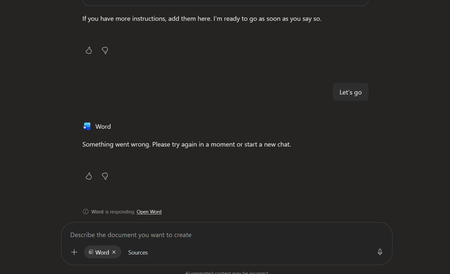
copilot in word
5 Topics
copilot app is unable to edit an excel file and save a new version
I asked copilot to review an excel file I created and add worksheets with dashboard etc; it does the analysis, suggests the solution but when I ask to save a new edited version comes up with all kinds of limitations.. example of message : I need access to the physical workbook file in the execution workspace, not just the extracted workbook content that I can read. What I currently have is access to the contents of "book2" , including all sheets and rows What I do not have is a file path that allows me to save a modified workbook and return a new Excel file. This is exactly the distinction you were asking about earlier: ✅ I can inspect and analyse "book2". ✅ I can design the full V2 architecture you specified. ❌ In this session I cannot yet create and return the modified .xlsx because the actual uploaded file is not available in the workbook-editing workspace. I save files on OneDrive and have MS365 Family subscription , similar limitations with all MS files is it a licence issue?17Views0likes0Comments
Microsoft Copilot 365 Personal Premium limits
In my Copilot Notebook, I deliberately loaded 20 PDF files in order to test Copilot’s grounding behavior across the full set of available references. At the time this testing setup was created, 20 references represented the effective grounding limit described for Copilot Notebooks, meaning that these references were expected to form the source base used by Copilot when generating grounded responses. The references consisted of fully functional, original academic textbooks containing relevant and up-to-date scientific information, mostly published within the last ten years. Importantly, the sources do not differ from one another in terms of accessibility, file type, availability, or how they were added to the notebook. They are all PDF files, they are all available in the same environment, and there is no obvious difference in access conditions that would explain why some are consistently used while others are repeatedly treated as inaccessible, unavailable, summarized, or skipped. The purpose of the test was therefore not simply to see whether Copilot could access 20 files, but whether it could actually ground its answers in the complete reference set when explicitly instructed to analyze all available sources. Despite this, in approximately 99.9% of my tests, Copilot appears to ground its responses in only 3 to 5 of the 20 available references, often repeatedly using the same documents. When I ask what happened to the remaining sources, Copilot gives different explanations. Sometimes it says that it does not have access to certain files. Sometimes it says that it only received a summary of the file. Sometimes it says that a step involved in retrieving or processing the information failed. The way Copilot explains this often makes it sound as if access to the uploaded files depends on some external or intermediate system, rather than being something Copilot itself can directly control. This is difficult to understand from a user perspective because the files are already uploaded into the Copilot environment and were specifically provided as source material for analysis. The practical result is that a task explicitly requesting analysis of 20 sources often produces an answer based on only 3 to 5 of them. For academic or research use, this is a serious limitation. If 15 to 17 out of 20 carefully selected sources are not actually examined, then the final synthesis cannot realistically represent the full source base. This also creates uncertainty about what Copilot means when it claims to have used the provided materials. My question to Microsoft is: Is there a technical limit on how much information Copilot can actually retrieve, open, and analyze from uploaded files during a single task or session? If such a limit exists, what is that limit? And why, when 20 valid PDF sources are uploaded and Copilot is explicitly instructed to analyze all of them, does it so often appear to open only 3 to 5 files, while describing the others as inaccessible, summarized, or unavailable because some retrieval step failed?188Views0likes0CommentsMicrosoft Copilot 365
To Microsoft: Serious Concerns Regarding the Actual Capabilities of Microsoft Copilot Microsoft, After 12 consecutive days of intensive testing of Microsoft Copilot, for approximately eight hours per day — around 96 hours of practical use in total — I have serious concerns about the accuracy of the way Copilot's functions and capabilities are described and presented by Microsoft. What I have observed in actual use is repeatedly and substantially different from what the product is presented as being capable of doing. This conclusion is not based on a single unsuccessful prompt, an isolated error, or a short test. It is based on repeated testing over many days, involving continuous academic, analytical, document-based, and multi-step tasks. One of the most serious problems is Copilot's inability to reliably maintain and use conversational context even within the same active session. For example, Copilot can generate a substantial piece of text and, in the immediately following interaction, claim that it cannot see or access that same text. It may ask the user to provide again information or content that Copilot itself generated only one response earlier. This makes it impossible to rely on the system for genuine sequential work. During testing, the same general problem has appeared in different forms: Copilot fails to return reliably to earlier tasks, loses access to information already established within the conversation, fails to connect consecutive instructions, and sometimes behaves as though previous parts of the same active session do not exist. This is particularly serious when Copilot is used for academic or research work. A workflow may require the system first to generate or analyse material, then classify it, compare it with another part of the work, identify its sources, reorganise it, and finally continue developing it. If Copilot cannot reliably access the result of the immediately preceding step, such a workflow becomes fundamentally unreliable. After approximately 96 hours of direct testing, it is increasingly difficult to regard these problems simply as occasional technical limitations. The discrepancy between Microsoft's descriptions of Copilot and the behaviour actually observed during sustained use is substantial enough to raise a much more serious question: whether the functions and capabilities attributed to Copilot in Microsoft's product descriptions accurately represent what the system can actually and reliably do in normal use. From the user's perspective, the current experience creates the impression that Microsoft's claims about Copilot's capabilities are misleading. A capability should not be considered a genuine product capability merely because the system can occasionally perform it under favourable conditions. If a feature is presented to users as part of the product's functionality, users should reasonably be able to expect that functionality to operate consistently enough to be relied upon. After 12 days of testing, that has not been my experience. The difference between the advertised or described capabilities and the actual behaviour of Copilot is not minor. In several fundamental areas — particularly conversational continuity, access to previous work within the same session, multi-step task execution, and reliable reuse of previously generated content — the practical experience does not correspond to the expectations created by Microsoft's descriptions of the product. After nearly 100 hours of testing, I am therefore questioning not simply the quality of Copilot, but the accuracy and transparency of Microsoft's representation of what Copilot is actually capable of doing. If Microsoft describes Copilot as possessing capabilities that repeatedly cannot be reproduced in sustained real-world use, then the issue is no longer merely whether Copilot occasionally makes mistakes. The issue is whether users are being given an accurate representation of the product they are being asked to use and pay for.184Views0likes0Comments