vdi
64 Topics
MDE for Non‑Persistent VDI — Implementation Guide & Best Practices.
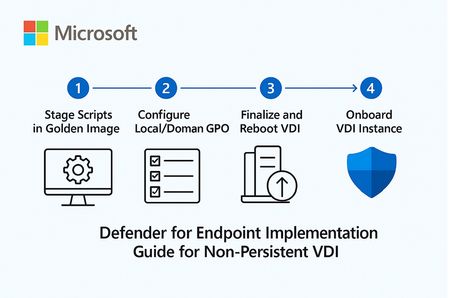
1. Overview: Microsoft Defender for Endpoint (MDE) for Non‑Persistent VDI Non‑persistent VDI instances are reset or reprovisioned frequently. To ensure immediate protection and clean device inventory, MDE provides a dedicated onboarding path that calculates a persistent device ID and onboard early in the boot process. Key considerations: Use the VDI onboarding package and choose the single‑entry method (recommended) to avoid duplicate devices when hosts are recreated with the same name. Place the onboarding script in the golden image but ensure it executes only on child VMs (first boot) after the final hostname is assigned and the last reboot completes. Never fully onboard or boot the golden/template/replica image into production; if it happens, offboard and clean registry artifacts before resealing. Consider enabling the portal feature “Hide potential duplicate device records” to reduce inventory noise during transition periods. 2. Stage the scripts in the Golden Image (do NOT onboard the image) Goal: Ensure early, reliable onboarding of pooled VDI instances without tattooing the master image. Download the Windows onboarding package (Deployment method: VDI onboarding scripts for non‑persistent endpoints). Extract and copy the files to: C\Windows\System32\GroupPolicy\Machine\Scripts\Startup Configure Local/Domain GPO to run the PowerShell script at startup (SYSTEM, highest privileges). For single‑entry, add Onboard-NonPersistentMachine.ps1 on the PowerShell Scripts tab. Ensure the script runs only after final hostname and the last reboot in your provisioning flow to prevent duplicate objects. Example (Domain GPO scheduled task at startup as SYSTEM): Program/Script: C\Windows\System32\WindowsPowerShell\v1.0\powershell.exe Arguments: -ExecutionPolicy Bypass -File \srvshare\onboard\Onboard-NonPersistentMachine.ps1 3. Never Onboard the Golden/Template/Replica VM If the golden image was accidentally onboarded (Sense service started), you must offboard and clean before resealing: sc query sense del "C:\ProgramData\Microsoft\Windows Defender Advanced Threat Protection\Cyber\*.*" /f /s /q reg delete "HKLM\SOFTWARE\Microsoft\Windows Advanced Threat Protection" /v senseGuid /f Run the official offboarding script for your tenant before cleanup, when available. 4. (Optional) Tag Devices Automatically from the Image Tags simplify scoping of device groups and policies. Add a DeviceTagging registry value during image build: reg add "HKLM\SOFTWARE\Policies\Microsoft\Windows Advanced Threat Protection\DeviceTagging" /v Group /t REG_SZ /d "VDI-NonPersistent" /f Tag appears after device info refresh; a reboot accelerates reporting. 5. Performance & AV Configuration for VDI (Important) 5.1 Shared Security Intelligence & Cache Maintenance Purpose: Reduce CPU and disk spikes at sign‑in by offloading unpackaging of definitions to a shared source and by pre‑running cache maintenance on the master image. Step‑by‑step GPO configuration: Create a secure UNC share for definition packages (e.g., \srvshare\WDAV-Update) and grant read to VDI computer accounts. GPO → Computer Configuration → Administrative Templates → Windows Components → Microsoft Defender Antivirus → Security Intelligence Updates → Enable “Define security intelligence location for VDI clients” and set \srvshare\WDAV-Update. In the same node, set update cadence (daily time) and enable randomization to avoid I/O storms. PowerShell examples: Set-MpPreference -SignatureUpdateInterval 4 Set-MpPreference -SignatureFallbackOrder "InternalDefinitionUpdateServer|MicrosoftUpdateServer" Run Windows Defender Cache Maintenance on the golden image before sealing: schtasks /Run /TN "\Microsoft\Windows\Windows Defender\Windows Defender Cache Maintenance" 5.2 FSLogix Exclusions Why exclusions matter: FSLogix mounts user profiles as VHD/VHDX files. Scanning these at attach/detach causes logon delays, black screens, and app launch slowness. Paths and extensions to exclude: %TEMP%\*.VHD %TEMP%\*.VHDX %Windir%\TEMP\*.VHD %Windir%\TEMP\*.VHDX \\<storage>\<share>\*.VHD \\<storage>\<share>\*.VHDX \\<storage>\<share>\*.VHD.lock \\<storage>\<share>\*.VHD.meta \\<storage>\<share>\*.VHD.metadata \\<storage>\<share>\*.VHDX.lock \\<storage>\<share>\*.VHDX.meta \\<storage>\<share>\*.VHDX.metadata GPO: Computer Configuration → Administrative Templates → Windows Components → Microsoft Defender Antivirus → Exclusions (File/Folder and Extension). PowerShell examples: Add-MpPreference -ExclusionExtension VHD,VHDX Add-MpPreference -ExclusionPath "C:\ProgramData\FSLogix","\\storage\fslogix-share\*.VHD*" 5.3 General Scan Posture Real‑time & cloud‑delivered protection (GPO): Enable Real‑time protection, Cloud‑delivered protection, Join MAPS, and “Block at first sight.” Scheduled scans (GPO): Daily Quick Scan (e.g., 02:00) with randomization window. Weekly Full Scan (e.g., Sunday 03:00). Consider “Start the scheduled scan only when computer is on but not in use” to reduce user impact. CPU throttling settings: Set-MpPreference -ScanAvgCPULoadFactor 30 # 5..100 (0 = no throttling) Additional scheduling/throttling options (Intune/Policy CSP as applicable): ScanOnlyIfIdleEnabled = True DisableCpuThrottleOnIdleScans = True ThrottleForScheduledScanOnly = True EnableLowCPUPriority = True Validation commands: Get-MpPreference | fl ScanAvgCPULoadFactor,ScanScheduleQuickScanTime,SignatureUpdateInterval Get-MpComputerStatus | fl AMServiceEnabled,AntivirusSignatureVersion,RealTimeProtectionEnabled 6. Validate Onboarding After first boot of a pooled VM, verify device appears in Defender portal (Assets → Devices). For single‑entry method, reboot/redeploy a few instances with the same hostname and confirm one device object is reused. Optionally enable “Hide potential duplicate device records” (Settings → Endpoints → Advanced features). This is like only filtering the view of Devices list does actual remove the records from the MDE portal. Run a detection test if needed (per Microsoft guidance) to verify sensor connectivity. 7. Quick Checklist — Build Step Download VDI onboarding package from Defender portal. Copy scripts to Startup folder in golden image; configure GPO/Task to run PS1 at boot as SYSTEM. Do NOT onboard/boot the golden image into production; if it happens, offboard + clean senseGuid & Cyber cache. (Optional) Set DeviceTagging registry value for scoping (e.g., VDI-NonPersistent). Configure Shared Security Intelligence path; schedule updates; run Cache Maintenance on master image. Apply FSLogix AV exclusions (paths + extensions). Set scan posture (RTP + cloud, schedules, CPU throttling). Validate onboarding behavior and inventory cleanliness. 8. Summary & Best Practices Checklist for golden image: Script staged, not executed on master; executes only on child VMs at final boot stage. Shared Security Intelligence path configured; cache maintenance pre-run. FSLogix exclusions present prior to first user logon. RTP and cloud protection enabled; scans scheduled with randomization; CPU load factor tuned. Common pitfalls & fixes: Golden image onboarded → Offboard + clean registry/cache; reseal. Script runs before final hostname → Duplicate device records. Delay script until last reboot/final rename. No exclusions for FSLogix → Long logons/black screens. Add VHD/VHDX exclusions and share paths. Simultaneous scans across hosts → Enable randomization; schedule during off‑hours. References Onboard non‑persistent VDI devices: https://learn.microsoft.com/en-us/defender-endpoint/configure-endpoints-vdi Onboard Windows devices in Azure Virtual Desktop: https://learn.microsoft.com/en-us/defender-endpoint/onboard-windows-multi-session-device Configure Microsoft Defender Antivirus on RDS/VDI: https://learn.microsoft.com/en-us/defender-endpoint/deployment-vdi-microsoft-defender-antivirus FSLogix prerequisites (AV exclusions): https://learn.microsoft.com/en-us/fslogix/overview-prerequisites Configure AV exclusions (file/extension/folder): https://learn.microsoft.com/en-us/defender-endpoint/configure-extension-file-exclusions-microsoft-defender-antivirus Create and manage device tags: https://learn.microsoft.com/en-us/defender-endpoint/machine-tags Advanced features (hide duplicate records): https://learn.microsoft.com/en-us/defender-endpoint/advanced-features Schedule antivirus scans using Group Policy: https://learn.microsoft.com/en-us/defender-endpoint/schedule-antivirus-scans-group-policy Troubleshoot MDAV scan issues (CPU throttling, idle scans): https://learn.microsoft.com/en-us/defender-endpoint/troubleshoot-mdav-scan-issues
New Teams not loading with FSLogix 2210 HF4, Horizon non-persistent VDI
Hi all, We've been testing the latest Teams 2.1 Bootstrapper on our non-persistent Horizon VDI machines but having issues once we bring FSLogix into the mix. We are able to deploy new Teams onto our base image and when using a local profile it launches and runs as expected from the shortcut in the Start Menu. Similarly on our physical PCs Classic Teams > New Teams upgrades without issue (we're not running FSLogix on physical machines... yet) When logging in with FSLogix enabled (frxtray shows version 2.9.8228.50276) the Teams shortcut is present, however clicking it produces a white progress bar and no further action. We have updated our Redirections.xml to one we found here https://www.jeffriechers.com/wiki/teams-2-1-with-fslogix-setup-guide/comment-page-1/ If we look at the properties of the Windows Store App for Teams it returns 16KB, which seems wrong? Looking in Event Viewer AppxPackaging log we see this error, can't find much online relating to it. App manifest validation warning: Declared namespace http://schemas.microsoft.com/appx/manifest/uap/windows10/7 is inapplicable, it will be ignored during manifest processing. I note from another thread that there's a GPO for ODFC called IncludeTeams that needs to be turned on to roam the new Teams cache etc. https://learn.microsoft.com/en-us/microsoftteams/new-teams-vdi-requirements-deploy HKEY_LOCAL_MACHINE\SOFTWARE\Policies\FSLogix\ODFC\IncludeTeams However we don't use ODFC as FSLogix is in single-profile mode as recommended here... https://learn.microsoft.com/en-us/fslogix/tutorial-configure-odfc-containers Using the ODFC container in a dual container configuration isn't necessary or recommended. So my question is: does anyone have new Teams 2.1 working with FSLogix HF4 and single container profile? is ODFC required for Teams 2.1 to operate? If so is there any definitive MS documentation to say this as it seems rather vague and support are not giving us any further information has anyone got a stable non-persistent VDI desktop working with Teams 2.1 and FSLogix in general? Any input much appreciated as it feels like we've hit a wall here at present. The MS documentation suggests Hotfix 4 is meant to be the supported configuration for Teams 2.x but struggling to find evidence of a working setup. As an aside the reason we're running FSLogix in the first place is in order for OneDrive client to be deployed onto our non-persistent VDI machines as Microsoft don't support Roaming Profiles for this (which is what we used for roaming user data previously)2.4KViews0likes3CommentsInstallAppXPackages not working (Microsoft Store, MSEdge Apps, AppX)
Running FSLogix version: 2210 hotfix 3 (2.9.8784.63912) The problem: Microsoft Edge "Apps" and apps installed through Microsoft Store (such as "TypeClipboard") do not persist after logoff on dedicated machines (assigned user always logs into same machine). Workaround: User must reinstall Microsoft Edge "Apps" and apps from Microsoft Store every time they sign-in with a new Windows session. Attempted solution #1: InstallAppXPackages=1 The outcome of attempted solution: Seems to be 100% ineffective, problem remains unresolved. I do confirm the `AppData\Roaming\FSLogix\AppxPackages.xml` file is being correctly written within the Profile Container. Attempted solution #2: Exclude `AppData\Local\Packages` with Copy=0 Attempted solution #3: Exclude `AppData\Local\Packages` with Copy=3 Outcome of attempted solutions 2 and 3: Ineffective, problem remains unresolved. Solutions 2 and 3 reversed. Solution 1 still in effect at time of writing. Machines OS: Windows 10 22H2 ADMX configuration is as follows: Logging\Log Keeping Period = 3 Profile Containers\Container and Directory Naming\Flip Flop Profile Directory Name = 1 Profile Containers\Container and Directory Naming\Volume Type = VHDX Profile Containers\Enabled = 1 Profile Containers\Install Appx Packages = 1 Profile Containers\Is Dynamic = 1 Profile Containers\Locked Retry Count = 3 Profile Containers\Locked Retry Interval = 15 Profile Containers\Reattach Count = 3 Profile Containers\Reattach Interval = 15 Profile Containers\Size In MBs = 76800 # 75 GB Profile Containers\VHD Locations = \\contoso.lan\FSLData # DFS share used Profile Containers\Roam Identity = 1 # Workaround for Microsoft 365 re-auth issue, environment lacks true SSO configuration Profile Containers\Keep Local Directory (after logoff) = 1 # Applicable to assigned dedicated machines only Profile Containers\Redirection XML Source Folder = \\contoso.lan\FSLCfgDedi # Applicable to assigned dedicated machines only Profile Containers\Reboot On User Logoff = Reboot only on any FSLogix Profile logoff (3) # Applied only to test machine for time savings during troubleshooting Redirection XML being used here: <?xml version="1.0" encoding="UTF-8"?> <FrxProfileFolderRedirection ExcludeCommonFolders="33"> <Excludes> <Exclude Copy="0">AppData\Local\Packages\MSTeams_8wekyb3d8bbwe\LocalCache\Microsoft\MSTeams\Logs</Exclude> <Exclude Copy="0">AppData\Local\Packages\MSTeams_8wekyb3d8bbwe\LocalCache\Microsoft\MSTeams\PerfLogs</Exclude> <Exclude Copy="0">AppData\Local\Packages\MSTeams_8wekyb3d8bbwe\LocalCache\Microsoft\MSTeams\EBWebView\WV2Profile_tfw\WebStorage</Exclude> <Exclude Copy="0">AppData\Local\Publishers\8wekyb3d8bbwe\TeamsSharedConfig\meeting-addin</Exclude> </Excludes> <Includes> <Include>AppData\Roaming\Microsoft</Include> <Include>AppData\Local\Microsoft\Office</Include> <Include>AppData\Local\Microsoft\Credentials</Include> </Includes> </FrxProfileFolderRedirection> Things that DO work: Profile Container in general (creates in SMB repo if not exists, mounts, stores user data, dismounts on logoff) Persistence of Microsoft 365 authentication and user customizations (OneDrive, new MSTeams, Office apps, Outlook) Persistence of general application customizations Persistence of pinned Taskbar and Start Menu items Redirection XML setting ExcludeCommonFolders=33 Redirection XML excludes and includes Writing this post feels like preaching to the choir / beating a horse vibe after having done a lot of Googling on this.1.4KViews0likes0CommentsNew Teams Desktop Not Consistently Opening for Meeting Links (VDI)
I have a user where clicking to join scheduled meetings in Outlook doesn't consistently open Teams desktop. The times that it fails to open (basically nothing happens), they have to click "Continue in Browser", which is a worse experience. We can't seem to find a pattern, other than if they click to join from the little pop-up window after a meeting as started, Teams desktop opens every time. I understand that Teams for VDI is its own animal and maybe we just need to wait to see if whatever is going on is fixed in a newer version, but I thought I'd check to see if this is a common issue.1.2KViews1like1Comment
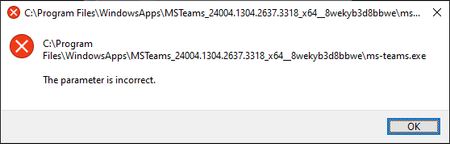
"The paramter is incorrent" error in new Teams client (VDI)
Hello We have a serious issue with the new Teams client in our VDI (Horizon) environment. After running fine for a while (can be multiple hours up to days) Teams crashes / vanishes with the following error. We suspect it might happen during an automatic update. The same error is displayed when trying to launch ms-teams.exe from that path manually. This never happened with classic Teams. We have no idea what causes this and how to fix it, any help is appreciated.Solved9.9KViews0likes20CommentsVM optimized version doesn't display Analytics across Teams
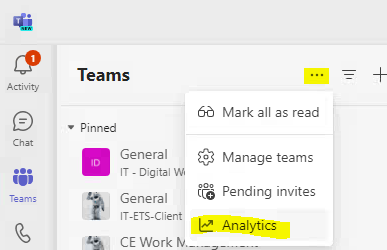
Multiple users reporting (and validated) that when using VM Optimized New Teams, they're unable to see Analytics when clicking the "..." in the center-column. These features all appear to work fine in the desktop versions and on the web-app. Analytics ARE available by clicking "... > Manage Channel > Analytics", and even the "Across channels"-button. But clicking the "Analytics across teams" also results in a blank page. Currently running:443Views0likes0CommentsNew Teams and AVD
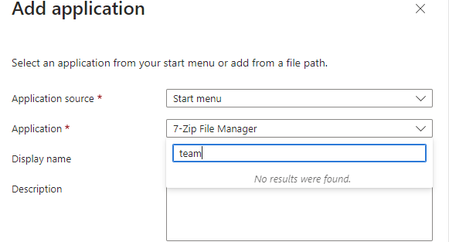
Hi all we have deploy new teams on our VDI test infrastructure. Yes its working great but how the hell we publish it as app without desktop? It not show in start menu add application, and path can't be used cause after update it change. like: C:\Program Files\WindowsApps\MSTeams_23306.3306.2510.9721_x64__8wekyb3d8bbwe C:\Program Files\WindowsApps\MSTeams_23285.3604.2469.4152_x86__8wekyb3d8bbwe thnx1KViews0likes0CommentsMS Teams blocking screen lock / idle timeout occurring
Currently running Teams version 1.5.00.31168 on Citrix VDI , Citrix VDA 19.12 LTSR CU5 In the past few weeks a few users have reported that the VDI screen saver / lock is not occurring as expected. It normally occurs after 15 minutes of idle time. The BYOD is locked, but un-unlocking the BYOD session still has the VDI desktop unlocked Why do i think its teams ? Well, I exited teams and the problem seems to have gone away. Large environment and need an explanation what might have caused this. I know media player has a setting "Allow Screen saver during playback" Is there an equivalent setting in teams ? ( i can see anything obvious in the teams interface ) Is there a setting that the organizer can put on a meeting that may hang around afterwards (seen posts suggesting people are complaining the opposite, the meeting continues after a lock is enabled ) Don't have access to the Teams admin center, so can't see if there are any settings there.3.1KViews1like1Comment
Large-scale VDI deployment management with Active Directory and domains
Hello I am working for a start up and deployed RDS persitent VDI for just one enterprise which works perfectly. Now office wants to offer Persitent VDI to multiple company. I don't have much experience and would appreciate a guidance and solution for large-scale deployment. Do i have to create one Forest or multiple Forest? Do i have to create a Parent Domain then multiple child domain? Do i have to create multiple Domains? I don't want the Enterprise to be able to see each other or access other Enterprise files or software. like Teams and others. I intend to create multiple vlans per enteprise, my concern is Active Directory, RD broker, RD gateway and RD web. I will appreciate feedback, insight on how to create the domains and trust relationship. Best regards3.3KViews0likes11CommentsNon-optimized VDI Policy Teams
We are having a bit of a problem with VDI policy application in Teams. We are running Server 2016 terminal services (no Citrix) in the full desktop experience and don't currently run Teams in this setup. We run Teams separately on individual local PCs. Teams is an important LoB application for us as we use it as our complete telephone system. We want to run Teams in our RDS environment as well as on local PCs to get the benefit of integrated chat, Outlook, colloaboration features, etc. Essentially we want the entire Teams experience in RDS, except for audio and video features. This seems entirely possible, but doesn't seem to be working. We have used the IsWVDEnvironment registry key to allow us to install Teams as a machine-wide per machine instance using the current msi with the ALLUSER=1 switch. Teams installs and runs completely in RDS in this way. We have also created a Teams VDI policy in powershell and assigned it to our users. The policy disables audio and video in calls and meetings using the CsTeamsVdiPolicy cmdlets. The policy applies to the required users and we can see that when we query the user via powershell. However, the two things do not join up. When a user signs in to the terminal server via RDS Teams loads in the normal experience. Video is disabled because there is no redirected camera, but since audio is redirected through the rds session the calling option is there. It is as if the Teams VDI policy has not applied to this instance of Teams. Just to confirm, our VDI policy disables all calling features in the non-optimized environment: Identity : Tag:DisableCallsAndMeetingsTrue DisableCallsAndMeetings : True DisableAudioVideoInCallsAndMeetings : True MS does clearly state that the policy will only apply to non-optimized VDI environments. RDS is barely supported for Teams and we have no optimization features in place for it. I'm not sure how to tell if it is technically a VDI optimized environemnt or how we can specifically set it to be non-optimized so that our policy applies to the Teams instance? I hope that all makes sense. Does anyone have any experience of the Teams VDI policies and how we can make sure they apply in the right instances? Thanks2.8KViews0likes1Comment