vdi
64 Topics(Azure) Virtual Desktop Optimization Tool now available
Optimizing images has always been an important component of preparing images as part of a traditional Remote Desktop Services (RDS) infrastructure or virtual desktop infrastructure (VDI). Optimizing session hosts, in particular, can increase user density and eventually lower costs. With the Virtual Desktop Optimization Tool, you can optimize your Windows 10, version 2004 multi- and single-session deployments in Windows Virtual Desktop. Note: The information in this post is community-driven; nothing has yet been officially launched by the Windows Virtual Desktop product team. Credit goes to Robert M. Smith and Tim Muessig from Microsoft, previously known as the VDIGuys, for creating this tool and make it available for free for the community. Windows 10 multi-session image name change As noted in recent announcements, Office 365 ProPlus is now Microsoft 365 apps for Enterprise. With this name change, we have updated the Windows Virtual Desktop image names in Azure Marketplace. As a result, when you are looking for an image in the Azure Marketplace image gallery, you should begin by selecting Windows 10 Enterprise multi-session, version 2004 + Microsoft 365 Apps – Gen1 as your baseline image. How the Virtual Desktop Optimization Tool works The (Windows) Virtual Desktop Optimization Tool disables services in the operating system that you most likely won’t need for your Windows Virtual Desktop session host. To make sure that your line-of-business (LOB) applications continue running as they should, there are some preliminary steps that should first performed. Note: There are settings default disabled when you run the scrip out of the box such as AppX Packages for the Windows Calculator. We strongly suggest analyzing the tool via the JSON files that include the default settings. This also gives you the opportunity to enable them before running the tool so they remain untouched. I'll explain more about this later on in the article. The full list of enhancements for native Windows services will be available soon. Bookmark Run and tune your Remote Desktop Services environment for the latest updates. Expected performance gains Windows Virtual Desktop value-added services provider and Microsoft partner LoginVSI performed early tests with the Virtual Desktop Optimization Too and gained over 100 users in their internal benchmarking lab environment with a Windows 10, version 2004 single session. We, therefore, assume that this gain will also be possible with Windows 10 Enterprise multi-session. VSImax asserts a maximum number of users that are able to log on to the virtual desktop hosts pool as part of the underlying infrastructure. That number is the "sweet spot" as going over that number will decrease performance for all users. (Thanks to LoginVSI for sharing these results with us.) Note: We recommend you use simulation tools to test your deployment using both stress tests and real-life usage simulations to ensure that your system is responsive and resilient enough to meet user needs Remember to vary the load size to avoid surprises. Desktops in the Cloud on Performance Optimizations for Windows Virtual Desktop with Robert and Tim (aka VDI Guys) We recently had the creators of the Virtual Desktop Optimization tool as guests on our Desktops in the Cloud video-podcast. Robert and Tim explained everything you should know, as well as best practices and lessons learned. A must watch in extension to this article. Watch it below. How to use the Virtual Desktop Optimization Tool The Virtual Desktop Optimization Tool makes it possible to disable uncommon services for virtual desktop environments, such as Windows Virtual Desktop. Note: We recommend that you run the script after the Sysprep (System Preparation) process, most likely as startup script w with a large set of virtual machines. This is due to the AppX Packages that conflict and most likely the sysprep will fail. Download all scripts from the Virtual-Desktop-Optimization-Tool GitHub repository. Select Clone or download, followed by Download ZIP. Unzip the folder to your Windows Virtual Desktop session host(s) to a specified folder (e.g. C:\Optimize or C:\Temp). Note: You could also run the scripts as part of your image management procedure e.g. Azure image Builder (AIB) or Azure DevOps. Important information before running the tool There are settings default disabled when you run the scrip out of the box such as AppX Packages for the Windows Calculator. We strongly suggest analyzing the tool via the JSON files that include the default settings. This also gives you the opportunity to enable them before running the tool so they remain untouched. You can find the JSON file in the Windows built number folder, under ConfigurationFiles - e.g. C:\Optimize\2004\ConfigurationFiles. You've to put the settings to Enabled - that you want to keep as default. Below is the example file for AppX Packages, there are JSON files for Services and scheduled tasks as well. Another option is to remove the while entry out of the JSON file. AppxPackages.json - Example Windows Calculator App { "AppxPackage": "Microsoft.WindowsCalculator", "VDIState": "Enabled", "URL": "https://www.microsoft.com/en-us/p/windows-calculator/9wzdncrfhvn5", "Description": "Microsoft Calculator app" }, Services.json - example Windows Update Service { "Name": "UsoSvc", "VDIState": "Enabled", "Description": "Update Orchestrator service, manages Windows Updates. If stopped, your devices will not be able to download and install the latest updates." }, Prepare to launch Windows PowerShell and select Run as Administrator. In PowerShell, change the directory to the folder to which you downloaded the scripts, e.g. C:\Optimize or your own specific folder. Run the following command: Set-ExecutionPolicy -ExecutionPolicy Bypass Run the Virtual Desktop Optimization Tool using the following command: .\Win10_VirtualDesktop_Optimize.ps1 -WindowsVersion 2004 -Verbose Note: When you use a different version of Windows 10, you must change the WindowsVersion parameter. Version 1803 and later are supported for Windows 10 Enterprise. Windows 10 multi-session support is only available with Windows 10, version 2004 and later. Select Yes when prompted to reboot the session hosts(s). Start your Windows Virtual Desktop session. As you can see in the Task Manager comparison below, the number of threads and handles has decreased noticeably after running the Virtual Desktop Optimization Tool. Do you have any problems with orphaned Start Menu shortcuts after running the tool? Have the user open Task Manager, then end the following two processes: ShellExperienceHost.exe StartMenuExperienceHost.exe Have them check the Start Menu and they should be gone. Happy optimizing! 🙂 Let us know your feedback on the tool in the comment section below. Prefer to watch and learn? There’s also a video on Azure Academy available later this week by Dean Cefola. You can find it here.176KViews11likes41CommentsLearn here how to Manage your Windows Virtual Desktop host pools with Azure Bastion
Learn here how to Manage your Windows Virtual Desktop host pools with Azure Bastion We all remember stepping stone, or also called jump management servers to manage and maintain your Remote Desktop, or infrastructure server environment internally (and externally) through a Remote Desktop Connection with the most common reason; it’s just easy? “From an security perspective this is the most worst you can do, because once hackers are in - you’ve got access to almost everything!” Azure Bastion is a relatively new Azure service that can simplify as well as improve remote connectivity - as a secure better alternative for stepping stone servers to your Windows Virtual Desktop - and infrastructure Virtual Machines on Microsoft Azure. Azure Bastion is completely web-based and works via SSL. In some simple configuration clicks - and most importantly without exposing any RDP (or SSH) ports to the outside internet - you can access your Windows Virtual Desktop Virtual Machines in Azure. What is Azure Bastion? Azure Bastion is a new Azure Platform service you could leverage to enable external access to your resources in Azure Infrastructure-as-a-Service (IaaS). The service is completely HTML5 based and works from every modern web browser. The service automatically streaming to your local device via an RDP/SSH session over SSL on port 443. This makes it easy and secure to go over corporate firewalls without any adjustments. Also, it doesn’t require you to expose any Public IP or Remote Desktop Services port on your Network Security Group (NSG) for the internet. Azure Bastion works over port 443, this is the only port you need to open from the outside to the inside over the Network Security Group (NSG). After that, the connection proceeds to the subnet in the Azure Virtual Network where the Bastion Service persists and connect via the NSG of the VMs you want to leverage internally over the Remote Desktop (3389) or SSH (22) ports. A secure way to access your Windows Virtual Desktop as well as infrastructure servers in your Azure Infrastructure-as-a-Service environment. See below how it works from an architecture perspective… http://christiaanbrinkhoff.com/wp-content/uploads/2019/07/1562583124_image2.png Did you know? The service operation from inside your Azure ARM portal. Use this specific Preview - https://aka.ms/BastionHost - URL to get access to the service. There are two ways that you can create a Bastion host resource: Create a Bastion resource using the Azure portal. Create a Bastion resource in the Azure portal by using existing VM settings. The Bastion Service is currently available for the following Azure DC regions. West US East US West Europe South Central US Australia East Japan East Bastion can also be used for secure SSH connections to for example Linux resources in your Azure IaaS environment If you create a bastion host in the portal by using an existing VM, various settings will automatically default corresponding to your virtual machine and/or virtual network. You must use a separate subnet in your virtual network to which the new Bastion host resource will be deployed. You must create a subnet using the name-value AzureBastionSubnet. This value lets Azure know which subnet to deploy the Bastion resources to. The Bastion PM team is adding some new futures soon, such as Azure AD and MFA integration and recording mode directly from the service. See here how it works I’ve recorded a short video after writing and creating my Azure Bastion Service, and to give you a sneak preview on the end result of this blog article – I’ve uploaded a video to show you the easiness and value. Check it out in the video below. Other secure alternatives... One other alternative way to reduce exposure to a brute force attack to your Windows Virtual Desktop environment is to limit (and IP whitelist - filter) the amount of time that a port is open. This is something you could achieve with the also not so old service Just-in-time VM Access, it’s an Azure Security Center feature you can leverage. In a nutshell; Just-in-time (JIT) virtual machine (VM) access can be used to lock down inbound traffic to your Azure VMs, reducing exposure to attacks while providing easy access to connect to VMs when needed. Read more about it here: https://docs.microsoft.com/en-us/azure/security-center/security-center-just-in-time http://christiaanbrinkhoff.com/wp-content/uploads/2019/07/1562583124_image3.png How to Activate the Bastion Service Pre-step: Create a separate Azure Subnet for Bastion This step is easier to do prior to the Azure Bastion instance on Azure. One technical network requirement is to have a separate subnet, specifically for Azure Bastion traffic. You could either create a separate Azure Virtual Network and setup vNet peerings between your networks or just create a separate subnet in your existing vNet in Azure. This is the example I’m going to use in this article. Note: To be most efficient with your network addresses at least a /27 or larger subnet (/27, /26, and so on). Open the Azure vNet you want to use. Add a new Subnet http://christiaanbrinkhoff.com/wp-content/uploads/2019/07/1562583124_image4.png Create the AzureBastionSubnet without any Network Security Groups, route tables, or delegations. http://christiaanbrinkhoff.com/wp-content/uploads/2019/07/1562583124_image5.png Continue to the next step where we deploy the Bastion instance. Deploy Azure Bastion from the Azure Marketplace Just because Azure Bastion is still in Preview mode – you have to use this Preview Azure Marketplace URL below to get access to the service. The expectation is that this service becomes GA soon. Click on the URL below. https://aka.ms/BastionHost Search for Bastion (preview) in the Azure Marketplace http://christiaanbrinkhoff.com/wp-content/uploads/2019/07/1562583124_image6.png Click on create http://christiaanbrinkhoff.com/wp-content/uploads/2019/07/1562583124_image7.png Enter the required information for the VM deployment in your Azure IaaS environment. Optional: Assign a Public IP for the external Access to your Bastion server. Note: Make sure to select the correct Azure vNet we created/modified earlier. http://christiaanbrinkhoff.com/wp-content/uploads/2019/07/1562583124_image8.png Click on the review+ create button Click on the Create button to start the deployment ... http://christiaanbrinkhoff.com/wp-content/uploads/2019/07/1562583124_image9.png After a couple of minutes, the deployment is finished. http://christiaanbrinkhoff.com/wp-content/uploads/2019/07/1562583124_image10.png Access my Windows Virtual Desktop images The following steps are similar to when you normally set up a Remote Desktop Connection to a Virtual Machine in Azure, although then through an MSTSC RDP file connection – we now leverage the Azure Bastion capabilities over HTML5 (clientless). Open the Virtual Machine that you want to manage Click on the Connect button http://christiaanbrinkhoff.com/wp-content/uploads/2019/07/1562583124_image11.png Choose for the new option - BASTION Enter the Domain / Local Administrator credentials to get access to the VM Click on Connect http://christiaanbrinkhoff.com/wp-content/uploads/2019/07/1562583124_image12.png There we go – I’m connected to my Windows 10 Multi-User master image inside Microsoft Azure via my Azure Bastion HTML5 (agentless) service! http://christiaanbrinkhoff.com/wp-content/uploads/2019/07/1562583124_image13.png9.9KViews2likes0Comments
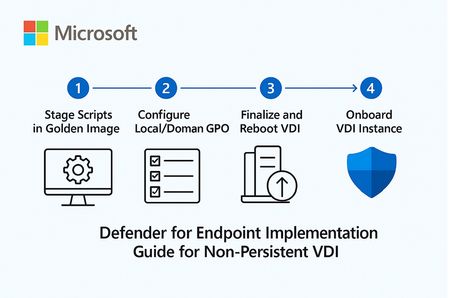
MDE for Non‑Persistent VDI — Implementation Guide & Best Practices.
1. Overview: Microsoft Defender for Endpoint (MDE) for Non‑Persistent VDI Non‑persistent VDI instances are reset or reprovisioned frequently. To ensure immediate protection and clean device inventory, MDE provides a dedicated onboarding path that calculates a persistent device ID and onboard early in the boot process. Key considerations: Use the VDI onboarding package and choose the single‑entry method (recommended) to avoid duplicate devices when hosts are recreated with the same name. Place the onboarding script in the golden image but ensure it executes only on child VMs (first boot) after the final hostname is assigned and the last reboot completes. Never fully onboard or boot the golden/template/replica image into production; if it happens, offboard and clean registry artifacts before resealing. Consider enabling the portal feature “Hide potential duplicate device records” to reduce inventory noise during transition periods. 2. Stage the scripts in the Golden Image (do NOT onboard the image) Goal: Ensure early, reliable onboarding of pooled VDI instances without tattooing the master image. Download the Windows onboarding package (Deployment method: VDI onboarding scripts for non‑persistent endpoints). Extract and copy the files to: C\Windows\System32\GroupPolicy\Machine\Scripts\Startup Configure Local/Domain GPO to run the PowerShell script at startup (SYSTEM, highest privileges). For single‑entry, add Onboard-NonPersistentMachine.ps1 on the PowerShell Scripts tab. Ensure the script runs only after final hostname and the last reboot in your provisioning flow to prevent duplicate objects. Example (Domain GPO scheduled task at startup as SYSTEM): Program/Script: C\Windows\System32\WindowsPowerShell\v1.0\powershell.exe Arguments: -ExecutionPolicy Bypass -File \srvshare\onboard\Onboard-NonPersistentMachine.ps1 3. Never Onboard the Golden/Template/Replica VM If the golden image was accidentally onboarded (Sense service started), you must offboard and clean before resealing: sc query sense del "C:\ProgramData\Microsoft\Windows Defender Advanced Threat Protection\Cyber\*.*" /f /s /q reg delete "HKLM\SOFTWARE\Microsoft\Windows Advanced Threat Protection" /v senseGuid /f Run the official offboarding script for your tenant before cleanup, when available. 4. (Optional) Tag Devices Automatically from the Image Tags simplify scoping of device groups and policies. Add a DeviceTagging registry value during image build: reg add "HKLM\SOFTWARE\Policies\Microsoft\Windows Advanced Threat Protection\DeviceTagging" /v Group /t REG_SZ /d "VDI-NonPersistent" /f Tag appears after device info refresh; a reboot accelerates reporting. 5. Performance & AV Configuration for VDI (Important) 5.1 Shared Security Intelligence & Cache Maintenance Purpose: Reduce CPU and disk spikes at sign‑in by offloading unpackaging of definitions to a shared source and by pre‑running cache maintenance on the master image. Step‑by‑step GPO configuration: Create a secure UNC share for definition packages (e.g., \srvshare\WDAV-Update) and grant read to VDI computer accounts. GPO → Computer Configuration → Administrative Templates → Windows Components → Microsoft Defender Antivirus → Security Intelligence Updates → Enable “Define security intelligence location for VDI clients” and set \srvshare\WDAV-Update. In the same node, set update cadence (daily time) and enable randomization to avoid I/O storms. PowerShell examples: Set-MpPreference -SignatureUpdateInterval 4 Set-MpPreference -SignatureFallbackOrder "InternalDefinitionUpdateServer|MicrosoftUpdateServer" Run Windows Defender Cache Maintenance on the golden image before sealing: schtasks /Run /TN "\Microsoft\Windows\Windows Defender\Windows Defender Cache Maintenance" 5.2 FSLogix Exclusions Why exclusions matter: FSLogix mounts user profiles as VHD/VHDX files. Scanning these at attach/detach causes logon delays, black screens, and app launch slowness. Paths and extensions to exclude: %TEMP%\*.VHD %TEMP%\*.VHDX %Windir%\TEMP\*.VHD %Windir%\TEMP\*.VHDX \\<storage>\<share>\*.VHD \\<storage>\<share>\*.VHDX \\<storage>\<share>\*.VHD.lock \\<storage>\<share>\*.VHD.meta \\<storage>\<share>\*.VHD.metadata \\<storage>\<share>\*.VHDX.lock \\<storage>\<share>\*.VHDX.meta \\<storage>\<share>\*.VHDX.metadata GPO: Computer Configuration → Administrative Templates → Windows Components → Microsoft Defender Antivirus → Exclusions (File/Folder and Extension). PowerShell examples: Add-MpPreference -ExclusionExtension VHD,VHDX Add-MpPreference -ExclusionPath "C:\ProgramData\FSLogix","\\storage\fslogix-share\*.VHD*" 5.3 General Scan Posture Real‑time & cloud‑delivered protection (GPO): Enable Real‑time protection, Cloud‑delivered protection, Join MAPS, and “Block at first sight.” Scheduled scans (GPO): Daily Quick Scan (e.g., 02:00) with randomization window. Weekly Full Scan (e.g., Sunday 03:00). Consider “Start the scheduled scan only when computer is on but not in use” to reduce user impact. CPU throttling settings: Set-MpPreference -ScanAvgCPULoadFactor 30 # 5..100 (0 = no throttling) Additional scheduling/throttling options (Intune/Policy CSP as applicable): ScanOnlyIfIdleEnabled = True DisableCpuThrottleOnIdleScans = True ThrottleForScheduledScanOnly = True EnableLowCPUPriority = True Validation commands: Get-MpPreference | fl ScanAvgCPULoadFactor,ScanScheduleQuickScanTime,SignatureUpdateInterval Get-MpComputerStatus | fl AMServiceEnabled,AntivirusSignatureVersion,RealTimeProtectionEnabled 6. Validate Onboarding After first boot of a pooled VM, verify device appears in Defender portal (Assets → Devices). For single‑entry method, reboot/redeploy a few instances with the same hostname and confirm one device object is reused. Optionally enable “Hide potential duplicate device records” (Settings → Endpoints → Advanced features). This is like only filtering the view of Devices list does actual remove the records from the MDE portal. Run a detection test if needed (per Microsoft guidance) to verify sensor connectivity. 7. Quick Checklist — Build Step Download VDI onboarding package from Defender portal. Copy scripts to Startup folder in golden image; configure GPO/Task to run PS1 at boot as SYSTEM. Do NOT onboard/boot the golden image into production; if it happens, offboard + clean senseGuid & Cyber cache. (Optional) Set DeviceTagging registry value for scoping (e.g., VDI-NonPersistent). Configure Shared Security Intelligence path; schedule updates; run Cache Maintenance on master image. Apply FSLogix AV exclusions (paths + extensions). Set scan posture (RTP + cloud, schedules, CPU throttling). Validate onboarding behavior and inventory cleanliness. 8. Summary & Best Practices Checklist for golden image: Script staged, not executed on master; executes only on child VMs at final boot stage. Shared Security Intelligence path configured; cache maintenance pre-run. FSLogix exclusions present prior to first user logon. RTP and cloud protection enabled; scans scheduled with randomization; CPU load factor tuned. Common pitfalls & fixes: Golden image onboarded → Offboard + clean registry/cache; reseal. Script runs before final hostname → Duplicate device records. Delay script until last reboot/final rename. No exclusions for FSLogix → Long logons/black screens. Add VHD/VHDX exclusions and share paths. Simultaneous scans across hosts → Enable randomization; schedule during off‑hours. References Onboard non‑persistent VDI devices: https://learn.microsoft.com/en-us/defender-endpoint/configure-endpoints-vdi Onboard Windows devices in Azure Virtual Desktop: https://learn.microsoft.com/en-us/defender-endpoint/onboard-windows-multi-session-device Configure Microsoft Defender Antivirus on RDS/VDI: https://learn.microsoft.com/en-us/defender-endpoint/deployment-vdi-microsoft-defender-antivirus FSLogix prerequisites (AV exclusions): https://learn.microsoft.com/en-us/fslogix/overview-prerequisites Configure AV exclusions (file/extension/folder): https://learn.microsoft.com/en-us/defender-endpoint/configure-extension-file-exclusions-microsoft-defender-antivirus Create and manage device tags: https://learn.microsoft.com/en-us/defender-endpoint/machine-tags Advanced features (hide duplicate records): https://learn.microsoft.com/en-us/defender-endpoint/advanced-features Schedule antivirus scans using Group Policy: https://learn.microsoft.com/en-us/defender-endpoint/schedule-antivirus-scans-group-policy Troubleshoot MDAV scan issues (CPU throttling, idle scans): https://learn.microsoft.com/en-us/defender-endpoint/troubleshoot-mdav-scan-issues
Digital event: Azure Virtual Desktop Master Class on January 25
Join us for the upcoming Azure Virtual Desktop digital event Learn best practices for delivering secure remote work experiences with Azure Virtual Desktop. Hear the latest product updates and virtual desktop infrastructure (VDI) optimization tips from Microsoft experts, partners, and community leaders. Join us at this free digital event to: Explore technical deep dives covering the newest Azure Virtual Desktop features. Learn how to deploy, optimize, and manage Azure Virtual Desktop at scale. Get tips for optimizing the costs of your Azure Virtual Desktop environment. Find out how to apply Azure security practices for desktop virtualization. Discover strategies for migrating your Remote Desktop Services, Citrix, and VMware VDI from on-premises to Azure. Delivered in partnership with Intel. Register now > Azure Virtual Desktop Master Class Tuesday, January 25, 2022 9:00 AM–12:00 PM Pacific Time1.7KViews2likes0CommentsNew Teams Desktop Not Consistently Opening for Meeting Links (VDI)
I have a user where clicking to join scheduled meetings in Outlook doesn't consistently open Teams desktop. The times that it fails to open (basically nothing happens), they have to click "Continue in Browser", which is a worse experience. We can't seem to find a pattern, other than if they click to join from the little pop-up window after a meeting as started, Teams desktop opens every time. I understand that Teams for VDI is its own animal and maybe we just need to wait to see if whatever is going on is fixed in a newer version, but I thought I'd check to see if this is a common issue.1.1KViews1like1CommentMS Teams blocking screen lock / idle timeout occurring
Currently running Teams version 1.5.00.31168 on Citrix VDI , Citrix VDA 19.12 LTSR CU5 In the past few weeks a few users have reported that the VDI screen saver / lock is not occurring as expected. It normally occurs after 15 minutes of idle time. The BYOD is locked, but un-unlocking the BYOD session still has the VDI desktop unlocked Why do i think its teams ? Well, I exited teams and the problem seems to have gone away. Large environment and need an explanation what might have caused this. I know media player has a setting "Allow Screen saver during playback" Is there an equivalent setting in teams ? ( i can see anything obvious in the teams interface ) Is there a setting that the organizer can put on a meeting that may hang around afterwards (seen posts suggesting people are complaining the opposite, the meeting continues after a lock is enabled ) Don't have access to the Teams admin center, so can't see if there are any settings there.3.1KViews1like1CommentCannot share system audio while on screen sharing on VDI
Hello, Working on VDI, I want to share my system audio while I'm screen sharing in a meeting and there is no option for this. On my local computer, I can see the option to share system audio as well. I read that for this to happen, your computer audio hardware name must be the selected also in Teams. When we are talking about VDIs, this is not a possible option. You will see something like "Speakers(VMware Virtual Audio(DevTap))" Anyone has the same issue and/or has an resolution? Thank youSolved7.5KViews1like4Comments