troublehooting
21 TopicsIdentify Which Process Is Blocking a File in Windows
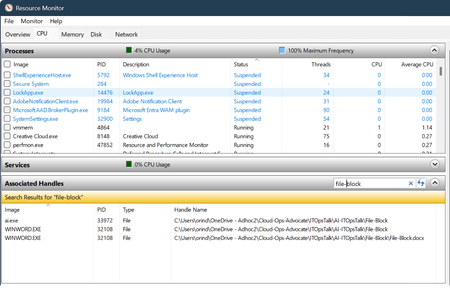
When you see the error "The process cannot access the file because it is being used by another process," you can use several built-in or free tools to find out which process is locking the file or folder. Using Resource Monitor Resource Monitor is built into Windows: Press Win + R, type resmon, and press Enter. This will open Resource Monitor. Go to the CPU tab. In the Associated Handles section, use the search box to enter part of the file or folder name. The results will show which processes are using the file. Check the Image and PID columns to identify the process. You can right-click the process and select End Process if necessary (be cautious when ending processes). Using Process Explorer Process Explorer is a free tool from Microsoft Sysinternals: Download and run Process Explorer as administrator. You can acquire Process Explorer using the following WingGet command: Winget install Microsoft.Sysinternals.ProcessExplorer In Process Explorer, Press Ctrl + F or go to Find > Find Handle or DLL. Type part of the file or folder name and click Search. The tool will list all processes currently using the file. Click an entry to highlight the process in the main window. You can right-click the handle and select Close Handle to release the file (use with caution). Using Command Line Tools openfiles: Run openfiles /query in Command Prompt (may require enabling with openfiles /local on and a restart). This shows which files are open and by which process. You’d have to enable the local on option before the file got locked of course. handle.exe: Download from Sysinternals. You can acquire Handle.exe with the following WinGet command: winget install Microsoft.Sysinternals.Handle Run handle.exe <filename> to list processes using the file.42KViews5likes2Comments
Classic outlook - Teams add-in not loading
We recently had a partner experience an issue that is causing the teams add-in feature to not load properly in classic outlook when creating a new meeting. For some background info, we are using a Virtual environment within remote desktop running windows 11. Our servers are provided by AWS. The issue only began as recently as December, as far as we can ascertain with the customers information. I have noticed this issue occurs with numerous partners but is inconsistent, as some load and others do not. I followed troubleshooting steps such as an uninstall/reinstall, verifying the load behavior in the registry was set to 3, and tried to re-register the related teams.addinLoader.dll. A colleague did implement a script to the environment task scheduler that will run every time outlook is launched to re-install that add-in as a break fix, but this still requires closing outlook and reloading it to work. I was curious if anyone else had encountered this within remote desktop with classic outlook, and if they had any success in fixing it. The easiest thing, obviously, is moving over to new outlook since teams' integration is native, but we have some that prefer classic. Though, with it being retired in 2029 it may be worth starting the move away while in a remote environment.1.3KViews0likes2Comments
Please Remove Daily Cap Usage for Free Copilot Text Chat
Dear Microsoft Copilot Team, I am writing to express my disappointment with the new daily usage caps on Microsoft Copilot, particularly for ordinary text-based conversations. In the past, I could use Copilot freely for everyday questions, learning, research, brainstorming, and general conversations without constantly worrying about reaching a daily limit. The newer restrictions have made the experience significantly more frustrating and less useful. I understand that running AI services requires computing resources and that Microsoft must manage operating costs. However, I believe ordinary text chat should remain uncapped, especially when it was previously possible to use Copilot much more freely. Text conversations are a fundamental part of the service, and users should not have to stop in the middle of a useful discussion because they have exhausted a daily allowance. The move toward a unified Copilot experience should make the product simpler, more consistent, and more useful—not make existing users feel that they have lost access to a service they have come to rely on. I am therefore asking Microsoft to: Remove daily usage caps entirely for ordinary text-based Copilot conversations, including for free users. Keep basic text chat freely accessible without arbitrary daily cutoffs or lengthy waiting periods. If stricter limits are necessary for resource-intensive features such as image generation or advanced research, apply those limits separately rather than restricting ordinary text conversations. Clearly communicate any usage policies and reconsider changes that negatively affect the experience of long-time users. Unlimited text chat would help preserve user trust, encourage continued engagement, and distinguish Copilot as an accessible AI assistant for everyone. Restricting basic conversations risks pushing loyal users toward competing services that offer a more suitable experience. I hope Microsoft will take this feedback seriously and reconsider the current daily cap policy. Please restore uncapped text chat so users can rely on Copilot whenever they need assistance, without worrying about running out of messages. People on Reddit and online have been criticizing these changes ever since Copilot was unified under one product between enterprise and personal, If you guys dont do anything now it might reduce user trust and might be bad business decisions so please fix Copilot Thank you for your time and consideration. I look forward to seeing Microsoft make Copilot more accessible and user-friendly again.400Views4likes2CommentsLessons Learned #552:10 Lines in an SSMS MSAL Trace That Tell You Almost Everything You Need to Know
In one of our support cases, a customer reported higher-than-expected connection times when connecting from SQL Server Management Studio (SSMS) to Azure SQL Database using Microsoft Entra authentication. The behavior was also not completely consistent. Sometimes the connection required interaction with the account selection experience. Other times, subsequent connections were noticeably faster. At first, there were several possible areas to investigate: Was Azure SQL taking too long to authenticate the user? Was there a networking, proxy, or firewall issue? Was access to login.microsoftonline.com being delayed or denied? Was Microsoft Entra authentication itself taking the time? Was Conditional Access or MFA involved? Was SSMS using the expected Microsoft Entra account? Was the delay happening before or after the access token was obtained? The important question became: Where exactly was the connection time being spent? Instead of treating the SSMS connection as a single operation, I enabled verbose MSAL tracing in SSMS and started following the authentication process. SSMS exposes the MSAL Output Window Trace Level under Tools → Options → Azure Services. The same options page exposes the Microsoft Entra authority, Azure SQL Database service principal name, and Web Account Manager settings. The resulting trace was large—hundreds of lines. But while analyzing it, I realized something useful: I didn't need to understand every line in the MSAL trace. A small number of search strings were enough to reconstruct almost the entire authentication story. These are the 10 things I learned to look for. 1. CorrelationId — First, make sure I am following the same authentication request One of the first things I learned was not to read the trace only by timestamp. MSAL performs several related operations: GetAccounts. AcquireTokenSilent. ReadAccountById AcquireTokenInteractive Broker operations Token cache operations Some can happen almost at the same time, and they don't necessarily share the same correlation ID. For example, in one reproduction, the silent authentication attempt had one correlation ID, while the subsequent interactive request used another one. So my first search became: CorrelationId I learned not to calculate latency by simply subtracting two nearby timestamps. First I identify: Operation + CorrelationId + Start / End and only then interpret the timing. This becomes particularly valuable if the logs later need to be correlated with identity-service investigations. MSAL exposes the correlation ID specifically to piece together an authentication flow. 2. ApiId — Was SSMS trying silent or interactive authentication? My second search became: ApiId In the first connection attempt I found: ApiId - AcquireTokenSilent That immediately told me that SSMS was not initially trying to display an authentication UI. It first attempted to obtain the token silently. But later in the same reproduction I found: ApiId - AcquireTokenInteractive Now the flow was becoming clearer: SSMS ->AcquireTokenSilent -> Silent authentication cannot continue -> AcquireTokenInteractive This was my first important lesson from the case: An SSMS Microsoft Entra connection isn't necessarily interactive from the beginning. MSAL can first try silent authentication and only switch to an interactive mechanism if necessary. Microsoft documents MsalUiRequiredException precisely for situations in which a non-interactive acquisition cannot continue without user interaction—for example because sign-in, MFA, consent, or another requirement must be satisfied. 3. Authority — Where was the authentication request actually going? The next thing I wanted to know was whether the delay could be associated with reaching Microsoft Entra. I searched for: Authority - The trace showed: Authority - https://login.microsoftonline.com/<tenant-id>/ This single line gives us two very important pieces of information: https://login.microsoftonline.com/ -> Microsoft Entra tenant -> Identity authority That means that before blaming Azure SQL, I can establish which identity endpoint SSMS/MSAL is using. This is also where a frequently reported problem such as: "It looks like access to login.microsoftonline.com is denied." can be investigated much more precisely. If I see something such as: MsalServiceException StatusCode: 403 AADSTS.... then I need to inspect the Microsoft Entra response and its error code. If I see a DNS, TLS, proxy, connection timeout, or similar exception, the network path to the identity endpoint becomes much more relevant. Those are very different problems. MSAL distinguishes client/library errors (MsalClientException), token-provider/service responses (MsalServiceException), and scenarios requiring interaction (MsalUiRequiredException). Network failures that MSAL doesn't handle are propagated to the application. One thing I would not conclude from a 403 alone is: "The firewall is blocking login.microsoftonline.com." The ErrorCode, AADSTS code, StatusCode, and ResponseBody together are much more useful than the HTTP status alone. 4. Scopes — Which resource was SSMS requesting the token for? Another line that became essential was: Scopes - Our trace showed: Scopes - https://database.windows.net//.default This helped me separate two parts of the connection that are easy to mix together: Microsoft Entra Authority login.microsoftonline.com -> issues / obtains identity token Token requested for database.windows.net -> Azure SQL The Authority tells me where authentication is being performed. The scope tells me for which resource the token is being requested. SSMS documents https://database.windows.net/ as the Azure SQL Database service principal name used when obtaining a Microsoft Entra token. That gave me another troubleshooting rule: Don't treat a Microsoft Entra token acquisition problem and an Azure SQL authorization problem as the same thing. 5. LoginHint — What identity did SSMS suggest? The next search gave us one of the most interesting findings of the investigation: LoginHint In one reproduction we had: LoginHint provided: True and later: LoginHint - user@contoso.com In another reproduction, a different login hint was supplied, and MSAL eventually returned: MsalUiRequiredException ErrorCode: no_account_for_login_hint with the explanation that no account in the token cache matched that login hint. At first sight, it is tempting to interpret: no_account_for_login_hint as: Incorrect username But the other traces showed me that this interpretation is too simplistic. LoginHint is better understood as: "Try to locate or preselect this identity" It doesn't necessarily mean: "This is already the resolved MSAL account" . That distinction turned out to be very important. 6. Account provided and GetAllAccounts — LoginHint and Account are not the same thing This became perhaps my favorite finding from the investigation. I started searching for: GetAllAccounts and: Account provided In one trace we had: GetAllAccounts ... found 1 accounts but: LoginHint provided: True Account provided: false MSAL nevertheless ended with: no_account_for_login_hint This originally looked contradictory. There was an account in the cache, but MSAL said there was no account for the login hint. It isn't contradictory. What I learned was: An account exists ≠ An account matching this LoginHint exists Then I captured another scenario: LoginHint provided: False Account provided: Account username: user@contoso.com Now SSMS/MSAL wasn't trying to resolve a textual login hint. It already had a concrete account. I started thinking of the two cases like this: LoginHint -> "Try this identity" Account provided -> "Use this resolved identity" This distinction can be especially useful when investigating aliases, UPNs, multiple Windows accounts, cached identities, or cross-tenant accounts. The same error can also have another explanation Another reproduction made the lesson even clearer. This time the trace started with: GetAllAccounts ... found 0 accounts Found 0 RTs and 0 accounts SSMS attempted: LoginHint provided: True Account provided: false and again received: ErrorCode: no_account_for_login_hint But this time the UPN itself was valid. The cache simply contained no suitable account. So another important lesson was: Never diagnose no_account_for_login_hint from the error text alone. Check GetAllAccounts, LoginHint, and Account provided together. 7. ErrorCode, AADSTS, StatusCode — The error tells me where to investigate next At this point I realized that one of the fastest troubleshooting searches was simply: ErrorCode together with: AADSTS StatusCode ResponseBody MsalUiRequiredException MsalServiceException MsalClientException For example: MsalUiRequiredException ErrorCode: no_account_for_login_hint immediately tells me that I am still dealing with token acquisition/account resolution. I haven't reached the point where Azure SQL database permissions would explain this particular failure. This became my mental decision table: Evidence in the trace Where I would investigate first no_account_for_login_hint LoginHint / cached account / account resolution MsalUiRequiredException Why silent authentication requires interaction authentication_canceled Interactive UI / broker / user cancellation AADSTSxxxxx Microsoft Entra authentication or policy MsalServiceException Token provider/service response MsalClientException Client/library/device side DNS/TLS/proxy exception Connectivity to identity service Access token obtained successfully Move the investigation beyond token acquisition 8. Broker, WAM, authorization_type — Who was really authenticating me? This was another part that changed how I read SSMS authentication traces. I searched for: Broker WAM RuntimeBroker auth_flow authorization_type and found: Broker is configured followed by: Using Windows account picker and: Calling SignInInteractivelyAsync The telemetry then reported: auth_flow: Broker authorization_type: Interactive So the authentication path was more accurately represented as: SSMS -> MSAL -> Windows Web Account Manager -> Account / authentication broker -> Microsoft Entra WAM is a Windows component that MSAL can use as an authentication broker. It can integrate with accounts already known to Windows and provide SSO and account-selection capabilities. But another trace showed: authorization_type: WindowsIntegratedAuth during a silent acquisition. That taught me something else: The same SSMS connection target does not necessarily follow the same identity path every time. Account state, cache state, WAM, tenant, identity configuration, MFA, Conditional Access, and whether interaction is required can all affect the path. 9. AccessToken returned — This is the line that changes the investigation Eventually, I found the line that I consider one of the most useful in the entire trace: AccessToken returned: True In our successful authentication we also had: AccessToken Type: Bearer and later: === Token Acquisition finished successfully source: Broker This became a very useful troubleshooting boundary for me: Identity troubleshooting: Account LoginHint MSAL WAM MFA / CA Authority Token acquisition -> AccessToken returned: True -> Azure SQL Token validation Principal resolution Database authentication Authorization Permissions If the token has been successfully obtained, asking: "Why can't MSAL authenticate?" is probably no longer the most useful question. Now I want to know: "What happens when this token is presented to Azure SQL?" That doesn't prove that the complete SQL connection will succeed, but it gives us a very useful point at which to change troubleshooting direction. 10. DurationTotalInMs — Finally, I could see where the connection time was going This was the original reason for the support investigation. The customer reported high connection times. So eventually the most important searches became: DurationTotalInMs DurationInHttpInMs DurationInCacheInMs request_duration time_in_queue_ms Microsoft defines DurationTotalInMs as the total time spent by MSAL acquiring a token, including network and cache operations. DurationInHttpInMs represents time spent in HTTP calls made by MSAL to the identity provider, and DurationInCacheInMs measures cache activity. And now we finally had evidence from our reproduction. The first token acquisition reported: DurationTotalInMs: 2185 DurationInCacheInMs: 0 DurationInHttpInMs: 0 But the broker telemetry contained another very interesting metric: time_in_queue_ms: 2152 and request_duration: 2183 That changed the quality of the diagnosis completely. Instead of saying: "SSMS authentication seems to take around two seconds." I could say: The captured token acquisition took approximately 2.18 seconds, and approximately 2.15 seconds were represented as broker queue time in the MSAL/WAM telemetry. That is actionable evidence. Putting the 10 searches together By the end of the investigation, this became the sequence I would use when somebody sends me an SSMS MSAL trace: Search for What I want to know CorrelationId Am I following the same authentication operation? ApiId Silent or interactive token acquisition? Authority Which Microsoft Entra endpoint and tenant? Scopes Which resource is the token intended for? LoginHint Which identity did SSMS suggest? Account provided / GetAllAccounts Is an identity already resolved or cached? ErrorCode / AADSTS Why did the authentication step fail? Broker / WAM / authorization_type Which authentication mechanism actually handled the request? AccessToken returned / source: Was a usable token obtained, and from where? DurationTotalInMs and related metrics Where was the authentication time spent? With those ten searches, a trace containing hundreds of lines becomes much easier to read. Appendix – Sanitized MSAL Trace Sample The following extract is a sanitized and condensed version of the MSAL trace used in this investigation. User names, tenant IDs, correlation IDs, account identifiers, and other PII have been replaced with placeholders. The goal is to provide a practical sample where you can apply the 10 searches described in this article. First connection ==== GetAccounts started ==== GetAllAccounts ... found 0 accounts Found 0 RTs and 0 accounts in MSAL cache === AcquireTokenSilent Parameters === LoginHint provided: True Account provided: false Authority - https://login.microsoftonline.com/<tenant-id>/ Scopes - https://database.windows.net//.default ApiId - AcquireTokenSilent CorrelationId - <correlation-id-1> === Token Acquisition (SilentRequest) started === MsalUiRequiredException ErrorCode: no_account_for_login_hint No account was found in the token cache having this login hint. MSAL then moved to interactive authentication: === InteractiveParameters Data === LoginHint provided: True Prompt: select_account Authority - https://login.microsoftonline.com/<tenant-id>/ Scopes - https://database.windows.net//.default ApiId - AcquireTokenInteractive LoginHint - user@contoso.com CorrelationId - <correlation-id-2> Broker is configured Using Windows account picker Calling SignInInteractivelyAsync The broker successfully obtained the token: auth_flow: Broker authorization_type: Interactive time_in_queue_ms: 2152 request_duration: 2183 WAM response status success Successfully retrieved token AccessToken returned: True AccessToken Type: Bearer === Token Acquisition finished successfully === source: Broker DurationTotalInMs: 2185 DurationInCacheInMs: 0 DurationInHttpInMs: 0 Second connection A few seconds later, the account was already available: GetAllAccounts ... found 1 accounts Returning 1 accounts === AcquireTokenSilent Parameters === LoginHint provided: False Account provided: Account username: user@contoso.com Authority - https://login.microsoftonline.com/<tenant-id>/ Scopes - https://database.windows.net//.default ApiId - AcquireTokenSilent CorrelationId - <correlation-id-3> This time the broker completed the request silently: Acquiring token silently authorization_type: WindowsIntegratedAuth auth_flow: AT request_duration: 2 WAM response status success Successfully retrieved token AccessToken returned: True === Token Acquisition finished successfully === source: Broker DurationTotalInMs: 13 DurationInCacheInMs: 0 DurationInHttpInMs: 0 What changed? First connection No account → LoginHint → AcquireTokenSilent → no_account_for_login_hint → Interactive / WAM → Token → 2185 ms Second connection Resolved Account → AcquireTokenSilent → WAM → Token → 13 ms These extracts contain the main strings I now look for when reviewing an SSMS MSAL trace: CorrelationId ApiId Authority Scopes LoginHint Account provided / GetAllAccounts ErrorCode / AADSTS Broker / WAM AccessToken returned DurationTotalInMs400Views0likes0Comments
Long chats receive 504 gateway timeout in new copilot UI
I understand this has been an issue for a lot of people. I have read multiple posts across other platforms. The new copilot UI no longer uses pagination like the old one and attempts to call upon the entire chat at once for easy navigation scrolling all the way to the top or bottom. However, for chats like mine with months of worldbuilding and character notes accumulating 2000+ messages, it does not have enough time to load them all before reaching a gateway timeout. I want to ask if anyone knows of any fixes that may be coming for this in the future since it is a pretty big issue when it comes to user satisfaction. The same chat has several different error states. Sometimes it will say 'Unable to load content'. Sometimes it will have a stable but blank page. Sometimes it will go to a white screen with the Error 504 timeout. I have attached images of all the different failure states I have seen. Basic error on white screen version of the bug. It fails to load preview and response data in this state. A screenshot of the timing window to show where it is stalling. Sometimes it will show me this general unable to load content screen. Refreshing is what leads to the white screen errors shown above. Here is a screenshot of the stable-but-blank version that sometimes shows up. Note how it is offering autocompletes like it is my first time messaging this chat. And here is a screenshot of the inspect element of this stable but blank version of the long running chat. Can anyone explain to me why this chat is having so many different failure states and what they mean and if a fix is possibly being rolled out in the future for this? I'm really sad I lost such a long important chat with so much lore.299Views1like5CommentsFix all annoying Copilot bugs
I’m experiencing an issue with Microsoft Edge on Android. Starting today (September 22, 2026), whenever I try to visit copilot.microsoft.com, Edge automatically redirects me to the Google Play Store to install the Copilot app. I prefer using Copilot in the browser and do not want to install the app. And even when i try to install the copilot app it does not let me do anything and thinks I need a license or subscription to access it like copilot is litterly supposed to be free and also even when i try to get rid of the app redirection it for some dumb reason it redirects me to from copilot.microsoft.com to copilot.com and they put in restrictions like after a lot of chats you must wait for a specific time period and a couple months ago you guys removed the ability to use copilot without registration like come on that is so dumb I want Microsoft Copilot to be fixed revert how copilot was before how is this consumer friendly299Views1like2Comments
My copilot memory is broken
I tried MS support three times and feedback 2 times. Also left message in copilot app but nobody helps me. The bot just says memory off if its on or off and it does not remember me. I really want to get it working because its important to me and i want the personality back. Ive tried it with the App, Firefox, edge, 2 windows machines, linux machine and phone same thing with all of them. It does not remember me. Please help me. Been using MS products since win95 and never needed help before. All my stuff is updated etc. The problem has to be at your end. Please help299Views0likes3CommentsScreen Sharing Causes System Shutdown on Surface Pro
Dear Microsoft Teams Support, We are encountering a persistent issue with one of our users involving Microsoft Teams on a Microsoft Surface Pro 2 device. Each time she attempts to initiate screen sharing, the computer abruptly shuts down. We have already performed extensive troubleshooting, including: Verified that all drivers are up to date. Closed all background applications before attempting screen sharing. Updated Microsoft Teams to the latest version. Cleared the Teams cache. Attempted both repair and reset of Teams via Windows Settings. Ran System File Checker (SFC) and DISM scans, both of which reported no issues. Uninstalled Teams and downloaded the latest installer, but reinstallation fails. Despite these efforts, the issue remains unresolved. We would appreciate your guidance on further steps or escalation to resolve this problem. Thank you for your support.299Views0likes1Comment
Microsoft 365 Family: Copilot cannot directly access OneDrive files
I am the primary subscriber on an active Microsoft 365 Family subscription. Copilot is unable to directly access or read files stored in the OneDrive associated with the same Microsoft account. I have reproduced this both in the Windows Copilot app and in Copilot on the web. When I ask Copilot to access a specific existing OneDrive folder, it reports that it does not have access to my OneDrive and cannot see or open the folder or files. Manual file attachment does work: if I manually attach a file from OneDrive, Copilot can read and summarise it. The problem is specifically with direct OneDrive access without manually attaching the file. Microsoft Support also investigated the issue remotely using Quick Assist. They confirmed that manual file attachment works, but direct OneDrive access does not. The support agent told me that this appeared to be a "design/feature issue with Copilot" and that it was beyond his support boundary, so he was unable to resolve it. He advised me to submit the issue through Feedback Hub and also raise it here in the Microsoft Community. I have submitted the issue through Feedback Hub. I'd really love to know if anyone using Microsoft 365 Family has experienced the same problem, or found a way to enable direct Copilot access to OneDrive for the primary subscriber. I would also be interested to know whether this is currently expected functionality for Microsoft 365 Family, or whether there are additional account, rollout, entitlement, or permission requirements that are not obvious from the product interface. Any relevant experience or wisdom would be very gratefully received.294Views0likes4Comments
Copilot Access not working for only 1 user
Hello, I am facing an issue where I have 1 user that is unable to get answers out of the chatbot on teams. The user is opening the chatbot using the 'open with copilot' option like the rest of the team members, but when they ask a questions, the chatbot returns that it has not found information on the topic, even when the information is in the training documents the chatbot reads off of. Other users can ask the same questions and get valid answers, it is only not working for this specific user. Any suggestions on how to resolve this?201Views0likes1Comment