teams
1606 TopicsPreview the new Microsoft 365 LTI® for your LMS
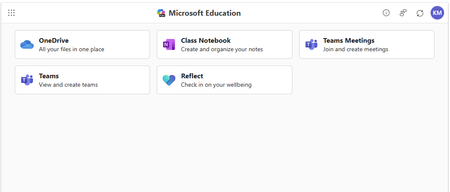
Enhance your LMS with the power of Microsoft 365 We are excited to announce the public preview of Microsoft 365 LTI. Experience the full potential of Microsoft 365 directly within your Learning Management System (LMS) through a simple to integrate learning tool interoperability (LTI). Microsoft 365 LTI makes LMS integrations simple, with a powerful tool designed to introduce new capabilities to streamline and simplify deployment. Deploy and access the new Microsoft 365 LTI in your LMS with the overview and deployment guides. At-a-glance: The Microsoft 365 LTI is now in Public Preview, bringing all your favorite Microsoft Education tools into a single, seamless experience inside your LMS. No more juggling multiple integrations - just streamlined access to everything educators and students need, right where they work. This includes: Unified access to OneDrive, Teams, Class Notebook, Reflect, and more, directly in your LMS Add content, create assignments, and schedule meetings - all from one place No need to enable multiple tools separately or clutter your LMS menus Replaces deprecated Teams Meetings and Team Classes LTI tools Expanding support for Microsoft Assignments, OneDrive, OneNote Class Notebooks, and Reflect Available for Canvas, Schoology, Blackboard, D2L Brightspace, Moodle, and more Let’s dive into the new Microsoft 365 LTI to streamline your learning management system experience We are bringing our Microsoft Education capabilities for learning management systems together into a single tool and streamlined user experience. Educators will be able to access Learning Accelerators, Reflect, OneDrive, Teams, and more in their LMS courses, without having to enable multiple tools separately, and without overcrowding menus where LTI tools are surfaced. Whether adding content to a module, creating an assignment, or scheduling a meeting for a class, you will be able to easily access Microsoft Education related features directly in your LMS workflow. Microsoft 365 LTI debuts with replacements for the deprecated Teams Meetings and Team Classes LTI tools that sunset on 9/15/2025. The capabilities of Microsoft Assignments, OneDrive, OneNote Class Notebooks, and Reflect will also be added to the Microsoft 365 LTI in preview, and those existing LTIs will continue to be supported as their capabilities transition. Microsoft 365 LTI will be available for all currently supported LMS platforms, including Canvas by Instructure, PowerSchool Schoology Learning, Blackboard by Anthology, D2L/Brightspace, and Moodle™, and for any LTI 1.3 Advantage compliant platform. Learning Accelerators and AI-enhanced assignments in your LMS (without Microsoft Teams) With the Microsoft 365 LTI, you will be able to use Learning Accelerators, multiple-document submissions, AI rubric and instructions generation, AI-assisted feedback, auto-graded Forms and other Microsoft Education assignment capabilities directly within your learning management system (LMS), without the need to create and sync a Microsoft Team for your class. Assignments in Microsoft 365 LTI no longer require Teams, enabling more LMS users to benefit from advanced, AI-enhanced capabilities that were formerly exclusive to Microsoft Teams for Education. Assignments can be created, managed, completed, and graded, without leaving your LMS, and grades and feedback will sync automatically to the LMS gradebook. This capability is included automatically in the new Microsoft 365 LTI tool. Existing, Teams-based assignments will continue to work and can be copied to new courses, so no migration is necessary. This enhancement will apply to all currently supported LMS platforms, including Canvas, Schoology, Blackboard, D2L Brightspace, and Moodle. Teams and Teams Meetings Microsoft 365 LTI replaces the former Teams Classes LTI and Teams Meetings LTI tools, with improved user experience. Users can easily schedule, manage, and launch meetings from directly within their LMS course. The tool provides streamlined views of future and past meetings, consolidated attendance reports, and a new “Meet Now” capability. Automatic rostering in Class Notebooks returns with the Microsoft 365 LTI In March, we announced the retirement of automatically adding newly rostered students and co-educators to OneNote Class Notebooks provisioned through the LMS using the LTI 1.1 integration. This much-loved feature is back in the new Class Notebook app in Microsoft 365 LTI. Any instructor in the LMS course can create a Class Notebook and all co-educators and students automatically added to the notebook, even as the LMS roster changes. In addition, the new integration enables OneNote with the benefits of LTI 1.3 conformance and a modernized provisioning flow for educators to easily deploy new Class Notebooks for their courses. Existing notebooks created in the LTI 1.1 integration will continue to work, and sections and pages can be easily copied to new notebooks. OneDrive and Microsoft 365 files with embedded editors and new placements The new Microsoft 365 LTI tool expands beyond the capabilities of the existing OneDrive LTI tool. The full capabilities of Word, PowerPoint, and Excel, including Microsoft 365 Copilot, are now available within the LMS experience for attaching content resources, collaborative documents (including Collaborations for Canvas Courses and Groups!), and students editing and submitting Microsoft 365 documents as an assignment without leaving the LMS. Documents can be embedded or linked into courses and other LMS activities like discussions, announcements, pages, with proper management of permissions to prevent oversharing, and with dedicated course-level storage to support proper document lifecycle management, assignment workflows, and use of Microsoft 365 Copilot. Easily add Reflect to your classroom toolset Microsoft 365 LTI provides easy access to Microsoft Reflect to support student wellbeing in the classroom. Educators can create check-ins, view responses, and monitor trends within an LMS course. Users can access activities from Microsoft and partners such as Calm to support physical and mental wellbeing. For more information, and to keep up with future product announcements Please visit the Microsoft Tech Community Education Blog and subscribe to keep up with what’s new in Microsoft Education. We also hold bi-monthly office hours every first and third Thursday where lots of LMS + Microsoft 365 customers come to discuss scenarios and get assistance from peers, please join us! Microsoft 365 LTI Office Hours 1 st and 3 rd Thursday of each month @11am EST Join link: https://aka.ms/LTIOfficeHours We can’t wait to hear your feedback! Try out the preview today. How to get help or send feedback For any issues deploying the integration, our Education Support team is here to help. Please visit https://aka.ms/EduSupport Once deployed, the Teams Assignments integration has links to Contact Support and Send Feedback from right within the app. These can be found in the user voice menu in the upper right on any view that appears within the LMS. Learn more about Microsoft feedback for your organization. Learning Tools Interoperability® (LTI®) is a trademark of the 1EdTech Consortium, Inc. (1edtech.org) The word Moodle and associated Moodle logos are trademarks or registered trademarks of Moodle Pty Ltd or its related affiliates.10KViews3likes8Comments
Teams displaying incorrect Out Of Office presence for a user
Recently came across an issue with Teams presence. The user's presence status shows Available/Busy etc, but is always appended with an Out Of Office message even when no OOF is set in Outlook. Skype for Business Online client shows correct presence. What we have done so far? Updated Teams client to latest version Signed out and signed back into Teams Toggled OOF status off and back on again in Outlook and OWA and restarted Teams; OOF message still shows up Reset presence status on Teams web client, no change, the issue is reproduced in Teams web client as well Checked on forums and a few articles that have experienced this issue have the same steps as above Has anyone seen this issue and have any recommendations?8.2KViews2likes6CommentsHands on webinar: Build Student Skills with Learning Accelerators in Microsoft Teams
Join us on Wednesday, September 16th @ 8am Pacific Time and discover how Learning Accelerators in Microsoft Teams for Education can help students build foundational and future ready skills while giving educators actionable insights to personalize instruction. In this webinar, we’ll explore the latest capabilities across the Learning Accelerators suite, including: 📖 Reading Progress - Help students build reading fluency with personalized practice and AI-powered feedback 🎤 Speaker Progress – Develop confident presentation and communication skills with real-time coaching ➗ Math Progress – Create, assign, and review math practice while gaining deeper insight into student understanding 🔎 Search Progress – Teach students how to search effectively, evaluate sources, and build information literacy skills 📊 Education Insights – Turn learning activity into actionable data to identify trends and better support individual students We’ll walk through practical classroom scenarios, demonstrate key features, and share tips for getting the most from Learning Accelerators in Microsoft Teams. Join us to see how Learning Accelerators can help educators save time, personalize learning, and give every student more opportunities to practice, improve, and succeed. Wednesday, September 16th @ 8am Pacific time: Register here: https://df.events.teams.microsoft.com/event/df.2cc31453-8761-4442-9b9e-eceb4a80859f@72f988bf-86f1-41af-91ab-2d7cd011db47?source=copyLinkOneEventsShareDialog Mike Tholfsen Group Product Manager Microsoft Education260Views0likes0Comments
Teams Meeting Add-in Not Appearing in Outlook
The computer was rebuilt from scratch and reinstalled with a clean operating system. After the installation, all required Microsoft applications (Outlook, Teams, etc.) were installed and the user successfully signed in. However, the Teams Meeting add-in is not appearing in Outlook as expected. Within the Outlook Calendar/Appointment window, only the Skype Meeting option is visible, while the Teams Meeting option is completely missing. Checks Performed: New Microsoft Teams is installed and functioning properly. Outlook and Teams are both signed in with the user account. Outlook COM Add-ins have been checked. Disabled Items have been checked. Teams Meeting Add-in for Microsoft Office has been verified. Outlook updates have been checked. Microsoft Teams has been reinstalled. Outlook profile has been verified. Exchange mailbox is active and functioning correctly. Despite all the above checks, the Teams Meeting option is still not displayed in the Outlook Calendar/Appointment window, and only the Skype Meeting integration is available. Expected Behavior: The Teams Meeting button should be available within the Outlook Calendar/Appointment window, allowing users to create Teams meetings and automatically generate Teams meeting invitations. Request: Please why the Teams Meeting Add-in is not being loaded into Outlook and provide assistance in restoring the Teams Meeting functionality within the Outlook Calendar/Appointment interface. Attachments: Screenshot showing the current issue (Teams Meeting button missing) Screenshot showing the expected behavior (Teams Meeting button visible)6.2KViews7likes15Comments
teams and bulk adding of members
When I set up a new team or a channel under a team, I noticed that I have to add each name one at a time. It's really tedious, and it seems like an easy add just to cut and paste a bunch of emails from a spreadsheet into this (you can do this in outlook to send to a large distro). Why are bulk adds in teams so difficult?Solved461KViews9likes33CommentsMicrosoft Teams not working when Company Intune Portal is installed
Hello can someone help me why MS Teams force to closed the app when the company intune portal is installed. I need the company portal to sign in on teams because of policy in our company. But when I installed it crashed the MS team app Using android 13.12KViews0likes3CommentsSet clear AI expectations for every assignment with Student AI Guidelines
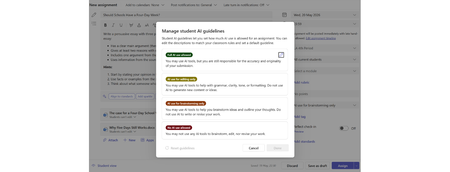
The challenge: students don't know where they stand with AI Every educator has a different approach to AI in their classroom. Some want students using it freely. Others want AI limited to brainstorming or editing. Some assignments shouldn't involve AI at all. The problem? Students are left guessing. Educators have been piecing together workarounds — writing AI policies into assignment instructions, referencing school handbooks, or adding disclaimers to rubrics. None of these are built into the assignment itself, and students often miss them entirely. Student AI Guidelines in Assignments Student AI Guidelines give educators a structured way to set AI expectations directly inside an assignment in Microsoft Teams. When creating an assignment, educators now see a new option to set a guideline level with suggested text: Full AI use allowed. Students can use Copilot for any part of the assignment. AI for editing only. Students write their own work first, then use Copilot to polish, revise, or check grammar. AI for brainstorming only. Students can use Copilot to generate ideas or explore topics, but the final work should be their own. No AI. The assignment should be completed without AI assistance. Student AI Guidelines are available for all grade levels, on desktop and mobile. All students in the assignment see the same guideline. A note on what these guidelines are — and aren't. Student AI Guidelines are a communication tool, not a lockdown. They set clear expectations that students see in the assignment, but they don't technically block access to AI tools. They work the same way a teacher's verbal instruction does: "Here's what I expect for this assignment." The value is in making that expectation visible, consistent, and built into the assignment itself. These are starting points, not fixed rules. Each level comes with suggested text that educators can edit freely to match their school's policies, terminology, or classroom norms. If your school uses different language around AI use — or has its own framework — update the text to reflect that. The feature adapts to your school, not the other way around. Even if your school hasn't enabled Copilot, Student AI Guidelines give you a structured way to communicate AI expectations to students — whether that's encouraging responsible AI use or formalizing a no-AI policy. What students see When an educator sets a guideline, students see it in their assignment view — no hunting through instructions or attachments. The guideline card shows the educator's expectations and, for levels that allow AI use, a direct button to launch Copilot Chat. The Copilot launch button appears for students aged 13 and older at schools where an IT admin has enabled Copilot. If your school hasn't set up Copilot yet, check out the Copilot setup guide for IT admins to get started. If Copilot isn't enabled, students still see the guideline — just without the launch button. If no guideline is set, nothing changes — the student experience stays exactly as it is today. Save time: set a default and reuse across classes Two features help you avoid repeating setup work: Set as default. Any guideline level — including "No AI" — can be set as the default for all new assignments you create. If your school's policy is that most assignments should restrict AI use, set that as your default and you're covered. You can always override it on individual assignments when you want to allow more (or less) AI use. Import Settings. Once you've configured your Student AI Guidelines in one class, you can apply those same settings to other classes using Import Settings. This copies your guideline levels and custom text across classes so you don't have to re-create them each time. Learn more: Import Settings in Assignments and Grades. Why this matters This feature sits at the intersection of two things educators have been asking for: clarity around AI use, and an easy on-ramp to Copilot. Instead of competing with third-party AI tools through restriction, Student AI Guidelines give educators a way to channel AI use purposefully — on their terms, per assignment, with clear communication to students. Resources Set Student AI Guidelines on and assignment in Microsoft Teams Manage Student AI Guidelines in Assignments1.8KViews0likes2Comments
What’s the best way to differentiate a SaaS offer from a Teams offer in Microsoft Marketplace?
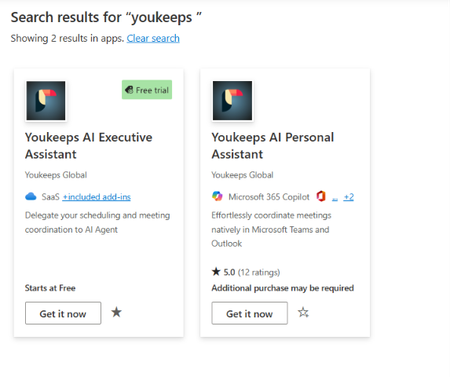
Hey community! Our app is transactable, and we currently have two offers live in Marketplace: Saas and MS Teams offers. However, some of our customers find it confusing and aren’t sure which one they should choose. We also always prefer them chosing Saas so we can track everything via Partner center. What’s the recommended way to structure or differentiate the two offers so the choice is clear for customers? For example, should we use different naming, descriptions, or positioning for each offer? Would really appreciate any best practices or examples from others who have faced it!What's New in Microsoft EDU - Back to School 2026 webinar
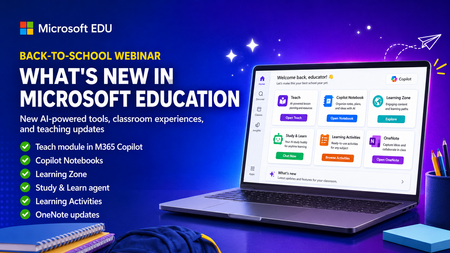
Get ready for back to school (Northern Hemisphere) with the latest product updates from Microsoft Education. In this webinar, we’ll showcase new AI-powered tools, teaching resources, and product updates designed to help educators save time, personalize learning, and support every student. You’ll see what’s new across Microsoft 365 Copilot, Teams for Education, OneNote, and more, including: ✅ Teach module in Microsoft 365 Copilot ✅ Copilot Notebooks ✅ Study and Learn agent ✅ Learning Zone ✅ Teams for EDU updates ✅ The latest OneNote EDU updates And more! Join us for practical demonstrations, helpful tips, and new ideas you can put to work as you prepare for a successful school year. And don't worry if you can't make it live, we will be recorded and posting this on the Microsoft Education YouTube channel afterwards. 📅 When: Wednesday, August 26th @ 8am Pacific Time 🔗 Register here: https://df.events.teams.microsoft.com/event/df.8c4f06fc-399f-4603-8023-f5fd92601bd1@72f988bf-86f1-41af-91ab-2d7cd011db47?source=copyLinkOneEventsShareDialog Mike Tholfsen Group Product Manager Microsoft Education618Views1like1Comment