The challenge: students don't know where they stand with AI
Every educator has a different approach to AI in their classroom. Some want students using it freely. Others want AI limited to brainstorming or editing. Some assignments shouldn't involve AI at all.
The problem? Students are left guessing. Educators have been piecing together workarounds — writing AI policies into assignment instructions, referencing school handbooks, or adding disclaimers to rubrics. None of these are built into the assignment itself, and students often miss them entirely.
Student AI Guidelines in Assignments
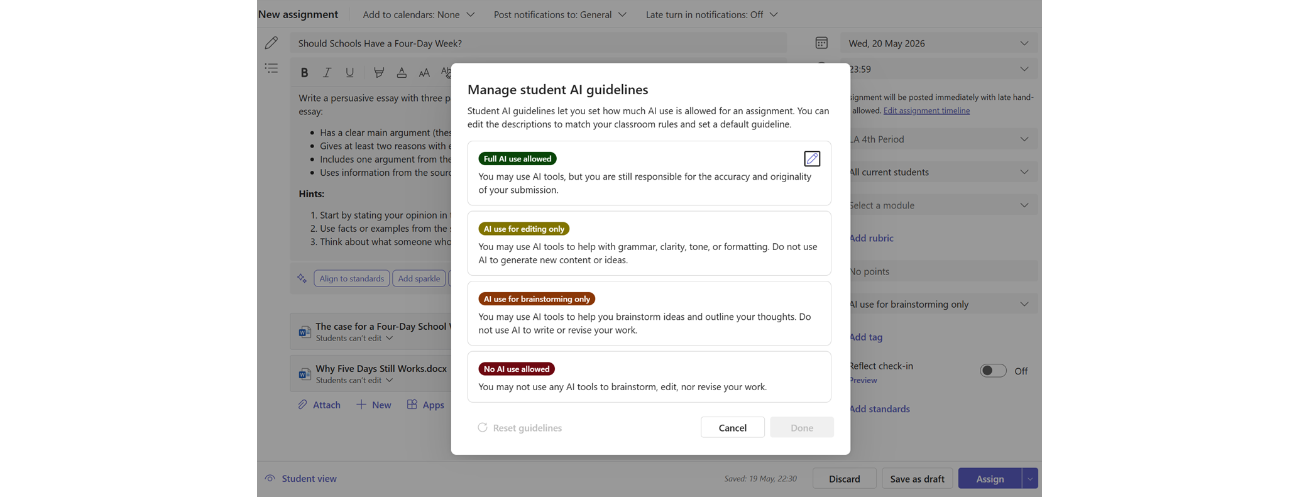
Student AI Guidelines give educators a structured way to set AI expectations directly inside an assignment in Microsoft Teams. When creating an assignment, educators now see a new option to set a guideline level with suggested text:
- Full AI use allowed. Students can use Copilot for any part of the assignment.
- AI for editing only. Students write their own work first, then use Copilot to polish, revise, or check grammar.
- AI for brainstorming only. Students can use Copilot to generate ideas or explore topics, but the final work should be their own.
- No AI. The assignment should be completed without AI assistance.
Student AI Guidelines are available for all grade levels, on desktop and mobile. All students in the assignment see the same guideline.
A note on what these guidelines are — and aren't. Student AI Guidelines are a communication tool, not a lockdown. They set clear expectations that students see in the assignment, but they don't technically block access to AI tools. They work the same way a teacher's verbal instruction does: "Here's what I expect for this assignment." The value is in making that expectation visible, consistent, and built into the assignment itself.
These are starting points, not fixed rules. Each level comes with suggested text that educators can edit freely to match their school's policies, terminology, or classroom norms. If your school uses different language around AI use — or has its own framework — update the text to reflect that. The feature adapts to your school, not the other way around.
Even if your school hasn't enabled Copilot, Student AI Guidelines give you a structured way to communicate AI expectations to students — whether that's encouraging responsible AI use or formalizing a no-AI policy.
What students see
When an educator sets a guideline, students see it in their assignment view — no hunting through instructions or attachments. The guideline card shows the educator's expectations and, for levels that allow AI use, a direct button to launch Copilot Chat.
The Copilot launch button appears for students aged 13 and older at schools where an IT admin has enabled Copilot. If your school hasn't set up Copilot yet, check out the Copilot setup guide for IT admins to get started. If Copilot isn't enabled, students still see the guideline — just without the launch button.
If no guideline is set, nothing changes — the student experience stays exactly as it is today.
Save time: set a default and reuse across classes
Two features help you avoid repeating setup work:
Set as default. Any guideline level — including "No AI" — can be set as the default for all new assignments you create. If your school's policy is that most assignments should restrict AI use, set that as your default and you're covered. You can always override it on individual assignments when you want to allow more (or less) AI use.
Import Settings. Once you've configured your Student AI Guidelines in one class, you can apply those same settings to other classes using Import Settings. This copies your guideline levels and custom text across classes so you don't have to re-create them each time. Learn more: Import Settings in Assignments and Grades.
Why this matters
This feature sits at the intersection of two things educators have been asking for: clarity around AI use, and an easy on-ramp to Copilot. Instead of competing with third-party AI tools through restriction, Student AI Guidelines give educators a way to channel AI use purposefully — on their terms, per assignment, with clear communication to students.
Resources
Set Student AI Guidelines on and assignment in Microsoft Teams

 Microsoft

