task scheduler
22 Topics
Graph API Powershell Script Authentication issue via Windows Task Scheduler
Hi All, I have few a PowerShell scripts written using Microsoft graph api to get data from Intune portal. They were running perfectly fine via windows task scheduler but from last few days it is not getting authenticated when runs from task scheduler. If i run it manually using powershell console it runs without any issue. I tried reintalling the graph api module and also mssql module which I am using to store the data but no luck345Views0likes0Comments
PowerShell doens't run correctly from scheduled task Job
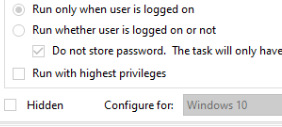
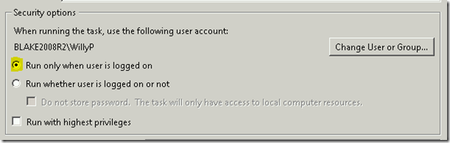
Hi All, I'm trying to schedule a job in task scheduler which has a powershell code and needs to run on every wednesday to get the share point online calendar to get updated. Below is the code I've written to connect to the On prem sharepoint site, retrieve all the details and get it updated to SharePoint Online calendar site. # Install the SharePoint PnP PowerShell <module if not already installed> # Install-Module -Name PnP.PowerShell -Force -AllowClobber #Install-Module -Name PnP.Powershell Import-Module "C:\Users\pnp_3.29\SharePointPnPPowerShellOnline.psd1" -DisableNameChecking # Connect to the SharePoint site $siteUrl = "<URL>" $siteUrlDestination = "<URL>" # Specify Calendar list name $listName = "Calendar" $listNameDestination = "CalenderNew" $ResultColl = @() $cred = Import-Clixml -Path "C:\Users\creds.xml" Connect-PnPOnline -Url $siteUrl -Credentials $cred # Retrieve items from the Calendar list $calendarData = Get-PnPListItem -List $listName #Get All Field Values from the List Item $FieldValuescol = $calendarData.FieldValues foreach ($FieldValues in $FieldValuescol) { $Result = new-object PSObject $Result | add-member -membertype NoteProperty -name "Title" -Value $FieldValues.Title $Result | add-member -membertype NoteProperty -name "Type Of Leave" -Value $FieldValues.Type_x0020_Of_x0020_Leave $Result | add-member -membertype NoteProperty -name "All Day Event" -Value $FieldValues.fAllDayEvent $Result | add-member -membertype NoteProperty -name "Start Time" -Value $FieldValues.EventDate $Result | add-member -membertype NoteProperty -name "EndTime" -Value $FieldValues.EndDate $Result | add-member -membertype NoteProperty -name "Half Day" -Value $FieldValues.Half_x0020_Day $Result | add-member -membertype NoteProperty -name "Number of Working Days" -Value $FieldValues.Number_x0020_of_x0020_Working_x0 $Result | add-member -membertype NoteProperty -name "Description" -Value $FieldValues.Description $Result | add-member -membertype NoteProperty -name "Team" -Value $FieldValues.Team $ResultColl += $Result } #$ResultColl #| Export-Csv $outputPath -NoTypeInformation # Disconnect from the SharePoint site Disconnect-PnPOnline #Destination Connect-PnPOnline -Url $siteUrlDestination -UseWebLogin #remove all existing items # Get all items from the list $items = Get-PnPListItem -List $listNameDestination # Loop through each item and delete it foreach ($item in $items) { Remove-PnPListItem -List $listNameDestination -Identity $item.Id -Force } #refresh the list foreach ($res in $ResultColl) { $itemProperties = @{ Title = $res.Title Type_x0020_Of_x0020_Leave = $res.'Type Of Leave' fAllDayEvent = $res.'All Day Event' EventDate = $res.'Start Time' EndDate = $res.'EndTime' Half_x0020_Day = $res.'Half Day' Number_x0020_of_x0020_Working_x0 = $res.'Number of Working Days' Description = $res.Description Team = $res.Team } Add-PnPListItem -List $listNameDestination -Values $itemProperties } Disconnect-PnPOnline Microsoft Windows 10 Enterprise Scheduled Task - Program/Script: powershell.exe Arguments: –Noninteractive –Noprofile –Command "& {C:\Users\usernameLeave_extraction_script.ps1'}" Run whether user is logged on or not (have tried this both ways) Scheudule task doesn't run correctly even when a user is logged in and we force the task to run. Script runs perfectly when we manually run it. And doesn't display any error, the job gets starts and closes immediately.Solved3.1KViews0likes12Comments
Create Task scheduler-run for event with specific Result Code
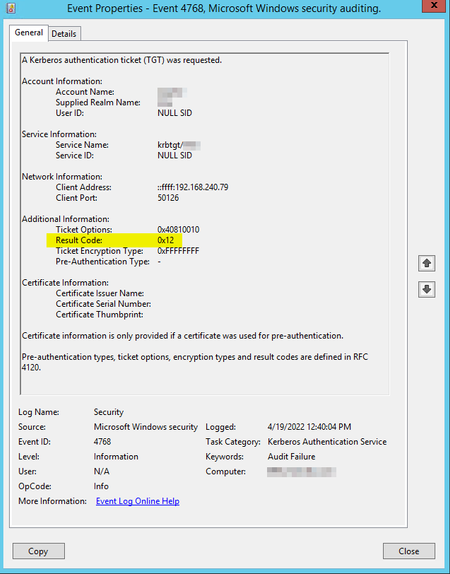
I would like to trigger the task only if the login attempt is against a disabled account. This includes the Result Code 0x12. How can I add this to the trigger? Any help would be much appreciated. Thanks. Here is the event. Here is the event details XML View: - <Event xmlns="http://schemas.microsoft.com/win/2004/08/events/event"> - <System> <Provider Name="Microsoft-Windows-Security-Auditing" Guid="{54849625-5478-4994-A5BA-3E3B0328C30D}" /> <EventID>4768</EventID> <Version>0</Version> <Level>0</Level> <Task>14339</Task> <Opcode>0</Opcode> <Keywords>0x8010000000000000</Keywords> <TimeCreated SystemTime="2022-04-19T16:40:04.842900000Z" /> <EventRecordID>562602120</EventRecordID> <Correlation /> <Execution ProcessID="528" ThreadID="106016" /> <Channel>Security</Channel> <Computer>XXXXXXXXXX</Computer> <Security /> </System> - <EventData> <Data Name="TargetUserName">XXXXXXXX</Data> <Data Name="TargetDomainName">XXXXXXX</Data> <Data Name="TargetSid">S-1-0-0</Data> <Data Name="ServiceName">krbtgt/mie</Data> <Data Name="ServiceSid">S-1-0-0</Data> <Data Name="TicketOptions">0x40810010</Data> <Data Name="Status">0x12</Data> <Data Name="TicketEncryptionType">0xffffffff</Data> <Data Name="PreAuthType">-</Data> <Data Name="IpAddress">::ffff:192.168.240.79</Data> <Data Name="IpPort">50126</Data> <Data Name="CertIssuerName" /> <Data Name="CertSerialNumber" /> <Data Name="CertThumbprint" /> </EventData> </Event> Here is a task trigger that includes everything but the result code: <QueryList> <Query Id="0" Path="Security"> <Select Path="Security">*[System[band(Keywords,4503599627370496) and (EventID=4768)]]</Select> </Query> </QueryList> Not sure where to put the Result Code 0x12 <Data Name="Status">0x12</Data>1.1KViews0likes0Comments
Create Pop Up when opening application
Hi there, I am hoping to create a pop-up every time I open my PDF app (Nuance Power PDF) that reminds me to redact sensitive information. I know it is possible to create a pop-up attached to a file, but was wondering if it is possible to do with a desktop application. Thank you1.3KViews1like0Comments
Create a task scheduler that triggers a task if a csv file is created
Hi All, Many thanks in advance, I have a powershell script that runs based on an input csv file. I have to run the script once a csv file is created, kindly help me by letting me know hos to trigger a task based on csv file creation.Solved16KViews0likes3CommentsTsk Scheduler Operation
I use Task Scheduler to run tasks during the day. It works perfectly if I'm logged in. About every 3-4 weeks I get logged out. I suspect there is some update to Windows causing this. I tried to set it to run if it is not logged in and it doesn't work. Task doesn't run with 'Run whether is logged on or not'. I supplied password. Does anyone know how to fix this. The other option is to automatically log in to Windows after being logged out. The whole reason for WVD is to reliably run these tasks without interruption.1.1KViews0likes1CommentHow do I create a popup reminder that will display a message?
There's something I need to remind myself of, every time I log into Windows 10 on my work desktop. Today I got into Task Scheduler to create a task, to remind me of this, every time I logged into Windows. Things were going along well, until I tried to chose a trigger. I wanted to have it popup a window every time I logged into Windows, but it says it is deprecated. I tried to go further, in hopes that it still might work. But it doesn't. So, how do I create a reminder that I'll see in a popup window every time I log into my Windows 10 work desktop, when it Task Scheduler won't let me do that?Solved37KViews0likes5Comments