sync
967 Topics
Change folder name Onedrive
Good afternoon everyone, I have several Onedrive accounts. When I synchronize them, my computer names them all the same but for a final number: Onedrive - Educacyl / Onedrive - Educacyl (1) / Onedrive -Educacyl (2), etc. I would like to name them in a different way in my computers. How can I do that? I work both with Mac and Windows 10.594KViews1like4Comments
OneDrive stuck on "signing in"
Hi, I'm trying to use Onedrive and Onenote, but it seems to be really terrible 50% of the time. Sometimes when I log on my pc, it says I have to log in, and in doing so, is stuck on a "signing in" loop, until it says some error code about me not having an internet connection. Here's what I've tried: 1. Close and open Onedrive 2. Removing auth from the pc and adding it again 3. Reinstalling Onedrive 4. Change Wi-Fi 5. Do a /reset in Windows run AND cmd 6. Update drivers 7. Install the newest Onedrive from the website 8. Try the app-version found in Windows Store What am I supposed to do? I don't want to restart my pc every time it doesn't work, that's a terrible fix.374KViews10likes62Comments
From "Available on this device" to "Always available on this device"
With Files On-Demand, I am trying to understand the point of changing the status from "Available on this device" to "Always available on this device". As I understand it, as soon as the status becomes "Available on this device" , OneDrive maintains a sync'ed copy available both online and on the local device. If so, what difference does it make when the status is changed to "Always available on this device"?Solved182KViews2likes15CommentsAdd and Open files shared with you in windows explorer (OneDrive for Business)
Is there any way to add and open files shared with me onto my OneDrive -- ie. To work on those files directly on my windows explorer folder, under my local OneDrive folder? Came across this article https://support.office.com/en-us/article/Add-and-sync-shared-folders-to-OneDrive-8a63cd47-1526-4cd8-bd09-ee3f9bfc1504. However can't seem to find the option to Add a shared folder to my Onedrive. Suspect perhaps its not available on the business version of OneDrive? Currently using the latest OneDrive for Business client (version 2016, build 17.3.6743.1212).Solved128KViews2likes6CommentsOnedrive readonly (green locks)
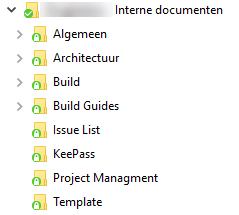
I've recently installed the latest preview build on the next-gen OneDrive client. I installed this version to test SharePoint document library syncing. I'm able to sync document libraries, but all folders and files appear to be read only on my laptop. I also see green lock icons instead of green checkmarks on all these files and folders. Is there something I'm doing wrong? I already tried to reset OneDrive and did a complete reinstall. Unfortunately I still see the green locks. I have these locks only with team sites. My personal OneDrive is working without problems.84KViews0likes44CommentsOneDrive Client, Files on Demand and Syncing large libraries
I thought I'd post some observations regarding the OneDrive sync client we've observed that aren't documented anywhere but we needed to figure out when planning a massive move to SharePoint from on-premise file servers: Limits: Microsoft documents that you shouldn't sync more than 300,000 files across all libraries that the client is connected to, but there was no documentation about Files on Demand limits, and we have observed the following: The OneDrive client will fail when the dat file that stores object metadata reaches exactly 2GB in size (%localappdata%\Microsoft\OneDrive\settings\Business1). Now, while Microsoft says you shouldn't sync more than 300,000 files, you can connect using files on demand to libraries that contain more than this. The trick here is that in this case, the total number of files and folders matter, lets call them collectively "objects". (Interestingly, when you first connect to a library and the client says "Process changes" and gives you a count, "changes" is the total number of objects in the library that it's bringing down using files on demand and storing in the dat file.) My suspicion is that since the OneDrive client is still 32bit, it's still subject to certain 32bit process restrictions, but I don't really know. What matters in this case is that up until build 19.033.0218.0009 (19.033.0218.0006 insiders build), the client would fill up the dat file and reach the 2GB limit after about 700-800,000 objects. After build 19.033.0218.0009, it appears that the client has been optimized and no longer needs to store quite as much metadata about each object, "increasing" the upper limit of files on demand. (It seems that in general, each object takes up just over 1KB of data in the dat file, putting the limit somewhere just under 2 million objects). Keep in mind, this is not per library, this is across all libraries, including OneDrive for Business (personal storage), SharePoint Document Libraries, etc. Performance: The client has made some significant improvements in performance quickly as they refine each new build, but there are some things to be aware of before you start connecting clients to large libraries: It. takes. forever. The more objects in a library, the longer it's going to take for the client to build it's local cache of files on demand copies of all the items in the library. It seems that in general, the client can process about 50 objects per second, if you were connecting to a library or multiple libraries that had 1.4 million objects, it will take around 8 hours before the client is "caught up". During the time that the content is being built out locally, Windows processes will also consume a large quantity of system resources. Specifically, explorer.exe and the Search Indexer will consume a lot of CPU and disk as they process the data that the client is building out. The more resources you have, the better this experience will be. On a moderately powered brand new Latitude with an i5, 8GB of Memory and an SSD OS Drive, the machine's CPU was pretty heavily taxed (over 80% CPU) for over 8 hours connecting to libraries with around 1.5 million objects. On a much more powerful PC with an i7 and 16GB of memory, the strain was closer to 30% CPU, which wouldn't cripple an end user while they wait for the client and Windows to finish processing data. But, most organizations don't deploy $2000 computers to everyone, so be mindful when planning your Team-Site automount policies. Restarts can be painful. when the OS boots back up OneDrive has to figure out what changed in the libraries in the cloud and compare that to it's local cache. I've seen this process take anywhere from 15 minutes to over an hour after restarts, depending on how many objects are in the cache. Also, if you're connected to a large number of objects in the local cache, you can expect OneDrive to routinely use about a third of CPU on an i5 processor trying to keep itself up to date. This doesn't appear to interfere with the overall performance of the client, but it's an expensive process. Hopefully over time this will continue to improve, especially as more organizations like mine move massive amounts of data up into SharePoint and retire on premise file servers. If I had to make a design suggestion or two: - If SharePoint could pre-build a generic metadata file that a client could download on first connection, it would significantly reduce the time it takes to set up a client initially. - Roll the Activity Log into an API that would allow the client to poll for changes since the last restart (this could also significantly improve the performance of migration products, as they wouldn't have to scan every object in a library when performing delta syncs, and would reduce the load on Microsoft's API endpoints when organizations perform mass migrations) - Windows to the best of my knowledge doesn't have a mechanism to track changes on disk, i.e. "what recursively changed in this directory tree in the last x timeframe", if it were possible to do this, Windows and SharePoint could eliminate most of the overhead that the OneDrive client has to shoulder on it's own to keep itself up to date. Speaking to OneDrive engineers at Ignite last year, support for larger libraries is high on their radar, and it's apparent in this latest production release that they are keeping their word on prioritizing iterative improvements for large libraries. If you haven't yet started mass data migrations into SharePoint, I can't stress enough the importance of deeply analyzing your data and understanding what people need access to and structuring your libraries and permissions accordingly. We used PowerBI to analyze our file server content and it was an invaluable tool in our planning. Happy to chat with anyone struggling with similar issues and share what we did to resolve them. Happy SharePointing! P.S., shoutout to the OneDrive Product Team, you guys are doing great, love what you've done with the OneDrive client, but for IT Pros struggling with competing product limits and business requirements, documenting behind the scenes technical data and sharing more of the roadmap would be incredibly valuable in helping our companies adopt or plan to adopt OneDrive and SharePoint.79KViews12likes69Comments