Introducing Windows Ready Print and Modernized Driver Selection
Windows Ready Print: A clearer path to modern printing on Windows Printing on Windows is evolving. As printing environments modernize, customers and partners are asking for solutions that are reliable, secure, and easy to manage across today’s devices. To reflect this shift and make the value of our platform clearer, we are evolving the Modern Print Platform under a new name: Windows Ready Print. Windows Ready Print highlights what matters most: a streamlined, dependable printing experience built for modern Windows environments. It represents our commitment to simplifying printing, aligning modern standards, and delivering consistent, forward-looking experiences for users, IT admins, and partners. Driving the transition to Windows Ready Print with driver selection controls At the core of Windows Ready Print is a transition away from legacy, third party drive-based workflows toward modern, standards-based printing with IPP (Internet Printing Protocol) using the Windows inbox IPP printer driver. Starting in July 2026, new printer installations will default to Windows Ready Print where supported, enabling a simpler and more reliable setup experience. This change reduces the need for traditional driver management and lays the foundation for a more scalable and predictable print experience. However, we recognize that not all environments can move to Windows Ready Print immediately. To ensure a smooth and flexible transition, we are introducing the ability for users to configure Windows to install their printers using Windows Ready Print (if supported) or the OEM printer driver during installation. You can find this setting under Settings > Bluetooth & Devices > Printers & Scanners > Default install printer using Windows Ready Print. This feature enables users and IT admins to control how Windows selects drivers when installing printers: When “Default install printers using Windows Ready Print” is enabled, Windows Ready Print installation is preferred When “Default install printers using Windows Ready Print” is disabled, default driver selection is used The configuration applies to new printer installations only, without affecting existing devices. To enable/disable this feature via group policy, go to: Launch Group Policy Editor Navigate to Local Computer Policy -> Administrative Templates -> Printers Find and select 'Configure Windows Ready Print driver ranking' -> double click to open it Select 'Enabled' (if you wish to enable Windows Ready Print driver selection) or 'Disabled' (if you wish to explicitly disable Windows Ready Print driver selection). Select Apply Select OK How driver selection configuration works with Windows protected print mode When you enable "Default install printers using Windows Ready Print”, new printer installations will default to Windows inbox IPP printer driver when supported. When you enable Windows protected print mode, printers are exclusively installed with Windows Ready Print. Devices that do not support Windows Ready Print cannot be installed. Note: When you’ve enabled Windows protected print mode, you cannot disable "Default install printers using Windows Ready Print".12KViews1like3CommentsMaking it easier to identify Windows protected print mode compatible devices
As the Windows print ecosystem continues transitioning away from legacy driver‑based architectures, Windows Protected Print Mode (WPP) helps improve system security by enforcing use of the Windows modern print stack and introducing additional security features. To increase transparency for users and support industry readiness for modern print environments, Windows is introducing a new compatibility icon that can be found in Settings > Bluetooth & devices > Printers & scanners: This icon appears next to each installed printer that supports Windows protected print mode, which requires IPP capabilities. To provide the best experience for customers using Windows protected print mode, printer manufacturers can create Print Support Apps (PSAs) to replicate driver customization features.442Views0likes0Comments
Excel Print Preview not matching the actual printed document
Hey there, My Excel print preview and printer seem to be out of sync. I keep my excel worksheets in "Page Layout" mode when I work, I find it best when I plan to print the document in the end. In the last 2 weeks, none of the documents I've printed are coming out the way they appear on the workbook. I have a workbook that should be 23 pages but it prints 26 instead. The rows are extending over into other pages. Please help!!Solved438KViews6likes66CommentsMargin choice in print dialog resets after two invocations total, no longer sticky
Hello, Thank you very much for your work on this great browser. Upon updating to Edge Stable 105.0.1343.27, it appears that after specifically one more invocation of the "print" dialog (two total), the user's choice for the "Margins" dropdown (visible after clicking "More Settings...") is reset to "Default". Previously, the choice for the "Margins" dropdown was sticky - preserved across any number of times the print dialog was invoked. Steps to reproduce: 1. Open some webpage, such as [Hacker News](https://news.ycombinator.com/). 2. Ctrl+P / Cmd+P (my current OS is macOS latest stable 12.5.1) to trigger the print dialog. 3. More Settings... > Margins > Select "None". (My preferred setting for printing to PDF.) 4. Print the webpage, or cancel out (the behavior manifests either way). 5. Open the print dialog once again - the margin choice from before is preserved. Print or close the dialog. 6. Open the print dialog again. The choice for "Margins" is now reset to "Default" instead of staying on the user's selected choice. I have confirmed this behavior persists across both browser and full OS restarts. This may be intended behavior by the dev team, but it would break a crucial workflow for me (printing-to-pdf discussions from HN and Reddit with margins set to "None"). I respect the team's choices, but it is interesting to consider the ongoing discussions about the stickiness of print settings. For example, in the Chromium bug tracker they have the issue: `2022 09 05` [1295921 - Improve sticky behavior of print options - chromium](https://bugs.chromium.org/p/chromium/issues/detail?id=1295921) as well as the tangential issue: `2022 09 05` [1314057 - Custom Printer Margin Settings Reset After Printing To Another Printer - chromium](https://bugs.chromium.org/p/chromium/issues/detail?id=1314057). Comment 8 from 2021 06 07 in this issue indicates that margin choice in the print dialog is meant to be a sticky setting: `2022 09 05` [1186601 - How do I set default print margins for multiple printers on Google Chrome for Windows 10? - chromium](https://bugs.chromium.org/p/chromium/issues/detail?id=1186601) Even though this issue manifested in Edge Stable, I thought it might be interesting for the Edge Insiders staff due to recent changes around printing in Dev Channel updates: `2022 09 05` [Dev channel update to 105.0.1329.1 is now live! - Microsoft Tech Community](https://techcommunity.microsoft.com/t5/discussions/dev-channel-update-to-105-0-1329-1-is-now-live/m-p/3583978) "Fixed a crash when getting the page count in print preview" `2022 09 05` [Dev channel update to 106.0.1363.0 is now live! - Microsoft Tech Community](https://techcommunity.microsoft.com/t5/discussions/dev-channel-update-to-106-0-1363-0-is-now-live/m-p/3613154) "Fixed orientation issue with printing" Perhaps the issue manifests because of changes in some of these code paths. Thanks for your time, and ideally the choice for "Margins" can be made sticky (preserved across any number of invocations of the print dialog) once again in the next stable update, but I understand if not.1.7KViews0likes1CommentPrinting Split View
Hello, Is anyone aware of being able to print a split view? I'm thinking Gantt/Resource Graph would be REALLY nice to be able to print. All I can find on the WWW is crafty ways to work around the system, however this results in low quality. Hard to print screen on a 500 line project and be able to read anything! I'd really prefer to not have to print 2 reports and tape them together like a grade school art project. If this is not an option.... Microsoft, maybe you want to think about this? Cheers, Zachoriah.793Views0likes1CommentUniversal Print Connector unable to registert
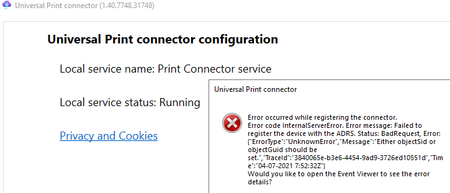
Hi, today i wanted to make some first steps with the Universal Print Feature. Therefore i've read through the prerequisites and tried to install the Universal Print Connector onto a machine. (I've tried different ones). The installation was working fine, afterwards i've started the software, logged in with administrative credentials, typed in a Connector name and hit "register". Now the following error popped up: The last Eventlog item stated the following error: EventID 8 Register connector start: LMPrint Sending connector registration request... Done Checking Registration status... StatusCode: 500, ReasonPhrase: 'Internal Server Error', Version: 1.1, Content: System.Net.Http.StreamContent, Headers: { Transfer-Encoding: chunked X-Content-Type-Options: nosniff X-MSEdge-Ref: Ref A: 9E743355D74C45BE9F8B05C81A343E73 Ref B: VIEEDGE1913 Ref C: 2021-04-07T07:53:52Z Cache-Control: no-store, must-revalidate, no-cache, max-age=0 Date: Wed, 07 Apr 2021 07:53:52 GMT Content-Type: application/json; charset=utf-8 } Before this there were some other error entrys. (EventID 8, 1 & 2) The first EventID8 Failed to get valid connector registration status StatusCode: 500, ReasonPhrase: 'Internal Server Error', Version: 1.1, Content: System.Net.Http.StreamContent, Headers: { Transfer-Encoding: chunked X-Content-Type-Options: nosniff X-MSEdge-Ref: Ref A: 46482393AAE84754943C880672969CAF Ref B: VIEEDGE1913 Ref C: 2021-04-07T07:52:36Z Cache-Control: no-store, must-revalidate, no-cache, max-age=0 Date: Wed, 07 Apr 2021 07:52:35 GMT Content-Type: application/json; charset=utf-8 } {"error":"service_error","error_description":"Failed to register the device with the ADRS. Status: BadRequest, Error: {\"ErrorType\":\"UnknownError\",\"Message\":\"Either objectSid or objectGuid should be set.\",\"TraceId\":\"3840065e-b3e6-4454-9ad9-3726ed10551d\",\"Time\":\"04-07-2021 7:52:32Z\"}","registration_id":"47f13c65-d2b0-46b5-904e-3b57d8af0886","http_status_code":500} One of the EventdIDs 1 Retry 4 Exception: StatusCode: 500, ReasonPhrase: 'Internal Server Error', Version: 1.1, Content: System.Net.Http.StreamContent, Headers: { Transfer-Encoding: chunked X-Content-Type-Options: nosniff X-MSEdge-Ref: Ref A: 05C88060B428496A8BFDCF20FAD5FEB9 Ref B: VIEEDGE1913 Ref C: 2021-04-07T07:53:27Z Cache-Control: no-store, must-revalidate, no-cache, max-age=0 Date: Wed, 07 Apr 2021 07:53:26 GMT Content-Type: application/json; charset=utf-8 } And the #2 Retry Failure: StatusCode: 500, ReasonPhrase: 'Internal Server Error', Version: 1.1, Content: System.Net.Http.StreamContent, Headers: { Transfer-Encoding: chunked X-Content-Type-Options: nosniff X-MSEdge-Ref: Ref A: 9E743355D74C45BE9F8B05C81A343E73 Ref B: VIEEDGE1913 Ref C: 2021-04-07T07:53:52Z Cache-Control: no-store, must-revalidate, no-cache, max-age=0 Date: Wed, 07 Apr 2021 07:53:52 GMT Content-Type: application/json; charset=utf-8 } At this moment i absolutely don't know why this happen. DotNet is up to date. (on some devices 4.7.2, on another device 4.8) Server 2019, Windows 10 20H2 Server was onprem joined, Win10 Client was AAD Only The User is licensed with Office E5 and Win10 E5 (In the service plan details is no "Universal Print" visible, is this correct?) The Azure Universal Print Portal shows, that we have a number of printjobs available, so this should work. Any help is highly appreciated. 🙂9.3KViews1like5Comments
How can I print a list item based on a template or print a list item based on the selected view
Hello, Need help. How can I print (pdf) a list item based on a template or print (pdf) a list item based on the view? I've seen some articles with solutions using flow but all of them required premium addins. If the solution is Flow, is there an alternative without using premium plugins?Solved4.4KViews0likes2CommentsSharePoint Online - Print button needed on Document Library toolbar/right-click menu.
We're needing the ability to select and print multiple Word documents (most are 1 page but different sized page layouts) within a SharePoint Online Document Library (Tiled View). Others would no doubt need the ability to print PDF, Excel, images and other documents. Can MS please add an "Enable Print Icon" option into Advanced List Settings, so that an administrator can allow users to easily print documents located within the Document Library via an icon in the Document Library Toolbar. As a side note - I find it incredible how a common feature such as "Print" isn't even an option in the right click menu, yet we have useless deprecated options such as "Workflows" lingering in the menu...3.8KViews0likes2Comments
Select multiple word files but only one printed
Hi everyone, I already tried on 2 different computers but the result is the same: I select multiple word files from a directory to print them all in once, but only one get printed. I tried with right click->print and directly from the toolbar. If I select multiple pdf files it print all of them correctly. Anyone have a clue about that? Thank youSolved1.5KViews0likes1Comment
skip print preview in kiosk
I am using Edge on windows 10 pro kiosk. I need configure Edge to skip print preview dialog. How? See: https://filestore.community.support.microsoft.com/api/images/744db15a-171d-464e-8689-2bb743353b95?upload=true https://filestore.community.support.microsoft.com/api/images/9f40637a-98a5-4099-accd-062575b4d836?upload=true1.1KViews0likes1Comment