people
15 TopicsWhat's New in Microsoft Teams | August - September 2026
A quick note before we get into it: What's New in Teams is shifting from a monthly to a quarterly rhythm. You'll hear from us next in December, March, and June, and each edition will round up everything announced and released over the full quarter. One post, one fuller view of what's new. Two investments shape where Teams is heading, and you'll see both in this quarter's releases: AI transforming teamwork with agents as part of the team, and a simpler, smarter, more secure foundation underneath it all. AI in Teams is showing up in the flow of your work. Teams Phone Agent brings that to your phone line, helping callers with common requests in more than 60 languages and routing them with context attached, so a missed call turns into a next step instead of a lost one. Context carries forward, too. Video recap turns a meeting you missed into a short, narrated highlight reel, so what a meeting decided outlasts the conversation itself. And protection for everyday collaboration is always top of mind. The new Security Detection Report brings detections such as impersonation and malicious URLs into one view in the Teams admin center, so admins see the whole picture in one place. Read on for all the latest updates! Feature categories: (All features listed are generally available unless otherwise noted) Chat and Collaboration Meetings Teams Phone Workplace Teams Events Fundamentals and Security Teams Platform Certified devices Chat and Collaboration Ask Copilot in Teams conversations Stay in the flow of work and get help from Copilot directly within your conversations. Open Copilot from a message or selected text in a Teams conversation, with the relevant context already included, making it easier to gain insights, explore questions, and move work forward without needing to re-explain information. Find agents and apps faster through Teams search Discover the tools you need with agents and apps surfaced directly in Teams search results. As you type in the search bar, matching agents and apps appear alongside other relevant results, helping you spend less time searching and more time getting things done. Find and share files faster in Teams Locate the files you need while sharing content in Teams. Search for cloud-based files directly from the attachment experience, making it easier to find and share the right content without interrupting the flow of collaboration. Emoji shortcuts on iOS and Android Express yourself with emoji shortcuts. Desktop emoji shortcuts now work on iOS and Android. Insert emojis directly in the compose box by typing a word between colons, so :smile: becomes 😊. Autocomplete suggestions help speed up entry, and custom emojis are also supported. Clearer text highlighting in dark mode and high contrast mode Make highlighted text easier to read while composing messages in Teams. Improvements to text highlighting in dark mode and high contrast mode provide a more consistent and accessible editing experience, helping content stand out more clearly. Meetings Video recap in Teams Meeting recap now delivers a bite-sized video recap of with key highlights from your Teams meeting. It combines AI-generated voiceover summaries with video snippets, spotlighting the most important moments while preserving the original tone and flow, so you can catch up on key topics in a few minutes. Video recaps now support meetings in 23 languages across 31 regional variants, learn more. Translation button to change the language for intelligent meeting recaps After an intelligent meeting recap is generated, you can change the recap language at any time using a translation button, even if a different language was selected during the meeting. Multilingual teams get more flexibility to read meeting insights, action items, and discussion summaries in the language that is most comfortable for them. Redesigned meeting controls Stay focused on your conversations with a customizable meeting toolbar that keeps the controls you need within easy reach. Pin your most-used controls, unpin those you don’t need, and drag and drop them into the order that works for you. Raise Hand now lives inside the React button, while Leave has its own spot on the right to help avoid accidental exits. Teams Phone Teams Phone Agent Teams Phone Agent is an AI-powered receptionist for your business’s phone line, so callers can get help with common requests even after hours. For customer-facing organizations and departments using Teams Phone, such as bank branches or IT help desks, it takes repetitive calls off employees' plates so they can focus on the conversations that truly need a human touch. With support for over 60 languages and locales, Teams Phone Agent handles common requests such as answering routine questions or booking appointments. , And it can route a caller to the right department or employee with an AI-generated summary of the conversation, so customers do not have to navigate phone menus or repeat themselves. Custom voice agents are available for specialized workflows. Teams Phone Agent is now generally available, learn more. If the player doesn’t load, open the video in a new window: Open video Intelligent call recap in Queues app Intelligent call recaps in Queues app help you catch up on recorded or transcribed queue calls with AI-generated summary notes covering key discussion points and follow-up actions. To open a recap, find the call record in the Queues app call history and select Recap. Copilot in Queues app’s shared call history for post-call insights Quickly catch up on a call queue call and uncover key details with the ability to use Copilot in the shared call history in Queues app. After a recorded call is completed, users with Copilot can now open the call record in the shared call history, access the Copilot Chat sidecar from the Recap tab, and ask questions about the call. Automatic recording and transcription for call queues Capture customer interactions without requiring your organization’s calling representatives to manually start recording. Admins can enable automatic recording and transcription for individual Teams call queues and control access to recordings. Recordings are stored in SharePoint and accessible through call recaps in the shared call history in Queues app. View and manage auto attendant shared voicemails in Queues app Help your team stay on top of customer messages by managing auto attendant shared voicemails directly in Queues app. Calls routed from an auto attendant to voicemail will appear in Queues app, giving collaborative calling teams a centralized place to track, triage, and respond to messages. Customize recording and transcription notifications for Teams calls Give your organization greater control over how recording and transcription are communicated during Teams calls. IT admins can customize select user notification strings for recording and transcription in the Teams admin center, helping tailor the experience for participants in Teams VoIP calls. Enhance control of delegated calls with call lock and delegate join alerts Call delegation in Teams gains real controls: a delegator can lock an active call and see when a delegate joins. Locking prevents delegates from joining or resuming the call, and optional warning tones notify participants when a delegate joins or resumes. Workplace Interpreter agent support in Teams Rooms on Android The Interpreter agent acts as a translator in Microsoft Teams meetings, letting participants listen in their chosen language with real-time translation. It is now available in Teams Rooms on Android licensed for Teams Rooms Pro. New room optimization mode in Teams desktop Room optimization mode makes it easier to use your laptop for meetings and collaboration in spaces such as focus or huddle rooms that do not yet have a Teams Rooms system. It replaces shared display mode, has a new location, and enables or disables room-specific features. When room peripherals are connected, Teams can automatically select audio and video devices, enable speaker recognition and shared display, and disable voice isolation. Modernized Gallery view in Teams Rooms on Android The updated Gallery view in Teams Rooms on Android prioritizes video on the meeting stage, arranges participants in consistent aspect ratios, and minimizes movement of participant tiles on stage. You can hide the room self-preview video and choose to see audio and video participants equally on stage instead of prioritizing video participants. Admins can set the default behavior using local device settings and the Pro Management portal. Teams Events Breakout rooms in Teams Meetings & Events Breakout rooms are now supported in Teams Meetings & Teams Events with up to 1,000 participants across 100 rooms, increased from the previous limit of 300 participants across 50 rooms. Organizers can use breakout rooms to create smaller focused sessions within an event for more interaction and collaboration. Specify who has control of production tools in Teams Events Organizers can designate who controls production tools, granting chosen people access to Manage what attendees see and the green room so event production stays with the right crew. The setting is a new meeting option applied when the event is set up. Expanding presenter visibility in “Manage what attendees see” Producers can resize and expand the presenter panel in Manage what attendees see, making it easier to view, manage, and switch between presenters while a live event is running. New layout when sharing content for Teams events Organizers and presenters who have access to production tools now see updated layout options when sharing content in the “Manage what attendees see” experience for Teams events. The available layouts are speaker focused, content focused, and content only. The new speaker focused layout prioritizes presenter video alongside shared content for greater visibility. Available for Teams events organizers on Teams for Windows desktop and Mac desktop. Fundamentals and Security Enhanced real-time alerting rule management in Teams admin center Administrators can now duplicate an existing alerting rule to create a similar configuration without rebuilding it, bulk upload users when creating or editing a rule, and delete rules directly from the management experience. These capabilities are available for in-progress meetings and calls rule types, and organizations can configure monitoring for up to 500 users across their real-time alerting rules. Security Detection Report in Teams admin center A new Security Detection Report in the Teams admin center gives admins a unified view of messaging security detections across signals such as impersonation, malicious URLs, and weaponizable file types. Admins can review detection activity in one place and export detailed data for further investigation, improving visibility into threats in Teams. Single pane for monitoring and troubleshooting meetings and calls (Windows) Administrators can monitor meeting and call health across the organization from one place, identifying recurring issues, uncovering trends, and proactively troubleshooting problems affecting people in both live and past meetings and calls. Meeting participant detail audit records in all participating tenants Admins can now access participant-level audit records for their own users in cross-tenant meetings, helping investigate incidents even when another organization hosted the meeting. Teams audit logging now shares meeting participant detail records with all participating tenants, not just the organizer tenant, and each record includes organizer information so admins can tell whether a meeting was organized inside or outside their tenant. Teams optimization for VDI now supports Teams Events (Windows) Attendees joining Teams Events from virtualized Windows desktops can offload audio and video to their local device, supporting high definition playback while easing load on the virtual desktop. Optimization works on Windows endpoints connecting to Azure Virtual Desktop, Windows 365, Citrix, Omnissa, or Amazon. Captions, DVR, reactions, streaming chat, and Q&A are all supported, as are first-party and third-party eCDNs. Teams Platform Real-time buying signals, now in Teams Sales Navigator for Microsoft Teams delivers real-time lead and account insights directly within Microsoft Teams. Sellers can stay on top of key buying signals, discover opportunities where they work, and take action while opportunities are most relevant. The integration helps teams move from insight to action faster by surfacing Sales Navigator intelligence in their daily workflow. Unified agent and app installation management across Microsoft 365 and Teams admin center (Windows) Administrators using the Microsoft 365 admin center and Teams admin center can apply app and agent installation changes once and have them enforced consistently across Teams, Outlook, and Microsoft 365 Copilot. Previously, installation changes made in the Microsoft 365 admin center applied only to Outlook and Microsoft 365, and changes made in the Teams admin center applied only to Teams. Identify custom Teams apps that need updates for private and shared channels Admins can view a list in Teams admin center of custom apps in their tenant that need updates to work in private and shared channels. The list helps admins identify impacted apps, understand which ones require developer action, and coordinate updates so people can keep using custom apps across all supported channel types. Prominent search for app and agent discovery in the Store Search now sits in the middle of the Store page, with improved type-ahead suggestions, a more informative results page, and natural language processing to surface the most relevant apps and agents. Add multiple steps when building a workflow from scratch When building a workflow from scratch, you can add several steps at once, so you can assemble multi-step automation without returning to edit it step by step, reducing repetitive setup work and simplifying the creation of more advanced automations. Collect information with List Form in Workflows A workflow can open with a form that gathers the details it needs up front, so automation runs on structured input rather than chasing information midway. Single-character keyboard shortcuts for focused message actions (Windows) Single-character shortcuts let you quickly take common messaging actions such as edit, delete, reply, forward, pin, save, mark unread, quote reply, and react when a message has keyboard focus. The shortcuts are a predefined messaging set, and they are discoverable and customizable in the keyboard shortcuts dialog. Certified devices EPOS IMPACT 1000 MS UC ANC WL USB-C+A On-ear Bluetooth® headset. Supplied with a BTD 900c dongle, a USB‑C to USB‑A adapter, and a USB‑C charging cable. Features ANC, EPOS BrainAdapt™ technologies, and EPOS AI™â€‘powered voice pickup and noise cancellation, ensuring your voice sounds natural and clear in any environment. EPOS IMPACT 1000 MS UC ANC WL USB-C+A Stand On-ear Bluetooth® headset. Supplied with a table stand for wireless charging, a BTD 900c dongle, a USB‑C to USB‑A adapter, and a USB‑C charging cable. Features ANC, EPOS BrainAdapt™ technologies, and EPOS AI™â€‘powered voice pickup and noise cancellation, ensuring your voice sounds natural and clear in any environment. EPOS IMPACT 1000 MS UC Mono WL / ANC WL Dongle-free Bluetooth® headsets available in monaural and binaural on-ear configurations. Supplied with a USB-C charging cable and a USB-C to USB-A adapter. Features EPOS BrainAdapt™ technologies and EPOS AI™-powered voice pickup and noise cancellation for clear, natural-sounding communication in any environment. The binaural ANC WL model also includes Active Noise Cancellation (ANC) to help reduce background distractions. EPOS IMPACT 1000 MS UC ANC WL Stand On-ear, dongle-free Bluetooth® headset. Supplied with a table stand for wireless charging, a USB‑C charging cable, and a USB‑C to USB‑A adapter. Features ANC, EPOS BrainAdapt™ technologies, and EPOS AI™â€‘powered voice pickup and noise cancellation, ensuring your voice sounds natural and clear in any environment. Q-SYS RoomSuite Collaboration Bar + Controller The Q-SYS RoomSuite Collaboration Bar and expansion devices provide a scalable AV solution for standard small-to-large meeting spaces. This Windows-based solution features built-in audio, video, and supports Microsoft Teams Rooms and bring-your-own-meeting conferencing. Includes a touch panel for control and allows for optional table microphones for extended audio coverage. Q-SYS RoomSuite Collaboration Bar + Controller + Expansion Mic The Q-SYS RoomSuite Collaboration Bar and expansion devices provide a scalable AV solution for standard small-to-large meeting spaces. This Windows-based solution features built-in audio, video, and supports Microsoft Teams Rooms and bring-your-own-meeting conferencing. Includes a touch panel for control and allows for optional table microphones for extended audio coverage. The Q-SYS RoomSuite Collaboration Bar can support up to 4 expansion mics. Shure IntelliMix Room Kit 30 | 50 | 70 | 80 Microsoft Teams Rooms-certified solutions for small, medium, and large meeting spaces. Shure IntelliMix Room Kits include a Windows-based Teams Rooms compute with Shure’s premium audio signal processing, an intuitive touch panel, an all-in-one ceiling array microphone and loudspeaker, and intelligent high-resolution video. Designed for streamlined deployment with zero-touch or low-touch setup, the kits provide high-quality audio and video experiences across a range of room sizes. Simply connect devices, power on, and sign in to get started. Shure IntelliMix™ Bar Pro Kit (Black) Clearly capture precise audio and video for AI-powered meetings in medium to large collaboration spaces with this powerful all-in-one Android based video conference bar. Enterprise ready with auto-setup and simple global management, IT managers can create meeting experiences focused on participants with reliable transcription for enhanced AI tools. Shure MXA925 Ceiling Array Microphone + MXP-6 Pendant Passive Loudspeaker + MXN-AMP PoE + IntelliMix P300 This Microsoft Teams–certified bundle combines the MXA925 ceiling array microphone, IntelliMix® P300 DSP, MXN‑AMP PoE+ multichannel amplifier, and MXP‑6 pendant loudspeakers to deliver a fully validated, end‑to‑end room audio solution for medium to large spaces. Designed to meet Microsoft’s performance and reliability requirements, it provides automatic, precise speech capture, enterprise‑grade echo cancellation, and evenly distributed sound reinforcement while simplifying deployment through networked audio, PoE+ power, and a single‑vendor ecosystem. Shure MXA925 Ceiling Array Microphone + MXP-5 Ceiling-Mount Passive Loudspeaker + MXN-AMP PoE + IntelliMix P300 This Microsoft Teams–certified bundle delivers a complete, scalable room audio solution by combining the MXA925 ceiling array microphone with IntelliMix P300 DSP, the MXN‑AMP PoE+ multichannel amplifier, and MXP‑5 ceiling speakers for clear speech capture and consistent sound coverage in medium to large meeting spaces. The MXA925 uses Automatic Coverage™ and advanced IntelliMix DSP to capture natural, intelligible speech without complex setup, while the P300 provides powerful echo cancellation, noise reduction, and USB connectivity to Teams Rooms systems. The MXN‑AMP and MXP‑5 speakers simplify installation with networked audio and PoE+ power, delivering balanced, room‑filling audio for both in‑room and remote participants. Shure MXA320 Table Array Microphone+MXN5-C Networked Loudspeaker + Intellimix P300 Audio Conferencing Processor The Shure MXA320 Table Array Microphone, MXN5‑C Networked Loudspeaker System, and IntelliMix P300 Conferencing Processor form a fully certified Microsoft Teams Rooms audio bundle designed for Medium meeting spaces. This integrated solution delivers clear, consistent, and intelligible audio through advanced DSP, Steerable Coverage™ technology, and optimized networked loudspeaker performance. The MXA320 captures voices with precision while minimizing ambient noise, the P300 enhances audio quality with powerful IntelliMix® processing, and the MXN5‑C ensures natural, room‑filling sound playback. Together, they provide a seamless, scalable, and easy‑to‑deploy conferencing experience that meets Microsoft’s stringent certification requirements for performance, reliability, and user experience. Shure MXA902 Ceiling Microphone & Loudspeaker + ANIUSB-MATRIX Audio Conferencing Ki High-quality, reliable meeting room audio is now easier than ever. Certified for Microsoft Teams, the Shure MXA902 Integrated Ceiling Array Microphone + Loudspeaker, paired with the ANIUSB-MATRIX Audio Network Interface, delivers a complete, easy to install, ready to use audio solution. Designed for small and medium sized spaces, it provides premium sound, full room coverage, and seamless connectivity. Shure MXW neXt 4&8 Wireless Microphone Systems with boundary microphone configuration + MXN5W-C Networked Loudspeaker This Microsoft Teams-certified solution combines MXW neXt wireless microphones, IntelliMix® DSP, and the MXN5W-C networked ceiling loudspeaker to deliver consistent speech capture and clear room audio for hybrid learning and collaboration spaces. With flexible wireless deployment, integrated signal processing, and cloud-based management, the solution simplifies installation while providing reliable audio performance for both in-room and remote participants. Shure MXW neXt 2 Wireless Microphone System with Boundary Microphone Configuration and MXN5W-C This Microsoft Teams certified bundle combines the MXW neXt 2 wireless microphone system with boundary microphones and the MXN5W-C networked ceiling loudspeaker to deliver clear speech capture and consistent room audio for classrooms and collaboration spaces. Easy to deploy and cloud enabled for remote management, the solution simplifies installation while providing reliable wireless performance for both in-room and remote participants. Logitech Zone Vibe Pro for Business Zone Vibe Pro for Business is certified for Microsoft Teams and offers the over-ear design that people love — purpose-built for open offices and wide deployment. Our AI-powered voice isolation uses machine learning to capture your voice clearly. Adaptive hybrid ANC minimizes distractions, while custom 40 mm drivers deliver vivid, true-to-life audio.3.4KViews1like2CommentsWhat’s New in Microsoft Teams | July 2026
I hope everyone is having a great summer - July has flown by. As we head into the second half of the year, we're continuing to innovate in Teams to help people collaborate with people and AI to get work done more efficiently. This month's updates bring together new ways to stay informed, simplify everyday tasks, and put AI to work across more scenarios and roles. One highlight is the new Meeting Recaps app, which makes it easier to find, revisit, and catch up on important conversations across your meetings. We're also expanding how organizations manage apps and agents in Teams with improved request experiences that provide greater transparency for users and more control for admins. You'll also find updates that make collaboration more seamless, from accessing Viva Engage communities directly in Teams to improving calling experiences on mobile. Read on to see everything that's new in Microsoft Teams this month. Feature categories: (All features listed are generally available unless otherwise noted) Chat and Collaboration Meetings Teams Phone Workplace - Places and Teams Rooms Fundamentals and Security Platform Frontline Workers Certified for Teams Devices Chat and Collaboration Access Viva Engage communities in Teams Staying connected to your communities meant leaving Teams to check Viva Engage. Now you can open and interact with your organization's communities straight from the Teams left rail and get notified in Activity when something relevant happens. Keyboard Shortcut Dialog has search functionality. Long shortcut lists are hard to scan when you just need one. The keyboard shortcut dialog now lets you search by shortcut name or by the key combination itself. LinkedIn Hiring Assistant integration for Microsoft Teams Recruiting teams can now bring LinkedIn Hiring Assistant directly into Microsoft Teams to streamline candidate review and hiring manager collaboration. Recruiters can share candidates in Teams, collect structured feedback, and keep hiring decisions moving without requiring hiring managers to switch tools. The integration helps teams reduce feedback delays, improve alignment earlier in the hiring process, and collaborate where work is already happening. Available for LinkedIn Hiring Assistant customers. Learn more: Hiring Assistant for LinkedIn Recruiter & Jobs Meetings Meeting Recaps app Stop hunting through chats and calendars for the meeting notes you need. The Meeting Recaps app brings your intelligent recaps together in one convenient, pinned app in the Teams sidebar, making it easier to find and catch up across your meetings. Browse meetings with Recap from the past 30 days and use quick filters to instantly surface the meetings that matter most, like when you were mentioned in the discussion. You can also generate a podcast-style Audio Recap summary across multiple meetings so that you can conveniently catch up on the go. Teams Phone Queues app for Microsoft Teams in GCC High Government organizations need advanced collaborative call handling without leaving their compliance boundary. Now available in the GCC High environment, the Queues app brings advanced queue management, reporting, and supervisor tools directly into Teams, helping agencies deliver faster, more efficient service to constituents calling government offices and to internal customers, such as employees contacting an IT Help Desk. Queues app is available through Teams Premium. View the interactive Queues App demo for more details. Teams Phone user multi-line on Teams Mobile (iOS) Juggling separate devices or accounts for different roles is a hassle. Teams Phone multi-line now works on Teams mobile iOS: admins can assign up to 10 numbers to one user, each appearing as its own tab, so you can stay organized across roles or regions from a single Teams account. If the player doesn't load, open the video in a new window: Open video Speed dial on Teams mobile Finding the right person to call should not slow you down. A dedicated speed dial tab in Teams mobile now lets users more easily add, edit, and label key contacts by role or priority, with updates synced across devices for a consistent calling experience. For frontline workers such as nurses, that means reaching the right contact faster to help accelerate patient care. Workplace - Places and Teams Rooms AI-powered notes for in-person meetings with Facilitator in Teams Rooms on Android and Windows Avoid ending in-person meetings with no record of what was decided. In Teams Rooms on Android, the Facilitator agent captures notes, decisions, and actions for in-person meetings alongside scheduled and hybrid ones. Invite it with one tap of the room console; notes appear on the front of room display or touch board and are available in meeting recap when shared, then deleted if no one keeps them. Nothing stays in the room. Available with Teams Rooms Pro. Bulk application of app settings to Teams Rooms on Android devices in the Pro Management portal Configuring rooms one at a time eats up an IT Admins day. Admins can now apply Teams Rooms on Android app settings to multiple devices in bulk from the Pro Management portal. Available in Teams Rooms Pro. Digital signage support for Teams panels Screens sitting dark outside meetings are a missed opportunity. Idle Teams panels can now display digital signage, just like Teams Rooms front of room displays, with source and settings managed in the Pro Management portal. Available with Teams Rooms Pro or Shared space licenses. Human interpreter listening mode supported in Teams Rooms on Windows Multilingual meetings lose nuance when there's no live interpretation. Professional interpreters can now listen in and translate in real time in Teams Rooms on Windows, without disrupting the speaker. Organizers preset the languages, and participants choose and switch among them. Available with Teams Rooms Pro. Teams Phone devices support for Interpreter (VoIP calls) Don’t let language barriers impact calls. With AI Interpreter, Teams Phone devices provide real‑time language interpretation directly within the call experience. Users can participate naturally in multilingual conversations while the device interprets spoken audio, reducing language barriers and supporting clearer communication in everyday calling scenarios. Entra passwordless resource account support for Teams Rooms on Windows devices Shared room accounts with passwords are a security weak spot. Teams Rooms on Windows now support Entra resource accounts for secure, passwordless sign-in that separates device and user identities. A migration wizard and Pro Management portal dashboard make moving over and tracking progress straightforward. Individual settings page with 2-way settings sync between device and the Pro management portal for Teams rooms on Android and panels Not knowing how a device is configured makes troubleshooting slow. A new individual settings page in the Pro Management portal shows how each Android-based device is set up, with two-way sync so changes flow between the device and the portal, for Teams Rooms on Android and panels. Call quality feedback surveys for Teams Rooms on Android Organizations can't fix call quality problems they never hear about. Users can now rate calls and meetings and give feedback on audio, video, and screen-sharing in Teams Rooms on Android, helping your organization keep experiences consistent. Join Google Meet meetings in Teams Rooms on Windows for GCC and GCC-H Cross-platform meetings shouldn't be off-limits for government organizations. GCC and GCC-High now get two-way Direct Guest Join between Google Meet and Teams: Teams Rooms on Windows can join Google Meet, and Google Meet devices can join Teams, with one-click join from the calendar or by meeting ID. Fundamentals and Security Choose how Teams on the web handles sign-in Teams on the web now honors a user's sign-in preference, giving them the choice to stay signed in across browser sessions or be prompted to sign in again when the browser is reopened. This helps balance convenience on personal devices with security on shared computers. Platform Improved request flows for apps and agents blocked by admins We're making it easier for users to request access to apps and agents that aren't currently available to them in Teams. A simplified and more transparent request experience helps users understand what action is needed, track the status of their requests, and receive updates when decisions are made. For admins, enhanced request management capabilities in Teams Admin Center and new request notifications make it easier to review and act on requests, helping organizations accelerate access to approved apps and agents. Frontline Workers Get Started Faster with Improved Onboarding First impressions matter, and the new onboarding experience makes day one in Shifts a breeze. The app adapts to who you are — frontline manager or worker — and surfaces the right next step exactly when you need it. Managers can now spin up a brand-new team and its first schedule in a single action. One-click access to help articles and clear guidance on permissions means no one hits a dead end. Whether it's your team's first day in Shifts or your hundredth, you'll be productive in moments. Easily Restore Deleted Schedules Accidental deletions happen, but getting back on track should not slow your team down. With schedule restore, managers can quickly recover a previously deleted schedule right from the schedule creation flow. Simply choose the version you want to bring back, restore it in a few clicks, and pick up where you left off — no rebuilding from scratch, no lost momentum, and no extra support needed. It is a simple safety net that helps teams move confidently, even when plans change or mistakes happen. Reach the right people and close the loop with Follow Up Frontline managers often spend too much time chasing updates across chats, messages, and meetings. With Follow Up in Frontline Agent, a manager can send a single Teams request, automatically collect responses by a set deadline, and review a consolidated summary in one place. This helps teams quickly confirm task completion, shift coverage, handoffs, compliance requirements, and operational readiness. Managers can also track responses, follow up with non-responders, edit requests, and add recipients, with support for up to 20 people per request. Run hands-free inspections with voice-driven Site Walkthrough Site Walkthrough transforms inspections, audits, and compliance checks into a hands-free, voice-driven experience. Workers can start a walkthrough with or without a checklist, speak observations naturally, and let Frontline Agent capture and organize everything automatically. When complete, Frontline Agent generates a structured report, checks off completed tasks, flags follow-up items, and records timestamps for audits and compliance. This helps teams complete checklists faster, stay focused on their environment, and capture critical insights without manual data entry. Experience Teams for Frontline with a new interactive demo Curious what Microsoft Teams looks like for frontline workers? The new Teams for Frontline demo experience lets you step into the shoes of a retail associate, nurse, or warehouse worker and explore a fully functional frontline environment in just one click. No purchase, trial, or sign-up required. Immerse yourself in the day-to-day experience of frontline work and see how Teams helps employees stay connected, manage schedules, and get work done with AI-powered assistance. Check it out at aka.ms/FLWdemo! Certified for Teams Devices Q-SYS Scheduling Panel The Q-SYS Scheduling Panel is built on the Microsoft Device Ecosystem Platform (MDEP), as a Microsoft Teams Panel. Displaying meeting details, availability, and allowing users to reserve meeting spaces on the spot. MAXHUB XT20-VB Kit The MAXHUB XT20-VB Kit integrates the XCore Kit Pro and XBar U50 to deliver a complete Microsoft Teams Rooms solution for small to medium meeting spaces. XCore Kit Pro includes an 11.6-inch touch console and a 12th gen Intel Core i5 mini-PC running Microsoft Teams Rooms for seamless collaboration, with 4K wired content sharing and dual-screen display capabilities. XBar U50 is a 100MP dual-lens USB videobar with 12 beamforming microphones, dual 15W speakers, AI video features including Auto Framing and Speaker Tracking, and FlexMount for easy installation. MAXHUB's Pivot Plus enables remote device management. The kit includes a 3-year warranty and local support. ThinkPad Dual-mode Wireless ANC Foldable Headset 8550 (USB-A & USB-C, Teams) Certified by Microsoft Teams for open office, ThinkPad Dual-Mode Wireless ANC Foldable Headset 8550 (Aura Edition) redefines best-in-class portable headset for hybrid work, featuring a foldable, lightweight design that’s effortless to carry anywhere. Adaptive hybrid ANC and AI-powered ENC keep distractions at bay, letting you enjoy crystal-clear calls and immersive sound for next-level focus. Sound by Bose technology delivers expertly tuned audio for both calls and music. Connect with tap or via Bluetooth® Receiver- and experience how seamless productivity can be. Lenovo Wireless Speakerphone 6000 Equipped with eight beam forming microphones and advanced AI noise cancellation, it ensures crystal-clear communication-ideal for today’s hybrid work environments. Its high-fidelity speaker provides rich, immersive sound, while Microsoft Teams certification guarantees reliable audio quality and exceptional voice pickup performance for seamless collaboration. Extron Medium and Extra-large conference rooms This system accommodates up to ten people for the medium conference room, and 18+ people in the Extra-large conference room, and includes Microsoft Teams Rooms conferencing capabilities, enabling participants in remote locations to join meetings. Extron AEC – acoustic echo cancellation, ceiling speakers, control processors, and power amplifiers deliver enterprise level security, intelligible speech, and consistent sound levels across the entire meeting area in conjunction with a Audio‑Technica Engineered Sound Wireless systems. This Design Solution has been designed and meticulously tested for best-in-class performance and ease of use. Logitech Express Install: Logitech Rally Bar & Ashton Bentley AB One65 for Teams Rooms on Windows & Android Logitech, in partnership with Ashton Bentley and Samsung, is simplifying room installations with Express Install solutions for Microsoft Teams Rooms on Windows and Android, making high-quality meeting spaces more accessible and easier to deploy. Logitech's Express Install kit for Medium rooms can be installed in under an hour, with minimal labor and no specialist help needed. MAXHUB Panel SP10 The MAXHUB Panel SP10 is a room scheduling solution with native Microsoft Teams integration, empowered by the MDEP. This 11-inch panel delivers a crystal-clear, real-time view of room availability, enabling seamless calendar synchronization and effortless on-the-spot reservations for efficient workspace management. High-visibility LED bars indicate room occupancy at a glance, while one-tap booking enables ad hoc reservations with real-time schedule sync. The mounting bracket is included as standard—no extra purchase needed—along with an industry-leading 3-year warranty that reduces lifecycle costs for bulk deployments. Adapt to any architecture with 4-way installation options: standard wall mount, glass partition, slim door frame, or a flush embedded aesthetic. AudioCodes C456HD Touch Expansion Unit Gen2 The AudioCodes C456HD is a native Microsoft Teams desk phone built on MDEP and Android OS for robust security and simplified, enterprise-grade management. Featuring a vibrant 5” color touch screen (1280 x 720) and a dedicated programmable emergency call button, it can deliver a seamless and intuitive user calling experience. For enhanced productivity, an optional multi-purpose expansion module with a 5” color touch screen is also available. The C456HD also features support for an optional hardware-based Mic Off for secure locations. AudioCodes C456HD Microsoft Native Teams Touchscreen Desk Phone The AudioCodes C456HD is a native Microsoft Teams desk phone built on MDEP and Android OS for robust security and simplified, enterprise-grade management. Featuring a vibrant 5” color touch screen (1280 x 720) and a dedicated programmable emergency call button, it delivers a seamless and intuitive user calling experience. For enhanced productivity, an optional multi-purpose expansion module with a 5” color touch screen is also available. The C456HD also features support for an optional hardware-based Mic Off for secure locations.7.8KViews1like4Comments
The New People Directory Search Experience in Outlook: Smarter, Faster, and More Connected Than Ever
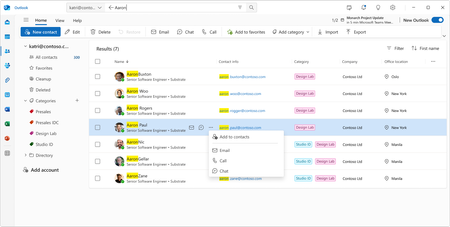
Managing contacts has always been central to how we work - but the way we work has changed dramatically. Today, we're excited to unveil a completely reimagined People experience in Outlook that makes finding, organizing, and connecting with your contacts faster and smarter than ever before. Whether you're reaching out to a colleague across the globe or managing your most important business relationships, the new People in Outlook is designed to get you there in seconds, not minutes. Instant People Directory Search: Find Anyone in Seconds We’ve heard you loud and clear: navigating complex organizational trees and deeply nested directory hierarchies to find a single contact takes too long. So we built something better. The new People in Outlook features a powerful, intelligent search experience that puts every contact at your fingertips - instantly. Simply start typing a name, location, job title, department, or even a personal note you’ve added, and People in Outlook surfaces the right person immediately. No more drilling through layers of org charts or scrolling through alphabetical lists. Just type, find, and connect. Here’s what makes it work: Lightning-fast keyword search - Search across names, email addresses, job titles, locations, departments, and even your own notes and tags. A few keystrokes is all it takes. Smart suggestions - As you type, People in Outlook intelligently surfaces the most relevant matches based on your communication patterns and organizational context. One search, every contact source - Whether the person is in your organization’s directory, your personal contacts, or a linked account, search brings them all together in one unified result set. Instant action - Once you find who you’re looking for, you can email, call, or start a Teams chat directly from the search results - no extra clicks required. This is contact discovery reimagined. What once required navigating through hierarchical trees and multiple clicks now happens in a single, fluid interaction. It’s the fastest way to find and connect with anyone in your world. A Modern, Unified Contact Management Experience Beyond these major innovations, the new People in Outlook brings a complete refresh to how you manage your contacts every day: Modern multi-column table view - See all your contacts at a glance with a clean, customizable table layout. Sort, filter, and scan your contacts faster than ever. Quick actions at your fingertips - Email, call, or chat with any contact directly from the contact list. No need to open a contact card first. Multi-select and bulk operations - Need to categorize, email, or manage multiple contacts at once? Select them all and take action in a single step. Categories for flexible organization - Organize your contacts with color-coded categories that work across Outlook. Tag contacts as “Key Clients,” “Project Team,” “Vendors,” or anything that fits your workflow. Import and export - Easily bring contacts in from CSV files or export your contact data whenever you need it. Consistent experience everywhere - Whether you’re using Outlook on the desktop, Outlook on the web, or Teams, the People experience is the same - modern, fast, and reliable. Built for Performance and Reliability The new People in Outlook was built from the ground up with performance at its core. After extensive testing and feedback from thousands of users within Microsoft, we’ve delivered an experience that is not only feature-rich but also fast, stable, and reliable - even with large contact lists. Every interaction is designed to feel instant and responsive. Get Started Today The new People experience is currently available on the New Outlook for Desktop, and is rolling out now for Outlook on the web for all Microsoft 365 users. To explore it: Open Outlook and click the People icon on the left navigation rail. Start searching for anyone - by name, title, location, or any keyword. Explore your contacts in the new table view and try out quick actions. We’re incredibly excited about what the new People in Outlook means for how you connect and collaborate. This is just the beginning - we have even more innovations in the pipeline that we can’t wait to share with you. We’d love to hear from you! Share your feedback directly within Outlook by selecting Help > Feedback, or join the conversation in the Microsoft Tech Community. ──────────────────────────────────────────────────────────────────────────────── The People in Outlook team is committed to building the best contact management experience in the world - and we’re just getting started.3.5KViews2likes2Comments
New Outlook: Shadow contacts not stored in Outlook.com, no sync/export and missing Birthday calendar
I’m reporting a reproducible data‑integrity issue in the New Outlook for Windows that affects Outlook.com contact storage and synchronization. 🔍 Summary When a contact is created in the New Outlook, the client appears to save it successfully. However, the resulting contact is not stored in the user’s Outlook.com account as a normal cloud contact. Instead, it becomes what I would describe as a local “shadow contact” in the New Outlook cache. ⚠️ Observable Behavior • The contact appears in Outlook.com → People, but does not show “Stored in: Outlook” • The contact does not appear in Outlook.com CSV exports • The contact does not sync to mobile devices connected to the same account • The contact does not populate the Outlook.com Birthday calendar • The contact is lost if the New Outlook app is reinstalled or its local store is cleared 🧪 Steps to Reproduce 1. Open the New Outlook for Windows 2. Create a new contact and add a birthday 3. Save the contact 4. Open Outlook.com → People 5. Locate the contact — it will appear, but the “Stored in: Outlook” field is missing 6. Export contacts from Outlook.com (CSV) — the contact will not be present 7. Check a mobile device configured with the same Microsoft account — the contact will not be present 8. Check the Outlook.com Birthday calendar — the birthday will not appear 9. Reinstall the New Outlook app — the contact will be gone ✅ Expected Behavior • Contacts created in the New Outlook should be stored as first‑class Outlook.com contacts • They should appear with a proper “Stored in: Outlook” location • They should sync across devices, export via Outlook.com, and populate the Birthday calendar ❌ Actual Behavior • Contacts created in the New Outlook are effectively “shadow contacts” stored in a local cache • They look normal in the New Outlook UI, but they are incomplete, non‑synchronizing objects from the service’s perspective 📉 Impact • Silent data loss risk for users who assume contacts are in Outlook.com when they are not • Inconsistent contact and birthday data across devices and services • Split contact store model: • Real Outlook.com contacts • Local shadow contacts created by New Outlook 📎 What I’ve Already Done • Submitted feedback through the New Outlook (Help → Feedback → Report a Problem) • Submitted a detailed report via the Windows Feedback Hub • Contacted Microsoft Support, who advised that escalation must occur via Feedback 📣 Request I’m posting this here to document the issue publicly and to ask: • Can anyone from the Outlook / Exchange / Outlook.com team confirm this behavior? • Can other users reproduce this with the steps above? Given the data‑integrity implications, I’m hoping this can be brought to the attention of the relevant engineering team. Any confirmation, additional data points, or official guidance would be appreciated.357Views0likes1Commentoutlook contacts continuously restore themselves
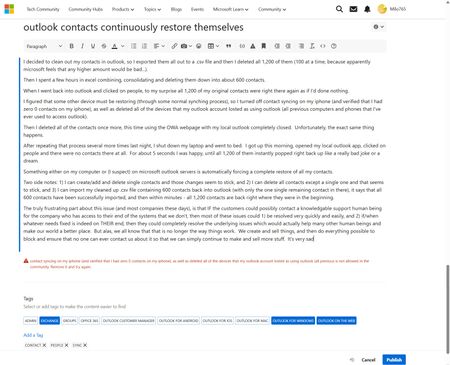
I decided to clean out my contacts in outlook, so I exported them all out to a .csv file and then I deleted all 1,200 of them (100 at a time, because apparently microsoft feels that any higher amount would be bad...). Then I spent a few hours in excel combining, consolidating and deleting them down into about 600 contacts. When I went back into outlook and clicked on people, to my surprise all 1,200 of my original contacts were right there again as if I'd done nothing. I figured that some other device must be restoring (through some normal synching process), so I turned off **REMOVED** computers and phones that I've ever used to access outlook). Then I deleted all of the contacts once more, this time using the OWA webpage with my local outlook completely closed. Unfortunately, the exact same thing happens. After repeating that process several more times last night, I shut down my laptop and went to bed. I got up this morning, opened my local outlook app, clicked on people and there were no contacts there at all. For about 5 seconds I was happy, until all 1,200 of them instantly popped right back up like a really bad joke or a dream. Something either on my computer or (I suspect) on microsoft outlook servers is automatically forcing a complete restore of all my contacts. Two side notes: 1) I can create/add and delete single contacts and those changes seem to stick, and 2) I can delete all contacts except a single one and that seems to stick, and 3) I can import my cleaned up .csv file containing 600 contacts back into outlook (with only the one single remaining contact in there), it says that all 600 contacts have been successfully imported, and then within minutes - all 1,200 contacts are back right where they were in the beginning. The truly frustrating part about this issue (and most companies these days), is that IF the customers could possibly **REMOVED** about it so that we can simply continue to make and sell more stuff. It's very sadSolved486Views0likes9CommentsIs there a way to search 'part' of people name in teams?
In Malaysia it is common to have names like Nooraisyah. The specialty about these kind of names is that even if it is split into two - it gives 2 names. Noor + Aisyah. So we call this person either Noor or Aisyah. Now coming to the real problem, we are used to calling this person Aisyah as it is unique to this person and Noor is common with many names. So I always tend to search 'aisyah' in the search box and it never returns any results. Teams can now only search the start of first name, middle name or surname. Is there a setting to change the way how search works or is there a workaround for this?1.5KViews0likes2Comments
Assign Task Reminders to Assigned Individuals
Currently, To-Do allows you to assign a new task to someone in your shared list. It is great! However, I notice that whenever I assign a task to someone I would have to contact them (via email or text, or phone call) to confirm they have completed the task. I think it would be a very nice feature to have the option to assign task reminders for workers or others to complete the task they are assigned instead of just being given the task. I understand that when a task is assigned you can manually input a reminder for yourself once assigned. However, more times than not, you often forget, therefore, when given a reminder from your boss or manager you are able to be reminded by the app. This would eliminate the need to have your boss remind you to complete the task.6.1KViews6likes3Comments
User Names Appearing Incorrectly
Was seeking some assistance on names appearing incorrectly on our SharePoint Online 2013 list. The field is a 'person' lookup, and names have started appearing with 2 commas between the first and last name (as attached) The name is appearing on the list as FirstName,, LastName Other lists using the same field type show the name with only 1 comma.1KViews0likes0Comments
Outlook Contacts Override Office 365 Profile Information
We migrated to Office 365 recently, and anyone that has outlook contacts for internal users will see the information (like phone numbers and positions) from those old contacts instead of the updated information in Office 365 when displayed in Sharepoint. Is there a way to force Sharepoint to use the information in Office 365 instead of using Outlook contacts?958Views0likes0Comments