new outlook
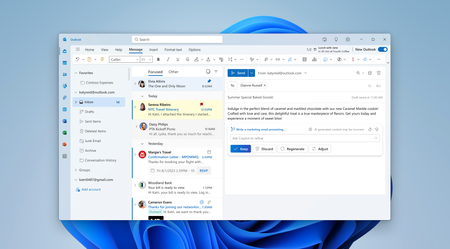
27 TopicsBuilt for today, designed for the future - The new Outlook for Windows is ready when you are
We are excited to announce the new Outlook for Windows is now generally available for commercial customers and will now receive full support from Microsoft's support channels, including Assisted Support!75KViews5likes67Comments
New Outlook not showing link urls
Old outlook would show you the url if you hover over a link - New Outlook does not show anything when you hover over but still it will work as a hyperlink. Is there a setting that changes this so you can see where you are going before you click a link ?20KViews14likes14Comments
New Outlook - Unable to Block Image Downloads
Where in the new Outlook do I have the option to block the automatic loading of images for a Consumer O365 account or an Exchange account. In the current full version this is simple to do. In looking at the settings I can find no such option. What I can find is the setting to block external content, but it doesn't seem to be working correctly. In the Exchange account I have it set like this Images are being blocked. I see this in the message. Where is this setting? In the consumer account I have it set to what would seem to be even more restrictive. However, all images are getting through. In OWA I have this option This is still not good enough, but why isn't it in the New Outlook as most settings seem to be the same for Outlook as OWA. To be clear MS, for me personally as well as the 25K+ corporate mailboxes I am responsible for will not use the new version until this is resolved.11KViews6likes5CommentsNew Outlook: Creating Rules for CC: and Sent Items (Workaround solution)
Many users have said they miss one of Outlook Classic's features: the ability to create rules for sent items. One popular use is automatically moving a Sent item to a designated folder, reducing the time it takes to handle email. Currently, rules in New Outlook manage received messages in the Inbox. This blog provides details. New Outlook Limitations: Outgoing Message Rules » TRACCreations4E I am happy to share that I have finally come up with a workaround to add a copy of the message you sent to a folder of your choice. Yes, the original message will remain in the Sent folder, but you don't have to move it manually. This method should hold you over until Microsoft rolls out the functionality for "Sent rules," which has not been added to the roadmap. Watch the full tutorial to discover how you can: Setup your email Use hashtags in your signature line Set up an automatic rule Blog Post: New Outlook Sent Email Rules: Here’s the Workaround Video: https://youtu.be/guOjz5lHJEY?si=un6jp2afgO-3PAhg Remember, this is a workaround solution. I am also waiting patiently for the Sent Rules functionality. If you find this information helpful, please mark it as the best response to assist others with the same question. /Teresa #traccreations4e 6/11/20242.9KViews0likes1Comment
Copilot Changes in New Outlook
Copilot in the New Mail has recently changed to this (I have a $30/mo subscription to Copilot through a business account): If I click on the little circle thing or press Alt+i it displays this with the text below already filled in: I never start prompts to Copilot with "Help me write an email to" so I always have to manually delete this text to enter the actual prompt. Once I do that, Copilot opens the full-blown sidebar with a big discussion. And to top it off, Copilot in the sidebar does not follow the Copilot drafting instructions I saved in the Copilot settings in Outlook. This is a regression compared to how Copilot used to work, which is shown in the screen below: Granted I only ever used "Auto rewrite" in that drop down menu so you could shorten it some. However, this version is better because: (1) it does not open a large sidebar and expect me to enter into a big discussion, (2) there is no pre-existing text in the prompt box so I can press a hotkey and quickly dictate my prompt using the built-in dictation in Windows, (3) it will follow the drafting instructions I saved in the Copilot settings in Outlook, and (4) it shows the option to Auto rewrite the text. I want Copilot to work the way it used to work and, especially, for Alt+i to open up the latter menu in all situations. I understand that some people might want to engage in a big discussion in the sidebar with Copilot, but don't make that the default.2.6KViews7likes9Comments
"New Outlook" on Windows - Unable to add Additional Mailbox folders to the Favourites section
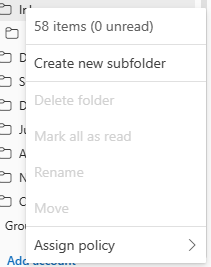
Hi, As per subject, I have changed over to the New Outlook on Windows and used to be able to pin folders from additional mailboxes (Shared mailboxes) to the Favourites section. This enabled me to view inboxes of multiple mailboxes without needing to constantly scroll down and check. The new version no longer gives that option and nests all additional mailboxes under 'Shared with me'. It used to be available on the menu option when right clicking on a mailbox folder:2KViews1like2CommentsSignificant changes to the New Outlook Calendar Event User Interface
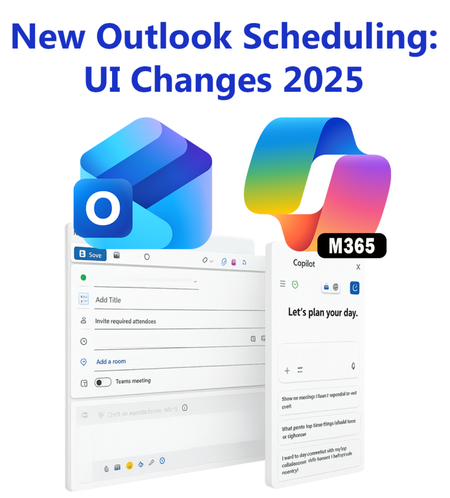
In October 2025, the New Outlook Calendar Event was redesigned to incorporate Copilot, leading to a complete user interface makeover. Many icons were rearranged. This blog post includes a screenshot, icon placement, and descriptions. New Outlook Scheduling Gets a Makeover - Copilot Chat Joins #traccreations4e-p25 10/29/20251.3KViews0likes2Comments