new outlook
23 Topics
New Outlook not showing link urls
Old outlook would show you the url if you hover over a link - New Outlook does not show anything when you hover over but still it will work as a hyperlink. Is there a setting that changes this so you can see where you are going before you click a link ?20KViews14likes14Comments
Copilot Changes in New Outlook
Copilot in the New Mail has recently changed to this (I have a $30/mo subscription to Copilot through a business account): If I click on the little circle thing or press Alt+i it displays this with the text below already filled in: I never start prompts to Copilot with "Help me write an email to" so I always have to manually delete this text to enter the actual prompt. Once I do that, Copilot opens the full-blown sidebar with a big discussion. And to top it off, Copilot in the sidebar does not follow the Copilot drafting instructions I saved in the Copilot settings in Outlook. This is a regression compared to how Copilot used to work, which is shown in the screen below: Granted I only ever used "Auto rewrite" in that drop down menu so you could shorten it some. However, this version is better because: (1) it does not open a large sidebar and expect me to enter into a big discussion, (2) there is no pre-existing text in the prompt box so I can press a hotkey and quickly dictate my prompt using the built-in dictation in Windows, (3) it will follow the drafting instructions I saved in the Copilot settings in Outlook, and (4) it shows the option to Auto rewrite the text. I want Copilot to work the way it used to work and, especially, for Alt+i to open up the latter menu in all situations. I understand that some people might want to engage in a big discussion in the sidebar with Copilot, but don't make that the default.2.5KViews7likes9Comments
New Outlook - Unable to Block Image Downloads
Where in the new Outlook do I have the option to block the automatic loading of images for a Consumer O365 account or an Exchange account. In the current full version this is simple to do. In looking at the settings I can find no such option. What I can find is the setting to block external content, but it doesn't seem to be working correctly. In the Exchange account I have it set like this Images are being blocked. I see this in the message. Where is this setting? In the consumer account I have it set to what would seem to be even more restrictive. However, all images are getting through. In OWA I have this option This is still not good enough, but why isn't it in the New Outlook as most settings seem to be the same for Outlook as OWA. To be clear MS, for me personally as well as the 25K+ corporate mailboxes I am responsible for will not use the new version until this is resolved.11KViews6likes5CommentsNew Outlook Comes With New Workflows: What Is Still Missing for You?
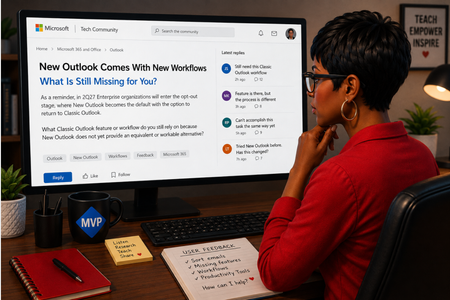
As a reminder, in March 2027, Enterprise organizations will enter the opt-out stage (Message ID 949965), where New Outlook becomes the default with the option to return to Classic Outlook. That is not too far away, especially if you need time to get your workflows and systems in place. That is why I keep coming back to this: New Outlook comes with new workflows. So I’m curious about where New Outlook workflows still fall short for you. A lot has changed. Users now have mail merge, Quick Parts, Unified Inbox, and partial PST support, with Advanced Mail Merge also on the way. New Outlook also has 30+ features and capabilities that are not available in Classic Outlook. What do you still do in Classic Outlook that you cannot accomplish, or cannot accomplish well, in New Outlook today? And if you tried New Outlook a year or two ago and went back to Classic Outlook, I’d be especially interested in what is still keeping you there now. I’m not looking for “I hate New Outlook.” I already know plenty of people do. I want to know the specific feature or workflow that still matters to you. PS: And be kind to me. I don’t work for Microsoft. I’m an MVP who teaches their products. 😉 traccreations4e-p26 8/26/2026588Views1like2Comments
Conditional Formatting to New Outlook Calendar
Please bring Conditional Formatting to the New Outlook Calendar. This is a feature we have in Classic Outlook and something I use regularly to help maintain my organization. I've programmed it to color Work Time separate from Travel Time and various meeting categories so that visually I know a lot about the appointment just by the color.Solved1.2KViews1like3Comments
The New Outlook seems to have lost a feature
Does anyone know how to get a default set (like we used to have) to automatically get a BCC of all email sent and replied to? I am using the client on my laptop and the IOS App on my iPhone. I am interested in knowing how to get this feature back. It used to be a setting - which is no longer available. I've tried creating rules and quick steps - neither has worked.343Views1like5CommentsOutlook Offline Phase I: Available Features
Updated November 18, 2025. The following are some of the key features introduced in Outlook Offline Phase I: Offline Email Access: Users can read, reply to, and compose new emails offline. These actions will be synchronized once the user reconnects to the Internet. Calendar Management: Users can create, edit, and delete calendar events while offline.. Contact Access: Access to contacts is available offline, allowing users to look up contact information. Synchronization: Any offline changes, such as sending emails, updating calendar events, or modifying contact information, will automatically synchronize once the internet connection is restored. Unsupported Features While Outlook Offline Phase I brings a host of new functionalities, it is important to note that not all features are supported in the offline mode - yet. I recommend downloading the updated list of supported and unsupported features to ensure you have the most up-to-date information on what is supported and what is not. Video: https://youtu.be/qzHfnlfhuEw Visit Website: Microsoft Outlook's Offline: Features Availability » TRACCreations4E366Views1like2CommentsNeed now to use 2 hands for Quick Actions shortcut >100 times a day...
The limitation to 5 to 9 for a shortcut to a Quick Step is ergonomically very strange : if it's quick steps, you do it to *save time* so it has to be as convenient as possible, so you'd select as close to 1 as possible to facilitate using only your left hand to type all the CTRL+SHIFT+number. For reaching 5 to 9 you need to mobilize also the right hand which is not really facilitating *quick* usage... I use CTRL+SHIFT+1-3 on almost every mail to sort out mail inflow, so over x100 times a day, so preventing to associate a one hand shortcut to Quick Steps is a show stopper for me at that stage.167Views1like0Comments
"New Outlook" on Windows - Unable to add Additional Mailbox folders to the Favourites section
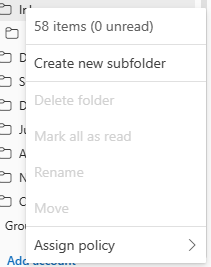
Hi, As per subject, I have changed over to the New Outlook on Windows and used to be able to pin folders from additional mailboxes (Shared mailboxes) to the Favourites section. This enabled me to view inboxes of multiple mailboxes without needing to constantly scroll down and check. The new version no longer gives that option and nests all additional mailboxes under 'Shared with me'. It used to be available on the menu option when right clicking on a mailbox folder:2.1KViews1like2Comments