new outlook for windows
25 TopicsA major step backwards: Classic Outlook vs. New Outlook on changing the "From" sending account
The Issue: In New Outlook, changing the "From" address after you have already started composing an email message opens a new, blank message window, forcing you to copy and paste your original message subject, contents, and attachments. This is an irritating change from Classic Outlook, where you could simply switch the sending account from a dropdown menu while keeping your drafted message fully intact. Expected behavior: When changing the "From" address while composing a mail message, it should simply be updated to the newly selected account, and the body, subject line, and any attachments of the message you are writing at that time should be preserved within the same composition window. The Classic Outlook Way (The Right Way) to Switch the "From" address: For years, my workflow in Classic Outlook has been simple. I click "New Email." The new message window opens, and the "From" field shows the currently selected account. I start writing my message. Then I realize I wanted to send it from another mail account. I click the "From" button, and a dropdown menu appears with all my accounts. I pick the one I want, and I'm good to go. The message content is untouched, it's all still there. Changing the From-address is a two-second action that is intuitive and efficient. The "New Outlook" Way (The Baffling Way) to Switch the "From" address: Now, I try to do the exact same thing in the "New Outlook." I click "New Email." The new message window opens, and the "From" field shows the currently selected account. I start writing my message. Then I realize I wanted to send it from another mail account. I click the "From" button, and a dropdown menu appears with all my accounts. I pick the one I want. But then, after choosing a different From-address, a completely blank new message is opened. And I have to copy/paste everything from the message window I was writing in before to the newly opened message window. So annoying! This feels like a classic case of simplifying the UI to the point where it loses critical functionality. What used to be a simple dropdown selection in Classic Outlook is now an irritating multi-step process in New Outlook. It seems to be an intentional design choice, but it's one that ignores the reality of how users with multiple mail accounts actually work.2KViews6likes8CommentsPST Export New Functionality in New Outlook For Windows
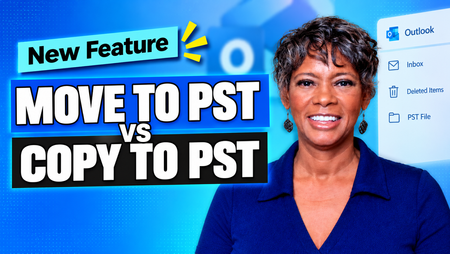
New Outlook for Windows PST Export has received a useful update. You can now choose between: Export Copy to PST (the standard method) Export Move to PST (new) Export Copy to PST is the method we already had. The exported items remain in the mailbox unless you delete them manually. Export Move to PST is different. It exports the items, then automatically moves the originals to the Deleted Items folder. The two options serve different purposes, especially when deciding whether you are creating a backup or archiving content you no longer want to keep in the mailbox. I created a short walkthrough showing the Export PST Move vs. Copy process, Deleted Items behavior, and when to use each option. 👉🏾Watch Video: New Outlook: Move to PST vs Copy to PST — What's New & When to Use It If you use PST files in New Outlook for Windows, I’d be interested in hearing which option you expect to use most: Export Move to PST or Export Copy to PST? For the full PST Export process, - Watch this video: New Outlook PST Export: What You Need to Know in 2026 - Read this blog: How to Export Mailbox to PST from New Outlook (Complete Guide) If this post was helpful, please like it to assist others. traccreations4e-p26 9/12/2026275Views1like0CommentsNew Outlook Comes With New Workflows: What Is Still Missing for You?
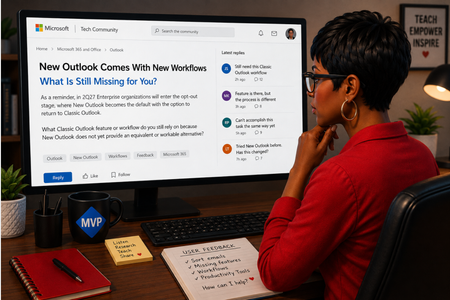
As a reminder, in March 2027, Enterprise organizations will enter the opt-out stage (Message ID 949965), where New Outlook becomes the default with the option to return to Classic Outlook. That is not too far away, especially if you need time to get your workflows and systems in place. That is why I keep coming back to this: New Outlook comes with new workflows. So I’m curious about where New Outlook workflows still fall short for you. A lot has changed. Users now have mail merge, Quick Parts, Unified Inbox, and partial PST support, with Advanced Mail Merge also on the way. New Outlook also has 30+ features and capabilities that are not available in Classic Outlook. What do you still do in Classic Outlook that you cannot accomplish, or cannot accomplish well, in New Outlook today? And if you tried New Outlook a year or two ago and went back to Classic Outlook, I’d be especially interested in what is still keeping you there now. I’m not looking for “I hate New Outlook.” I already know plenty of people do. I want to know the specific feature or workflow that still matters to you. PS: And be kind to me. I don’t work for Microsoft. I’m an MVP who teaches their products. 😉 traccreations4e-p26 8/26/2026560Views1like2CommentsOutlook Meeting Updated, But the Forwarded Attendee Never Received It
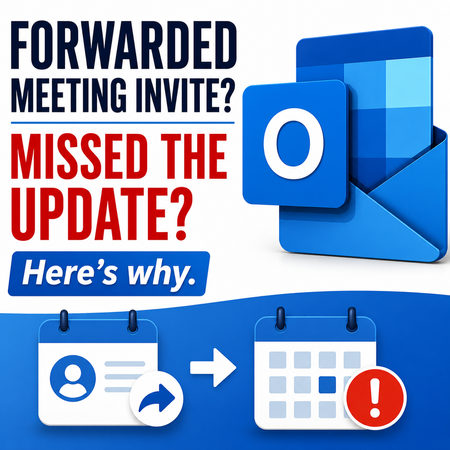
Accepted a forwarded Outlook meeting invitation but never received the meeting update when the organizer made changes? This behavior surprises many Outlook users and is often misunderstood. Learn why it happens and how organizers can prevent attendees from missing future updates. https://traccreations4e.com/forwarded-outlook-meetings-dont-receive-meeting-updates/ #traccreations4e 6/23/2026184Views0likes0Comments"Add to Calendar" functionality in the New Outlook
When a user receives an email with a Calendar meeting attached to it, they are able to click on the dropdown in the attachment and select "Add to Calendar". This functionality is supposed to add the meeting to the calendar without opening the attachment/invite itself. However, when the user clicks on "Add to Calendar", the meeting is displayed temporarily on the Calendar and then disappears. If another calendar meeting is being "Added to Calendar", it doesn't show up at all, even temporarily. Occasionally, the second meeting is added successfully, however, the first meeting then disappears. This behaviour is reproducible using different, independent accounts and devices - personal devices, corporate devices, personal Live accounts, corp email accounts, etc. The only thing that does work is to open the attachment and use "+Add to Calendar" feature from the invite. Any ideas on what is causing this or how to address this?366Views0likes2Comments
New Outlook Unable to Close Since build 26220.8754 Update
Since build 26220.8754, I (and others) have been unable to close New Outlook using the X. I went into Windows Settings > Apps > Installed Apps > Outlook > click the 3 dots to the far right, select Advanced Options. Then select Reset. It worked for 1 time, but then the issue just showed right back up. I am not the only one with this issue, it has been reported here https://learn.microsoft.com/en-us/answers/questions/5933524/new-outlook-doesnt-close-with-x-any-longer?source=docs430Views1like4Comments
New Outlook, can I access my contacts from more than one email account?
Is there any way I can access my extensive list of contacts from more than one email address/account? Currently they are all listed under my default email address account, but I sometimes need to send to people from those contacts using a different email account. Grateful for any help. Thank you.773Views1like3CommentsDrag and drop email-to-task (To Do) from favourites bug
It's been driving me crazy but I finally seemed to figure out why I could no longer drag emails into the ToDo pane to create tasks. Firstly, it seems that you can only drag emails to create tasks for business, or non-Microsoft accounts, I'm not sure which, or both. Secondly, you need to select an email from within the actual account in the left pane, NOT favourites. See this image: https://imgur.com/a/ZdyAvYb This bug may have been introduced in the last few months, as I don't recall encountering any issues until somewhat recently. Anyway, I hope this helps prevent someone from ripping out their hair like I was.948Views1like6Comments
New Outlook Data Classification/DLP/missing features
Hello, I am noticing a couple of new issues with New Outlook. All the above works with old Outlook. -Auto Labelling not working(Based on Sensitive info type). -Label requirement not working (i.e. Users can send without a label, in old OLK/OWA, they get a prompt to label the email) -Label Inheritance not working (from attachment) -Smime Signing/Viewing emails. -If you set a dlp policy with an option to add certain label based on a detected sensitive info type on unlabelled emails, The policy tip is displayed but the label is not added. All the above works with old Outlook and most work in OWA but all the above does not work in New Outlook. Any workarounds? are those functions not supported yet? Any help will be appreciated.827Views0likes1Comment