microsoft 365
42 TopicsNow generally available: Surveys Agent in Microsoft 365 Copilot
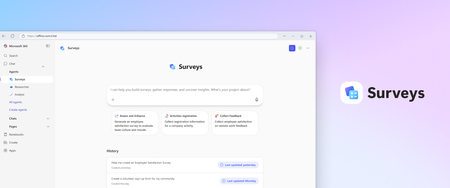
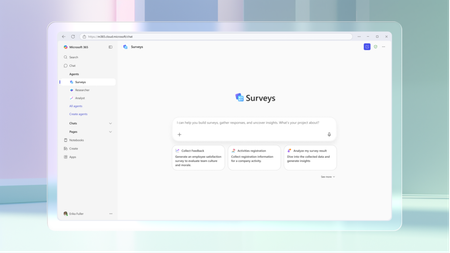
We’re thrilled to announce that Surveys Agent - your intelligent assistant for managing surveys end-to-end - is now generally available to all commercial customers worldwide with a Microsoft 365 Copilot license. Previously available through the Frontier preview program, Surveys Agent has helped early adopters streamline data collection and actionable insights for use cases like training sessions, employee engagement, and customer research. Now, it’s ready for everyone. What can Surveys Agent do? Surveys Agent simplifies the entire survey lifecycle through a conversational experience. Whether you're starting from scratch or refining an existing survey, it helps you: Create surveys instantly in a shareable Microsoft Forms draft Refine your survey to improve question clarity and structure Plan launch timelines and distribution strategies Send invitations and reminders to maximize responses Monitor progress and keep you apprised via Outlook Get status, summary of response and open in Excel for deep analysis No more juggling multiple tools or chasing down responses. Surveys Agent brings everything together in one place, making survey creation as easy as chatting with an expert colleague. Built into Microsoft 365 Copilot From drafting to distribution, Surveys Agent works seamlessly inside your Copilot experience. It suggests optimal launch plans, prepares outreach messages, and keeps you updated with response tracking. You can revisit the conversation anytime to check status, ask follow-up questions, or export results to Excel for deeper analysis. What’s new with General Availability? With this broader release, Surveys Agent is now accessible to all commercial Microsoft 365 Copilot users. You can find it in the Agent Store under Built by Microsoft, ready to help you build, run, and analyze surveys with less effort. With general availability, we’ve also introduced several key enhancements to make Surveys Agent even more powerful and intuitive: Grounding to your content: You can now connect Surveys Agent to Word, Excel, and PowerPoint files, as well as existing Microsoft Forms survey links, to help draft and refine surveys with richer context. Interactive tutorial prompt: Learn about Surveys Agent’s capabilities in more depth before diving in—perfect for first-time users. Try Surveys Agent today Surveys Agent is available to business users with a Microsoft 365 Copilot license. Ready to get started? Install Surveys Agent and pin it to your Microsoft 365 Copilot sidebar for quick access. We’re excited to see how you use it—and we’re listening. Share feedback directly in the chat by rating responses with a thumbs up or thumbs down and adding your comments to help us shape what’s next. Looking forward to seeing how Surveys Agent can support your workflow and continue to bring you from idea to insights with less effort!5.5KViews0likes2Comments
Shipped! Surveys Agent now live for customers in Microsoft 365 Copilot (Frontier program)
Today, we’re excited to introduce Surveys Agent in Microsoft 365 Copilot, a brand-new pre-built agent developed by Microsoft, now available through the Frontier program. Think of Surveys Agent as your personal survey expert—ready to help you from start to finish. Whether you're gathering feedback from a training session, measuring employee satisfaction, or running customer research, Surveys Agent has your back. It helps you: Draft surveys tailored to your goals so you have a shareable survey right away Refine questions to make your survey easy to use, and drive meaningful results Launch your survey with a clear plan and timeline Send invitations and reminders to boost response rates Track progress and analyze results—all through a simple chat conversation Gone are the days of piecing together multiple tools to create forms, chase replies, and interpret feedback. Surveys Agent streamlines the entire process into a simple conversational experience, making survey creation as intuitive as having a chat. While drafting your survey, you can view refinements instantly alongside the conversation. When you’re ready to launch, Surveys Agent recommends the optimal timeline and distribution channels, even preparing and sending invitations to your selected audience – all from within the same conversation. From there, the agent keeps you informed by automatically tracking response rates, sending timely reminders, or notifying when it’s ready to dive into the results. You can come back to the conversation at any point to check in on the survey’s status or analyze the responses – ask questions in chat or export your findings directly to an Excel workbook. It’s like having an intelligent assistant that helps you design better questions, launch with a plan, send reminders, and analyze results without all the heavy lifting. Surveys Agent is now available to commercial users with a Microsoft 365 Copilot license as part of the Frontier program that gives customers early access to new Copilot innovations while they’re still in development. You can find it in the Agent Store under Built by Microsoft—or jump straight in here: Surveys Agent (Frontier) - https://aka.ms/GetSurveysAgent. To learn more about Surveys Agent, go here - https://aka.ms/SurveysAgentStart. We can’t wait to see how you use it, and we’re eager to learn from your feedback as we improve the experience. Just give Surveys Agent responses a thumbs up or a thumbs down, and write your feedback – it really helps us continue to build and refine the product!4.8KViews1like1CommentMore solution based templates are now available in Microsoft Forms
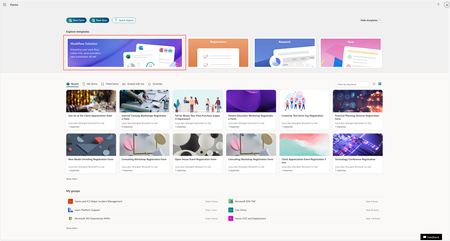
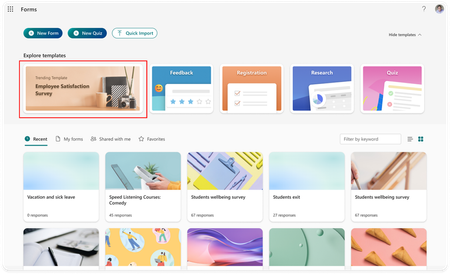
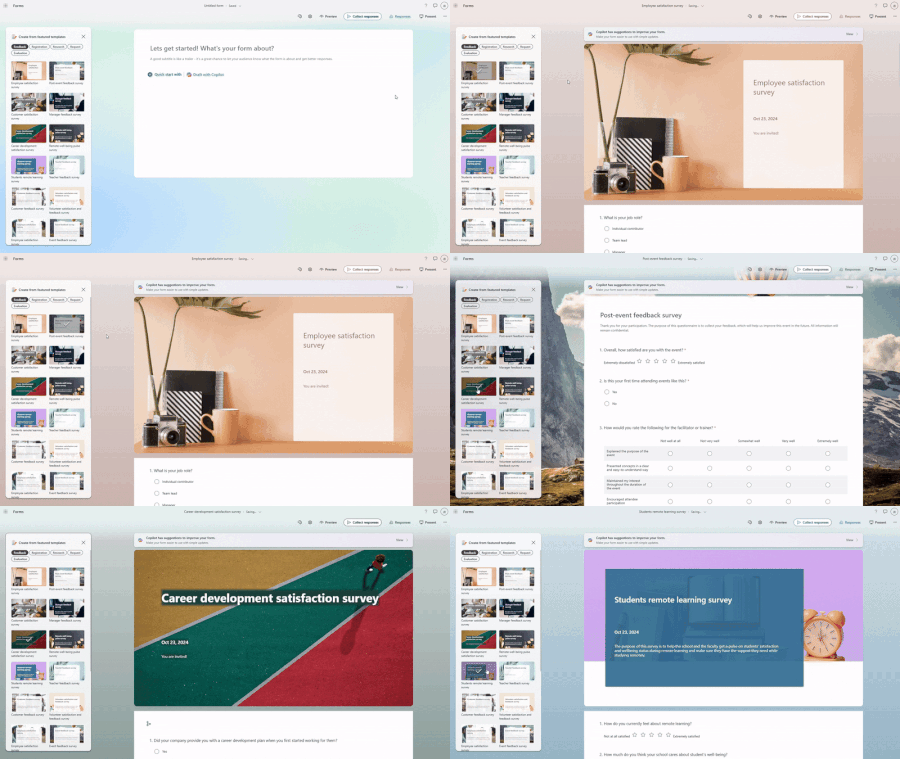
We’re continuously working to deliver end-to-end solutions that help boost efficiency and productivity. After launching the employee satisfaction template in December 2024, we’ve added more templates to support a wider range of scenarios. Whether it’s gathering feedback, managing internal processes, or streamlining event planning, these ready-to-use templates help you get started faster and work smarter. Please note that this experience is currently only available in the en-US region. Let’s check the templates together! Access solution based templates in Forms portal Templates are easy to find right in Forms portal. With just one click, you can browse the template collection and get started with one that fits your needs, including pre-built questions and a summary view in Excel. New scenario – registration Registration template is now available in Forms. Whether you're organizing a workshop, webinar, open house, or team offsite, collecting participant details quickly and efficiently is key. You can get started right away with our pre-built registration form—saving you time and ensuring you capture all the important information. What’s in the Registration Template? The template comes with a them that fits the topic and covers all the essential questions needed to organize a successful event, including: Attendance confirmation Contact information (name, email, and phone number) Event or session preferences Special requirements (e.g., dietary restrictions, accessibility needs) Open-ended questions for additional comments You can easily customize these questions to suit your specific needs. Track sign-ups and take action Once people register for the event, you can track attendance status directly in Excel. With real-time response syncing, each new registration is instantly reflected in the sheet. You’ll also get a summary of key aspects to help you better manage and adjust the event as needed. More scenario for feedback template Beyond registration, we now offer more feedback templates designed for different industries—like IT, manufacturing, consumer goods, retail, automotive, banking, healthcare, and transportation—so you can find one that fits your needs. Get started today Microsoft Forms templates make it easy to collect and manage information at scale—whether you're gathering event sign-ups, collecting feedback, or running internal surveys. From large company-wide initiatives to small team activities, these templates help you stay organized and focused on delivering a great experience. Just go to forms.office.com now and try out these templates. Join our online community! Have questions about Copilot and want to discuss more? Join our online community to connect with us and exchange insights. Plus, stay tuned for our upcoming customer calls where we’ll share the latest features and roadmap! Click here to register and join the conversation!4KViews2likes0CommentsIntroducing new agentic features for Copilot in Forms – Create, Refine, and Share with Ease
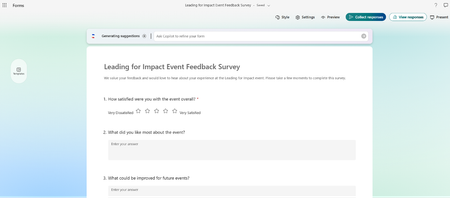
Say hello to new agentic features for Copilot in Forms—your intelligent assistant that helps you work smarter to collect data and make decisions. Copilot can now help you get your form ready to send with relevant, easy-to-use suggestions tailored to your form. It can also help you collect and monitor response progress, so you can offload mental effort and get informed when it’s time to take action. And finally, Copilot can help you proceed to more advanced data analysis in Excel, so you can arrive at insights quickly and efficiently. Let’s check how it works. You may already be familiar with using Draft with Copilot to create new forms from scratch. Now, as you edit your form, Copilot can help review and provide suggestions, so you can easily achieve a well-structured and ready-to-send form. Here are some suggestions Copilot can provide to help refine your form: Copilot in Forms reviewing a form Suggestions to refine the form Content suggestions Copilot can suggest ways to improve your form content—such as adding more questions to gather detailed insights, refining wording for clarity and accuracy, or marking important questions as required to ensure you collect all necessary feedback. You can even view Copilot’s suggestions on the form canvas, making it easy to visualize the changes and decide which ones to adopt. Viewing a suggestion to add a question Theme suggestions Copilot can recommend a relevant theme based on the topic of your form, so you can engage your respondents effectively with a polished look and feel. A well-designed form can boost user interaction and improve response rates, making it both professional and inviting. You can also use the prompt box to ask Copilot to help find a specific type of theme you have in mind. Selecting from theme suggestions Settings suggestions Additionally, Copilot can recommend settings that enhance both response management and user experience. This includes allowing responders to receive a copy of their submission, providing the option to edit their response later, or more. These settings help make your form more effective and easier to use. Selecting from settings suggestions Once your form is ready to send, Copilot can help with the next step. Collect and track response progress In addition to helping you refine your form and get it ready to send, Copilot can now fulfill agentic tasks like sending your form, monitoring response progress, and even sending reminders to nonrespondents. When you click “Boost response” from the Copilot suggestions menu, Copilot will suggest distribution channels, craft invitations, and offer to track response progress for you. If you have a specific response goal and deadline, Copilot can adjust the plan accordingly. Viewing a distribution plan from Copilot Invitations crafted by Copilot Adjusting response goal or deadline Tracking response progress When you toggle on response tracking, Copilot will monitor your response progress and inform you via email when it’s time to take action. For example, Copilot can craft reminder messages to send to nonrespondents, or let you know when your data is ready to analyze. By taking on the task of collecting and monitoring responses, Copilot helps you save time and mental effort, while collecting the insights you need to make an informed decision. Turning tracking on for a form Tracking response progress Advanced analysis in Microsoft Excel When your form data is ready, Copilot can help you analyze and arrive at insights for your form. From the responses page, Copilot can provide early insights to help you get a quick overview. Additionally, when you open your form data in Excel, you can use Copilot to run advanced analysis with Python to help transform and visualize your data into insightful charts and tables. In this way, Copilot works across Forms and Excel to help you arrive at faster insights and convert data into decisions. Insights on the Forms responses page Starting advanced analysis in Excel These agentic features for Copilot in Forms will begin gradually rolling out starting this April, and it will be available to all users in the coming months. To use it, you'll need a Microsoft 365 Copilot license. Click here for more details. Join our online community! Have questions about Copilot and want to discuss more? Join our online community to connect with us and exchange insights. Plus, stay tuned for our upcoming customer calls where we’ll share the latest features and roadmap! Click here to register and join the conversation!4.2KViews1like0CommentsGauge employee satisfaction in your organization with Microsoft Forms
Employee satisfaction is the cornerstone of a thriving workplace, helping organizations uncover opportunities to create a more positive and productive environment. To support this effort, Microsoft Forms now offers the Employee satisfaction template, designed to make it easier than ever to gauge employee sentiment. Let’s explore how this template works and how you can use it effectively to understand and enhance your workplace dynamics. Why understanding employee sentiment matters Many organizations struggle to capture actionable insights into employee satisfaction due to time-consuming surveys, unclear focus areas, and difficulty in drawing meaningful conclusions. Employees want something quick and easy, while managers need clear insights to make changes. The Employee Satisfaction Template in Forms addresses these challenges, making it easier to understand and act on employee sentiment. Employee satisfaction template in Forms How the employee satisfaction template helps The employee satisfaction template in Forms leverages the Job Descriptive Index (JDI) methodology, a proven framework for assessing job satisfaction by evaluating key job factors. Based on JDI, the template includes pre-built questions on compensation, job content, promotion opportunities, supervisors, and colleagues, offering a comprehensive view of the factors that influence morale. Forms employee satisfaction survey Make the template your own The questions in this template are simple choice-based, designed to make the survey quick and encourage participation. While the default template offers robust starting questions, it can be tailored to reflect your organization’s unique focus areas or circumstances. Here’s how you can customize it effectively: Maintain key sections: Keep the demographic and overall satisfaction sections, which are essential for a satisfaction survey. Adapt to recent context: Include questions related to recent initiatives or events, such as adjustments during COVID-19 or specific team projects. Adjust the distribution method based on roles: For example, for frontline workers who don’t check email, place the survey on a platform they frequently access, like an intranet or mobile app. Adjust the template based on your needs Work with key stakeholders Before launching your survey, involve key stakeholders such as managers, team leads, or HR representatives to review the questions and structure. Their insights can help: Ensure relevance to organizational priorities. Address any blind spots or overlooked areas. Get approval for the survey’s distribution and follow-up actions. To do this, you can share a collaboration link with the stakeholders. Share the survey effectively Email is a formal way to share an employee satisfaction survey, highlighting its importance and showing respect for everyone’s feedback. Setting an end date for the survey also shows that you value respondents' time and expect their input. You can easily do both of these through Forms. Share the survey effectively Maximize survey responses Monitor progress: Regularly revisit the survey and send reminders from the results page to boost participation. Engage team managers: Encourage managers to motivate their teams to complete the survey. Send the survey and follow up with non-responders Dive into the survey results Once responses are collected, from Excel, you can check the overall satisfaction for your organization. Also, there will be a breakdown of focus area/aspects related to the overall satisfaction. To better analysis the satisfaction level in your organization, try: Enter history data to analyze the trend: Input your past satisfaction scores into the 'HistoryData' sheet, and a trend chart will be generated for comparison with previous results. Customize formulas in cells: Click on the data cells to view the formulas and related questions. You can modify them and map them to other questions as needed. Satisfaction summary in Excel Turn insights into actions Finally, data is only valuable if you act on it. Here’s how you can transform survey results into meaningful changes: Develop action plans - Assign area owners to create targeted plans based on specific feedback and regularly update the plan’s status to track progress and address roadblocks. Report and approval – Present findings to the leadership team, request approval, and establish a timeline for the action plan. Update employees - Share key results and planned actions with employees to demonstrate transparency and show that their feedback drives real change. Take the first step today The employee satisfaction template is your starting point for building a happier and more engaged workplace. By simplifying survey creation, encouraging participation, and providing actionable insights, it’s never been easier to gauge and enhance employee satisfaction. Try the template now and start transforming your workplace! Join our online community! Have questions or want to discuss more? Join our online community to connect with us and exchange insights. Plus, stay tuned for our upcoming customer calls where we’ll share the latest features and roadmap! Click here to register and join the conversation!4.6KViews3likes0CommentsYou can now sync Forms response to Excel desktop
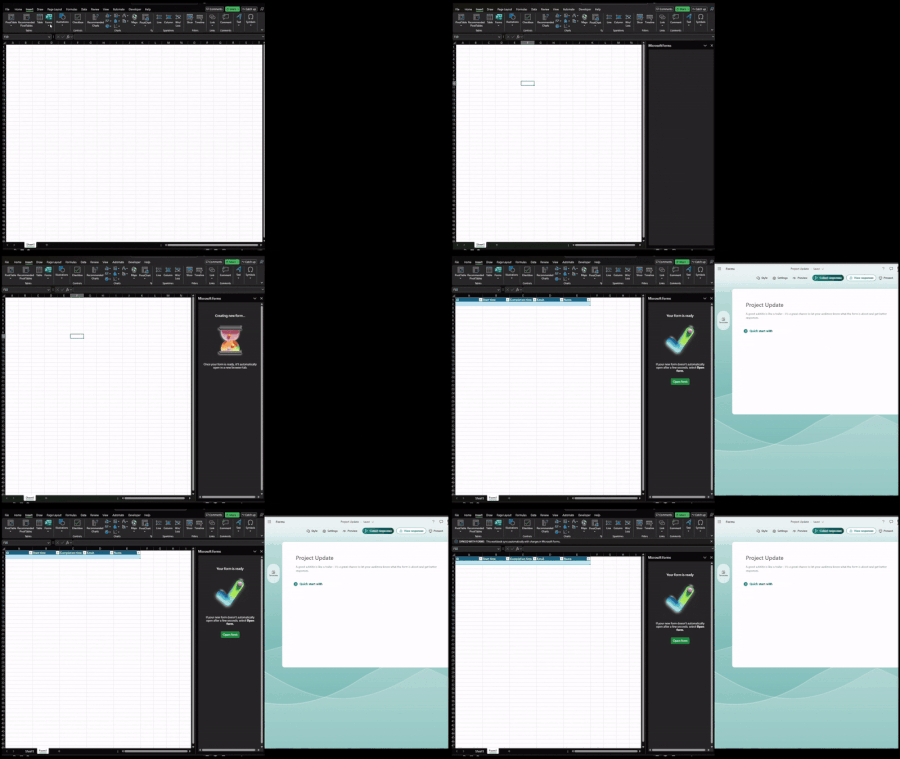
We are thrilled to introduce a powerful new feature in desktop versions of Excel that is set to transform your data collection process. With the latest update, you can now create a new Microsoft Form directly within an Excel workbook, linking the form to the workbook seamlessly. This feature, previously available in Excel for the Web, is now available in the Windows app, with Mac support coming soon. reate a new linked form from the Excel desktop app This new integration is particularly beneficial for users who frequently collect data from other people. By enabling the creation of a form directly from an Excel workbook, you can streamline the data collection process, making it more efficient and less prone to errors. Whether you are gathering survey responses, feedback, or any other form of data, this feature ensures that all information is centrally located and easily accessible. For example, consider a team working on a project that requires input from multiple stakeholders. Using this new feature, the project manager can create a form to collect updates and feedback, and all responses will be automatically reflected in the project’s Excel workbook. This eliminates the need for manual data entry and consolidation, saving valuable time and reducing the likelihood of errors. How it works On the Insert tab, select Forms > New Form A new browser tab will open, presenting you with a blank form to customize according to your needs. Simultaneously, a linked table will appear in your workbook, ready to sync with the form. As you edit the form or receive new submissions, the linked table in your workbook will automatically update, ensuring that your data is always current and accurate. After creating your form, you can access several other capabilities from the Forms menu: **Preview Form:** This option will open the form in preview mode in a new browser tab, allowing you to see how the form will look to respondents. **Edit Form:** This option will open the form in edit mode in a new browser tab, so you can make changes to the form as needed. **Send Form:** This option will open the form in a new browser tab and show the dialog letting you send the form out to respondents and begin collecting responses. Availability and System Requirements The new Microsoft Forms integration is available to all Current Channel users running Version 2410 (Build 16.0.18227.20000) or later. You can check which version you’re using by going to File > Account. If you are using an earlier version, we recommend updating your Excel app to take full advantage of this feature. Mac users can also look forward to this integration in an upcoming update. Feedback We would love to hear your thoughts on this new feature! Please send any feedback and suggestions by selecting Help > Feedback.6.6KViews3likes7CommentsTry Copilot in Forms with your Microsoft account
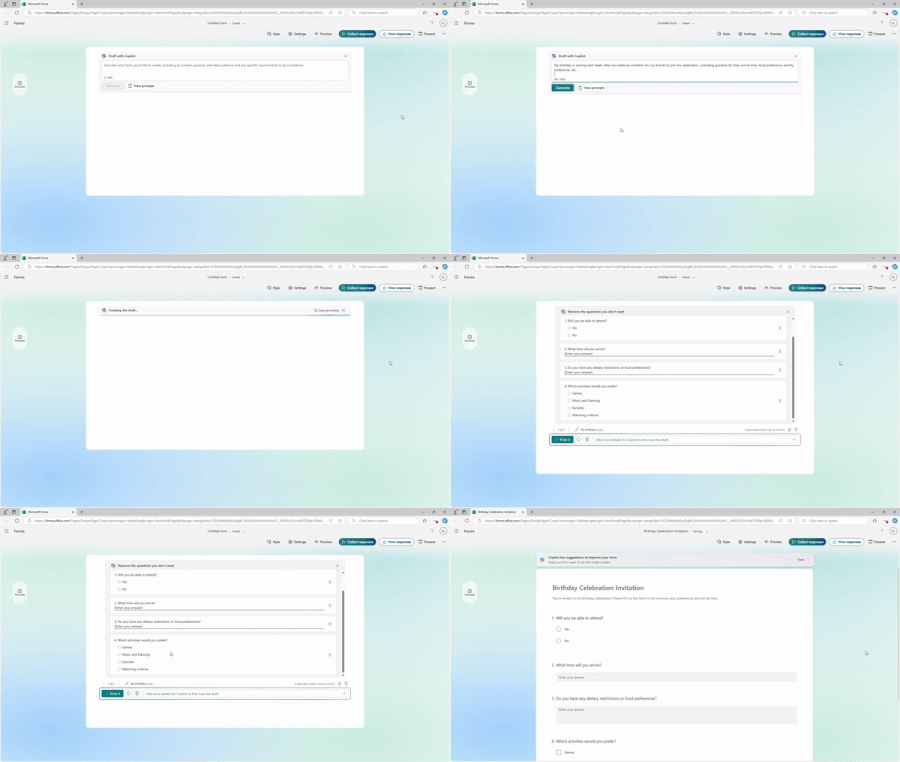
Earlier this year, we rolled out Copilot in Forms for commercial users, and now we’re excited to announce it’s now available for all Microsoft account holders! Get ready to supercharge your form creation with Copilot and easily craft all kinds of daily life forms using your personal Microsoft account. Let’s dive into the exciting details below! Form creation Imagine your birthday is just around the corner, and you’re planning to invite your friends over to celebrate. Let’s see how Copilot can make creating your birthday invitation a breeze! Specify your intention to generate Simply tell Copilot to generate a birthday party invitation, including details like food preferences, guest arrival times, preferred activities, and more. Within a minute, Copilot will provide a draft for you. You can easily adjust the draft by adding or removing questions and keep it. Generate form draft with Copilot Continue adding questions and rewrite Once you've kept the draft to use, what if you forget to include a question about whether anyone will stay for the after-party? No worries! You can access Copilot anytime to easily add this question. Continue adding new questions Also, if you notice there are only four options for activities, you can ask Copilot to rewrite the question to include more options and add with just one click. Rewrite questions Refine the form with Copilot suggestions From Copilot’s suggestions, you can add a birthday theme to the invitation and apply settings like allowing responders to save and edit their responses, just in case someone submits their answers incorrectly and needs to make changes. Finally, Copilot will recommend suitable channels for sending out the invitation. Copilot suggestions Rewrite invitation message Before sending it out, Copilot will help you personalize the default message to better match your birthday celebration. This ensures respondents have a clearer understanding of the invitation's details and timeline, making it easier for them to respond on time. Rewrite the invitation message Quiz creation Quiz generation is also available for Microsoft account holders. Let’s say that during the party, you plan to host a movie trivia quiz, and the person with the most wrong answers will perform a talent show. Let’s see how Copilot can assist with that. Generate quiz draft with detail explanation You can tell Copilot to generate a movie trivia quiz, and the quiz will be generated with correct answers and detailed explanations for each question. Generate quiz with answer explanations Other features, such as continuing to add questions, rewriting, and smart suggestions, are also available for quizzes. You can even rewrite the answer explanations for each question. Rewrite answer explanation Responders check the answer with explanation Your friends can scan the QR code to take the quiz. After submitting, they’ll immediately see the correct answers along with detailed explanations. The person with the most wrong answers will then take the stage to perform in the talent show. Check results and answer explanations after submitting To use Copilot in Forms with your Microsoft account, you need to subscribe to the Copilot Pro plan. Find it in this page under personal plan. Join our online community! Have questions about Copilot and want to discuss more? Join our online community to connect with us and exchange insights. Plus, stay tuned for our upcoming customer calls where we’ll share the latest features and roadmap! Click here to register and join the conversation!2.1KViews1like0CommentsWhat’s new in Copilot in Microsoft Forms – Ignite 2024
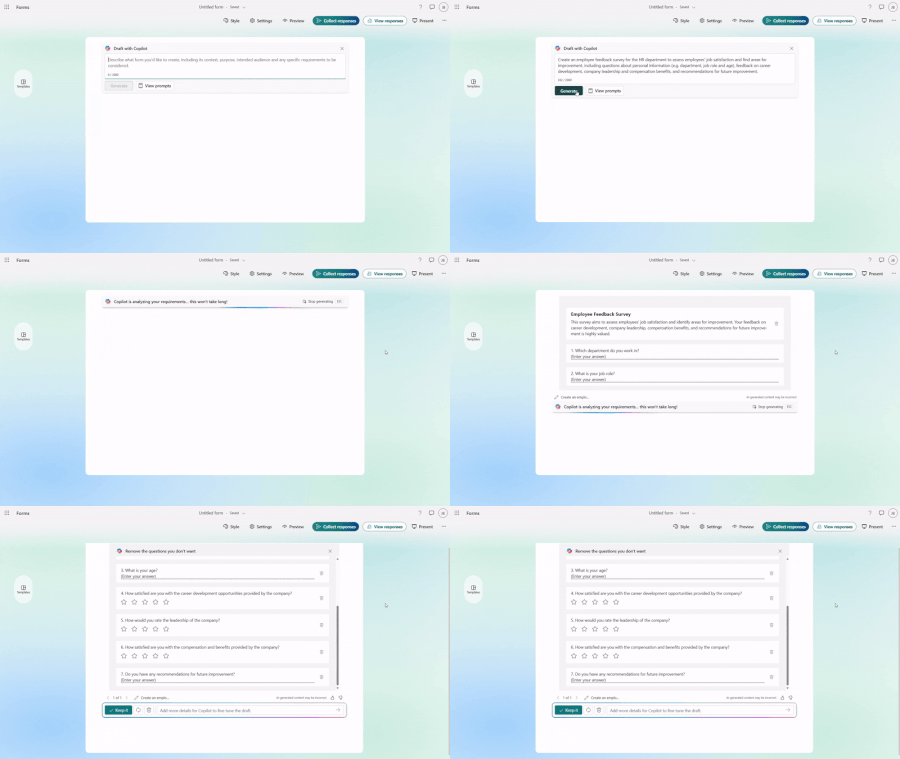
This is the special edition of what’s new in Form covering all of the Copilot in Forms features we’re announcing at Microsoft Ignite 2024. Copilot in Forms launched with a compose capability in February, and this summer, we took it further to cover key steps of the authoring experience; writing, rewriting, theme, settings and creating quizzes. In the next step, we will introduce a new capability to help you collect sufficient responses. Let’s dive into the details below. Form generation First, let’s focus on the new features in form generation. Imagine you are creating an employee feedback survey to assess employees' job satisfaction and find areas for improvement, let’s see how Copilot can assist you throughout the process. Generate a form with Copilot You can either start from prompt suggestions or write your own prompt. In this case, you can tell Copilot to create an employee feedback survey to gauge the satisfaction level. You can specify the number of questions and what aspects you want to ask about. Once the information is provided, Copilot will generate a draft based on your instructions. Generate form draft with Copilot You will have the flexibility to fine tune the draft by providing additional details to Copilot for regenerating, asking to add two more questions for the work from home policy. When you get a good draft, just click “Keep it”, and Copilot will generate the finalized form for you. Add questions to the draft Continue adding questions and rewrite After the survey has been generated, you can continue editing the form manually or with Copilot’s assistance, adding new questions or rewriting existing questions/options for improved clarity and effectiveness. Continue adding new questions Rewrite questions Refine the form with Copilot’s suggestions Once the survey is generated, Copilot will offer smart suggestions to make it better, including eye-catching themes, appropriate settings (such as allowing respondents to receive a receipt for record-keeping and transparency) and the best channels to send out for maximum engagement. Copilot suggestions Collect more answers with Copilot’s help When the survey is ready, Copilot will help you rewrite the default message with more suitable tones, adding details like the form's topic, estimated completion time, and due date. This gives respondents a clearer understanding of the survey's purpose and timeline, making it easier for them to complete on time. Rewrite distribution message with Copilot If you send out the form and don't receive enough responses from the employees after some time, Copilot can help you draft reminder messages to nudge respondents. It offers several options, allowing you to choose your favorite and send it with just one click. Draft a reminder with Copilot Quiz generation In addition to form generation, we've also enabled new features for quiz creation. Imagine you're crafting a quiz for compliance and ethics training at your company—let's explore how Copilot can assist you in building the perfect quiz. Copilot generates a quiz with answer explanations You can provide Copilot with some context of this training or just paste content from any materials on hand to generate a quiz. The quiz will be generated with correct answers and detailed explanations for each question. Generate a quiz with correct answers Copilot helps you refine quizzes too. It will help you rewrite questions, continue adding questions and offer smart suggestions, and you can even rewrite the answer explanations. Additionally, for newly added questions, Copilot can automatically generate detailed answer explanations based on the correct answers you mark, saving you time on manual input. Rewrite answer explanation with Copilot Generate answer explanation for newly added questions Immediate results and answer explanation for responders When respondents submit the quiz, they can view the results immediately and review the answer explanations to understand which areas they already mastered or where they could improve. Check results and answer explanations after submitting What’s next Moving forward, we aim to make Copilot in Forms even more helpful, guiding you with suggestions throughout the journey to achieve your goals. Copilot helps to collect target response In the upcoming experience, you will be able to set your target response number, and Copilot will suggest the right audience, channels for distribution, and appropriate messages to collect more responses. Copilot helps to collect target response Smart reminder Additionally, Copilot will keep you updated on the response status. After some time, if the response count does not meet your target, Copilot will remind you to send a follow-up message to the respondents. With just one click, Copilot will help you send the reminder. Send reminder for more responses Stay tuned - these new updates are coming in January 2025.2.3KViews1like1CommentNew data sync solution is now supported in forms created from SharePoint, OneDrive and Teams
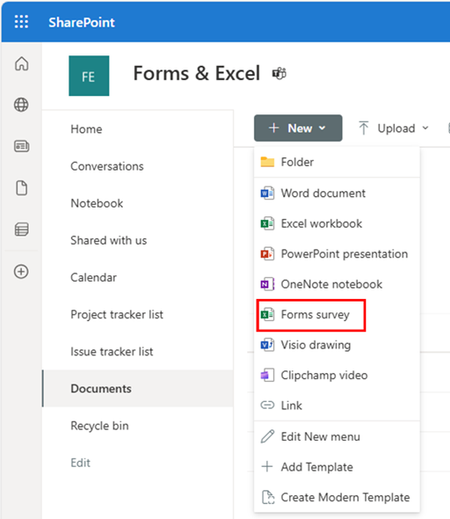
We have been gradually updating the Forms data sync to Excel to a new solution since August, and we're excited to announce that it’s now created through Forms, SharePoint, OneDrive, or Teams.9.1KViews2likes21CommentsRevamped Forms experience is now available for commercial users
We’ve now revamped the end-to-end experience of Forms for commercial users, offering a sleek and intuitive design from start to finish! You can now enjoy a fresh, modern look across the landing/portal page, form creation, and response analysis. This exciting update makes creating, managing, and analyzing forms easier and more enjoyable than ever before.8.4KViews3likes9Comments