microsoft 365 apps
1630 Topics
[Community tool] Find the GPO, registry value and Intune setting for any Office ribbon button
Hi everyone, as a technical service owner for Microsoft 365 Apps, one question comes up for me again and again: which policy actually controls this button or option? The information is all there – in the Office ADMX/ADML templates, the Office Fluent UI control ID lists, the Intune Settings Catalog and many Learn articles. But I never found it in one place, so every answer meant connecting several sources by hand. Especially when onboarding new colleagues, this costs a lot of time. So I built a free community tool for it: Office Admin Explorer https://tools.pascal-donath.de/office-admin-explorer/ How it works It's a clickable mock of Word, Excel, PowerPoint and Outlook (ribbon, File menu, Options, Trust Center). Click any element and you get: idMso and Policy ID (for customUI and the "Disable commands" policy) the ADMX policy with its exact path in Group Policy Management the registry value it writes, with ready-to-copy PowerShell or .reg the matching Intune Settings Catalog entry Cloud Policy notes, step-by-step guides and Microsoft Learn links The search covers all Office ADMX policies (2,400+) and command IDs (8,000+), including elements that aren't part of the mock. Also included Ribbon builder – hide or disable buttons, groups or tabs and export the result as customUI XML, a macro-free add-in (.dotx / .xlam / .ppam) or the "Disable commands" policy for Group Policy and Intune Deployment view – configuration.xml generator for the Office Deployment Tool User Support view – typical user problems: symptom → cause → fix Policy names and registry values are checked against Microsoft's ADMX/ADML files, and the Intune mapping against the Graph settings catalog. It runs in the browser without sign-in and is available in English and German. Please test any configuration on a lab device or pilot group first. I'd like your input How do you handle this today – ADMX search, Group Policy Search, the Intune catalog, your own documentation? Which Office settings do you get asked about most often? I'd like to add the most requested ones next. If you find a wrong or outdated entry, every entry has a "Report it on GitHub" link – corrections are very welcome. Thanks! Pascal --- *Transparency note: The tool was developed with the help of AI. The content is based on my own admin experience, and policy names, registry values and Intune mappings are validated automatically against Microsoft's official sources (ADMX/ADML templates, Fluent UI control lists, Microsoft Graph settings catalog). This is a community project and not affiliated with Microsoft.*
Business Central - Blocking External Operations Until Previous Operation Quality
Hello Team, We are evaluating the Quality Management process in Microsoft Dynamics 365 Business Central for a Release Production scenario. Our requirement is to control the production workflow in such a way that an External Operation (Subcontracting Operation) cannot be processed or posted unless the previous operation's quality inspection has been completed and approved. Business Requirement Production consists of multiple routing operations. Quality inspection is required after specific operations. If an inspection result is pending, failed, or not approved, the next operation (especially an external/subcontracting operation) should not be allowed to proceed. The system should enforce this control automatically to prevent production from moving to the next stage without quality clearance. Questions Does standard Business Central provide any functionality to block the posting or execution of a subsequent routing operation until the previous operation's quality inspection is completed? If using a Quality Management add-on, how is this scenario typically handled? Is there a standard quality status (Released, Accepted, Rejected, Hold, etc.) that can be linked with routing operation progression? Can the system prevent an External Operation from being posted when the previous operation's inspection order is still open? Has anyone implemented similar process controls in Business Central, and what approach was used (standard functionality, workflow, or customization)? Any guidance, best practices, or recommendations would be greatly appreciated.35Views0likes1Comment
An Authenticator initial login round-robin
Hello all. In migrating from an older Android to a very new Android, I of course had to perform initial login on most app. In trying an initial login to Authenticator (an essential app for many other apps I use on the phone and on the desktop) I've been facing a maddening closed loop of actions: To perform initial login, I must use Authenticator to confirm access - even though I'm still trying to set it up on my Office 365 account login. Selecting "other ways" leads to a phone code, which when entered leads only to a "change your password" screen and I'm back where I started. (I've uninstalled/reinstalled the phone app; I've reset the p/w about a dozen times.) Insights or suggestions most gratefully received! David95Views0likes5Comments
Theme Not Available For Cengage Project
I am currently trying to do a Cengage project for Microsoft power point. I need the Berlin theme and it is currently unavailable. I am using Microsoft 365 Family and only see a limited set of themes. Can someone PLEASE help me? Thank you!Solved141Views0likes2Comments
Booking Error Message
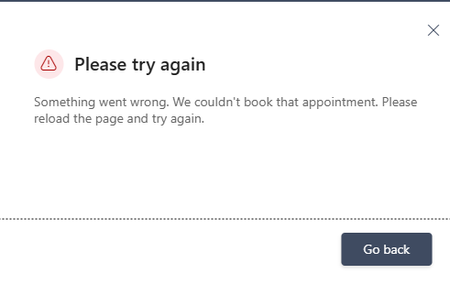
Microsoft Bookings public booking page displays “Something went wrong. We couldn't book that appointment,” but the appointment is actually created in the Bookings/Outlook calendar. The issue occurs even when using different browsers and Incognito mode. I checked availability and other things, everything looks fine. How to fix this?308Views0likes3Comments
Changing Microsoft 365 billing frequency from monthly to yearly unexpectedly increased the price
Hello everyone, I would like to raise an issue with Microsoft 365 Business Standard that I find very difficult to understand and even harder to explain to my customer. I manage two Microsoft 365 Business Standard licenses for a customer. The pricing history was as follows: Until May 2026: €23.40/month total for 2 users From June 2026: €21.66/month total for 2 users This means the annual cost at the latest monthly rate was €259.92/year On September 28, 2026, I changed only the billing frequency from monthly to yearly. During this process, I was not shown any clear warning that the actual subscription price would increase. After the change, Microsoft created a new annual subscription with: €145.56 per user/year €291.12/year for 2 users So simply changing from monthly billing to yearly billing increased the annual subscription price from the equivalent of €259.92 to €291.12. This is particularly confusing because the Microsoft website normally presents annual billing as the cheaper option. I contacted Microsoft Support today. According to the support agent: this behavior is the same worldwide the billing change cannot be reverted the agent cannot revert it it cannot be escalated to a supervisor who could revert it there is apparently no email address or written complaint channel where I can formally dispute the change What concerns me most is not only the price increase itself, but the fact that I was apparently moved to a higher price simply by changing the billing frequency, without a clear indication during the process that the subscription price itself would change. I now also have to explain to my customer why their Microsoft 365 costs suddenly increased, even though no additional licenses or services were requested. From my perspective, changing how often a subscription is billed should not silently result in a different commercial price without a very clear confirmation beforehand. Has anyone else experienced this? I would especially like to know: Is this expected Microsoft behavior? Why does changing the billing frequency trigger a new, higher price? Is there any official escalation or written complaint process for Microsoft 365 billing issues? Is there really no way to revert such a billing-frequency change shortly after it was made? I would appreciate clarification from Microsoft, because at the moment this leaves both the reseller/admin and the customer in a very poor position. Regards117Views0likes0CommentsMicrosoft 365 Family Copilot Should Follow the Household
In my household, my 76-year-old mother pays for our Microsoft 365 Family subscription. She uses email and basic Office features and is unlikely to ever use Copilot. I, however, actively use Microsoft technologies and would benefit greatly from Copilot in Word, Excel, Outlook, and OneNote. Today, Copilot benefits included with Microsoft 365 Family are tied exclusively to the subscription owner. As a result, the person paying for the subscription receives an AI benefit they may never use, while another licensed family member who would use it every day cannot access it. I believe Microsoft should consider either allowing the Family owner to designate a Copilot beneficiary or allowing all Family members to draw from a shared monthly pool of AI credits. Microsoft 365 Family was designed around the concept of a household. The current Copilot policy does not always reflect how real families actually use Microsoft's products. If other subscribers have encountered the same issue, I would be interested in hearing your thoughts.74Views0likes0Comments