issue
84 Topics
Critical Pen Hover & Stray Ink Issue on New Surface Pro 11 for Business with Slim Pen 2
Hello Microsoft Community and Support Staff, I am writing to report a critical and seemingly widespread issue with the pen input on the brand-new Surface Pro for Business, 13-inch (Intel model, often called Surface Pro 11 "Luna Lake"). The Core Problem: Pen Draws Without Touching the Screen When using the Surface Slim Pen 2, the device begins to register ink input while the pen is still hovering a few millimeters above the screen. It does not require any physical contact or pressure. This "hover-inking" makes handwriting completely unusable. As I write, any time I lift the pen to start a new letter or stroke, the pen continues to draw a line as it moves through the air to its next position. This results in messy, connected handwriting with unwanted "tails," completely defeating the purpose of having a premium inking device. This is Not a Defective Unit - It's a Replicable Problem Initially, I thought I had a faulty device. However, to isolate the issue, I have performed extensive testing: I have personally tested this on [3] brand-new Surface Pro 11 (Intel) devices. I have used [4] different Slim Pen 2s. The exact same hover-inking problem occurred on every single combination of device and pen. Furthermore, I have already performed all standard troubleshooting steps, including: Clean OS installation via Surface Recovery Image. Ensuring all Windows, driver, and firmware updates are installed. Running the Surface Diagnostic Toolkit (which reported no errors). However, the same issue continues to occur even after trying these methods. Additionally, it has been reported that the issue also appears on the latest Surface Pro 12-inch model with the Snapdragon X Plus, just like on the Surface Pro 11 that uses the Qualcomm Snapdragon X Elite instead of Intel’s Lunar Lake. (I do not own any Snapdragon devices myself. If you own a Snapdragon device and are experiencing the same issue, please share your feedback.)" Video Evidence: I have recorded a clear video demonstrating the problem. It shows the pen drawing while hovering on the Surface Pro 11 and makes unwanted tails on handwriting letters. Video Link: https://youtube.com/playlist?list=PLG_7BXFA-cL4evqe0RmRz--iFjDC1HVgT&si=EmEypaAqSyRozr67 Questions for Microsoft: Is this a known issue with the new Surface Pro 11 (Intel) model's firmware or drivers? What are the official steps to escalate this issue directly to the Surface engineering team for a fix? This is a major flaw in a flagship product that severely impacts its core functionality. I have submitted a formal bug report through the Feedback Hub, which can be found here: Feedback Hub Link: https://aka.ms/AAxzh27 I urge the Microsoft team to investigate this with high priority and release a firmware or software update to recalibrate the pen's Initial Activation Force (IAF). Thank you for your attention to this serious matter.1.8KViews12likes9Comments
File History problems after installing KB5124008, KB5126052,KB5126146, KB5122878, and KB890830
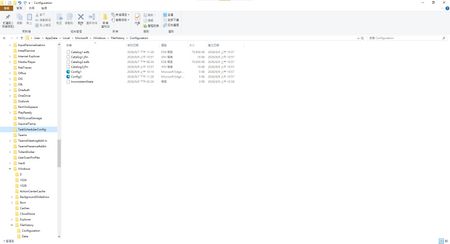
This morning, I ran Windows Update on two Windows 10/11 computers, but the file history feature stopped working completely after the update. Previously, after updating KB5120249 and KB5101684, files could still be backed up to the D: drive normally. The "Last Backup" time in "File History" is not updating correctly. Newly created or saved Word documents, pictures, videos, etc., still show "No previous version available" in "Content → Previous Versions". No folders were corrected; their dates are automatically updated. After running Windows Update again today, the file history feature stopped working on both computers. The File History panel pops up but cannot be used, prompting for a hard drive connection. (The hard drive is connected and I've confirmed it can read and write.) resulting in an "InconsistentState" entry in C:\Users\User\AppData\Local\Microsoft\Windows\FileHistory\Configuration. I'm very angry. If Microsoft doesn't address this, I'll keep complaining. If anyone else has encountered the same situation, please leave a comment below. You can also check Microsoft Q&A or the Microsoft Community Hub. The five updates installed are: September 8, 2026—KB5122878 (OS Builds 19045.7725 and 19044.7725) September 8, 2026-KB5126146 Cumulative Update for .NET Framework 3.5, 4.8 and 4.8.1 for Windows 10 Version 22H2 2026-09 Security Update (KB5124008) (26200.9445) 2026-09 .NET Framework Security Update (KB5126052) Windows Malicious Software Removal Tool x64 - v5.145 (KB890830) Deleting the %LocalAppData%\Microsoft\Windows\FileHistory folder also failed. Furthermore, "File History" itself is not listed in Microsoft's "Deprecated Features List." While other backup features suggest that Microsoft has no plans to discontinue it. Microsoft is going to pretend it doesn't exist. These worked normally before the update but stopped working afterward. This is to inform other users experiencing the same problem.6.5KViews5likes43CommentsNotifications not working
No one in our office receives notifications for messages in our team channel even when mentioned. No banner, sound or anything. I've checked multiple times that all notifications are set properly I'm at a loss. The one thing that does happen is the task bar icon in the bottom right hand corner goes from green to red.37KViews4likes11CommentsBroken File History after July/August Updates (KB5101684 on Win11 25H2 / KB5120249 on Win10 22H2)
Hi everyone, I am writing to report a major regression bug with File History that was introduced in the recent Windows updates. This is happening across two entirely different machines with no settings changed, no system files modified, and no registry tweaks applied. The Issue: Windows 11 25H2 > after installing KB5101684 (July 29, 2026) Windows 10 22H2 > after installing KB5120249 (August 12, 2026) On both PCs backing up to a local drive (D:), the underlying files are actually being written to the drive, but the File History interface is completely broken: TheLast Backup time stamp in Control Panel frozen and fails to update automatically. In File Explorer, right-clicking new files > Properties> Previous Versions shows There are no previous versions available, making daily time-travel restoration impossible. Temporary Workaround: The only way to force it to sync is to go to Control Panel > File History > Select Drive, and re-select the D: drive again. This proves the backup engine works, but the automatic scheduling and catalog syncing are completely frozen by these updates. Please Help Upvote on Feedback Hub: I have already submitted this issue via the Feedback Hub but have received no official response yet. Since File History is critical for users who prefer local offline backups over OneDrive, we need to bring this to Microsoft’s attention immediately so they can patch it in the next cumulative update. If you are experiencing the same issue, please upvote my feedback link below:[Post your Feedback Hub sharing screenshot]455Views4likes1Comment[FIXED] Anyone else having OneDrive high CPU usage problem after upgrading to build 19564?
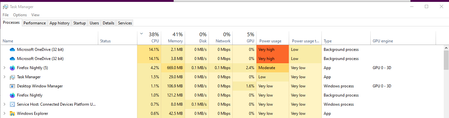
Feedback on Feedback hub app: https://aka.ms/AA7bbm6 please add more details to it. thank you Tried restarting my computer 2 times already with 5/6 hours intervals. I let it run like that for hours, hoping it will finish whatever it is doing but nope, it always stays like that. anyone else having this issue on the same exact build?Solved108KViews4likes37Comments
PDF Application Clobbering are blocking my ability to use Edge by default for employees.
I would love to use Edge as the default browser. The ability to use enterprise site mode and the built-in IE mode are amazing but Chrome legacy browser support works OK and the PDF issues with Edge are just to much for me to change from using IE 11 as default (lots of legacy web apps here) and Chrome as our supported browsers internally. Generally if Edge would stop trying to be a PDF viewer it would already be deployed, less then a month after its official release. We pay lots of money for 3rd party PDF software that is critical to many aspects of our business and internal process flow to allow Edge within 10 ft of a PDF file other than to download it and open in that program I've got set these settings: 1) Settings -> Downloads -> Ask where to save each file before downloading -> Disabled 2) Settings -> Site permissions -> PDF documents -> Always open PDF files externally -> Enabled When my employee's click on a PDF to download it they are taken to the Edge PDF viewer and given a prompt that says the "PDF reader is disabled" and given directions to either turn it on or download a file. This means the Setting 2 above is not applied right as it shouldn't prompt. Of course they choose "Download file" but when downloading the file they are then prompted and asked where do they want to save the file( This means setting 1 don't ask where to save is broken). Then the file is downloaded to their computer where if they haven't set the option to always open a PDF with system viewer the file is downloaded breaking (setting 2) and not opening externally. Honestly this is a bad and confusing experience for my employees' they need the PDF in external programs as we are using many sophisticated features of 3rd party products that the builtin reader is useless for. It takes way to many clicks and way to much troubleshooting for the users to get PDFs to open in a way that our business needs them to for me to currently make Edge our default browser. Realistically the PDF's should be downloaded to disk by default once the setting to "Always open PDF files externally" is enabled and if the option is set to always open in system viewer that should work when the files are clicked, I also have not found a way to reverse the option to always open in system viewer certainly would be nice to know how to reverse that so I can figure out how to set that as default. I also need some officially supported way to prevent Edge from trying to become the default PDF viewer. I've yet to find a good way, my solution works but it's not good. GPO setting like "Do not clobber or break PDF usage on peoples computers" would be a good start.3.3KViews4likes3Comments
Error code: FACILITY_VISUALCPP/ERROR_PROC_NOT_FOUND
Since today I am getting this error in Edge Dev (version 102.0.1220.1). The entire browser has become unusable as nothing seems to work at all. All pages return the previously mentioned error, add-ons are crashing, bookmark menu is blank, opening the settings doesnt work, etc. I have tried rebooting my system and uninstalled and reinstalled it, which all didnt help. The normal Edge (version 100.0.1185.36) works normally. Is there a log somewhere that can shed light on the underlying issue?Solved16KViews3likes16CommentsNews Web Part rendering issues
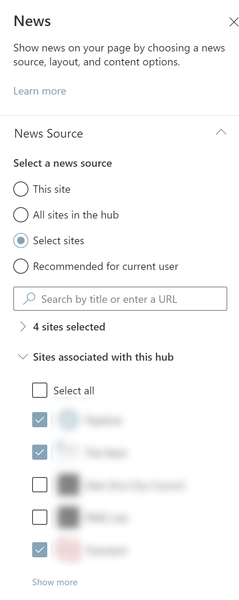
Is anyone noticing major rendering issues with the SharePoint Online News web part? The issues are similar to this post... https://techcommunity.microsoft.com/t5/sharepoint/changes-to-top-story-news-web-part/m-p/2586536 ...but the impact is also on other 'Layout' types. It is almost as if Microsoft have broken their CSS or something, as the images used in news item banners are rendering as full size, rather than being cropped and having a gradient applied (to ensure text is readable in the web part). My configuration of the web part is as shown below (or attached), and I can confirm that this issue is happening in multiple tenants, and mulitple site collections. In fact, I can't find any site collection where this issue ISN'T occurring. Be very keen to hear of others experiencing this, and would be grateful if others could test this in their own tenants to see how widescale the problem is. Thanks, Joe7.7KViews3likes22CommentsThe only thing that keeps me from switching to Bing as my default and daily search engine is This.
Bing changes my safe search settings every time I connect to my VPN (another Country). Every single time. Google does Not do this. so it happens like this. at first I don't use VPN and I'm connected with my own IP address to the Internet, I do a search in Bing and from the side panel I see safe search is set to restricted, so I go to the settings and turn that thing off. after few minutes I connect my VPN, reopen my browser and do a search in Bing, I see the safe search setting is back to restricted/moderate. again I go to the Bing settings and turn it off. now I turn off my VPN and use my own IP again, reopen my browser, do a search in Bing and there it is. safe search is back to restricted again! this is beyond frustrating, words can't even describe it. I do love Bing and I hate to use Google knowing they are a data mining company. but things like that....LITTLE things like that, prevent me from using Bing. I have this problem with Bing on both mobile and PC. using Microsoft Edge browser. Bing should retain my preferences Either in the form of cookies or in my Account settings. when I explicitly set a specific country in Bing settings and then turn off safe search for it, it shouldn't be changed automatically, no matter what IP I use, because it's still MY Microsoft account, not somebody else's, I don't set the country to "Auto-detect" or anything like that and I don't want safe search preferences to be reset when my country changes/I use VPN. the problem with Bing is that Microsoft tied Safe search preference to country. that's so wrong. they are 2 different things.1.4KViews3likes0CommentsThere is problem with file history logging after the recent Windows updates (KB5101684 / KB5121003)
Hi everyone, This is not spam, I did not spam the site. It appeared after the update. I hope Microsoft can resolve this issue, and I also hope other users experiencing the same problem can reply to me. Please, please. Ever since the latest Windows updates (specifically around KB5101684 / KB5120249 on Windows 11 Build 26200/Windows 10 Build 19045), The File History feature is almost unusable for me; although it works, the problem only occurs after an update. Symptoms: The "Last Backup" time in File History is not updating correctly. Newly created or saved Word documents, images, videos, etc., still show "No previous version available" in "Content → Previous Versions". The Correct folder's date is automatically changed. System details: OS: Windows 11 25H2 (Build 26200.9278) OS: Windows 10 22H2 (Build 19045.7663) Recent Updates Installed: KB5120998, KB5120249, KB5101684. Has anyone else experienced this issue with recent Windows updates? Currently, the only solution is to go to Control Panel → All Console Items → File History → Select Drive → Select D: drive again. After completing this step, File History will return to normal. This is a post I made. Other users who have experienced the same thing left comments below. KB5101684/KB5120249 caused File History errors, but Microsoft has not acknowledged them. | Microsoft Community Hub Welcome to comment if KB5101684 or KB5120249 caused the same File History issue. | Microsoft Community Hub I want to ask Microsoft, why are there abnormal in the file history logs after these two updates? | Microsoft Community Hub Win 10/11 file history is malfunctioning after an update why hasn't Microsoft fixed this issue yet? | Microsoft Community Hub https://learn.microsoft.com/en-nz/answers/questions/5972265/windows-11-file-history-not-updating-correctly-aft https://learn.microsoft.com/en-nz/answers/questions/5978256/win-11-25h2kb5101684-os-builds-26200-8973-and-2610 https://www.reddit.com/r/computerhelp/comments/1vituh0/comment/p6dxvs4/?context=1&screen_view_count=2&ext-referrer=DIRECT https://www.reddit.com/r/WindowsHelp/comments/1w6zlem/comment/p8bbu3j/?context=1&screen_view_count=2&ext-referrer=DIRECT427Views2likes1Comment