endpoint security
73 TopicsSpeed where it matters: How Microsoft Intune helps IT prioritize time-sensitive actions
By: Albert Cabello Serrano | Principal Product Manager - Microsoft Intune A closer look at how Intune delivers updates to devices and the investments we’re making to help important changes move faster and more predictably. A common concern we hear from IT admins is, “How quickly will this change actually reach my device?” In many cases, the answer is much faster than expected. Today, 90% of policy updates, app deployments, and device actions in Intune are completed in under an hour. So where does the idea of “8-hour latency” come from? That number reflects a routine maintenance check-in used when devices are idle - not how Intune processes meaningful changes. Intune uses notification-based, priority-driven processing so that high-impact actions, like security policy changes or remediation steps, are handled promptly and reliably as possible. In this context, latency isn’t about making every action instant - it’s about providing predictable, prioritized delivery at global scale. The sections below break down how Intune prioritizes different types of updates and recent investments that are helping time-sensitive changes complete more consistently. How Intune delivers changes to devices Cloud-based device management is designed for real-world conditions; devices are not always online, fully charged, or on stable networks. Intune uses an eventual consistency model so devices can continue to be productive while converging to the desired state over time, without management actions unnecessarily disrupting users or workflows. Because devices operate in different conditions, not all device activity is handled the same way. To manage change reliably at scale, Intune uses different types of device check-ins depending on what needs to happen. Types of device check-ins in Intune Device check-ins generally fall into several categories, each triggered by a different type of action: Single‑device check‑ins: Occurs when an admin or user initiates an action on a specific device, such as starting a device action or installing an app from the Intune Company Portal. Change‑based check‑ins: Push‑triggered check‑ins used to deliver meaningful changes to devices as soon as possible. Client‑initiated check‑ins: Background activity that helps keep devices healthy, such as when a user signs in to a device or when malware status changes. Maintenance check-ins: Scheduled syncs that occur at predetermined intervals and can be client or service-initiated, depending on the platform. These typically occur approximately every 8 hours. Regardless of what triggers a check-in, any pending changes will be applied to the device when it occurs. What happens when an admin makes a change When an admin makes a change in Intune, such as updating a device compliance policy, deploying an app, or setting a configuration, Intune identifies the devices impacted by that change and initiates a change‑based check‑in for affected devices. For online devices, Intune sends a push notification prompting the device to establish a management session with the service, apply the change, and report enforcement status back to Intune. If a device is offline or unreachable, the change is applied when the device next checks in through available mechanisms. Four investments that help critical updates move forward faster The following product changes focus on reducing device‑change latency by shortening the time between an admin action in Intune and enforcement on the device, especially during peak or constrained conditions. 1. Check-in prioritization focused on what matters most Not all device activity carries the same urgency. Routine background check-ins can compete for service resources with devices that have important pending changes, such as compliance updates, remediation actions, or administrator-initiated configuration changes. Intune evaluates the potential impact of delaying a device check-in on security posture, compliance state or user productivity, and dynamically prioritizes processing accordingly. This real-time prioritization model ensures that high-impact actions move forward without being delayed by lower‑impact background activity. Prioritization adapts as conditions change, helping important updates reach devices more quickly and predictably without being delayed by lower-impact background activity. 2. Built-in resilience when multiple changes occur in quick succession Change activity often happens in bursts, with several related updates occurring in rapid succession. These periods of activity may be driven by operational needs or background processes, and can involve adjusting assignments, updating multiple policies, or rolling out configuration changes across the same set of devices. Intune dynamically coordinates notifications, so that each change requiring action triggers a corresponding device notification, even during high-activity periods. This helps improve consistency when applying multiple updates and reduces delays across consecutive changes on devices. Over the next several months, these improvements will extend to additional payloads delivered through the Intune Management Extension (IME), including scripts, Win32 apps, and custom compliance across both Windows and macOS platforms. 3. More timely notifications on Windows Intune notifies devices to check-in when changes require action. If the device is offline, on an unstable network, or low on battery, notifications may be delayed. This can cause missed check-ins or delayed actions. When notification services are delayed, blocked, or unavailable, devices may fall back to scheduled maintenance check‑ins to apply changes. For timely delivery, required notification service endpoints need to remain accessible so devices can receive management signals when updates occur. On Windows devices, Intune complements the Windows Notification Service (WNS) with the same notification protocol that powers Microsoft Teams via the Intune Management Extension. This helps increase the likelihood that devices receive management notifications when they’re online and reachable, improving visibility into whether policy updates or device actions have reached their destination. For more information, see the network endpoints for Intune documentation. 4. Optimized maintenance check-ins for iOS devices Background check-ins are still important to keep devices healthy when nothing else is going on. Unlike Windows devices, iOS devices don’t have client scheduled check‑ins and depend on service‑initiated maintenance check‑ins to ensure device health and compliance. During peak usage periods, these maintenance check‑ins can account for a significant portion of overall traffic, which can compete with devices that require immediate updates. Intune considers device activity in the scheduling of maintenance check‑ins during peak activity, making room for higher‑impact updates, while continuing to ensure devices check in regularly. This helps manage traffic and improves responsiveness when applying policies or remediation actions. What this means for you For IT admins: No additional configuration or workflow changes are required to benefit from Intune’s built-in notification system. When bidirectional communication with notification service endpoints is open, devices can receive and act on updates as they become available. For security teams: Faster delivery of device changes helps shorten the time between a policy update, a tightened Conditional Access rule, an updated compliance baseline, and a remediation action. For Zero Trust frameworks, where posture signals drive access decisions, this helps narrow the window during which a device could be out of compliance or vulnerable. Together, these improvements reflect how Intune is evolving into a more intelligent, priority-aware system. Rather than making every action instant, the focus is on prioritizing high-impact updates so they are delivered without unnecessary delays. This approach is expanding across a number of scenarios to provide a more consistent and predictable experience, helping reduce delays for key updates. Resources to learn more For another perspective on this topic, read an MVP’s take on demystifying the “8-hour” timing myth in this LinkedIn post. You can also watch the recent Tech Takeoff about this same topic to learn more about these improvements. Also, in the April edition of the What's New in Intune blog, we introduced a new segment called Myth vs. Reality. This post is part of that series. To stay current on new capabilities and updates as they ship, follow the What's New in Microsoft Intune blog. What myth should we debunk next? Leave a comment below or reach out to us on X @IntuneSuppTeam or @MSIntune.14KViews3likes7CommentsTriage vulnerabilities with the Vulnerability Remediation Agent, now in public preview
As automation and AI accelerate the pace of vulnerability discovery, the window between disclosure and exploitation continues to shrink. For IT and security teams, the challenge is no longer just finding vulnerabilities - it's prioritizing the ones that matter and acting on them before they can be exploited. To help organizations close that gap, we're pleased to announce that the Vulnerability Remediation Agent for Security Copilot in Microsoft Intune is now in public preview and rolling out to all customers. Following a successful limited preview, the agent is now broadly available. This release brings agentic vulnerability remediation out of an early-access cohort and into the hands of every eligible organization - an important step in our continued investment in helping admins reduce exposure faster and with greater confidence. View eligibility prerequisites here. How the agent helps you identify and triage vulnerabilities The Vulnerability Remediation Agent uses data from Microsoft Defender Vulnerability Management to identify Common Vulnerabilities and Exposures (CVEs) across your Intune-managed Windows devices and apps, then prioritizes them for remediation. Rather than leaving admins to sift through lengthy CVE lists with little context, the agent surfaces a prioritized set of recommendations directly in the Intune admin center - accessible from both the Agents and Endpoint security pages. When the agent runs, it evaluates vulnerability data and ranks threats based on factors such as CVSS scores, exposure impact, and affected device count, so the most critical issues rise to the top. Drilling into any suggestion provides: The count of associated CVEs A Copilot-assisted summarized impact analysis Suggested actions and affected systems Exposed devices and potential impact Step-by-step guidance for remediating the threat using Intune After acting on a recommendation, admins can mark it as applied, allowing the agent to retain a record for tracking remediation actions over time. The result is a meaningful reduction in the time it takes to investigate, prioritize, and remediate - strengthening overall security posture. Introducing agentic identity for the Vulnerability Remediation Agent With this release, the agent now operates under Microsoft Entra agentic identity - a meaningful advancement in how autonomous agents are governed and secured. What it is. Agentic identity is a specialized identity in Microsoft Entra ID that allows the agent to operate securely and independently. During setup, the agent provisions a dedicated agentic identity and a corresponding agentic user in your tenant's Microsoft Entra directory. The agent then runs under the permissions delegated to that agentic user rather than under a human user account. Why it matters. Agentic identity decouples the agent from any one person, ensuring its behavior is strictly bound to the permissions and scope you delegate to it. This delivers clearer accountability, a cleaner audit trail, and enterprise-grade governance for autonomous operations. How it helps. Admins remain firmly in control. After setup, delegate the required read permissions to the agentic user in the Microsoft Intune and Microsoft Defender admin centers, then use the built-in Readiness Check to confirm everything is configured correctly before the agent runs. Learn more in Agent identity. Getting started: Connect → Enable → Run → Remediate → Track One of the design goals behind the Vulnerability Remediation Agent is to make agentic security approachable, not complex. Rather than stitching together signals across multiple tools and admin centers, the agent guides admins through a clear, repeatable flow - from connecting your data to tracking measurable improvement over time. Connect — bring Defender and Intune data together. The agent draws on Microsoft Defender Vulnerability Management for CVE intelligence and Microsoft Intune for device and configuration context. With the required Microsoft Defender and Microsoft Intune plugins in place, your vulnerability and management signals work as one. Learn more on what is needed to connect the experience. Enable — turn on the agent. From the Agents node in the Microsoft Intune admin center, set up the agent in a few guided steps. During setup, the agent provisions its Microsoft Entra agentic identity and surfaces the permissions and plugins it needs, so you know exactly what to delegate before the first run. Run — let automated prioritization do the heavy lifting. Once permissions are delegated and the Run Readiness Check passes, you can configure the agent to run on demand or schedule it to run automatically in the background on a cadence you define; scheduling is a unique capability that helps teams stay ahead of emerging risks without requiring constant manual intervention. Each run analyzes your environment and produces a prioritized list of recommendations ranked by CVSS score, exposure impact, and affected device count so the most critical risks rise to the top automatically. Remediate — act with guided, Intune-ready actions. Each recommendation includes a Copilot-assisted impact summary, exposed devices, and step-by-step guidance for remediating the threat using Intune. Admins move directly from insight to action, without leaving the admin center. Track — measure improvement over time. Recommendations can be marked as applied, and the agent retains a record of your remediation actions. The outcome is a streamlined operating model: connect once, enable with confidence, and let the agent drive a continuous cycle of prioritization, remediation, and view progress. For full prerequisites, licensing, plugin, and role requirements, see Vulnerability Remediation Agent overview and set up. The Vulnerability Remediation Agent represents a meaningful step toward a more proactive, AI-assisted security posture, one where admins spend less time sifting through CVE lists and more time acting on what matters most. We invite you to try the public preview today, connect your Defender and Intune data, and experience how agentic remediation can help your team stay ahead of emerging threats. As always, we'd love to hear your feedback as we continue investing in making security in Intune faster, smarter, and more accessible. Share your tips and lessons learned in the comments below or reach out to us on X @IntuneSuppTeam. Join our community! Discuss real-world scenarios, get expert guidance, connect with peers, and influence the future of Microsoft Security products. Learn more at aka.ms/JoinIntuneCommunity.2.9KViews0likes1CommentUnpacking Endpoint Management is back - and we’ve got a lot to talk about
If you've been missing real, candid conversations about endpoint management, good news! Unpacking Endpoint Management is officially back. This series is all about what actually works. No fluff, just practical tips, proven strategies, and honest discussions to help you optimize and simplify the way you manage and secure endpoints today (and prepare for what's next). We're bringing together people from across Microsoft Intune, Security, and Customer Experience engineering and product teams, along with guest practitioners, to share what's worked, what hasn't, and what we've learned along the way. And yes…we're absolutely here for the tough questions. A quick update on the hosts Danny Guillory, a familiar face to the community and a Product Manager for Intune and Configuration Manager, will continue to host the series. He's joined this season by Rachelle Blanchard as co‑host, bringing a strong community and discovery lens to the series. Rachelle focuses on surfacing real customer questions and guiding conversations toward practical outcomes, helping ensure each episode reflects how endpoint management works in the real world. Up next What should we cover? Drop ideas below in the comments. Sign in to the Tech Community and follow this post for the latest updates on upcoming episodes. Catch up on demand You may have missed them, but you don't have to miss out on the learnings. Watch and learn when it's convenient for you. Policy: from hybrid to cloud-native Device security with Microsoft Intune Trends in endpoint management (live from Tech Takeoff 2026) Not sure where to start? Watch our most recent episode, App management at scale with Intune, now on demand! What's the format? This web series is streamed live on Tech Community, LinkedIn, YouTube, and X. In addition to open discussion, we answer your questions so sign in (or sign up for) the Tech Community and RSVP to submit questions early and throughout the live show. How do I join? There's no call or meeting to join. Simply head to aka.ms/JoinUEM. Show up at start time, watch live, and jump into the discussion with us. Help shape the series This series is for you - so tell us what you want to hear. Drop a comment below with: Topics you'd like us to cover Tough questions you want answered Speakers you'd love to hear from We can't wait to get started - and even more excited to hear from you along the way. Join the Community to get early insight into what's coming for Intune, connect with experts, and share real-world feedback that helps shape the product. 👉 aka.ms/JoinIntuneCommunityBuild a patch strategy for today’s threat pace with Microsoft
AI-accelerated vulnerability discovery and remediation are changing how organizations manage risk. As discussed in Pavan Davuluri’s recent blog, Microsoft is investing across the vulnerability lifecycle to help organizations identify, validate, and respond faster. For IT and security teams, one challenge lies downstream: deploying fixes quickly across endpoints to reduce exposure. Each update needs to be evaluated, piloted, monitored, and enforced across a mixed fleet of devices and apps. Some parts of the estate can move quickly; others cannot because of compliance requirements, approved change windows, and business-critical dependencies. As organizations adopt AI tools and agents across their environment, maintaining a current and hardened endpoint estate becomes increasingly important. In this context, patching becomes an ongoing operational discipline that combines OS, app, and driver updates with compliance enforcement, access control, and security baseline hardening. To keep pace, organizations need a patch strategy that helps in 3 stages: Mitigate: automate updates that can move quickly Assess: prioritize risk based on exposure and severity Contain: enforce compliance and limit exposure Operationalizing a patch strategy requires coordinated capabilities across endpoint management and security tools. Microsoft Intune brings these capabilities together in a single admin center, alongside the broader Microsoft security ecosystem, and is available with qualifying Microsoft 365 subscriptions 1 . In this post, we show how organizations can use these capabilities to build a patch strategy that helps reduce the time between update release and deployment across their endpoint estate. 1. Mitigate: automate updates that can move quickly A patch strategy is not about pushing every update everywhere at once. It’s about identifying the parts of your estate that can move quickly, then using automation, rings, monitoring, and enforcement to help those updates move with confidence. Regulations, approved change windows, validation needs, and business dependencies will shape what’s possible, but the strategy starts by separating repeatable update work from the exceptions that need deeper review. For OS, app, and driver updates that can move quickly, modern tools can help shorten the time between update release and deployment; without manual rollouts, ticket-driven packaging, or reboot disruption. Operationalize in Intune Windows Autopatch orchestrates ring-based update rollouts to reduce manual effort and keep Windows devices current. To help monitor risk, the Autopatch report visualizes how quickly devices apply updates based on the configured deployment cadence. In this report, devices are categorized as current within three days of update release, at risk between three and seven days, and at critical risk beyond seven days, based on the reporting model used by Windows Autopatch. Learn more about ring-based rollout updates or how to reassess Windows OS updates using this report. Hotpatch (enabled by default for 24H2+ in Intune) applies critical updates without requiring a reboot, helping reduce security gaps while keeping users productive. Figure 1: Watch the latest Microsoft Mechanics episode to see how Windows Autopatch and Hotpatch help organizations accelerate update deployment, reduce operational overhead, and keep devices secure. Intune Enterprise App Management (EAM) supports keeping Windows apps current through auto-updates, including the guided upgrade supersedence reporting, which surfaces outdated versions or version changes. EAM auto-updates are now generally available; details are included in the June Intune What’s new blog. Figure 2: Watch how Intune helps you move from update release to deployment to accelerate responses to vulnerabilities with Windows app management. The enhanced application inventory in the All apps page shows the app version installed on each managed Windows device, refreshed multiple times per day on most active devices, helping teams target app-specific vulnerabilities and confirming when fixes have been applied. The Vulnerability Remediation Agent in Security Copilot uses data from Defender Vulnerability Management to prioritize Common Vulnerabilities and Exposures (CVEs) across Intune-managed Windows devices and apps, and provides recommended remediation actions within Intune. The Vulnerability Remediation Agent is currently in public preview, read the blog to learn more. Figure 3: Watch this video to see how the Vulnerability Remediation Agent in Security Copilot, within Microsoft Intune, helps make agentic security easier to adopt and use. Extend across your endpoint estate Apple devices can be configured for automatic OS updates on managed devices, including enforcing updates to the latest version and deploying Background Security Improvement patches through the settings catalog. App updates can be managed by configuring volume-purchased App Store apps to update automatically and deploy updated app packages to keep apps current across macOS, iPhone, and iPad devices. Android devices can be managed using built-in update policies in Intune, including configuring install windows and freeze periods. For corporate Android fleets, Intune also integrates with OEM firmware management solutions - including Zebra LifeGuard Over-the-Air and Samsung E-FOTA - to enable more granular update control. Managed Google Play also supports configurable app auto-update modes, allowing admins to define whether updates install automatically, on Wi-Fi only, or manually. 2. Assess: prioritize risk based on exposure and severity The first step is reducing exposure across the parts of your estate that can move quickly. But not every system, application, or vulnerability can be addressed through broad update deployment. Teams also need a way to determine which risks require immediate action and which ones can be addressed over time. A calendar-based approach can treat every CVE equally. However, it doesn’t account for severity, exposure, or business impact. As AI accelerates vulnerability discovery, this can lead to effort being spent on lower-risk updates while higher-risk updates remain unaddressed. Risk-based service level objectives (SLOs) help bring prioritization to address this challenge. Instead of patching on a fixed schedule, IT and security teams can align response timeframes by severity, moving quickly on actively exploited or critical vulnerabilities, and applying a more measured approach where risk or impact is lower. This stage creates a clearer prioritization of remediation and helps bridge the view between the security teams that identify threats and the IT teams that act on them. Operationalize in Intune and Microsoft Defender The security update status dashboard in Intune provides an aggregated view of update compliance across Windows clients, Windows servers, and Microsoft 365 Apps. It shows overall counts of devices in different states across Intune-endpoints and helps teams identify where remediation should be focused. These status categories reflect how quickly devices apply updates based on a configured deployment cadence and internal SLOs. Figure 4: Security update dashboard showing patch status for Windows clients, servers, and Microsoft 365 apps. Microsoft Defender Vulnerability Management surfaces CVEs, affected devices, vulnerable software, and recommended remediation actions, offering a shared view of risk and progress across IT and security teams. Translate Defender recommendations into targeted Intune actions described in the mitigate section, such as updating software or moving devices through expedited remediation workflows so teams can focus on vulnerabilities that are actively exploited or most likely to affect an organization. Extend across your endpoint estate For Apple devices, use the Apple software update report in Intune to monitor update status across macOS, iOS, and iPadOS. For Android, compliance reporting surfaces devices that fall behind on OS version or security patch level. 3. Contain: enforce patch compliance and limit exposure Even with automated deployments and prioritized triage, gaps can remain. Some devices are unsupported, fall behind, operate on slower deployment rings, and others can’t be patched quickly. A patch strategy needs to focus on including containment for those surfaces. Compliance controls, conditional access, and device hardening act as an always-on safety net that limits risks that can fall through gaps. Compliance policies and Conditional Access can use a patch state as a signal for resource access, preventing non-compliant devices from accessing corporate resources. Security baselines reduce the attack surface by limiting risky defaults and common attack patterns. Together, these controls shift enforcement from a periodic activity to a continuous condition across a fleet. Operationalize in Intune and Defender Use compliance policies in Intune to define what "current" means, including minimum OS build, required update levels, risk status, and encryption state. Use Conditional Access (managed in Microsoft Entra, accessible from the Intune admin center) to control access to company resources based on user and device health. Combined with threat signals from Microsoft Defender, these policies help prevent non-compliant devices from accessing corporate resources. Use Microsoft Defender Vulnerability Management and Microsoft Security Exposure Management insights to identify exposed assets, prioritize remediation, and apply recommended protections where patching must move more slowly. Apply Intune security baselines to establish Microsoft-recommended configurations on Windows devices, such as disabling risky defaults, blocking common attack techniques, and reducing configuration drift. Watch this demo on security baselines being applied in the Zero Trust workshop. Use attack surface reduction policies in Intune to deploy Microsoft Defender for Endpoint protections, such as ASR rules and network protection, that help block common attack techniques on devices that can't be patched right away. Figure 5: Watch this Demo on how you can manage devices and implement Conditional Access with Intune. Extend across your endpoint estate Compliance policies and Conditional Access controls apply across Windows, macOS, iOS/iPadOS, and Android. Intune app protection policies extend compliance requirements and data protections to managed apps used for work on personal devices and add an additional layer of data protection on corporate devices. Use the settings catalog and configuration profiles to apply the same hardening intent on macOS, iOS/iPadOS, and Android, reducing configuration drift across platforms. Stay ahead with a patch strategy As vulnerability discovery and response continue to accelerate, organizations need an operational strategy that balances speed, risk, and resilience. By automating updates where possible, prioritizing remediation based on exposure, and limiting exposure through compliance and security controls, teams can reduce risk across their endpoint estate. Intune helps simplify this approach by bringing these capabilities together alongside the rest of your Microsoft security tools and ecosystem. Get started with Microsoft Secure Now to assess risk across your digital estate. Explore the new security update status dashboard in Intune. Harden the admin plane and review the best practices for securing Microsoft Intune. 1 Licensing and requirements Feature availability and included capabilities vary by Microsoft 365 subscription plan and feature. Some Microsoft capabilities referenced in this post may require specific licenses or additional enablement. Advanced Microsoft Intune capabilities are now included in Microsoft 365 E5, with select capabilities available in Microsoft 365 E3 as part of updates effective July 1, 2026. Existing customers will receive a 30-day notice in the Microsoft Admin Center prior to availability, with access beginning by August 2026. Microsoft Security Copilot and related AI capabilities may require separate licensing, learn more here. Stay up to date! Bookmark the Microsoft Intune Blog and follow us on LinkedIn or @MSIntune and @IntuneSuppTeam on X to continue the conversation.4.2KViews1like1CommentHow Enterprise App Management secures your App Catalog from ingestion to device
By: Joe Lurie, Sr. Product Manager | Microsoft Intune One of the most common questions I get from customers when I talk about Enterprise App Management is some version of: "Okay, but how do I know these apps are safe?" It's a fair question. You're trusting a catalog of pre-packaged Win32 apps to land on thousands of managed devices across your organization. If you're responsible for endpoint security, you should be asking that question. This post explains how Enterprise App Management works behind the scenes, how apps get into the catalog, what happens before they're visible to your tenant, and why the architecture matters for your security posture. The architecture: Not a new system, but an extension of what you already trust An important design decision with Enterprise App Management is that it's not a separate app delivery system. It's an extension of the existing Intune Win32 app architecture. From the admin perspective, everything starts in the Intune admin center. But behind the scenes, there's a clean separation between the control plane and the data plane: Control plane: For each app being added to the Enterprise App Management catalog, Intune curates app metadata, including app version, install commands, uninstall commands, detection logic, requirements, and supported configurations. This metadata is validated and normalized before it shows up in your tenant. That's why catalog apps behave consistently whether you're deploying to 50 devices or 50,000. Data plane: Once an app is assigned by an admin, it flows through the same Win32 app delivery and enforcement pipeline you already rely on. Your devices don't know they're installing an "Enterprise App Management app" - they're enforcing a Win32 app with well-defined intent. Same Enrollment Status Page support, same reporting, same retry logic, same Intune Management Extension. No new agent. No new runtime. And finally, Enterprise App Management apps have the same support for App Control for Business with Managed Installer which can automatically tag the apps as safe. This is important because it means Enterprise App Management inherits all the trust and operational maturity of Win32 app management in Intune. Curated content is delivered through established, reliable infrastructure. How Enterprise App Management apps are delivered: The ingestion pipeline This section walks through what happens from the moment an app is sourced to the moment it appears in your catalog. Content ingestion It starts with the catalog. Microsoft receives app metadata, including install and uninstall commands, version info, and download URLs. The data is then ingested, flattened, transformed, and Microsoft's own identifiers are applied. After the data lands in the database, eligibility and filtering gates are applied through allow and deny lists. Apps on the allow list are permitted to download content from controlled internet locations. This process handles both net-new apps and version updates to apps already in the catalog. Security and functional validation This is the part that answers the "how do I know it's safe?" question. Once content ingestion is complete, every app is submitted for security and functional validation. This is a queue-driven service that runs two parallel tracks: Static malware detection scans the installer and related artifacts for malicious content, assigning a VirusTotal score. If an app receives a non-zero score, it's blocked from proceeding, full stop. Static scanning is about establishing baseline trust before deployment. It validates that binaries are intact, that they originate from trusted sources, and they don't carry known indicators of malware or tampering. This process catches embedded malicious payloads, corrupted binaries, and known bad signatures before they can impact any device. Dynamic analysis (detonation) runs in parallel. The app is installed and uninstalled inside a VM detonation chamber, producing install results, logs, and artifacts. This is about validating behavior, not just files. Modern threats don't always look malicious at rest; some issues only surface when an installer or application runs or interacts with the system. Dynamic evaluation catches unexpected system changes, unsafe persistence mechanisms, and activity inconsistent with enterprise deployment expectations. If an app fails automatic validation, it goes through manual validation by Intune engineering. Both layers are required. Static scanning provides speed and broad coverage, while dynamic scanning provides depth and behavioral assurance. After publication: Ongoing scanning The security story doesn't end at publication. Apps already in the catalog are periodically re-scanned. If a version that previously passed validation is later found to fail a malware scan, it's flagged and removed from the catalog. This is a critical detail - the catalog isn't a snapshot-in-time trust decision. It's a continuously validated inventory. Update velocity Once a new app version is received, the target is to have it available in the catalog within 24 hours. Around 80–90% of apps hit that timeline. The remainder are apps that don't pass automatic validation and require manual review, which takes longer. But the pipeline processes updates through the exact same ingestion and validation flow as new apps - no shortcuts. Where Zero Trust fits in If you've been following Microsoft's Zero Trust model, this pipeline should feel familiar. Zero Trust is built on three principles: verify explicitly, use least-privilege access, and assume breach. EAM's validation pipeline maps directly to these: Verify explicitly: Every app is verified through multiple independent signals, including source integrity, static malware scanning, and dynamic behavioral analysis, before it's ever exposed to a tenant. No app gets a pass based on reputation or publisher name alone. Trust is earned through evidence, every time. Use least-privilege access: Enterprise App Management catalog apps ship with prefilled, scoped install and uninstall commands, detection rules, and requirements. You're not handing an installer broad system access and hoping for the best. The deployment surface is defined and constrained by design. Assume breach: This is why the pipeline doesn't stop at initial validation. Ongoing re-scanning means that even apps that previously cleared every check are continuously re-evaluated. If an app that was clean six months ago is later found to carry a risk, it's flagged and pulled from the catalog. The system assumes that trust is perishable, exactly the way Zero Trust says it should be. In practice, this means Enterprise App Management gives you an app lifecycle that's not just convenient - it follows the same security framework your organization is likely already adopting for identity, network, and device access. The app layer is often the last piece to catch up, and Enterprise App Management closes that gap. Here's the ingestion flow that shows how all of this fits together: The Enterprise App Management ingestion pipeline: from source metadata through content ingestion, static and dynamic security validation, manual review for failures, periodic re-scanning, and finally publication to the catalog. Takeaways If you're evaluating Enterprise App Management or explaining it to your security team, here's what I'd suggest that you land on: Enterprise App Management reduces the packaging tax. Pre-packaged apps with prefilled install details, detection rules, requirements, and restart behavior mean you spend less time building the same scaffolding repeatedly and more time on policy and rollout strategy. Patching becomes more predictable. Guided update flows using supersedence and a documented expectation of 24-hour update availability give you a cadence you can plan around, not react to. The security model is layered and continuous. Static scanning, dynamic detonation, manual review fallback, and ongoing re-scanning mean the catalog maintains a high trust bar - not just at ingestion, but over time. And it's all built on the same Win32 delivery infrastructure that you and your devices already trust. The bottom line: Enterprise App Management isn’t just about convenience. It shifts the app lifecycle from a manual, error-prone process to one with built-in security validation, operational consistency, and governance you can defend to your security team. Rather than manually sourcing installers and creating detection rules, use this approach to streamline the process. If you have any questions, leave a comment below or reach out to us on X @IntuneSuppTeam! Want to go deeper? Check out the Enterprise App Management documentation and keep an eye out for upcoming changes to Intune Suite licensing that will make Enterprise App Management available in the Microsoft 365 plans you may already own. And as always, drop feedback at aka.ms/IntuneFeedback. Join our community! Discuss real-world scenarios, get expert guidance, connect with peers, and influence the future of Microsoft Security products. Learn more at aka.ms/JoinIntuneCommunity .1.8KViews0likes0CommentsThe Fileless Paradox: How My 33-Day-Old Research Became Today's Ransomware Reality
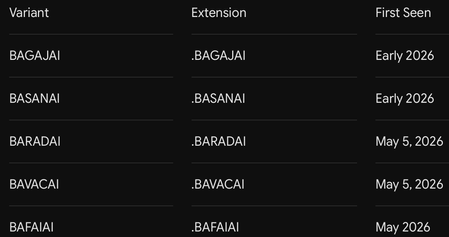
33 Days Before BARADAI Emerged 🔴 Before You Read: What Is This Article About? This is the first article I have published on Microsoft Tech Community, and this is not a standard threat report. This is the story of being right before anyone believed it — and of a ransomware family called BARADAI that proved it. On April 5, 2026, I published a technical research article documenting, in detail, a fileless malware architecture that operated entirely in RAM using steganography and Windows Registry persistence. When I shared it on social media, the reactions were immediate and brutal: “A fileless payload cannot be persistent. If it leaves no trace on disk, it cannot survive a reboot.” “This technique is entirely theoretical. No real threat actor would ever use this in production.” “You cannot have persistence without leaving traces. Pick one.” And the most absurd ones: “Stop writing articles with AI.” “This level of technical detail is unrealistic — did AI generate this?” “Forensic artifacts cannot be erased. What kind of technique is this?” At that moment, I could not prove myself. I had a working proof-of-concept. I had built the architecture myself. The technical logic was sound. But I did not yet have a real-world threat actor using it in production. 33 days later, BARADAI appeared. And it used the exact same playbook I had written. This article is the first volume of the “We Saw It Coming” series. In this series, I correlate my independent research with emerging real-world threats, document technical overlaps, and provide actionable detection and defense guidance for Microsoft environments. Right now, I am actively trying to reverse and decrypt BARADAI. I do not yet have a definitive solution. But I am publishing this journey because my goal is to finalize a solution by collecting additional logs and intelligence. 📌 Table of Contents The Moment Nobody Believed 33 Days Later: Meet BARADAI The B-Family: Shared Infrastructure Ecosystem Side-by-Side: Technical Overlap Analysis Deep Dive: The Fileless Paradox — How Both Architectures Work The PAIDMEMES Anomaly: Forensic Residue Inside BARADAI My Technique vs BARADAI: Shared Technical Patterns Microsoft Sentinel Detection Rules (KQL) MITRE ATT&CK Mapping Decryption Research and My Current Approaches Defensive Recommendations Sources and References ------------------------------------------------------------------------------ 1. The Moment Nobody Believed April 5, 2026 — A Research Paper, a Community, and Silence On April 5, 2026, I published a detailed technical research article on Medium titled: “STEGOMALWARE — PNG Persistence Through Steganography and Windows Registry” The article documented a complete attack architecture that I designed and tested from scratch in a controlled laboratory environment. My core thesis was this: A fileless malware strain can achieve persistent, reboot-resilient execution without ever writing a malicious executable to disk — by hiding its payload inside the pixels of a PNG image using LSB steganography and leveraging the Windows Registry for persistence. I demonstrated this by building a keylogger. The architecture had four defining characteristics: Feature 1 — Fileless Execution (RAM-Only) The malicious payload never touches disk as an executable file. Instead, a small, “clean-looking” loader script extracts hidden code from the pixel data of a PNG image and executes it directly in RAM. No .exe, no .py, no .dll on disk. Traditional antivirus file-scanning mechanisms are effectively blind to this. Feature 2 — Registry-Based Persistence Contrary to critics claiming that fileless malware cannot survive reboots, the loader writes itself into the Windows Registry Run key: HKCU\SOFTWARE\Microsoft\Windows\CurrentVersion\Run This means that every time Windows starts, the loader executes again, extracts the payload from the PNG, and runs it back in memory. The malware lives in the Registry — not on disk. Feature 3 — Process Masquerading I compiled the loader under the name svchost.exe and assigned it a Windows service icon. When viewed in Task Manager, it appeared indistinguishable from a legitimate Windows system process. Feature 4 — Self-Repair (Self-Integrity Check) The loader continuously validated both its Registry entry and its file copy. If an antivirus product deleted the file or removed the Registry entry, the loader detected the modification and restored itself during the next execution cycle. Feature 5 — Intelligent Data Collection The keylogger I built automatically embedded collected data into the pixels of a PNG image every 10 characters or every 30 seconds — whichever occurred first. After each cycle, it reset itself, cleared temporary memory artifacts, and initiated a fresh collection loop. This architectural design enabled the malware to remain undetected on a system for months. Because there was no ever-growing log file on disk — the data was continuously transferred into images. ------------------------------------------------------------------------------------------ The Reactions The reactions I received when sharing this research did not surprise me, but they disappointed me. Technical objections: “Fileless malware, by definition, cannot survive reboots. No disk means no persistence.” “Forensic evidence cannot be erased. This makes no technical sense.” “If you are writing to the Registry, then it is not truly fileless.” Personal attacks: “Stop writing with AI.” “If you can perform technical analysis this detailed, why has nobody heard of you before?” “Copied from AI — even the formatting looks AI-generated.” This feedback revealed two things: First, people fundamentally misunderstood the concept of fileless malware — they were confusing “fileless execution” with “leaving absolutely no traces anywhere.” The Registry is not a traditional file in the conventional sense, yet it remains a persistent storage mechanism resilient across reboots. Second, it demonstrated how easily independent researchers are dismissed. Research not published by a major corporation or university was automatically labeled “AI-generated” or “theoretical.” At that moment, I could not prove myself. 33 days later, BARADAI proved me right. ------------------------------------------------------------------------------ 2. 33 Days Later: Meet BARADAI May 5–8, 2026 — A New Threat Surfaces On May 5, 2026, researchers at PCrisk documented a new ransomware sample submitted to VirusTtl. On the same day, CYFIRMA’s underground forum monitoring team flagged it in their threat intelligence feeds. By May 8, CYFIRMA’s Weekly Intelligence Report had published the first structured analysis. The threat was named BARADAI — derived from the extension it appends to encrypted files: .BARADAI -------------------------------------------- What Is BARADAI? BARADAI is a Windows ransomware variant belonging to the MedusaLocker family. MedusaLocker has been active since late 2019 and remains one of the most prolific and long-lived ransomware-as-a-service (RaaS) operations in the threat landscape. BARADAI is a specific variant of the MedusaLocker v3 architecture — sometimes tracked in threat intelligence repositories as “BabyLockerKZ.” Detection names across major security vendors: Microsoft Defender: Ransom:Win64/MedusaLocker.MZT!MTB ESET: Win64/Filecoder.MedusaLocker.A Avast: Win64:MalwareX-gen [Ransom] Kaspersky: HEUR:Trojan-Ransom.Win32.Generic ------------------------------------------------------------ How Does It Operate? BARADAI follows a double-extortion model. Silent Phase (Reconnaissance) After initial access, BARADAI does not immediately begin encryption. Instead, it performs systematic reconnaissance: -Enumerates running processes -Maps network topology -Collects browser-stored credentials -Harvests session cookies and SSL certificates -Captures desktop screenshots -Exfiltrates collected data to attacker-controlled C2 infrastructure Encryption Phase After exfiltration is complete, BARADAI activates its cryptographic payload: -AES-256-CBC for file content encryption -RSA-4096 for key protection Extortion Phase A ransom note (read_to_decrypt_files.html or WHATS_HAPPEND.txt) is dropped into every encrypted directory. Victims are given a 72-hour deadline. If payment is not made before expiration, stolen data is published on the group’s Data Leak Site (DLS). ------------------------------------------------------------------- Confirmed Targeting as of May 2026 Geographies -United States -Brazil -France -Australia -Italy -Israel -Malaysia Sectors -Education -Manufacturing -Engineering -Retail -Logistics -NGOs Ransom Demand Range -USD $10,000 — $80,000 per incident (CYFIRMA, May 2026) ------------------------------------------------------------------ 3. The B-Family: Shared Infrastructure Ecosystem One of the most important findings that emerged during my analysis was this: BARADAI is not operating alone. Threat intelligence monitoring identified a cluster of MedusaLocker variants sharing: -The same naming conventions -Similar code architecture -And most critically — the same Tor-based infrastructure I named this cluster: “The B-Family” --------------------------------------------- Evidence of Shared Infrastructure The strongest evidence of coordination inside the B-Family is not behavioral similarity — it is shared infrastructure. BARADAI’s ransom note lists the following Tor hidden service for victim negotiations: t33zoj4qwv455fog7qnb2azi5xcdxkixughmmduzbw2rtdgryqfbh6id.onion This is identical to the Tor address listed as the Data Leak Site and file leak server for BAVACAI — independently verified by ransomware.live, which identified the server running NGINX 1.24.0. PCrisk’s BARADAI documentation also includes screenshots of the leak site using the filename prefix: bavacai- This is structural evidence confirming that the same backend infrastructure serves both variants. What This Means The B-Family is not a collection of copycat operations. It is a single operation — or a tightly coordinated RaaS affiliate ecosystem — using different “brand names” per campaign in order to complicate attribution, tracking, and law enforcement disruption. ----------------------------------------------------------- Known Victims (BAVACAI DLS — Shared Backend) As of May 8, 2026, the BAVACAI DLS listed 16 victims — all published simultaneously on May 5. ------------------------------------------------------------ 4. Side-by-Side: Technical Overlap Analysis This section is the core of the article. The table below correlates the exact techniques documented in my April 5, 2026 research with the verified BARADAI behaviors documented by CYFIRMA, PCrisk, and the broader MedusaLocker analysis corpus. The conclusion is direct and unavoidable: The architecture I built, tested, documented, and published in a controlled laboratory environment on April 5, 2026 — the same architecture the community dismissed as “theoretical,” “AI-generated,” and “impossible” — was operationalized by a real threat actor 33 days later. -------------------------------------------------------- 5. Deep Dive: The Fileless Paradox Let us settle the debate permanently. The Misconception: “Fileless Malware Cannot Be Persistent” The argument I repeatedly encountered was this: “If malware does not leave files on disk, it cannot survive a reboot because RAM is volatile.” Technically correct. Strategically incomplete. It is true that RAM-resident code disappears when the system powers off. However, persistence does not require the malicious payload itself to reside on disk. It requires a mechanism that re-executes the payload after reboot. Those are two different things. -------------------------------------------------------------- The Architecture: How It Actually Works ┌──────────────────────────────────────────────────────────┐ │ ATTACK ARCHITECTURE │ │ │ │ DISK (minimal footprint): │ │ ┌──────────────────────────────────────────────────┐ │ │ │ loader.exe (masquerading as svchost.exe) │ │ │ │ cover_image.png (contains hidden payload) │ │ │ └──────────────────────────────────────────────────┘ │ │ │ │ │ REGISTRY (persistence): │ │ │ ┌──────────────────────────────────────────────────┐ │ │ │ HKCU\...\Run\WindowsUpdateService │ │ │ │ → points to loader.exe │ │ │ └──────────────────────────────────────────────────┘ │ │ │ │ │ ON EVERY BOOT: │ │ │ Registry triggers → loader.exe executes → │ │ Reads PNG pixels → extracts payload → │ │ Loads into RAM → executes │ │ (No malicious .exe is ever written to disk) │ │ │ │ RAM (execution): │ │ ┌──────────────────────────────────────────────────┐ │ │ │ Keylogger / RAT / Ransomware module │ │ │ │ Executes entirely in memory │ │ │ │ Invisible to disk-based AV scanning │ │ │ └──────────────────────────────────────────────────┘ │ └──────────────────────────────────────────────────────────┘ Only the loader exists on disk — and the loader itself is a small, legitimate-looking executable without a malicious signature. The malicious payload lives in: -The pixel data of the PNG image (steganographically encoded) -RAM (during active execution) The Registry provides the trigger mechanism — not the payload itself. That was the exact distinction critics failed to understand. ------------------------------------------------------------------ Why It Evades Traditional Detection BARADAI’s Implementation BARADAI uses the same logical architecture at larger scale. The MedusaLocker v3 binary: - Achieves persistence via Registry Run Key: HKCU\SOFTWARE\Microsoft\Windows\CurrentVersion\Run\BabyLockerKZ -Executes core ransomware logic in memory without writing recoverable payload components to disk -Uses Parent PID Spoofing (T1134.004) to appear as a child process of explorer.exe or svchost.exe -Restores itself through persistence mechanisms if binaries are deleted ------------------------------------------------------------------------------ 6. The PAIDMEMES Anomaly: Forensic Residue Inside BARADAI One of BARADAI’s most distinctive — and frankly bizarre — technical characteristics is its configuration and key storage mechanism. Unlike most ransomware variants that attempt to keep all cryptographic material exclusively in volatile memory, BARADAI writes directly into the Windows Registry under an extremely unusual hive: HKCU\SOFTWARE\PAIDMEMES\PUBLIC HKCU\SOFTWARE\PAIDMEMES\PRIVATE - HKCU\SOFTWARE\PAIDMEMES\PUBLIC stores the Base64-encoded RSA public key extracted from the malware configuration. - HKCU\SOFTWARE\PAIDMEMES\PRIVATE stores encrypted runtime state and configuration parameters required for persistence across multiple execution instances. ------------------------------------------- Why This Matters The PAIDMEMES Registry hive is not random — it serves a specific operational purpose. When BARADAI is launched with the -network flag (instructing it to encrypt network shares), it spawns a secondary instance of itself as a non-elevated process. By storing cryptographic keys and configuration inside the Registry, that secondary instance — even without administrative privileges — can access everything necessary to continue the attack. These two Registry artifacts represent your highest-confidence BARADAI detection signals: HKCU\SOFTWARE\PAIDMEMES (Key creation = active infection) HKCU\...\Run\BabyLockerKZ (Persistence = infection survived reboot) ------------------------------------------------------------ 7. My Technique vs BARADAI: Detailed Technical Similarities Now let us go deeper technically and explain why I believe I am one of the people closest to understanding BARADAI. 7.1 Payload Concealment: LSB Steganography My Technique I replaced the least significant bits (LSB) of RGB channels in PNG pixels with Base64-encoded keylogger payload bits. A 1/255 modification inside an 8-bit value is visually imperceptible to the human eye. In BARADAI The stegomalware technique forms the core of payload transportation. The same LSB logic applies: -No visible image corruption -No signature-based scanner triggers -Payload blended into image “noise” Shared Point Mathematically, it is the same approach. The only difference is scale: I concealed a keylogger. BARADAI conceals a ransomware module. -------------------------------------------------------- 7.2 Fileless + Registry: The “Impossible” Combination My Technique I registered my loader under: HKCU\...\Run\WindowsUpdateService Every time Windows booted, the loader executed, read the PNG, extracted the payload into RAM, and launched it. A .py file never existed on disk. In BARADAI HKCU\...\Run\BabyLockerKZ Exactly the same mechanism. Same Registry path. Same logic. Same “fileless yet persistent” paradox. ------------------------------------------------- Shared Point When critics claimed these two concepts could not coexist, they were wrong. Both BARADAI and I proved it. 7.3 Process Concealment: svchost.exe Masquerading My Technique I compiled the loader with PyInstaller under the name svchost.exe and assigned it a Windows service icon. Inside Task Manager, it appeared identical to a legitimate system process. In BARADAI BARADAI uses Parent PID Spoofing. Through Windows API manipulation, it makes execution appear as if initiated by svchost.exe or explorer.exe. EDR behavioral engines typically flag unknown processes performing system-level modifications. This technique bypasses those checks. Shared Point Same concealment strategy. Different implementation layer. 7.4 Timers and Silent Collection My Technique The keylogger embedded data into PNG images every 10 characters OR every 30 seconds — whichever occurred first. After each cycle: -Temporary memory artifacts were cleared -The process reset -No ever-growing log file existed on disk This is why antivirus products could not see it. This is why it could remain undetected for months. In BARADAI “Ghost Software.” After initial compromise, BARADAI does not immediately encrypt. It silently waits. Harvests credentials. Maps the network. Exfiltrates data. Encryption is the final signature. Shared Point Both architectures rely on a “silent hunter” model. I used 30-second image-based exfiltration loops. BARADAI remains dormant for days or weeks while collecting intelligence. The logic is identical. Only the timescale differs. ---------------------------------------------------------------- 7.5 Why I Believe I Am One of the People Closest to Solving BARADAI These similarities are not coincidence. They reflect the same technical mindset reaching the same solutions to the same problems. Because I built this architecture from scratch: -I understand its weak points — because I encountered the same weak points myself -I can reverse-engineer LSB steganography workflows — because I wrote the same algorithm -I understand Registry-based configuration logic — the PAIDMEMES hive pattern is familiar to me - I understand interruption points inside timer-based collection loops — because I built the same cycle architecture myself ------------------------------------------------------------------------------ 8. Microsoft Sentinel Detection Rules (KQL) The following Kusto Query Language (KQL) queries are designed for deployment in Microsoft Sentinel. They target specific behavioral artifacts associated with BARADAI and the broader MedusaLocker family. Deploy all three as scheduled analytics rules. Rule 1: PAIDMEMES / BabyLockerKZ Registry Artifact Detection High confidence. Detects exact forensic strings unique to MedusaLocker v3 / BARADAI. If This Rule Triggers The device is actively infected with BARADAI or the malware has successfully established persistence. Treat as a P1 incident. Immediately isolate the endpoint. Rule 2: Shadow Copy & Backup Deletion Chain Detection High confidence. Detects BARADAI’s recovery-destruction sequence. If This Rule Triggers A ransomware payload is actively preparing for encryption. This is your final detection window before data loss begins. Immediately isolate the affected endpoint and every reachable network share. Rule 3: EnableLinkedConnections — Network Share Privilege Escalation Detection Medium-High confidence. Detects BARADAI’s technique for accessing administrator-mapped network drives from non-elevated processes. If This Rule Triggers An attacker is preparing to encrypt network shares normally visible only to administrator-level processes. This is a pre-encryption lateral movement signal. ---------------------------------------------------------------- 9. MITRE ATT&CK Mapping ------------------------------------------------------------------------------ 10. Decryption Research and My Current Approaches Let me be completely transparent. Current status: There is no verified public decryptor available for BARADAI. -The No More Ransom project lists no decryptor for any MedusaLocker v3 / BabyLockerKZ variant -The AES-256-CBC + RSA-4096 implementation is mathematically sound -Historical decryptors existed only for significantly older MedusaLocker v1 and early v2 variants by exploiting key sanitization weaknesses in memory management -Those vulnerabilities were patched in v3 What We Know About the Encryption BARADAI uses intermittent encryption for large files: -Files larger than ~7.7MB are not fully encrypted -The malware encrypts 750KB, skips 250KB, encrypts another 750KB, and repeats This dramatically reduces encryption time while still rendering the file structurally unusable. --------------------------------------------------------------- What I Am Currently Researching I am currently analyzing the BARADAI binary from multiple angles: PRNG Weaknesses I am investigating the entropy source used during AES key generation. If the PRNG is insufficiently random, the effective key space may be reducible. Key Sanitization Behavior I am investigating whether AES keys remain in memory after usage. This weakness existed in MedusaLocker v1 and v2 and enabled historical decryptors. Although patched in v3, implementation mistakes remain possible. PAIDMEMES Registry Storage Analysis The PAIDMEMES hive stores runtime state. I am investigating whether this storage area contains recoverable cryptographic material. Registry-stored cryptographic data could provide a viable decryption foothold. Weaknesses in Intermittent Encryption The 750KB-encrypt / 250KB-skip pattern enables structural comparisons between encrypted and unencrypted regions. Known file formats (.docx, .xlsx, etc.) contain predictable header structures. This creates potential for partial known-plaintext attacks. ------------------------------------------------------------------------------ I will publish my findings in Vol.4 of this series regardless of the outcome. ------------------------------------------------- If You Are a BARADAI Victim -Do not pay the ransom until all alternatives are exhausted -Contact professional incident response services -Preserve all encrypted files and ransom notes — a future decryptor may eventually become available -Regularly monitor nomoreransom.org ---------------------------------------------------- 11. Defensive Recommendations Priority 1: Phishing-Resistant MFA (Against AiTM) Traditional MFA — push notifications, SMS codes, authenticator apps — can be defeated by AiTM reverse-proxy attacks. Deploy: -FIDO2 hardware security keys (YubiKey, etc.) -Windows Hello for Business These technologies cryptographically bind authentication tokens to the legitimate TLS session of the login portal. Stolen cookies become useless in separate sessions. ------------------------------------------------------- Priority 2: Eliminate RDP Exposure BARADAI’s primary initial access vector is exposed RDP on TCP 3389. -Disable Internet-facing RDP at the perimeter firewall -Enforce MFA + VPN for all remote administrative access -Implement account lockout policies and Network Level Authentication (NLA) Priority 3: Immutable Backups BARADAI deletes Volume Shadow Copies via vssadmin. Implement: -A 3–2–1 backup strategy with at least one offline/immutable copy -Azure Immutable Blob Storage (WORM) -Multi-user authorization for backup vaults -Monthly restoration testing --------------------------------------------- Priority 4: FSRM Canary Files Configure Windows File Server Resource Manager (FSRM): Immediately alert when files with extensions: .BARADAI .BAVACAI .BASANAI .BAGAJAI are created. Trigger automated scripts that: -Terminate the originating user session -Revoke network share access -------------------------------------------------- Priority 5: Deploy the Sentinel KQL Rules Above The three rules in Section 8 provide layered behavioral detection that signature-based tooling cannot replicate. Deploy them before an incident occurs. -------------------------------------------------------------------------- Priority 6: Zero Trust Architecture BARADAI’s EnableLinkedConnections Registry modification allows standard user processes to encrypt administrator-mapped drives. -Segment backup servers, Domain Controllers, and critical infrastructure -Require hardware-backed MFA for sensitive segments -Implement least privilege and Just-In-Time (JIT) administrative access with Azure PIM ------------------------------------------------------------------------ 📢 Call to Action: Collective Intelligence I started this research alone. But disrupting the impact of the B-Family requires collective effort. If your organization or threat-hunting operations have observed additional logs, unusual network traffic, or alternative steganographic payload samples associated with the B-Family (BARADAI, BAVACAI, BASANAI, etc.), do not remain silent. Data Sharing You may share anonymized IoCs or log artifacts with us. and Direct Contact If you have technically significant observations or findings related to BARADAI analysis, you can contact me directly through my Webex profile. Webex Contact - email address removed for privacy reasons Our collective security depends on the aggregation of these small signals. --------------------------------------------- Sources and References For technical verification and further investigation, refer to the following resources: Threat Intelligence & Ransomware Reports CYFIRMA: Weekly Threat Intelligence Report (2026–05–08) Ransomware.live: BAVACAI Group & DLS Infrastructure PCrisk: BAVACAI | BAGAJAI | BASANAI Analysis Technical Foundations & MITRE TTPs CISA: MedusaLocker Advisory (AA22–181A) Picus Security: MedusaLocker TTPs and Simulation Barracuda: GhostFrame Phishing Kit Spotlight (2025–12–04) Detection & Response Tools Microsoft Sentinel: Official Shadow Copy Deletion Analytics Rule GitHub (Bert-JanP): Hunting Queries and Detection Rules No More Ransom: Global Decryption Tools Repository Cassandra MARE Independent Research Deniz Tektek: Stegomalware & Fileless Persistence (2026–04–05) https://medium.com/@deniizz/stegomalware-steganografi-ve-windows-registry-ile-kalıcılık-sağlayan-png-01e50849a218 Cassandra Community: Initial BARADAI Analysis (2026–05–14) https://medium.com/@cassandracommunity/baradai-ransomware-hayalet-yazılım-ı-parçalarına-ayırıyoruz-0c04bb008f73 This article has been published strictly for defensive purposes. All described techniques have been analyzed within the context of threat detection and defense. This is my debut article on the Microsoft Tech Community. I am Deniz Tektek, a Red Team Operator, Cybersecurity Analyst, and Founder of the Cassandra community. My work focuses on the intersection of human psychology, IoT security, and the development of zero-trust local AI agents. This article, “The Fileless Paradox,” is the inaugural entry in my "We Saw It Coming" threat intelligence series, where I document technical overlaps between independent research and active real-world threats. What’s Next? Vol. 2: "Invisible Exfiltration" — Analyzing how BARADAI’s C2 hides in plain sight. Vol. 3: "The Human Gateway" — Why your MFA and AI-driven defenses are currently being bypassed. Vol. 4: "Cracking BARADAI" — My ongoing decryption research. Connect With Me If you want to discuss these findings, exchange logs, or collaborate on security research, please check my profile bio for contact information or connect with me via LinkedIn. I welcome all technical perspectives and peer reviews. My LinkedIn: https://www.linkedin.com/in/deniz-t-91166438a Deniz Tektek — May 2026 © Deniz Tektek & Cassandra — All Rights Reserved. Originally published on Microsoft Tech Community. Cross-posted on Medium.
Defender Threat & Vulnerability Management Reporting
Hello, we're looking at implementing DTVM for our endpoints, but are curious about reporting. Is there a way we can get these reports in a PDF format, and scoped to specific devices only? I'd like to use the evidence paths gathered from KQL to help build the reports. Are there any guides or steps out there that shows how we can do this with tools like PowerBI? Thanks in advance.
Unsanctioned cloud apps generates constant alerts
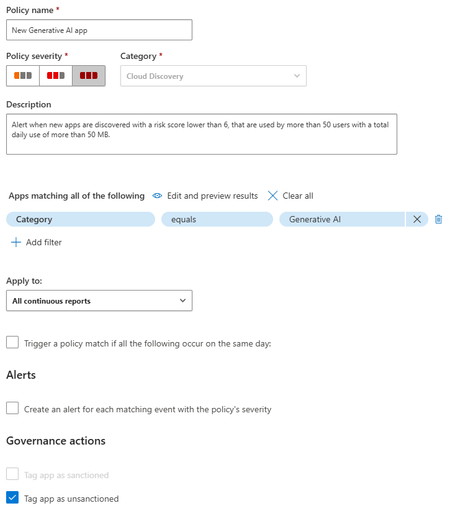
When I mark a cloud app as unsanctioned it created a URL based indicator to block the site. However, it also by default enables the Generate Alert option on the indictor. This causes my SOC to bet inundated with garbage alerts. Now normally if I'm just unsanctioning one Cloud App a could go and turn of the alert. However, I use cloud app policy that will identify any new Cloud Apps in an entire category and then unsanction it. But it enables Generate Alert on the URL indicator. Then if someone accesses that new one the generate alert kicks off. I don't want to have to go into every new app and untick generate alert manually that's just too time consuming. Is there a way to change the default behaviour when adding an indicator to not enable the generate alert? Of is there some other way to do this? I could consider using power automate or something but I'd rather the default behaviour be the fix as automation can break. I don't have time to babysit it.
Block File Sharing to a Network Subnet
Hey - I have a use case to detect and block files being saved to storage devices / file shares on a subnet 192.168.0.0/16 (to prevent users connected over VPN copying data to their home LAN). Is that possible using Microsoft Endpoint DLP or MDE? thanksSolved1.6KViews0likes4CommentsFrom “No” to “Now”: A 7-Layer Strategy for Enterprise AI Safety
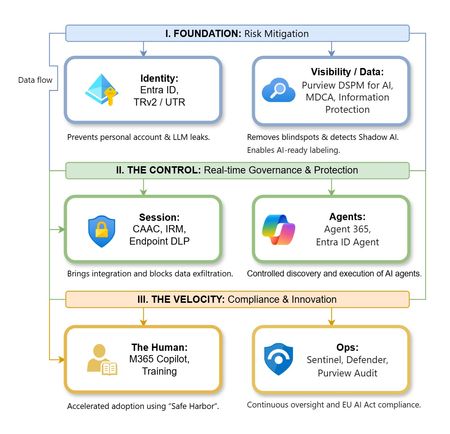
The “block” posture on Generative AI has failed. In a global enterprise, banning these tools doesn't stop usage; it simply pushes intellectual property into unmanaged channels and creates a massive visibility gap in corporate telemetry. The priority has now shifted from stopping AI to hardening the environment so that innovation can run at velocity without compromising data sovereignty. Traditional security perimeters are ineffective against the “slow bleed” of AI leakage - where data moves through prompts, clipboards, and autonomous agents rather than bulk file transfers. To secure this environment, a 7-layer defense-in-depth model is required to treat the conversation itself as the new perimeter. 1. Identity: The Only Verifiable Perimeter Identity is the primary control plane. Access to AI services must be treated with the same rigor as administrative access to core infrastructure. The strategy centers on enforcing device-bound Conditional Access, where access is strictly contingent on device health. To solve the "Account Leak" problem, the deployment of Tenant Restrictions v2 (TRv2) is essential to prevent users from signing into personal tenants using corporate-managed devices. For enhanced coverage, Universal Tenant Restrictions (UTR) via Global Secure Access (GSA) allows for consistent enforcement at the cloud edge. While TRv2 authentication-plane is GA, data-plane protection is GA for the Microsoft 365 admin center and remains in preview for other workloads such as SharePoint and Teams. 2. Eliminating the Visibility Gap (Shadow AI) You can’t secure what you can't see. Microsoft Defender for Cloud Apps (MDCA) serves to discover and govern the enterprise AI footprint, while Purview DSPM for AI (formerly AI Hub) monitors Copilot and third-party interactions. By categorizing tools using MDCA risk scores and compliance attributes, organizations can apply automated sanctioning decisions and enforce session controls for high-risk endpoints. 3. Data Hygiene: Hardening the “Work IQ” AI acts as a mirror of internal permissions. In a "flat" environment, AI acts like a search engine for your over-shared data. Hardening the foundation requires automated sensitivity labeling in Purview Information Protection. Identifying PII and proprietary code before assigning AI licenses ensures that labels travel with the data, preventing labeled content from being exfiltrated via prompts or unauthorized sharing. 4. Session Governance: Solving the “Clipboard Leak” The most common leak in 2025 is not a file upload; it’s a simple copy-paste action or a USB transfer. Deploying Conditional Access App Control (CAAC) via MDCA session policies allows sanctioned apps to function while specifically blocking cut/copy/paste. This is complemented by Endpoint DLP, which extends governance to the physical device level, preventing sensitive data from being moved to unmanaged USB storage or printers during an AI-assisted workflow. Purview Information Protection with IRM rounds this out by enforcing encryption and usage rights on the files themselves. When a user tries to print a "Do Not Print" document, Purview triggers an alert that flows into Microsoft Sentinel. This gives the SOC visibility into actual policy violations instead of them having to hunt through generic activity logs. 5. The “Agentic” Era: Agent 365 & Sharing Controls Now that we're moving from "Chat" to "Agents", Agent 365 and Entra Agent ID provide the necessary identity and control plane for autonomous entities. A quick tip: in large-scale tenants, default settings often present a governance risk. A critical first step is navigating to the Microsoft 365 admin center (Copilot > Agents) to disable the default “Anyone in organization” sharing option. Restricting agent creation and sharing to a validated security group is essential to prevent unvetted agent sprawl and ensure that only compliant agents are discoverable. 6. The Human Layer: “Safe Harbors” over Bans Security fails when it creates more friction than the risk it seeks to mitigate. Instead of an outright ban, investment in AI skilling-teaching users context minimization (redacting specifics before interacting with a model) - is the better path. Providing a sanctioned, enterprise-grade "Safe Harbor" like M365 Copilot offers a superior tool that naturally cuts down the use of Shadow AI. 7. Continuous Ops: Monitoring & Regulatory Audit Security is not a “set and forget” project, particularly with the EU AI Act on the horizon. Correlating AI interactions and DLP alerts in Microsoft Sentinel using Purview Audit (specifically the CopilotInteraction logs) data allows for real-time responses. Automated SOAR playbooks can then trigger protective actions - such as revoking an Agent ID - if an entity attempts to access sensitive HR or financial data. Final Thoughts Securing AI at scale is an architectural shift. By layering Identity, Session Governance, and Agentic Identity, AI moves from being a fragmented risk to a governed tool that actually works for the modern workplace.