endpoint security
73 TopicsOnenote Files used in Malware attacks
Hi Folks, Any comments or recommendations regarding the increase of attacks via onenote files as noted in the below articles? I'm seeing a increased number of recommendations for blocking .one and .onepkg mail attachments. One issue is onepkg files currently cannot be added to the malware filter. https://www.securityweek.com/microsoft-onenote-abuse-for-malware-delivery-surges/ https://labs.withsecure.com/publications/detecting-onenote-abuse B JoshuaSolvedWhat is Zero Trust and is it the Future of Cybersecurity?
Zero Trust is a security architecture that assumes the network is already infiltrated and implements multi-factor authentication, least privilege access, and real-time monitoring and analytics to secure digital assets. The Zero Trust model goes beyond the traditional perimeter-based security method and focuses on protecting identities, endpoints, applications, data, infrastructure, and networks. By using a Zero Trust model, organizations can better protect themselves from cyber-attacks and data breaches while still making sure they are compliant and staying productive. Zero Trust is the future of cybersecurity because it focuses on visibility, automation, and orchestration. It is also the key to securing your digital estate.14KViews4likes2CommentsSpeed where it matters: How Microsoft Intune helps IT prioritize time-sensitive actions
By: Albert Cabello Serrano | Principal Product Manager - Microsoft Intune A closer look at how Intune delivers updates to devices and the investments we’re making to help important changes move faster and more predictably. A common concern we hear from IT admins is, “How quickly will this change actually reach my device?” In many cases, the answer is much faster than expected. Today, 90% of policy updates, app deployments, and device actions in Intune are completed in under an hour. So where does the idea of “8-hour latency” come from? That number reflects a routine maintenance check-in used when devices are idle - not how Intune processes meaningful changes. Intune uses notification-based, priority-driven processing so that high-impact actions, like security policy changes or remediation steps, are handled promptly and reliably as possible. In this context, latency isn’t about making every action instant - it’s about providing predictable, prioritized delivery at global scale. The sections below break down how Intune prioritizes different types of updates and recent investments that are helping time-sensitive changes complete more consistently. How Intune delivers changes to devices Cloud-based device management is designed for real-world conditions; devices are not always online, fully charged, or on stable networks. Intune uses an eventual consistency model so devices can continue to be productive while converging to the desired state over time, without management actions unnecessarily disrupting users or workflows. Because devices operate in different conditions, not all device activity is handled the same way. To manage change reliably at scale, Intune uses different types of device check-ins depending on what needs to happen. Types of device check-ins in Intune Device check-ins generally fall into several categories, each triggered by a different type of action: Single‑device check‑ins: Occurs when an admin or user initiates an action on a specific device, such as starting a device action or installing an app from the Intune Company Portal. Change‑based check‑ins: Push‑triggered check‑ins used to deliver meaningful changes to devices as soon as possible. Client‑initiated check‑ins: Background activity that helps keep devices healthy, such as when a user signs in to a device or when malware status changes. Maintenance check-ins: Scheduled syncs that occur at predetermined intervals and can be client or service-initiated, depending on the platform. These typically occur approximately every 8 hours. Regardless of what triggers a check-in, any pending changes will be applied to the device when it occurs. What happens when an admin makes a change When an admin makes a change in Intune, such as updating a device compliance policy, deploying an app, or setting a configuration, Intune identifies the devices impacted by that change and initiates a change‑based check‑in for affected devices. For online devices, Intune sends a push notification prompting the device to establish a management session with the service, apply the change, and report enforcement status back to Intune. If a device is offline or unreachable, the change is applied when the device next checks in through available mechanisms. Four investments that help critical updates move forward faster The following product changes focus on reducing device‑change latency by shortening the time between an admin action in Intune and enforcement on the device, especially during peak or constrained conditions. 1. Check-in prioritization focused on what matters most Not all device activity carries the same urgency. Routine background check-ins can compete for service resources with devices that have important pending changes, such as compliance updates, remediation actions, or administrator-initiated configuration changes. Intune evaluates the potential impact of delaying a device check-in on security posture, compliance state or user productivity, and dynamically prioritizes processing accordingly. This real-time prioritization model ensures that high-impact actions move forward without being delayed by lower‑impact background activity. Prioritization adapts as conditions change, helping important updates reach devices more quickly and predictably without being delayed by lower-impact background activity. 2. Built-in resilience when multiple changes occur in quick succession Change activity often happens in bursts, with several related updates occurring in rapid succession. These periods of activity may be driven by operational needs or background processes, and can involve adjusting assignments, updating multiple policies, or rolling out configuration changes across the same set of devices. Intune dynamically coordinates notifications, so that each change requiring action triggers a corresponding device notification, even during high-activity periods. This helps improve consistency when applying multiple updates and reduces delays across consecutive changes on devices. Over the next several months, these improvements will extend to additional payloads delivered through the Intune Management Extension (IME), including scripts, Win32 apps, and custom compliance across both Windows and macOS platforms. 3. More timely notifications on Windows Intune notifies devices to check-in when changes require action. If the device is offline, on an unstable network, or low on battery, notifications may be delayed. This can cause missed check-ins or delayed actions. When notification services are delayed, blocked, or unavailable, devices may fall back to scheduled maintenance check‑ins to apply changes. For timely delivery, required notification service endpoints need to remain accessible so devices can receive management signals when updates occur. On Windows devices, Intune complements the Windows Notification Service (WNS) with the same notification protocol that powers Microsoft Teams via the Intune Management Extension. This helps increase the likelihood that devices receive management notifications when they’re online and reachable, improving visibility into whether policy updates or device actions have reached their destination. For more information, see the network endpoints for Intune documentation. 4. Optimized maintenance check-ins for iOS devices Background check-ins are still important to keep devices healthy when nothing else is going on. Unlike Windows devices, iOS devices don’t have client scheduled check‑ins and depend on service‑initiated maintenance check‑ins to ensure device health and compliance. During peak usage periods, these maintenance check‑ins can account for a significant portion of overall traffic, which can compete with devices that require immediate updates. Intune considers device activity in the scheduling of maintenance check‑ins during peak activity, making room for higher‑impact updates, while continuing to ensure devices check in regularly. This helps manage traffic and improves responsiveness when applying policies or remediation actions. What this means for you For IT admins: No additional configuration or workflow changes are required to benefit from Intune’s built-in notification system. When bidirectional communication with notification service endpoints is open, devices can receive and act on updates as they become available. For security teams: Faster delivery of device changes helps shorten the time between a policy update, a tightened Conditional Access rule, an updated compliance baseline, and a remediation action. For Zero Trust frameworks, where posture signals drive access decisions, this helps narrow the window during which a device could be out of compliance or vulnerable. Together, these improvements reflect how Intune is evolving into a more intelligent, priority-aware system. Rather than making every action instant, the focus is on prioritizing high-impact updates so they are delivered without unnecessary delays. This approach is expanding across a number of scenarios to provide a more consistent and predictable experience, helping reduce delays for key updates. Resources to learn more For another perspective on this topic, read an MVP’s take on demystifying the “8-hour” timing myth in this LinkedIn post. You can also watch the recent Tech Takeoff about this same topic to learn more about these improvements. Also, in the April edition of the What's New in Intune blog, we introduced a new segment called Myth vs. Reality. This post is part of that series. To stay current on new capabilities and updates as they ship, follow the What's New in Microsoft Intune blog. What myth should we debunk next? Leave a comment below or reach out to us on X @IntuneSuppTeam or @MSIntune.14KViews3likes7CommentsKnown issue: Customizations not saved with security baseline policy update
Overview Microsoft Intune security baselines enable organizations to create turnkey policy configurations with Microsoft's recommended settings. Intune supports two upgrade paths for your customizations: automatic migration and manual migration. Our upgrade process is explicit when a manual customization upgrade is required as documented in Configure security baseline policies in Microsoft Intune | Microsoft Learn. Issue Identified in Security Baseline Updates We’ve recently identified an issue in the security baseline update process where, during upgrades from specific versions, customizations are not automatically retained. Instead, these values are replaced with the default recommended values contained in the latest release. The impacted baselines upgrades are as follows: Security Baseline for Microsoft Edge: Version 112 to Version 128 Security Baseline for Windows 10 and later: Version 23H2 to Version 24H2 Windows 365 Security Baseline: November 2021 to Version 24H1 Microsoft Defender for Endpoint Security Baseline: Version 6 to Version 24H1 Microsoft 365 Apps for Enterprise Security Baseline: Version 2206 to Version 2306 When updating these security baselines, Intune creates a duplicate policy (without assignments) and automatically populates Microsoft’s recommended settings for the new version. These default configurations can be edited to apply customizations. However, customizations are not automatically carried over from the previous version when updating and admins will need to manually apply the customizations when creating the new profile. If your organization deploys the new policy alongside the existing one and there are conflicting settings, Intune’s conflict resolution logic will determine which setting is applied (i.e. most secure wins, merge values), or leave the existing value in place until the conflict is resolved. In the event of conflict, Intune never removes policies from the device ensuring that devices always have security policy applied. The Intune team will be delivering an update to automate migration of the impacted security baselines (and all future versions) in an upcoming release. Interim Steps to Enable Custom Configurations in your Baseline Updates When updating a policy to a newer baseline, your customizations must be recreated in the policy creation wizard. Customizations to the version 23H2 baseline are not carried over to the new policy, and the new policy will revert to Microsoft’s default recommended values for version 24H2. Note: As mentioned above and reiterated here, this update does not remove the previous policy. > Security baselines blade. Organizations can upgrade an existing baseline (mentioned above) that will duplicate the profile: The Microsoft Intune admin center showing where to update the Security baseline. Organizations can customize baselines including modifying and editing the baseline in accordance with their organization’s policies: To identify devices with conflicts between baseline updates, refer to the steps below: Navigate to: Devices > Manage devices > Configuration > Policiestab and select an existing policy. On the summary page, click View report. The View report provides detailed insights into the devices targeted by the selected configuration policy, including: Devices that have received the policy Usernames associated with those devices The check-in status and the most recent time each device/user checked in with the policy You can also select a specific device to view more detailed information. Use the filter column to apply assignment filters. For example, the Check-in status filter helps you identify devices in different states such as Success, Error, and others - indicating how the policy was applied. For more information on policies and reporting, refer to: See device configuration policies with Microsoft Intune | Microsoft Learn. For further guidance, refer to the Update a profile to the latest version in the Microsoft Learn documentation or see the section above for more details on the baseline update process. If you have any questions, leave a comment on this post or reach out to us on X @IntuneSuppTeam. Post Updates: 7/7/25: Post updated with additional details and screen captures for clarity.12KViews0likes1CommentIs there a way to force the security portal recommendations to update?
Hi all, I'm currently going through and either uninstalling or updating a large number of EOL software through the "Security recommendations" page on https://security.microsoft.com. Is there anyway I can force an update/sync from the computers once I've completed a recommendation so that my colleagues don't try fixing things that are already fixed? For example, I just finished uninstalling an EOL program from 10 computers, but the portal still shows the program as being installed on these 10 computers, can I force this (either through endpoint or SCCM) to display real-time or up to date data?Microsoft Defender ATP onboarding support for Configuration Manager tenant attach
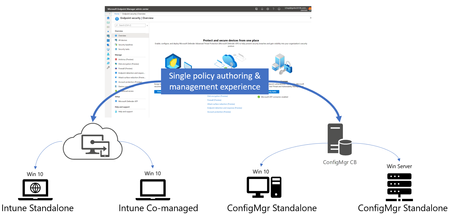
Microsoft is excited to announce another step in the deep integration between Microsoft Endpoint Manager and Microsoft Defender ATP. Microsoft Defender ATP onboarding capabilities are now available in the Endpoint Manager console for deployment to Configuration Manager standalone clients.9.4KViews0likes0Comments