devices
404 Topics
Management of unsupported WFH Teams-certified desk phones
Hello, I'm looking for best practice or suggestions on management of unsupported WFH Teams-certified desk phones for company with Microsoft enterprise E3 and E5 licensed users. We're a Microsoft shop with Teams for messaging, but not for desk phones. So far, we've had only one employee buy their own Yealink Teams-certified desk phone for WFH use. It showed up as an incident in our MTR Pro Management portal for Account management Sign in (Teams) and we found out it was for a personal Yealink Teams-certified desk phone they setup and logged into at home. I asked multiple IT groups at the company I work for, and this is the answer they gave me "This device was allowed to enroll into Intune/Entra/MTR Pro portal because the user is a user in our Microsoft Tenant. The Android AOSP enrollment does not have any method of limiting what devices are allowed to enroll or of identifying that it is either personal or corporate. I was unable to find any Microsoft documentation that would have prevented this from occurring. If another user finds a used Teams Room device at a garage sale and thinks it would be cool to have one at home, the same thing will happen again." What are our options to manage unsupported Teams-certified desk phones in our environment? TIA193Views0likes1Comment
New MTR devices unable to connect workplace
Hello collective im facing an issue with new Poly devices Poly X52 + Poly TC10 + Poly Trio 60 Poly X52 + Poly TC10 Both devices can not connect to M365. Error message: "Couldn't connect to Workplace Join. try again, or contact your admin." Firewall settings seems to be ok and devices are on the same VLAN. What is the workaround for this kind of issue or what should we check first? Best regards490Views0likes2Comments
Teams unexpectedly ends calls with Anker PowerConf S3 A3302 over USB
ANKER POWERCONF Sthree Unintended Teams call terminations Diagnostic dossier - public version Model Athree three zero two ; Public version: hostname, GUIDs and original archive names removed Summary for support intake Teams calls end spontaneously when PowerConf Sthree is used over USB with Sync device buttons enabled. The issue is reported on two units and multiple PCs, both laptops and desktops. The user is disconnected from the call; this is not merely a loss of audio. The weblogs identify an Sthree HID call-control hangup: telephony off-hook state is inactive ; followed by onDidHook ; followed by leaveCallContext=hid_triggered. An independent USB trace shows a brief stop/restart of microphone streaming immediately before the zero report. A physical button press is not required to observe these states. With synchronization OFF, we recorded the same stop/start and zero report during a call that continued. The issue is also reproduced without the Trust two four five three zero receiver. Two Bluetooth calls with synchronization saved as ON were stable, using a different control path. Observed environment Item ; Details - Speakerphone ; Anker PowerConf Sthree Athree three zero two; USB VID two nine oneA / PID three three zero two - Firmware ; two dot two dot eight reported by the user; not verified separately for both units - Teams ; two six two four six dot one six zero four dot five one three three dot eight three eight - Windows ; Microsoft components one zero dot zero dot two six one zero zero.x; detailed collection on a test PC - USB conditions ; Sthree port and cable unchanged throughout. No active Sthree Bluetooth connection reported during USB tests. - Receiver compared ; Trust two four five three zero, keyboard/mouse kit; not required to reproduce the issue Responsibility remains unresolved: neither the requester of the initial microphone stop nor the responsible component among Anker firmware, the Windows audio/HID stack and Teams interpretation has been established. The termination chain is identified; the internal cause still requires investigation. one. Comparison of tests Italian local times, UTC+zero two hours zero zero minutes, on one October two zero two six. ON/OFF refers to button synchronization. IDs Eone-Enine reference the archives in the archive index below. These outcomes are not statistical estimates of reliability. Test ; Configuration ; Outcome and evidence - Eone ; one four hours five two minutes ; USB; ON ; Call ended: Sthree telephony off-hook state is inactive report, onDidHook, hid_triggered. - Etwo ; one five hours one zero minutes ; USB; ON ; Reports transition from inactive to active about six zero ms apart; ETW shows microphone stop/start before zero. Weblog for the same session unavailable. - Ethree ; one five hours three five minutes ; Outside Teams ; Three recording cycles: microphone start ; followed by telephony off-hook state is active; stop is followed by the inactive state. Teams not detected in one four snapshots. - Efour ; one five hours four three minutes ; USB; OFF ; Stable call ~twomzero six. Stop/start and zero report at one five hours four four minutes zero two seconds; Teams logs disabled controls. - Efive ; one six hours zero one minutes ; USB; ON; Trust removed ; Stable call ~twomfive zero. No intermediate stop/start. Manual termination verified. - Esix ; one six hours one five minutes ; USB; ON; Trust reinserted ; First call stable ~fivemone six and ended manually. Second ended through HID after a brief stop/start. - Eseven ; one six hours two six minutes ; USB; ON; Trust removed ; Issue reproduced. Five transient USB/HID cycles; final hangup directly confirmed in weblogs. - Eeight ; one six hours three five minutes ; Bluetooth; OFF ; Stable call ~threemthree one. OFF saved before the call; manual termination verified. - Enine ; one six hours four two minutes ; Bluetooth; ON saved ; Two stable calls reported. No HID hangup in the available window; second manual termination verified. Additional user observations A one zero-minute call did not end unexpectedly with synchronization OFF. In the problematic tests, the option was already enabled before starting the call. The user reports no Sthree button presses during the unexpected terminations. Trust hypothesis: updated after the control test The initial stable test without the dongle was a provisional lead. Subsequent reproduction without Trust rules it out as a necessary cause. There is insufficient evidence to attribute the terminations to radio interference from the receiver or to recommend replacing it. two. Termination chain observed in Teams and USB Eone - HID-triggered termination at one four hours five two minutes Italian local time ; Relevant log line/event - one four hours five two minutes four zero seconds one six zero milliseconds ; PowerConf Sthree, Standard Hook Protect USB: Telephony usage telephony off-hook state (three two), value zero; received hook event; invoking onDidHook. - one four hours five two minutes four zero seconds one six one milliseconds ; onDidHook: leaves active call; startHangupScenario. - one four hours five two minutes four zero seconds two two zero milliseconds ; telephony off-hook state is active and line busy tone state is active: state restored after about six zero ms. - one four hours five two minutes four one seconds one six three milliseconds ; leaving call, leaveCallContext=hid_triggered. - one four hours five two minutes four one seconds three six five milliseconds ; calling_call_disconnected, same hid_triggered context. LocalUserInitiated is the software classification of the local termination and does not prove a human action. Standard Hook Protect USB is the name of the HID handler selected by Teams; it does not establish that a proprietary Anker driver is damaged. Eseven - Reproduction without Trust at one six hours two eight minutes Italian local time ; Event - one six hours two eight minutes four zero seconds five five four milliseconds ; Teams: connected call state three, active call. - one six hours two eight minutes four six seconds three nine four milliseconds ; Sthree USB microphone: interface three, alternate setting zero. - one six hours two eight minutes four six seconds four zero zero milliseconds ; Teams: received hook event on StandardHookProtectUSB. - one six hours two eight minutes four six seconds four zero five milliseconds ; Sthree Raw Input: zero two-zero zero-zero zero, telephony off-hook state is inactive. - one six hours two eight minutes four six seconds four four four milliseconds ; USB: interface three alternate setting one; restart after five zero ms. - one six hours two eight minutes four six seconds four six four milliseconds ; Sthree Raw Input: zero two-zero three-zero zero, telephony off-hook state is active. - one six hours two eight minutes four seven seconds four one four milliseconds ; Teams: leaving call, hid_triggered, leaveCallState three. - one six hours two eight minutes four seven seconds five six three milliseconds ; Teams: disconnected, leaveCallContext=hid_triggered. The initial stop/start sequence precedes the hangup. Stops and zero reports after termination may instead be consequences of it. ETW and Raw Input observe different points in the stack: timestamp differences do not measure firmware latency alone. three. Independent verification and controls Report identification and decoding The Sthree USB Raw Input path is HID / VID_two nine oneA & PID_three three zero two / MI_zero zero / Colzero two. Captured preparsed data was used with HidP_GetUsages from hid.dll, Input report and Telephony Usage Page zeroxzeroB. Decoding is based on the descriptor, not an assumption about a byte. Report ; Parser result - zero two-zero zero-zero zero ; No active telephony usages: telephony off-hook state (usage three two) is inactive, line busy tone state (usage one five one) is inactive. - zero two-zero three-zero zero ; Usages three two and one five one active: telephony off-hook state is active, line busy tone state is active. USB interface three is AudioStreaming: class zeroxzero one, subclass zeroxzero two. Alt zero has zero endpoints; alt one enables IN endpoint zeroxeight one, the microphone stream. Stopping/starting the stream is not equivalent to physically disconnecting the port. Ethree - Three recordings outside Teams USB microphone operation ; Subsequent report ; Approx. interval - one five hours three six minutes three zero seconds one eight eight milliseconds ; start ; one five hours three six minutes three zero seconds two three seven milliseconds ; telephony off-hook state is active ; four nine ms - one five hours three six minutes three six seconds eight one four milliseconds ; stop ; one five hours three six minutes three six seconds eight two zero milliseconds ; telephony off-hook state is inactive ; six ms - one five hours three six minutes four one seconds zero zero eight milliseconds ; start ; one five hours three six minutes four one seconds zero three three milliseconds ; telephony off-hook state is active ; two five ms - one five hours three six minutes four nine seconds two three four milliseconds ; stop ; one five hours three six minutes four nine seconds two four one milliseconds ; telephony off-hook state is inactive ; seven ms - one five hours three six minutes five one seconds eight six two milliseconds ; start ; one five hours three six minutes five one seconds eight eight seven milliseconds ; telephony off-hook state is active ; two five ms - one five hours three six minutes five seven seconds nine three nine milliseconds ; stop ; one five hours three six minutes five seven seconds nine five zero milliseconds ; telephony off-hook state is inactive ; one one ms Teams is not detected in the one four process snapshots for Ethree; sampling is not a continuous trace of all process starts. This comparison shows that Teams is not required to observe the zero state when the microphone stops, but does not distinguish firmware from the Windows stack. Efour - Same phenomenon, stable call with OFF During the call: alt zero at one five hours four four minutes zero two seconds zero two seven milliseconds, Raw telephony off-hook state is inactive at zero four zero milliseconds within the same second, alt one at zero eight eight milliseconds within the same second, Raw telephony off-hook state is active at one one three milliseconds within the same second. Teams logs audio device sync is disabled and controls not enabled. The call continues until the manual click at one five hours four five minutes five one seconds zero three zero milliseconds. OFF does not necessarily eliminate the reports: it prevents their use as call controls. four. Bluetooth and alternative hypotheses Enine - Two calls with synchronization saved as ON At one six hours four two minutes three four seconds five eight one milliseconds, the client logs “Toggling sync device buttons enabled to true”; at five eight four milliseconds within the same second, “audioDeviceSyncEnabled: true”. No synchronization-disabled or HID-hangup log lines appear within the two-call window available in the weblogs. First call: connected at one six hours four two minutes five three seconds zero three eight milliseconds. Manual termination is reported by the user; the corresponding explicit hangup line is absent from the examined user-log segment. Second call: connected at one six hours four five minutes zero five seconds three zero three milliseconds, hangup click at one six hours four six minutes five eight seconds five three three milliseconds/five three five milliseconds within the same second, disconnected at seven zero five milliseconds within the same second with multi-window_hangup-button_click. Selected Bluetooth endpoints: microphone [endpoint ID omitted] and speaker [endpoint ID omitted]. The monitor confirms active endpoints and Sthree USB endpoints in the unplugged state; no Sthree USB HID reports captured. Why Bluetooth is not an identical control to USB Teams uses call-control-service-vtwo / VoipCallCoordinator for the Bluetooth path. The USB HID handler does not associate these endpoints with the USB telephony device. Saving ON also logs “Slimcore version doesnt support toggle sync”: the client’s true value is confirmed, but does not establish identical propagation and handling of all native controls. Conclusion: Bluetooth is stable in the short tests and supports a USB/HID-path-specific issue. This does not establish lasting stability under all conditions or, by itself, assign responsibility to a component. Dongle, radio and USB connection The Trust two four five three zero is not required to reproduce the issue. The logs do not establish that it generates the hangup command: the decisive reports belong to the Sthree. Radio effects at two dot four GHz, USB controller/power issues and software interactions are distinct mechanisms and must not be conflated. Etwo includes two USBHUBthree “Client Initiated Recovery Action” events on Generic USB Hub VID_zero fiveEthree/PID_zero six one zero, root port four, about one minute before the main sequence. The Sthree is on root port three, not directly downstream of that hub. These events do not establish the cause of the hangup. five. Instrumentation, limitations and support requests SthreeMonitor vthree collection Raw Input and preparsed HID data; PnP inventory/changes; audio endpoint/default snapshots; processes and network; Windows events; USB ETW trace through USBXHCI, UCX and USBHUBthree. The supervisor separates collectors into processes with timeouts, writes logs during collection and handles markers and stopping. It was introduced to fix the console freeze in the previous synchronous collection. ETW session ; Events processed / lost - Etwo ; one six,one three four / zero - Ethree ; one six,two seven three / zero - Efour ; nine,eight six seven / zero - Efive ; three,one six one / zero - Esix ; two four,four one six / zero - Eseven ; eight,four four nine / zero Checked Sthree USB completions show no errors. Pending status zeroxfour zero zero zero zero zero zero zero and rundown values are not treated as completion errors. In Etwo, no Sthree PnP/Raw Input removals are recorded; audio polling at two s does not exclude shorter pauses. Collected drivers: Microsoft USB audio one zero dot zero dot two six one zero zero dot nine four four four (wdma_usb.inf); HID telephony/headset one zero dot zero dot two six one zero zero dot nine two seven eight (hidtelephonydriver.inf); HID consumer one zero dot zero dot two six one zero zero dot one (hidserv.inf); USB composite one zero dot zero dot two six one zero zero dot nine four four four (usb.inf). Different versions of different components do not establish a conflict. Limitations to retain in the assessment Raw Input is downstream of drivers, not a direct capture of bytes on the wire. Kernel-context ETW PIDs do not identify the originating client. teams.jsonl is empty in the collections considered: separate weblogs are the application-level source. In Etwo, the detailed PnP baseline is incomplete; the marker arrived after stopping began. Internal firmware and RF interference are not measured; the initial Teams export and some windows do not retain all lines at the same level of detail. Request to Microsoft Identify the client and reason for the initial microphone reconfiguration. Review telephony off-hook state handling during transient USB-stream pauses and protection against unintended hangups in the Standard Hook Protect USB handler. Specify the audio/HID capture with client attribution needed to complete the diagnosis. Request to Anker Review the telephony state exposed by Athree three zero two with firmware two dot two dot eight when the USB microphone stops/starts; confirm expected behavior and Teams compatibility. Identify any firmware fix for the exact model, avoiding unrelated updates. Mitigation verified in the tests: USB with synchronization OFF. Bluetooth is an alternative that was stable in the short tests. No indiscriminate driver reinstallation has been performed, nor has a need to replace the Trust been established. six. Archive index and references This post summarizes the evidence; full logs are not included. The table uses aliases, not original filenames. Technical sequence timestamps and software versions are retained. Full archives should only be shared through a private channel agreed with support. ID ; Archive aliases (original names omitted) - Eone ; Teams-WebLogs-Eone.zip - Etwo ; SthreeMonitor-Etwo.zip - Ethree ; SthreeMonitor-Ethree.zip - Efour ; SthreeMonitor-Efour.zip / Teams-WebLogs-Efour.zip - Efive ; SthreeMonitor-Efive.zip / Teams-WebLogs-Efive.zip - Esix ; SthreeMonitor-Esix.zip / Teams-WebLogs-Esix.zip - Eseven ; SthreeMonitor-Eseven.zip / Teams-WebLogs-Eseven.zip - Eeight ; SthreeMonitor-Eeight.zip / Teams-WebLogs-Eeight.zip - Enine ; SthreeMonitor-Enine.zip / Teams-WebLogs-Enine.zip Export mentioned but unavailable at the time of the relevant analysis: Teams-WebLogs-unavailable.zip. No conclusion relies on its contents. Local CSV/TXT analyses are derived from the files above and do not replace the originals. Official technical references Windows HID parser - HidP_GetUsages https://learn.microsoft.com/en-us/windows-hardware/drivers/ddi/hidpi/nf-hidpi-hidp_getusages USB alternate settings https://learn.microsoft.com/en-us/windows-hardware/drivers/usbcon/select-a-usb-alternate-setting Teams - device and button settings https://support.microsoft.com/en-us/teams/notifications-settings/manage-your-device-settings-in-microsoft-teams Anker - PowerConf / Sthree / PowerConf+ FAQ https://www.ankerjapan.com/blogs/faq/powerconf-powerconf-sthree-powerconf Summary based on logs and tests provided by the user. It distinguishes observed evidence, reported outcomes and unresolved hypotheses. It does not assign unproven responsibility to Microsoft, Anker or Trust.158Views0likes0Comments
MTR - Microphone drops during calls. Speaker works.
Dear experts, I'm using Microsoft Teams Rooms (Rally/Rally Plus + Logitech tap cat5e) with the latest version on Windows 11 25H2, and I'm experiencing the following issue: Problem: microphone drops during calls. Speaker works. Symptoms: - You hear occasional glitches or unexpected noise (such as clicking or popping) in the audio stream. - You might also see momentary visible glitches in a video stream. - and occasionally a USB audio or video device might stop working. Workaround - Unplug the device, and then reattach it to the computer. - If step 1 doesn't work, restart the computer. Kinda points me to a windows problem or a driver problem and not a teams problem, but still unclear on the cause I followed the steps described in this topic, but the issue still persists. https://learn.microsoft.com/en-us/troubleshoot/windows-client/setup-upgrade-and-drivers/usb-audio-video-devices-malfunction?source=docs#resolution Has anyone experienced the same issue? If so, could you please help me resolve it? Thank you in advance.295Views0likes1Comment
New Poly Phones : No Microsoft Teams Sign In Option
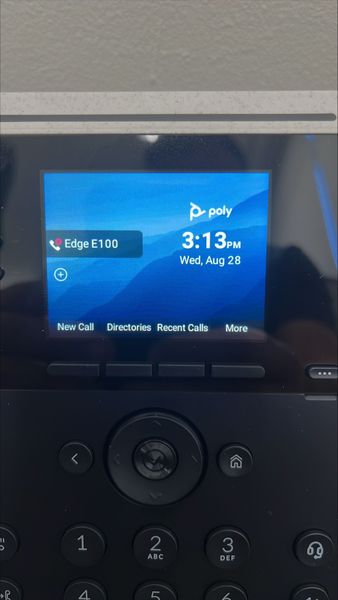
Hi everyone, Today I just set up the brand new Poly phones. I connected them to the office network and powered them up. However, Microsoft Teams Sign In Option is not available over the phone screen(see phone screen shot below). It also appears that the firmware is generic, and it look it doesn’t come with Microsoft Teams firmware or profile (see phone screen shot below). The phones are just out-of-box. Please kindly advise how these Poly phones can come up with Teams Sign In option. Thanks for your help in advance. Poly phone models I tested: Edge E100, E220 (BTW, I also test C60, the Teams Sign In option(window) pops up as expected once switching to Teams profile from generic one.) These will be set up as common area phone. I followed this official guide: Set up common area phones for Microsoft Teams: https://learn.microsoft.com/en-us/microsoftteams/set-up-common-area-phones Best regards, E.Z.2.5KViews0likes2Comments
Multi-device Meeting and Synchronization Issues
Microsoft Teams Bug Report – Multi-device Meeting and Synchronization Issues Date: August 21, 2026 Approximate time of occurrence: 10:30 AM Platform: Microsoft Teams Devices involved: iPhone and desktop computers Issue type: Meeting connection, multi-device support and synchronization Summary I would like to report a possible bug in Microsoft Teams related to multi-device support, meeting connections and synchronization between different devices. The issue occurred during a group meeting on August 21, 2026, at approximately 10:30 AM. The meeting had been scheduled in the Teams calendar, and all participants joined using the same meeting link. However, when the meeting organizer joined the meeting from an iPhone, the organizer and the participants ended up in different meeting sessions, even though everyone had used the same meeting link. Observed behavior The following issues were observed: The Teams meeting was scheduled in the calendar and participants joined using the meeting link from different devices. When the meeting organizer joined the meeting from an iPhone, the organizer and the participants appeared to be placed in different meeting sessions. The participants remained waiting, while the organizer was alone in a separate meeting session. The organizer then had to call the participants directly from the meeting she had joined in order to connect everyone to the same meeting session. The organizer had only created one meeting link, and everyone had used the same link. One or more participants experienced problems starting or joining the meeting from their original device. At least one participant had to switch devices in order for the meeting to work correctly. The meeting chat did not appear to synchronize correctly between devices. One participant did not receive or see chat messages in Teams on their computer, while the same information was visible in the meeting chat on their phone. The behavior therefore appeared to differ depending on which device was being used, despite the users being signed in with the same Teams accounts and participating in the same meeting. Expected behavior A Teams meeting should allow participants to join the same meeting session regardless of whether they are using a desktop computer, iPhone or another supported device. Meeting-related information and functionality, including the meeting chat, should also remain synchronized between supported devices. If a user is signed in to Teams on multiple devices, the meeting experience should remain consistent and the relevant meeting information should be available across those devices. Actual behavior The meeting experience differed between devices. In some cases, participants could not properly join or start the meeting from their original device. In addition, the meeting organizer and participants were initially placed in separate meeting sessions despite using the same meeting link. The meeting chat also appeared to be out of sync between devices. Information that was visible in the meeting chat on a mobile device was not visible on the user’s computer. Possible cause The issue may be related to multi-device support and synchronization between the Teams clients on desktop and mobile devices. It may also involve how Teams handles meeting links, meeting sessions and meeting chat synchronization when users join meetings from different device types. Additional issue – Teams feedback function I also attempted to report this issue directly through the Teams iOS application. However, when selecting the feedback/help functionality, the application displays the error message: “Something went wrong.” This prevents me from submitting the feedback through the Teams application. Furthermore, the feedback interface does not provide me with a usable way to select an existing image from my photo library to document the error. The instructions appear to suggest taking a screenshot, but in this particular case that does not adequately document the problem because the relevant error occurs within the feedback interface itself. I would therefore like to be able to attach the screenshot showing the “Something went wrong” error directly from my photo library when submitting this bug report. Request Please investigate this as a possible Microsoft Teams bug, particularly regarding: Multi-device meeting support. Meeting links and meeting-session handling across different devices. Synchronization between desktop and mobile Teams clients. Meeting chat synchronization between devices. The Teams iOS feedback function displaying “Something went wrong”. The ability to attach existing screenshots/images when submitting feedback from the Teams iOS application. I would appreciate confirmation if this is a known issue or if additional diagnostic information is required. device Meeting and Synchronization Issues Date: August 21, 2026 Approximate time of occurrence: 10:30 AM Platform: Microsoft Teams Devices involved: iPhone and desktop computers Issue type: Meeting connection, multi-device support and synchronization Summary I would like to report a possible bug in Microsoft Teams related to multi-device support, meeting connections and synchronization between different devices. The issue occurred during a group meeting on August 21, 2026, at approximately 10:30 AM. The meeting had been scheduled in the Teams calendar, and all participants joined using the same meeting link. However, when the meeting organizer joined the meeting from an iPhone, the organizer and the participants ended up in different meeting sessions, even though everyone had used the same meeting link. Observed behavior The following issues were observed: The Teams meeting was scheduled in the calendar and participants joined using the meeting link from different devices. When the meeting organizer joined the meeting from an iPhone, the organizer and the participants appeared to be placed in different meeting sessions. The participants remained waiting, while the organizer was alone in a separate meeting session. The organizer then had to call the participants directly from the meeting she had joined in order to connect everyone to the same meeting session. The organizer had only created one meeting link, and everyone had used the same link. One or more participants experienced problems starting or joining the meeting from their original device. At least one participant had to switch devices in order for the meeting to work correctly. The meeting chat did not appear to synchronize correctly between devices. One participant did not receive or see chat messages in Teams on their computer, while the same information was visible in the meeting chat on their phone. The behavior therefore appeared to differ depending on which device was being used, despite the users being signed in with the same Teams accounts and participating in the same meeting. Expected behavior A Teams meeting should allow participants to join the same meeting session regardless of whether they are using a desktop computer, iPhone or another supported device. Meeting-related information and functionality, including the meeting chat, should also remain synchronized between supported devices. If a user is signed in to Teams on multiple devices, the meeting experience should remain consistent and the relevant meeting information should be available across those devices. Actual behavior The meeting experience differed between devices. In some cases, participants could not properly join or start the meeting from their original device. In addition, the meeting organizer and participants were initially placed in separate meeting sessions despite using the same meeting link. The meeting chat also appeared to be out of sync between devices. Information that was visible in the meeting chat on a mobile device was not visible on the user’s computer. Possible cause The issue may be related to multi-device support and synchronization between the Teams clients on desktop and mobile devices. It may also involve how Teams handles meeting links, meeting sessions and meeting chat synchronization when users join meetings from different device types. Additional issue – Teams feedback function I also attempted to report this issue directly through the Teams iOS application. However, when selecting the feedback/help functionality, the application displays the error message: “Something went wrong.” This prevents me from submitting the feedback through the Teams application. Furthermore, the feedback interface does not provide me with a usable way to select an existing image from my photo library to document the error. The instructions appear to suggest taking a screenshot, but in this particular case that does not adequately document the problem because the relevant error occurs within the feedback interface itself. I would therefore like to be able to attach the screenshot showing the “Something went wrong” error directly from my photo library when submitting this bug report. Request Please investigate this as a possible Microsoft Teams bug, particularly regarding: Multi-device meeting support. Meeting links and meeting-session handling across different devices. Synchronization between desktop and mobile Teams clients. Meeting chat synchronization between devices. The Teams iOS feedback function displaying “Something went wrong”. The ability to attach existing screenshots/images when submitting feedback from the Teams iOS application. I would appreciate confirmation if this is a known issue or if additional diagnostic information is required.354Views0likes1CommentNew build crashes on camera while April build works just fine..
Win 10 Pro on work machine using the April 2026 build Teams works fine. Each night I shutdown and reboot, Teams updates to the latest version and each time I try to bring up a video call where it accesses my logitech camera, Teams shuts down, restarts, shuts down again, then restarts. If I bring up my devices in the new version and try to view the camera, bang, Teams crashes. It's crashing in the AMD driver (using a 9060XT.) So April version works like a champ but part of my daily ritual is to remove teams, install the April build work for the day then do it again tomorrow. Claude offered what it could, disable graphics acceleration to Teams, stuff like that. Nothing worked so far. I've done an AMD wipe using their clean tool and reinstalled everything including chipset, graphics drivers. Nothing else on the system is unstable, even Zoom works just fine. Problem signature: P1: MSTeams_26198.304.4946.9672_x64__8wekyb3d8bbwe P2: praid:MSTeams P3: 26198.304.4946.9672 P4: 6a6370cb P5: amdxx64.dll P6: 32.0.31035.1003 P7: 6a59861b P8: c0000005 P9: 00000000000d0c82304Views0likes1Comment
Mouse pointer lag or delay or shaky
Hi, there is an issue when joining a Teams meetings leading to a significant lag or delay of mouse pointer speed. This happens across devices (notebooks, workstations); this is affecting a novel Logitech device connected via BT and Teams joining via web-interface, but also for Teams App. IMO this is a fundamental issue (either PHY or MS level), why a software (Teams) is suddenly "interfering" with the mouse pointer (speed). Internet bandwidth is fine at > 50 mbit. Once I logout of the meeting, the pointer is "released". Additionally, the lag is immediately "released", once another users starts sharing (taking over). Note that the lag is there before sharing anything from main-user side. Does anyone experience this "phenomena"? Are there any reports, which are known to the MS Teams dev team. Are there any ideas or concrete solutions to this issue? I consider "go to settings" not the answer, this seems to be some be internal or "layers below the surface". Regards18KViews3likes21CommentsMicrosoft Teams API Capabilities
Good morning, We are contacting you to find out whether it is possible to achieve the following functionalities through the Microsoft Teams API: Start a scheduled meeting automatically Through a voice command, a meeting scheduled in a room's calendar is automatically started, and all the necessary equipment and services are activated without any user intervention. Automatically answer an incoming call in a meeting room When a call is placed to a specific account, the room automatically answers the call without requiring any user action. Add participants to an ongoing call or meeting Allows new attendees to be added to an active meeting or call in progress. Thank you in advance for your assistance. Kind regards,293Views0likes1CommentFeature Request: Add native Mute/Unmute controls to Teams interface on Android Auto
The current Microsoft Teams integration for Android Auto lacks basic in-call management. When participating in an active Teams meeting or VoIP call while driving, there is no option on the vehicle's display to mute or unmute the microphone. Because Teams routes calls through the native dialer interface or operates purely in the background, steering wheel mute controls and on-screen audio toggles do not map to the Teams application state. This forces users to physically handle their mobile devices while driving to toggle their mute status. Impact: Safety Hazard: Forcing drivers to interact with a handheld phone to mute/unmute during a corporate call defeats the purpose of a hands-free infotainment system. Broken Workflow: Users frequently experience "hot mic" situations or miss opportunities to contribute to meetings because they cannot safely toggle their microphone from the center console. Requested Solution: Please add a persistent, large Mute / Unmute toggle button directly on the Android Auto screen interface during an active Teams call, and ensure it correctly hooks into native vehicle hardware controls (like steering wheel mute buttons) where supported.394Views2likes2Comments