Formula
27 TopicsWrite formulas with natural language using Copilot in Excel
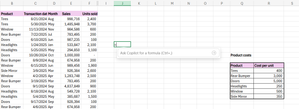
Writing formulas can feel intimidating, especially when you’re unsure of the syntax or which function to use. We’ve already made formula writing easier with formula completion, which proactively suggests and autocompletes formulas as you type. Now, we’re introducing an additional on-grid Copilot tool that takes it a step further: With this new capability, you can simply describe what you need, and Copilot will create the formula for you. This means no more struggling to remember complex syntax, and faster and more natural interactions with your data, especially if you’re new to Excel – plus, a helpful alternative when formula completion doesn’t return the right suggestions or when you prefer typing in your own words. Together, these tools make formula writing faster, easier, and more intuitive, so you can focus on insights, not syntax. How it works In Excel for the Web, select the cell in which you want to enter a formula. Type = in the cell or the formula bar, and then click on the Ask Copilot for a formula option that appears. NOTE: You can also use the keyboard shortcut Ctrl + , to move the focus into the input box. Describe the kind of formula you want in natural language. For example: “Calculate total profit". Review the formula suggestion, the description, and the preview of the result on the grid. Then, select either Keep it if the suggestion works for you, or Discard, and then type = and run the Ask Copilot for a formula option again. Tips and tricks You can ask Copilot to modify existing formulas: In cases where you already have a formula but need to adjust it, simply describe the change you want, and Copilot will update the formula for you. For example, you can modify a return on assets calculation to include average assets for period. You can ask for formulas that require data from different sheets, such as calculating the asset turnover rate using values from separate Income Statements and Balance Sheets tabs. In cases where the formula completion doesn’t match your needs – for example, Copilot spells the month out but you want the format to be MMM – describe the exact format you need, and Copilot will generate the correct formula for you. Scenarios to try Copilot can generate formulas of varying complexity for different needs: Return a unique list of salespersons from the transactions table. Calculate the total units sold for each salesperson in the list. Calculate the total sales for each quarter - even when the sales table doesn't include the quarter, only the date. Extract the state out of the customer address. Compute profit for each transaction with a lookup function that uses data from another table. Known issues This feature currently supports one formula or one formula column or range at a time. Multiple formulas support is being considered for future updates. Availability This feature is currently rolling out to Excel for Web users with a Microsoft 365 Copilot license. Feedback We appreciate your insights regarding formula suggestions using natural language! You can share your feedback with us in the result card using the thumbs up or down buttons, or by selecting the Feedback button in the upper right-hand corner of Excel for Web, and then selecting either Give a compliment, Report a problem, or Make a suggestion.970Views2likes1Comment
SharePoint calculated column formula in List not consistent
I have a custom column that uses this formula to create a unique ID: =CONCATENATE(Section,REPT(0,4-LEN(ID)),ID) It works fine most of the time, then it seemingly drops the ID value. One thing to mention this ID value is the system generated value found in the ID column of any SharePoint List, not a user created column. So for example the first item has a unique identifier of ABC0001, the tenth has ABC0010 and so on. That worked fine and then i noticed that the unique number for what once was ABC0005 is now ABC0000. If i go to the calculated column and update the parameters in the formula it will update and resume showing the correct value, ABC0005 for this example. Since ID is a system generated value and this formula is embedded in a column what could cause it not evaluate the formula to true and thus the unique ID randomly?1.3KViews0likes1Comment
Help with Text to Date Formula
Hello, I have been using many different methods for attempting to convert text and date - but failing miserably! Essentially, the way I can download data provides dates that appear like this: Jun 13th 2017 10:44 Oct 03rd 2017 16:18 Jul 03rd 2017 16:10 Dec 21st 2016 15:22 Jul 05th 2017 14:07 Does anyone know a formula and steps involved that I can please use to convert this to appear in dd/mm/yyyy format please? I can get rid of the time at the end, but every approach I've tried so far just throws up #VALUE error. I need to do this to show how much time has elapsed since each day until (TODAY). Any advice very welcome - thank you!1.9KViews0likes4CommentsRemoving full stops from a number sequence
Hi all, We have a single line text column that we use to ID folders. The ID's follow this structure 1.1.2.1.2 Is there a way a calculated field can take this sequence and remove the full stops between the numbers so instead of 1.1.2.1.2 we get a calculated column that returns 11212? Thanks!2.3KViews0likes2Comments
Fields with Formulas
Hi gang, I am using an accounting software called Xero, that has the ability to utilise custom templates I create in Word. My restaurant chain has a Central Kitchen and a Bakery. Both invoices are added into Xero but need to be split up when I am sending the Statement (payments are made into separation bank accounts). The Statement feature currently consolidates all invoices (from both the Bakery and CK). I need to find a way of splitting up the lines so that only the CK appears in the table; and visa versa for the Bakery. A difference between the Invoices is the Invoice Number (field code: <<Description>>). All Central Kitchen Invoices start with a "CK-"; and the Bakery with "BK-". Is there a field code formula to only capture data that contains the above in its reference, including all of the subsequent data on that Line? Perhaps you have another suggestion for this. I have attached a document for you reference. I have 2 separate tables where I would like the data split. Any help is greatly appreciated! Thank you very much, Danny786Views0likes0CommentsColumn Default Value Based on Root URL
I have a tab in an MS Teams team where users can view our upcoming corporate training sessions (i.e. Events). In each event description, I am putting a link to a sign up form. The sign up form is a list in MS SharePoint Online. In this list, there is a column to specify the event to which the user wants to sign up. I want this column to be automatically filled using the column default value function in SharePoint. The default value would be based on the root URL that led the user to the sign up form. For example, if the user was viewing training session X in Teams, it means the root URL is the event X URL. So, the formula would be: IF [Root URL] = (URL of event X) then "X", ELSEIF [Root URL] = (URL of event Y) then "Y"... and so on. Does this hypothetical [Root URL] function even exist? If not do you have any suggestion for how I can tell which event the user is coming from such that I can fill the column automatically? Thanks.2.4KViews0likes4Comments
Pivot Table StDev calculates different value then the STDEV formula
Hi, I'm using Excel 2013 15.0.5153.1000 32-Bit and a pivot table to calculate StDev and compare quickly to the StDev calculated by the excel formulas. I noticed that sometimes the Pivot Table StDev function gives a different value compared to the StDev calculated by the excel formula. When i found this i compared the StDev of the pivot table with every existing stdev formula from excel to see if i can get a match with one of the 6 formulas. In the attached file you can see this comparison with both StdDev and StdDevp function of the pivot table. 12 times out of 50 the StDev doesn't match. The error is very small, only the last few decimals are different. Column J contains the values StdDev and StdDevp calculated by the pivot table, in columns K:P you can see the values calculated by the excel formulas. On rows 8, 10, 15, 16, 24 and 26 you can see that the StDev value from the pivot table doesn't match with any value calculated by the excel formulas. (Same thing for the StdDevp only the row numbers are different). I'm curious if anybody knows the reason for this. Did anybody met this issue before? I can't find anything on the internet regarding this.5.9KViews0likes5Comments
SharePoint 2013 LIst Filters (by latest date)
I am trying to sort a list by the latest date before a predefined date. I need it to also sort on 2 other columns. Basically I need the last date entered before [Date] for each drop down choice Drop down Column 2 Date End Date - (latest record after a date) I found a few things online but I'm not sure where I would add this or what the best plan of attack would be. Filter(ListName,Date=First(Sort(Distinct(ListName,Date),Result,Descending)).Result) Any help or direction is greatly appreciated.1.1KViews0likes0Comments