Formula
27 TopicsWrite formulas with natural language using Copilot in Excel
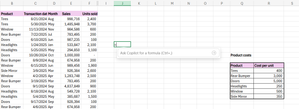
Writing formulas can feel intimidating, especially when you’re unsure of the syntax or which function to use. We’ve already made formula writing easier with formula completion, which proactively suggests and autocompletes formulas as you type. Now, we’re introducing an additional on-grid Copilot tool that takes it a step further: With this new capability, you can simply describe what you need, and Copilot will create the formula for you. This means no more struggling to remember complex syntax, and faster and more natural interactions with your data, especially if you’re new to Excel – plus, a helpful alternative when formula completion doesn’t return the right suggestions or when you prefer typing in your own words. Together, these tools make formula writing faster, easier, and more intuitive, so you can focus on insights, not syntax. How it works In Excel for the Web, select the cell in which you want to enter a formula. Type = in the cell or the formula bar, and then click on the Ask Copilot for a formula option that appears. NOTE: You can also use the keyboard shortcut Ctrl + , to move the focus into the input box. Describe the kind of formula you want in natural language. For example: “Calculate total profit". Review the formula suggestion, the description, and the preview of the result on the grid. Then, select either Keep it if the suggestion works for you, or Discard, and then type = and run the Ask Copilot for a formula option again. Tips and tricks You can ask Copilot to modify existing formulas: In cases where you already have a formula but need to adjust it, simply describe the change you want, and Copilot will update the formula for you. For example, you can modify a return on assets calculation to include average assets for period. You can ask for formulas that require data from different sheets, such as calculating the asset turnover rate using values from separate Income Statements and Balance Sheets tabs. In cases where the formula completion doesn’t match your needs – for example, Copilot spells the month out but you want the format to be MMM – describe the exact format you need, and Copilot will generate the correct formula for you. Scenarios to try Copilot can generate formulas of varying complexity for different needs: Return a unique list of salespersons from the transactions table. Calculate the total units sold for each salesperson in the list. Calculate the total sales for each quarter - even when the sales table doesn't include the quarter, only the date. Extract the state out of the customer address. Compute profit for each transaction with a lookup function that uses data from another table. Known issues This feature currently supports one formula or one formula column or range at a time. Multiple formulas support is being considered for future updates. Availability This feature is currently rolling out to Excel for Web users with a Microsoft 365 Copilot license. Feedback We appreciate your insights regarding formula suggestions using natural language! You can share your feedback with us in the result card using the thumbs up or down buttons, or by selecting the Feedback button in the upper right-hand corner of Excel for Web, and then selecting either Give a compliment, Report a problem, or Make a suggestion.1.8KViews3likes2Comments
Leap year formula
Over the years I've run into several situations where we've needed to determine if the year is a leap year; most recently to determine the number of working days to calculate billable time - not the important part. I remember being taught as a kid the easy way to figure it out in your head but couldn't find a simple way to do in an Excel formula/cell. Figure out in your head: I'm realizing a lot of the tricks I was shown as a kid may not be making it into the school system or are just lost arts of thinking...so I will share and hopefully you will learn something new as well. Looking at positions 3 and 4 of the year is all you need to determine the leap year. Is position 3 odd or even? (in 2019 this is the "1") Odd: then only the last position of "2" or "6" are a leap year. So 2012 and 2016 were leap years. Even: then the last positions of "0", "4" or "8" are leap years. So 2002, 2004, 2008 were all leap years. Feel free to check me on any year....1944 - yep a leap year. 1972 - also a leap year. Knock yourself out. Excel formula So even with this knowledge it is not easy to turn this into usable information in Excel...until this formula. It is applying the same logic above, into a single field formula. It can be a little confusing so let's break it down. Here is the pseudo syntax to help it all make sense: If the 3 position of the year is evenly divisible by 2 then A (even), else B (odd). A (even): If the 4th/last position of the year is evenly divisible by 4 then it is a leap year, if not it isn't a leap year. B (odd): If the last position of the year is either a 2 or a 6 then it is a leap year, if not it isn't a leap year. Now that wasn't too hard...but it can be difficult and get lost in the formula. So breaking down the formula to align with this pseudo code can help. We have to explain some of the values in our formula - so let's start with the assumption that our date is in cell A3 (I also have the $ reference in front of A as this is the column for all of my dates, but I'm going to copy this to multiple rows). Let's also assume that we want to return the value of "Leap" for a leap year and "No" for any other year...we can then have other cells look for this reference without duplicating all of this logic through out your spreadsheet - one cell in each row for my situation. If the 3 position of the year is evenly divisible by 2 then A (even), else B (odd). =IF(MOD(MID(YEAR($A3),3,1),2)=0, {EVEN},{ODD}) Now the sub if statements A (even): If the 4th/last position of the year is evenly divisible by 4 then it is a leap year, if not it isn't a leap year. IF(MOD(MID(YEAR($A3),4,1),4)=0,"Leap","No" B (odd): If the last position of the year is either a 2 or a 6 then it is a leap year, if not it isn't a leap year. IF(OR(MID(YEAR($A3),4,1)="2",MID(YEAR($A3),4,1)="6"),"Leap","No" When you put it all together this is what it looks like. =IF(MOD(MID(YEAR($A3),3,1),2)=0,IF(MOD(MID(YEAR($A3),4,1),4)=0,"Leap","No"),IF(OR(MID(YEAR($A3),4,1)="2",MID(YEAR($A3),4,1)="6"),"Leap","No")) I hope this helps or gives you ideas for other problems you can solve.6.4KViews1like4Comments