User Profile

Joe_Grover
Copper Contributor
Joined Jan 21, 2021


User Widgets
Recent Discussions
Renaming a folder with too many files
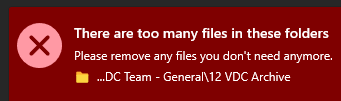
One of our teams has a Team/SharePoint site with an archive folder. Everything in there is old files, and they'd like to rename the folder. However, we get the error that it exceeds the list view threshold. I've spent the afternoon trying to find out how to get this folder renamed and so far nothing has worked. The general consensus is to create a filtered view, but I'm not sure what to filter it based on, as all of the files have been there and untouched for some time, causing most of the columns I could index be fairly similar (they were moved to SharePoint 3 years ago from an on-prem fileshare). One of the options I'd seen was to sync it using OneDrive and rename it locally but that still gave me the same error. I also tried renaming the folder from within Teams without success. If someone could provide some guidance for how to get this done, I'd appreciate it. Right now, I'm thinking I'll just have to move a bunch of stuff out of some of the folders to temporary locations, but even that is challenging as I'm not aware of a good way to get a count of items in folders and subfolders in SharePoint to know which are the best ones to move out.87Views1like0CommentsRe: Find and replace part of an item in a SharePoint List
Ok, thanks. That got me a bit further. I'm almost there, heh. I need to tweak the steps a bit for what I'm trying to do. - "ComposeTitle" shows as an invalid reference in my Compose action. The field I want to search for text in is called "Notes," so what would I put in for my expression in the Compose action? For clarity I want to search for a string of text (irrespective of case) and change one of the words. For example, looking for "this is good" and changing it to "this is great". - In the Update item action, do I add the Outputs to the Notes field? - And there are some required field in the form. I don't know if I can ignore the warnings that the fields are required (since I don't want to touch those fields) or if I should temporarily disable that requirement in order to run the Flow. This wouldn't be a big deal as nobody should be entering/changing stuff in this List anymore anyway--there just isn't a way to mass-change this after we migrate the data so I'd like to correct it beforehand.28KViews0likes0CommentsRe: Find and replace part of an item in a SharePoint List
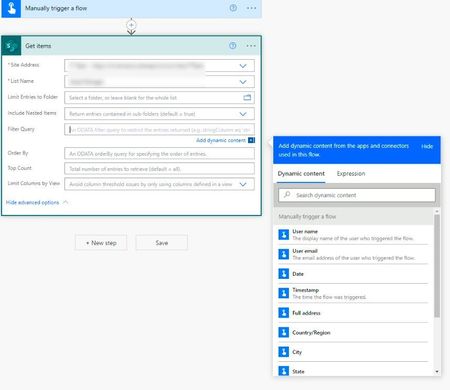
RobElliott I'm looking to do a similar thing, but am having issues with the Flow (full disclosure--I've never used Flows). I have a Notes column and want to mass edit changing an error from when data was imported into the list (user did a find/replace in the .CSV file and it was a tad too aggressive, changing things we didn't want to change). I was able to create the new flow as shown above, and I selected my site address and selected my List in the List Name, however when I click "add dynamic content" it doesn't show any of the columns I have in my list--it just has general fields like name, email, date, city, state, etc, few of which are present in this particular List.28KViews0likes3CommentsRe: Need to find who organization admin is
k1s2021 I didn't have a PowerBI account, either. I used those settings to sign up for a free trial which gave me a PowerBI account using an address in our unmanaged tenant. Once I had this account I could go through the rest of the steps to make that account an admin in the tenant by proving ownership of the domain via DNS records.27KViews0likes1CommentRe: Need to find who organization admin is
k1s2021 This is from the email I received from Microsoft Support: In order to complete the process, you will need access to two different things: 1. An email address for the domain you're trying to take control of where you can send and receive emails. 2. Access to the DNS records associated with the domain. To become an Admin: First, go to https://powerbi.microsoft.com/en-us and towards the bottom click the Try Free button under Share with Power BI Pro. Sign up using your email address @the domain you wish to take over. Once you sign up for Power BI, sign in at https://portal.office.com using the same credentials. After logging into the portal, click on the app picker square in the upper-left hand corner and select the Admin icon app. If the Admin icon is not displayed right away, click the View all my apps icon and see if it's there. If it still doesn't show up then there's already an admin for the tenant and you need to find out who that is or contact Microsoft Support to find another way to do this. Power BI support was able to confirm that my tenant had no global admins, so we knew this would work. After selecting the Admin icon you should have the Become an Administrator option. Choose that option to start the process. It will give you the information you need in order to create a specific TXT record in the DNS for this domain. After creating that record and clicking the Verify button in this wizard your account should be elevated to a Global Admin for the tenant. Per the email, the Power BI admin takeover instructions are also found here: https://support.office.com/en-us/article/Become-the-admin-and-purchase-Office-365-for-your-organization-48b26596-9e5b-4e5a-a64f-7430eb2a1e45?ui=en-US&rs=en-US&ad=US I don't know if these steps are still accurate since I did this a couple of years ago, so it's possible some steps changed. Hopefully it helps you out, though.27KViews0likes4Comments
Recent Blog Articles
No content to show