Forum Discussion

Weaselogic
Aug 08, 2020Copper Contributor
Webcam stops working in teams desktop app only (version: 1.3.00.19173)
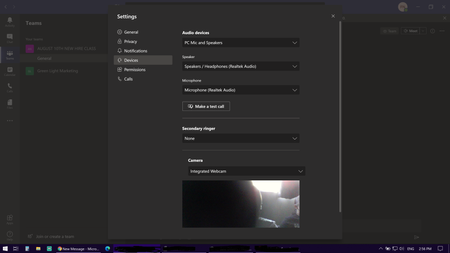
im about to need to use teams for work but the desktop app wont let my webcam work. The issue is only in the desktop app. it works with any other app and in the teams web version. Tried every possi...

Aug 08, 2020
Ok, a few ideas
1.) In the meeting pre-join screen, in the device settings does it show there?
2.) Trying to think of a workaround like having another cam input. How about downloading OBS and OBS virtual cam, or Snap Camera - another input and see if that picks it up
Let me know how it goes
Best, Chris
1.) In the meeting pre-join screen, in the device settings does it show there?
2.) Trying to think of a workaround like having another cam input. How about downloading OBS and OBS virtual cam, or Snap Camera - another input and see if that picks it up
Let me know how it goes
Best, Chris

Weaselogic
Aug 08, 2020Copper Contributor
i have streaming software like obs and the camera works everywhere else except in the desktop app of teams. i think its a app issue at this point since nothing works.
i have resigned myself to using the android app for the times i will need the camera. (or will use the web version. camera works fine on the web version.)
thanks for the help though. much appreciated.
will keep trying tips of people and hopefully something sometime will work haha
- Aug 08, 2020No worries, if you have OBS why not just install the OBS virtual cam, Teams should pick that up.
Use your camera as an input into OBS and pipe OBS virtual cam into Teams. That should do the trick
Best, Chris- WeaselogicAug 08, 2020Copper Contributor
obs virtualcam is a step forward. it detects it but i have a black screen. got to figure that part out.
don't think the virtual cam is actually using webcam since webcam light isn't on. ill troubleshoot and see if i can fix that.
- Aug 08, 2020Ok think I can help with that - It's black because you need to go live/start feed in OBS. Add your camera as a video capture source and then pull it full screen. Go to tools > Virtual Cam > Start. Then it should show in Teams
Best, Chris