Forum Discussion

Choice field with Intellisense / Autocomplete not working perfectly
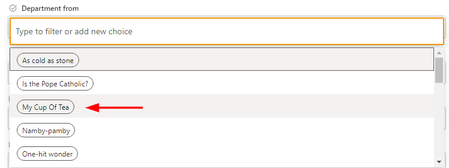

Improving the autocomplete or intellisense functionality in a SharePoint Choice field for multi-word choices can be challenging due to SharePoint's default behavior. However, here is a concrete solution proposal that you can implement:
Use a Managed Metadata Column:
Managed Metadata columns provide a more flexible and structured way to manage choices, and they offer a richer tagging experience. Here is how you can use this approach:
- Create a Managed Metadata Term Set:
- Go to your SharePoint site.
- Click on "Settings" (gear icon) and select "Site settings."
- Under the "Site Administration" section, click on "Term store management."
- In the Term Store Management Tool, create a new term set that corresponds to your choice field.
- Add terms to the term set, using single words or short phrases as individual terms. For example:
- Term: My
- Term: Cup
- Term: Tea
- In your SharePoint list or library, create a new Managed Metadata column and associate it with the term set you created.
- Replace your existing Choice column with the new Managed Metadata column in your list's content type or forms.
Benefits of using Managed Metadata:
- Terms are hierarchical, allowing you to organize choices in a more structured manner.
- Terms can have synonyms, so if a user types "Tea," it will suggest "Tea" even if the term is associated with "Cup of Tea."
- SharePoint's built-in autocomplete behavior works more effectively with Managed Metadata columns compared to Choice columns with multi-word choices.
Please note that implementing this solution may require some initial setup time to migrate your data and configure the Managed Metadata column. However, it should provide a better user experience with improved autocomplete suggestions for multi-word choices.
Remember to communicate the change to your users and provide training if necessary, so they are aware of the new column and how to use it effectively.
Additonal you can try with Custom JavaScript Solution. You can create a custom JavaScript solution to enhance the autocomplete functionality. This solution would involve overriding the default behavior of the choice field. It can be complex, but it gives you full control over the autocomplete behavior. Here is a simplified example to get you started (untested):
Javascript code:
// Add this script to your SharePoint form $(document).ready(function () { // Target your choice field by its ID var choiceField = $("select[id$='YourChoiceFieldID']"); // Enable autocomplete for the choice field choiceField.select2({ tags: true, // Allow custom entries tokenSeparators: [',', ' '] // Define token separators }); });
This code uses the Select2 library for improved dropdowns with search capabilities.
As a long-term solution, consider cleaning up the existing data in your choice column. Remove duplicate or similar choices to make it easier for users to find what they need.
My knowledge of this topic is limited, I entered your question in various AI. The text and the steps are the result of various AI's put together.
My answers are voluntary and without guarantee!
Hope this will help you.

I'm very suspicious it works. Did you test that?