

Forum Widgets
Latest Discussions

How are you managing Group Policy changes after AGPM end of support?
Hi, I’m interested in how organizations are handling Group Policy change management now that AGPM is no longer supported. In environments where GPOs are still heavily used, what are you relying on today for version history, change tracking, rollback and approvals? Are you continuing with AGPM, moving to products such as GPOADmin or Cayosoft, or mainly using native GPMC backups and PowerShell? I’m also interested in whether there is still a gap around having a clear web-based view of GPO history and changes, especially being able to understand exactly what changed and which users or computers may be affected before a change is applied. I’d be interested to hear how this is handled in real production environments and what parts of the process are still manual or difficult.techoraitSep 03, 2026Copper Contributor68Views0likes1Comment
Assign IP Address for Windows Server 2025 VM on Hyper-V
I have built my first Windows Server 2025 VM on HyperV and trying to assign an IP address. I want the VM's to be like an actual server so I Created an external vswitch. The HyperV server IP is 172.16.1.41 with a physical gateway of 172.16.1.5. I have tried to assign the new VM with 172.16.1.42/255.255.255.0 and the Gateway is 172.16.1.5 also. However, I cannot get a positive ping. Do I need another VSWITCH configured or what am I missing?Mike_GarczynskiAug 31, 2026Tin Contributor127Views0likes4Comments
Two-tier AD Certificate Services error importing cert into SubCA
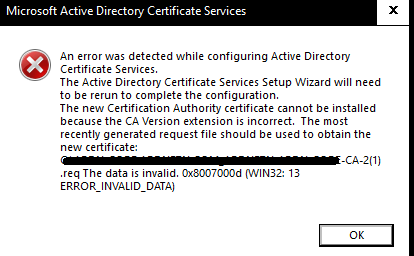
Hello, I'm new here, but excited about being able to hob nob with all you in furthering our IT goals. I'm setting up my root and Subordinate CA and I'm importing my rootCA issued, subCA certificate into the subCA. I get I get the same error when the subCA automatically exports its cert req to the root Ca and when I do it manually. I also get this error whether i'm using X.509 or p7b files. what's unusual about this error is that it seems to be referencing a .req file with a '(1)' added to the end of the title. Original .req did not have the '(1)'. any assistance I can get from the community would be appreciated.142Views0likes1CommentWindows Server 2022 Hyper-V : vmconnect introuvable pour accéder à la console VM (Server Core)
Contexte Windows Server 2022 [Standard/Datacenter — à préciser], rôle Hyper-V installé. J'ai créé une VM invitée Linux nommée « Wazuh » (installation d'une plateforme SIEM), elle démarre correctement. ce serveur est une VM imbriquée dans un autre hyperviseur type VMware Workstation. je suis en simple groupe de travail (workgroup). Ce que je constate PS C:\Users\Administrator> Start-VM -Name 'Wazuh' PS C:\Users\Administrator> vmconnect localhost Wazuh vmconnect : The term 'vmconnect' is not recognized as the name of a cmdlet, function, script file, or operable program. Check the spelling of the name, or if a path was included, verify that the path is correct and try again. At line:1 char:1 + vmconnect localhost Wazuh + ~~~~~~~~~ + CategoryInfo : ObjectNotFound: (vmconnect:String) [], CommandNotFoundException + FullyQualifiedErrorId : CommandNotFoundException PS C:\Users\Administrator> Get-VM -Name 'Wazuh' | Select-Object State, Status State Status ----- ------ Running Operating normally PS C:\Users\Administrator> vmconnect localhost Wazuh vmconnect : The term 'vmconnect' is not recognized as the name of a cmdlet, function, script file, or operable program... La VM est bien « Running / Operating normally » selon Get-VM, donc le souci n'est pas la VM elle-même mais l'accès à sa console. Ce que j'ai déjà essayé Get-WindowsFeature *Hyper-V* → [colle ici la sortie exacte que tu as obtenue] Install-WindowsFeature -Name RSAT-Hyper-V-Tools -IncludeAllSubFeature → toujours pas de vmconnect.exe fonctionnel après coup Je soupçonne que ce serveur est installé en mode Server Core (pas d'interface graphique locale), et j'ai lu que la conversion Core → Desktop Experience n'est plus possible après coup depuis Server 2016. Ma question pour la communauté Est-il vraiment impossible d'obtenir une console graphique locale (vmconnect / Hyper-V Manager) sur un Server Core, même une fois les outils de gestion Hyper-V installés ? Quelle est la méthode la plus fiable pour accéder à la console d'une VM Hyper-V hébergée sur un Server Core, en environnement non-domaine (workgroup) : Windows Admin Center, Hyper-V Manager distant (config WinRM/TrustedHosts), ou faut-il simplement réinstaller en Desktop Experience ? Si quelqu'un a déjà mis en place Windows Admin Center ou du Hyper-V Manager distant sur un lab en groupe de travail (sans AD), un retour d'expérience serait très utile. Merci d'avance !AntonioDownavan02Aug 27, 2026Copper Contributor128Views0likes1Comment jameeeAug 26, 2026Copper Contributor106Views0likes1Comment
Hyper-V Converged Networking for VEEAM Backups
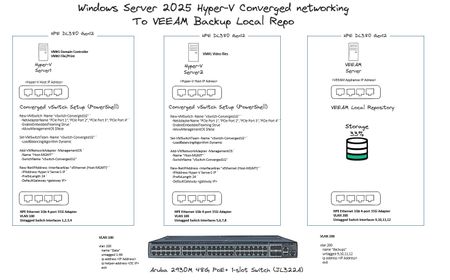
Hi All, As per the image below, I have 3 x HPE DL380 Gen 12 Servers, Server1 and Server2 are ADDS domain joined, VEEAM Local Repo is not. For the converged networking to work, is there anything else I need to perform in terms of additional power-shell commands, VLAN tagging etc? Thanks!DoJU70Aug 25, 2026Tin Contributor199Views0likes2Comments
Issue with Temporary Profile on Windows Server 2025 after renaming built-in Administrator account
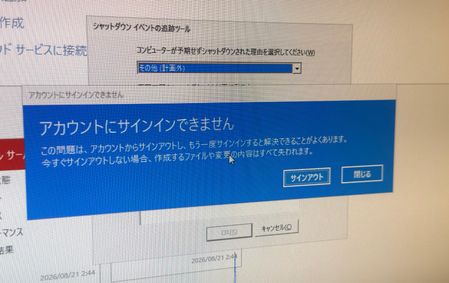
Hi everyone, I am facing an issue with a temporary profile on Windows Server. Environment details: ・OS: Windows Server 2025 Datacenter ・Setup: On-premises environment with 2 servers (AD DS Domain Controller and Web Server) ・Affected Server: Web Server (Domain joined) Recently, I renamed the built-in Administrator account on the Web Server. After that, the system became completely unresponsive, so I had to force a power off. Upon signing in after the reboot, I received the error message: "We can't sign in to your account" (or "You've been signed in with a temporary profile"). It seems the profile folder or registry mapping for the renamed Administrator account was corrupted due to the force shutdown. I tried restarting the server, but the issue persists. Could anyone please advise on the proper way to resolve this registry/profile conflict and safely restore the renamed Administrator profile? Please note that I am a native Japanese speaker and a beginner in IT, so I may not fully understand complex technical English. Simple, step-by-step instructions would be greatly appreciated! Thank you in advance for your help! Translated by Gemini, grammar checked by DeepLFumaAug 20, 2026Tin Contributor379Views2likes7Comments
Can't share a folder on a local network in Microsoft Windows Server 2025 STD
We have two Microsoft Windows Server 2025 Standard (Version 24H2, Build Number 26100.32995) servers in our Active Directory. We can't share folders; it constantly asks for a username and password. We've tried every solution, but nothing worked. I found a similar thread, but the solutions there didn't work either. topic : https://learn.microsoft.com/en-us/answers/questions/5559013/opening-fire-share-on-2025-server-from-another-202 How can i solve this sharing problem ?ccozkaracaAug 17, 2026Copper Contributor192Views0likes3CommentsWindows Server Replacement Folder redirection policy won't apply
Good morning! We are hoping someone in the community can guide us in the right direction. We have scoured the internet looking for a solution and nothing we have tried works. We have a windows server that we set up a very basic folder redirection policy on. We added a user to the OU associated with it, and it worked flawlessly. The user’s account mapped the folders to the correct location and was able to save data. We then wanted to use a different folder, so we created a second policy identical to the first, but pointing to a different root folder. We applied the group policy to the server, then moved the user from the original OU to the new OU. The original redirection policy disassociated, but the new one will not apply. We simply get an error message in gpresult that states “Cannot complete this function”. We have duplicated this in a live environment and a lab environment, so it seems clear that it is something that we are doing wrong or not understanding about how this is supposed to work. Has anyone run into this\have any guidance for us? Is our expectation of how this should work unrealistic? Our expectation is that the old policy will be removed and the new policy with the new folder would then apply. Thanks very much.angieonthehelpdeskAug 12, 2026Copper Contributor174Views0likes1Comment
SNMP Query fails with Error: Error in packet. Reason: (genError) A general failure occured
I have enabled a win Server 2022 and a Win11 machine to answer SNMP requests. However both machines run into error while doing a snmpwalk. I have started with OID just before errornous OID. Both machines show same behaviour. Does someone experience same problem? Can someone recreate this problem? Does someone know a cure fort this problem? Does someone have any ideas how to proceed? root# snmpwalk -Os -v 1 -c public <hostname> .1.3.6.1.4.1.77 comVersionMaj.0 = STRING: "10" comVersionMin.0 = STRING: "0" comType.0 = Hex-STRING: 03 00 00 00 Error in packet. Reason: (genError) A general failure occured Failed object: comType.0 root@monitor:/etc/munin/plugins# snmpwalk -On -v 1 -c public <hostname> .1.3.6.1.4.1.77 .1.3.6.1.4.1.77.1.1.1.0 = STRING: "10" .1.3.6.1.4.1.77.1.1.2.0 = STRING: "0" .1.3.6.1.4.1.77.1.1.3.0 = Hex-STRING: 03 00 00 00 Error in packet. Reason: (genError) A general failure occured Failed object: .1.3.6.1.4.1.77.1.1.3.0UtnapischtimAug 10, 2026Copper Contributor120Views0likes2Comments

Tags
- windows server2,289 Topics
- Active Directory859 Topics
- management397 Topics
- Hyper-V349 Topics
- networking333 Topics
- security305 Topics
- storage218 Topics
- clustering162 Topics
- powershell154 Topics
- AMA102 Topics