storage
218 Topics
Windows Server 2019 Backup Stopped working
Hi I have a Windows Server 2019 Standard that Windows Server 2019 Backup Stopped working. Worked great for over a year. Here is error : The backup operation that started at '2021-06-13T03:30:22.766521300Z' has failed with following error code '0x8078014D' (There was a failure in updating the backup for deleted items.). Please review the event details for a solution, and then rerun the backup operation once the issue is resolved. I also got an error with invalid option . I am backing up one Folder to a NAS. ioSafe running Synology OS. As a side note : I have a VM server running on this server that is backing up 2 folders to same NAS. Same issue. What I have tried. 1. Freed up space on NAS. 2. On NAS resetup folders backed up to. Made sure folders for Physical Backup and VM have correct permission and NAS user with permission to do the job. 3. Uninstalled Windows server Backup and reinstalled. 4. Re Setup Backup Jobs. 5. Server updates are done monthly and I think NAS OS is up to date. Any Ideas? Thanks you very much in advance! Dexter Southerland3.5KViews1like1Comment
Windows Backup taking waaaaay to long
While I'm not a heavy user of these MS forums I have had to resort to them from time to time over the last 15-20 years. Yet I still can't figure out the organizational structure and it seems I can never find the right forum for my query. Almost every time my post gets moved to the correct forum or message board, or someone gives me a link directly to it. I expect it to be no different this time, and I'm perfectly fine with that. So here we go. I have Windows Server 2025 installed as a VM using MS's built-in Hyper-V on a Server 2025 computer. the VM is set up as a DC and all that stuff functions exactly as it should. However, doing the backup has suddenly gone from taking anywhere from 2 hours to a max that comes close to but has never exceeded four hours. Obviously, it depends on how much there is to actually back up. I've already gone through the troubleshooting tips to do things like checking the VSS settings and a bit of other stuff I can't exactly recall at the moment. I have an external physical 1TB usb hard drive attached to the physical computer and then it's attached as a drive to the Server 2025 VM and shows up in computer management/disk manager ad Disk 1, as it should. I have the VM set up to use this Disk 1 as the backup disk with the Windows Server Backup program. Some things I note and add here in case it matters. - The size of the VM disk for this Server 2025 VM is 500GB and the partition size of Drive C shows as 498.91GB with the remaining shown as 100MB for the EFI system partion and 1001MB for the recovery partition. - When backup starts, a new disk labeled Disk 2 appears in the disk management window on the VM and I note it's the same size as Drive C on the VM at 498.91GB. I'm wondering if this has anything to do with why my backups suddenly went from taking a max of 4 hours to as long as 20 hours to complete. Where is this virtual disk created? I looked on the VM host machine in the C:\programdata\microsoft\windows\Virtual Hard Disks directory, and it's not there. It's not on the VM machine because the virtual hard disk directory doesn't exist in that same location on the VM. THe host machine itself has a 2TB hard drive in it with 993GB of free space. Any advice or suggestions here? I have no idea why backups went from 2-4 hours to taking 20 hours or more to complete. Thanks for any help, advice or suggestions anyone can offer here. -Carl616Views0likes1Comment
Hyper V Duplicates recovery points
Hi, We have a HyperV host in a Windows Server 2016 STD with 3 VM Servers Domain Controller (Windows Server 2019) APP Server (Windows Server 2019) DB Server (Sequel) (Windows Server 2016) The host have 4 TB GB HHD 128 GB RAM 2 Processors 2.20GHz We used Veeam backup tool for backups. Suddenly with every backup run, HyperV creates a Veeam recovery Checkpoint. The free disk space of the disk is shrinking considerably. We also noticed that when every Veeam recovery point is created it creates a duplicate of the AVHDX, MRT and RCT files in the Virtual Hard Disks folder. I disabled the Veeam backup jobs until it can be fixed, because if we get out of disk space the VM Servers will not startup. NOTE: This are the production Servers and no other environment for test exists. Hope you can help me thorough this issue.654Views0likes1Comment
Unable to Build Switchless Storage using Network ATC
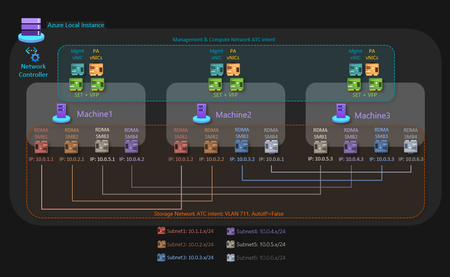
3-Node HV/S2D Cluster using Switchless Storage and Network ATC getting Network HUD Error I have a Dell 3-node server cluster being used to host Hyper-V with S2D. Each node is identical and certified to pass S2D requirements. The networking consists of 2 onboard 1 Gbps and 2 quad-port PCI(e) NICs at 10/25 Gbps. The 2 onboard ports are being used for the management intent, 2 ports from each of those NICs are being connected to 2 top-of-rack switches for the compute intent at a total of 12 10 Gbps connections, and the other 2 ports from each of those NICs are being connected directly to the other nodes in a dual mesh method for the storage intent at a total of 6 25 Gbps connections. Very similar to the Microsoft diagram for a three-node storage switchless, dual TOR, dual link deployment network reference pattern for Azure Local, but I am using Windows Server 2025 Datacenter, not Azure Local. The problem I am encountering is when I attempt to create the switchless storage intent, I get an error (shown below) that reads "Failed to fetch physical NIC mapping from the Network HUD service. Please diagnose..." If I leave off the switchless option, it builds without issue. The error only occurs when I attempt to use the switchless option. I tried without configuring the NIC IP addresses first, as well as trying configuring the NIC IP addresses beforehand. I tried without having a cluster built first, as well as building a failover cluster without storage before running the network intent command. The error I posted below shows my last attempt after having the NICs configured with IP addresses and having a failover cluster established before running the command. The error has remained the same throughout the process. Has anyone else run into an issue like this with switchless storage? It seems like everything that I am trying to do is within scope and should be a supported solution. My fallback plan is to use my existing switches, but that drops my connection speeds down from 25 Gbps to 10 Gbps due to hardware limitations.593Views0likes4Comments
Write to workgroup fileserver from AzureAD joined device.
Hi, We currently have a situation where we are trying to install a program locally, but we want some of the data files (master data for projects, company settings for the most part) to be stored on a fileserver. The installer allows for this change to set UNC path to the share manually, and in our case recommends doing that. The problem we are facing occurs when trying to go on with the installation, the problem reports back that write-protection is enabled. I have the share mapped as a nettwork station, and can create folders/files through explorer. But I think the issue here is that the share mapped using the "Connect with different credential" option, which is required since the share is on a server in a workgroup and the client I'm using is joined to AzureAD. And when i run the installer for the program it is ofcourse ran with my azure user (local administrator), and I guess it tries to write to the UNC path with that user ofcourse. Is there any way i can let the program write to the share without it being to much of a security risk? The same program also has a nettwork license installed on a different workgroup server. I also had to add local users to that server and do some DCOM permission tweaking for that to work. For the license part i can authenticate with the local server user, but thats not an option when trying to install with UNC path for the file/folder structure.201Views0likes3CommentsBLOG: Determine and modernize Filesystem Deduplication
Version history - 1.6 Added references / links - 1.5 Added insights from Steven Ekren. Many thanks! / Added ReFS Docs link and added clarification about drawbacks. - 1.4 revised script so ReFS volumes with classic dedup will be identified, added more eligibly checks and error handling - 1.3 added point #4 in migration guidance - 1.2 revised script - 1.1 formatting This blog explains the two Windows deduplication modes classic Windows Data Deduplication (ReFS or NTFS) and ReFS Deduplication (ReFS). It covers how they differ, why you should consider upgrading to Windows Server 2025 to leverage the new ReFS dedup engine, and clear warnings about scenarios where ReFS is not recommended. Practical migration guidance and detection commands are included. Differences between classic dedup and ReFS dedup File system: Classic dedup runs on NTFS or ReFS; ReFS dedup runs on ReFS and Windows Server 2025 or later, only. Implementation: They are separate engines with different metadata formats and management cmdlets. Management: Classic dedup uses the Dedup PowerShell module (Get‑DedupVolume, Start‑DedupJob, Disable‑DedupVolume). ReFS dedup uses its own ReFS dedup cmdlets (Get‑ReFSDedupStatus, Enable‑ReFSDedup). Conversion: There is no in‑place conversion between the two; metadata and chunk formats are incompatible. Improvements: the new in-line ReFS Deduplication leverages the advantages of ReFS files system. This makes deduplication more efficient and less CPU intensive. The new ReFS Deduplication can also compress data in-line using L1Z algorithm. This makes it up to par with enterprise solutions, often found in SAN storage or Linux appliances. Compression needs to be set per volume, and optional. Edit: Steven Ekren, a former Senior Product Manager for Hyper-V shared valuable insights on how both engines operate in a comment on LinkedIn: [...] the basic conceptual difference between WS Deduplication and ReFS deduplication is that the Windows Server [dedup] version takes the duplicate file data and moves it to a repository and puts a reparse point in the file system from each point that references the data. This involves data movement and therefore not recommended for workloads that are changing it's data often, but best for more static data like documents and picture/videos. ReFS is a file system that uses links natively for all the objects so leaving the data in place and managing the links is much more efficient and doesn't involve the data copy and managing a repository. Effectively it's built into the file system. As the blog notes, there are some situations not recommended for this version of dedupe, but generally it's lower performance and storage I/O impact. Why upgrade to Windows Server 2025 Improved version of ReFS Filesystem Improved ReFS in-line deduplication + optional L1Z compression: Server 2025 includes enhancements to ReFS dedup performance, scalability, and integration with modern storage features. Support and fixes: Windows Server 2016 and 2019 are past mainstream support, increasing the likelihood of costly support cases and delayed fixes; upgrading reduces operational risk and ensures access to ongoing improvements. Future compatibility: Newer OS releases receive optimizations and bug fixes for ReFS and dedup scenarios that older releases will not. SMB compression: for reasonably faster data transfer at minimal CPU when transferring data through the networks. Feature and security related improvements refer to availabile Microsoft Windows Server 2025 Summit content on techcommunity.microsoft.com Scenarios where ReFS is not recommended ReFS on SAN in clustered CSV environments: Avoid placing ReFS dedup on top of SAN‑backed Cluster Shared Volumes (CSVFS) in production clusters; clustered SAN/CSV scenarios causing severe performance issues in practice. Please refer to the ReFS documentation. (personal opinion and experience, not endorsed by Microsoft): Many small, fast‑changing files: Workloads with frequent small writes, such as user profiles, folder redirection of AppData folders, or applications that churn small config files (for example, Lotus Notes config files) can cause locks, performance degradation, or unexpected behavior on ReFS. Exclude these disks from dedup or keep them on NTFS. Note: Restrictions on high churn rate, like lockups or high RAM consumption, deadlocks / BSOD might have been addressed in Windows Server 2025 and the ReFS Dedup, see comment of Steven Ekren. Improving reliability and performance is a top goal for ReFS, to improve the adoption and feature parity with NTFS. For information about feature parity please refer to the ReFS documentation. Migration guidance The following instructions describe a high level and supported migration path from Windows deduplication using the NTFS file system to native ReFS Deduplication. Note: Step #3, data migration is not required when already using ReFS with Data Deduplication. In this case it's enough to execute step #1 and #2. Note: Validate on non‑production data first. Plan for rehydration time and network/storage throughput. Ensure backups are current before starting. Make sure to have a full backup before upgrading Server OS or making changes. 1. Disable classic dedup on the NTFS source: Disable-DedupVolume -Volume YourDriveLetter: 2. Rehydrate (un‑deduplicate) the data: Start-DedupJob -Volume YourDriveLetter: -Type Unoptimization 3. Copy or move data to a ReFS volume (new target): For straightforward NTFS→ReFS copies, robocopy is recommended. A GUI and job based alternative to this is the File Server Migration Feature (uses robocopy) in Windows Admin Center. For complex scenarios, open files long path names very large datasets (< 5 TB) or many small files restructuring, GUI (including Windows Server Core) automation, improved logging cloud/hybrid migrations I recommend the usage of GS RichCopy Enterprise by GuruSquad for higher speed (up to 40%) and reliability, compared to robocopy. 4. Optionally remove the Windows Server feature When there is no old deduplication in use consider to remove the feature. Your advantages of doing so: removes an unneccessary service. removes the file system filter driver for dedup, which causes performance impacts, even when not in use. removes the PowerShell commandlets for the old dedup, so they cannot mistakenly used by existing scripts, unaware admins etc. When migrating files over network: SMB compression: consider both source and target run Windows Server 2025 and leverage SMB compression. SMB Compression is available in Microsoft xcopy, Microsoft robocopy and Gurusquad GScopy Enterprise. Balancing and Teaming with SMB: SMB does not require LFBO or SET Teaming. It automagically detects network links and actively balances on its own on Windows Server 2016 and later. Using teaming, depending the configuration, can negatively affect transfer speed. Quick detection and diagnostic commands Check file systems: Get-Volume | Select DriveLetter, FileSystem Check classic dedup feature: Get-WindowsFeature -Name FS-Data-Deduplication Get-DedupVolume Get-DedupStatus Check ReFS dedup: Get-Command -Module Microsoft.ReFsDedup.Commands Get-ReFSDedupStatus -Volume YourDriveLetter: Diagnostic script to detect both: <# .SYNOPSIS Detects classic NTFS Data Deduplication and ReFS Deduplication across local volumes. .DESCRIPTION - Reports NTFS volumes with classic Data Dedup enabled. - Lists ReFS volumes present on the host. - If the ReFS dedup cmdlet exists AND OS build >= 26100, checks ReFS dedup status per ReFS volume. - Color coding: * Classic dedup enabled → Yellow * Classic dedup not enabled → Cyan * ReFS dedup enabled → Green * ReFS dedup not enabled → Cyan .NOTES Version: 1.7 Author: Karl Wester-Ebbinghaus + Copilot Requirements: Elevated PowerShell session, PowerShell 5.1 or newer Supported OS: Windows Server 2025, Azure Stack HCI 24H2 or newer Unsupported OS: Windows 10, Windows 11 (script terminates) #> #region Initialization Write-Verbose "Initializing variables and environment..." $Volumes = $null $Volume = $null $DedupVolumesList = $null $DedupReFSVolumesList = $null $DedupReFSVolumesListLetters = $null $DedupReFSStatus = $null $refsCmd = $null $OSBuild = $null $runReFSDedupChecks = $null #endregion Initialization #region Volume Discovery Clear-Host Write-Verbose "Querying NTFS and ReFS volumes..." $Volumes = Get-Volume | Where-Object FileSystem -in 'NTFS','ReFS' #endregion Volume Discovery #region ReFS Dedup Cmdlet, OS Build and OS SKU Detection Write-Verbose "Checking for ReFS deduplication cmdlet..." $refsCmd = Get-Command -Name Get-ReFSDedupStatus -ErrorAction SilentlyContinue Write-Verbose "Reading OS build number..." try { $OSBuild = [int](Get-ItemProperty -Path 'HKLM:\SOFTWARE\Microsoft\Windows NT\CurrentVersion' -Name CurrentBuildNumber).CurrentBuildNumber } catch { Write-Verbose "Registry read for OS build failed. Falling back to Environment OSVersion." $OSBuild = [int][Environment]::OSVersion.Version.Build } # end try/catch for OS build detection Write-Verbose "Checking OS InstallationType and EditionID..." $CurrentVersionKey = Get-ItemProperty -Path 'HKLM:\SOFTWARE\Microsoft\Windows NT\CurrentVersion' $InstallationType = $CurrentVersionKey.InstallationType # "Client" or "Server" $EditionID = $CurrentVersionKey.EditionID # e.g. "AzureStackHCI", "ServerStandard", etc. Write-Verbose "Detected InstallationType: $InstallationType" Write-Verbose "Detected EditionID: $EditionID" Write-Verbose "Detected OSBuild: $OSBuild" # Block Windows 10/11 (Client OS) if ($InstallationType -eq 'Client') { Write-Error "Unsupported OS detected: Windows Client (Windows 10/11). Only Windows Server or Azure Stack HCI are supported. Script will terminate." exit } # Allow Azure Stack HCI explicitly if ($EditionID -eq 'AzureStackHCI') { Write-Verbose "Azure Stack HCI detected. Supported platform." } else { # Must be Windows Server if ($InstallationType -ne 'Server') { Write-Error "Unsupported OS detected. Only Windows Server or Azure Stack HCI are supported. Script will terminate." exit } Write-Verbose "Windows Server detected (EditionID: $EditionID). Supported platform." } Write-Verbose "Evaluating ReFS dedup eligibility based on cmdlet presence and build >= 26100..." $runReFSDedupChecks = $false if ($refsCmd -and ($OSBuild -ge 26100)) { $runReFSDedupChecks = $true Write-Verbose "ReFS dedup checks ENABLED (cmdlet present and OS build >= 26100)." } else { Write-Verbose "ReFS dedup checks DISABLED (cmdlet missing or OS build < 26100)." } #endregion ReFS Dedup Cmdlet, OS Build and OS SKU Detection #region Main Loop foreach ($Volume in $Volumes) { # begin foreach volume loop Write-Host "Volume $($Volume.DriveLetter): ($($Volume.FileSystem))" Write-Verbose "Processing volume $($Volume.DriveLetter)..." #region Classic Dedup + ReFS Volume Listing if ($Volume.FileSystem -eq 'NTFS' -or $Volume.FileSystem -eq 'ReFS') { Write-Verbose "Checking classic deduplication status for volume $($Volume.DriveLetter)..." $DedupVolumesList = Get-DedupVolume -Volume $Volume.DriveLetter -ErrorAction SilentlyContinue if ($DedupVolumesList) { Write-Host " → Classic Data Dedup ENABLED on $($Volume.DriveLetter), $($Volume.FileSystem)" -ForegroundColor Yellow } else { Write-Host " → Classic Data Dedup NOT enabled on $($Volume.DriveLetter),$($Volume.FileSystem)" -ForegroundColor Cyan } # end if classic dedup enabled Write-Verbose "Listing ReFS volumes on host..." $DedupReFSVolumesList = Get-Volume | Where-Object FileSystem -eq 'ReFS' if ($DedupReFSVolumesList) { $DedupReFSVolumesListLetters = ($DedupReFSVolumesList | ForEach-Object { $_.DriveLetter }) -join ',' Write-Host " → ReFS volumes present on host: $DedupReFSVolumesListLetters" } else { Write-Host " → No ReFS volumes detected on host" } # end if ReFS volumes present } # end NTFS/ReFS block #endregion Classic Dedup + ReFS Volume Listing #region ReFS Dedup Status if ($Volume.FileSystem -eq 'ReFS') { if ($runReFSDedupChecks) { Write-Verbose "Checking ReFS deduplication status for volume $($Volume.DriveLetter)..." $DedupReFSStatus = Get-ReFSDedupStatus -Volume $Volume.DriveLetter -ErrorAction SilentlyContinue if ($DedupReFSStatus) { Write-Host " → ReFS Dedup ENABLED on $($Volume.DriveLetter), $($Volume.FileSystem)" -ForegroundColor Green } else { Write-Host " → ReFS Dedup NOT enabled on $($Volume.DriveLetter), $($Volume.FileSystem)" -ForegroundColor Cyan } # end if ReFS dedup enabled } else { if (-not $refsCmd) { Write-Error " → Skipping ReFS dedup check: Get-ReFSDedupStatus cmdlet not present" -ForegroundColor Cyan } else { Write-Error " → Skipping ReFS dedup check: OS build $OSBuild < required 26100" -ForegroundColor Cyan } # end reason for skipping ReFS dedup check } # end if runReFSDedupChecks } # end if ReFS filesystem block #endregion ReFS Dedup Status Write-Host "" } # end foreach volume loop #endregion Main Loop #region End Write-Verbose "Script completed." #endregion End Recommendations and next steps Inventory: Identify volumes using NTFS dedup and ReFS dedup, and map workloads that create many small or rapidly changing files. Plan: Schedule rehydration and migration windows; test ReFS dedup on representative datasets. Upgrade: Prioritize upgrading servers still on 2016/2019 (End of Mainstream Support) to reduce support risk and gain the latest ReFS dedup improvements. Kindly consider reading my Windows Server Installation Guidance and Windows Server Upgrade Guidance Exclude: Keep user profiles, AppData, and other high‑churn small‑file paths off ReFS dedup or on NTFS. Consider ReFS Dedup with Compression: Enable compression optionally. Mind ReFS dedup compression is not the same as compress files integration in File Explorer or File Explorer properties (Windows 9x). It's transparent to the application Make smart decisions: Avoid using dedup when the dataset is changing fast or your dedup + compression rate is below 20%. Usually you can expect 40% or more savings, and up to 80% in specific use cases like VDI VHDX with ReFS Dedup + Compression. Plan your dedup jobs: Ensure of making use of the planning features for dedup jobs through PowerShell or Windows Admin Center (WAC) when using ReFS dedup on more than one volume per Server. Otherwise they might all run at the same time and impact your storage performance (esp. spinning rust) and consumption of RAM and CPU. Share and Educate: Inform your infrastructure team about the changes so they avoid using the traditional dedup on ReFS. Related blogposts: https://splitbrain.com/windows-data-deduplication-vs-refs-deduplication/ , Thanks Darryl van der Peijl and team. https://www.veeam.com/kb2023 Veeam best practices about Windows Deduplication and ReFS Deduplication.1.7KViews2likes3Comments
Cache drive reconfiguration in Server 2025 Storage Spaces Direct cluster
We have a three node S2D cluster running Server 2025, with the storage in a 3 way mirror, running Hyper-V VMs. Each node has 4 x NVMe drives that are currently being used as cache drives, but which are connected to a RAID controller (in HBA mode), so in the S2D configuration they appear as SSD drives rather than NVMe drives. We've purchased the required cables and drive bays to be able to reconfigure the NVMe drives so that they're attached directly to the PCIe bus, so they'll show up as NVMe drives and hopefully give us a performance boost, so I'm just trying to plan the reconfiguration. I was hoping it would be a relatively simple process of shutting everything down, reconfiguring the storage and bringing everything back online, but ChatGPT suggests things won't be that easy and that a complete reconfiguration of the storage would be required. So in a nutshell, can the cache drives be reconfigured without a complete rebuild of the S2D storage ? Cheers, Rob729Views0likes3Comments
S2D FaultDomainAwareness
We're setting up a 2 Node windows 2025 cluster with storage spaces direct After creating the pool we created two virtual disk but see the following output PS C:\WINDOWS\system32> Get-VirtualDisk | Format-List FriendlyName, Size, FaultDomainAwareness FriendlyName : ClusterPerformanceHistory Size : 25769803776 FaultDomainAwareness : StorageScaleUnit FriendlyName : S2DVOL01 Size : 10995116277760 FaultDomainAwareness : FriendlyName : S2DVOL02 Size : 10995116277760 FaultDomainAwareness : The FaultDomainAwareness is empty for the two virtual disk created on the storage pool which is configured like this PS C:\WINDOWS\system32> Get-StoragePool –FriendlyName S2D-CLHV-001-Pool | Format-List FriendlyName, Size, FaultDomainAwarenessDefault FriendlyName : S2D-CLHV-001-Pool Size : 57592038555648 FaultDomainAwarenessDefault : StorageScaleUnit is there something wrong ?112Views0likes0Comments
Server 2022, network drives and content searching
We have two drives with close to 1TB of data, The one drive has a specific folder where end users want to search for a file using content from the files. The files are generally .xls based files End users are 99% Windows 11 based and server is server 2022. Indexing on the server with content aware filtering has occurred and can find the files when searching for their names however not when searching content. This needs to happen using Windows Search in explorer. Data is unstructured, however structured in a folder system. (Year, month, etc) I have read that Windows Content Search is not supported on network drives, can this be confirmed? Any suggestions on a resolution would be appreciated.124Views0likes0CommentsIssue with existing drive formatted to ReFS and mounting in new server
I had a hardware failure which also took out my Server installation drive. I have new hardware and have installed Server 2022 again on new drive. I have connected a drive that I had formatted as ReFS and now it shows as RAW and Event log shows "ReFS failed to mount the volume. Version 3.14 doesn't match expected value 3.7" I have no idea what is going on here. Both installations of Server 2022 used the same media. This is getting very painful. I have connected the drive to a Windows 11 24H2 computer, and it reads fine.172Views0likes0Comments