word online
144 Topics
Using Mail Merge with MACROS
Hello, I am currently trying to use Mail Merge from EXCEL with a WORD document to be emailed in OUTLOOK The emailed document takes the form of a .pdf attachment Our designer has created a Customer Order Update document that requires a WORD MACRO to realise his formatting once the Merge has taken place. I have created a MACRO in the WORD document that is able to perform the correct formatting on the WORD document after the merge with EXCEL spreasheet data has taken place. However, with a multiple page document I find that the MACRO is only applied to the 1st page of the document Subsequent pages of the generated .pdf do NOT have the MACRO applied ( I have various detail lines that are hash preceded capital letters that trigger the MACRO to perform a subtitle substitution ) As the MACRO goes through 25 lines of detail (below the fixed document header) in a Loop to perform substitutions I wondered if expanding the Loop to 50 lines would allow the second page of the document to also receive the MACRO processing. This did NOT happen Please advise how I can get the MACRO to apply to every page of the mail merged document I do not believe that the MACRO can only be applied once to the 1st page of the mail mereged document only regards399Views0likes10Comments
Formatting issues in Word Microsoft 365 Copilot online.
I am experiencing formatting issues in Word (Microsoft 365 Copilot online). I am a student, and I have a problem formatting my thesis in M365 Copilot after previously working on this file on an older device with an older version of Word. I recently purchased a new laptop, where I no longer have access to that same version of Word. My only option now is to use Word in the browser. However, the file that formatted correctly on the old device is now not formatting properly. The automatic table of contents is breaking. After clicking “Update,” Word assigns random page numbers, most often all entries show as page “8,” or, for example, the “Introduction,” which is actually on page 3 (I manually set page numbering in the old version), suddenly appears as page 5 in the table of contents. Every chapter and subchapter is shown as being on the same page, usually page 8. The formatting options and capabilities also seem worse compared to the interface of the older version. The same issue occurs on my student account. Please help, I am currently writing my thesis.994Views0likes5Comments
Word Copilot attachments fail with NoTokenObtained
Word Copilot cannot read local or cloud attachments with my Microsoft account. Cloud file attachment opens OneDrive Picker but fails with NoTokenObtained, timeout, or “Sorry, something went wrong.” Local files are accepted but reported as empty/corrupted. The same files work correctly in Microsoft 365 Copilot Chat with the same account. The issue reproduces on different computers, different networks, new Edge profile, new Windows user, and Word for the web without Office desktop installed. Word Copilot can read the active document, so only the attachment pipeline appears broken. Correlation IDs: 49a92ea2-7068-2001-bf16-3cf7d0c388fd and b39b30a2-b012-f000-cf51-72bd844c5dea. Please escalate to Word Copilot / OneDrive File Picker / Microsoft 365 Copilot engineering.370Views0likes1Comment
Add-in Error of complements in Word Online with my Personal Account
Hi, I am getting an error when trying to insert any add-in (such as Mendeley Cite) in Word Online using my personal account. Error message: "Add-in Error: We couldn't connect to the catalog server for this document" (Original Spanish error: "Error de complemento: no pudimos conectarnos con el servidor del catálogo {0} para este documento") Here are the details and the troubleshooting I've already done: - Account-specific: It works perfectly with my old University account, but fails with my new Personal account. - Platform-specific: The add-in works fine on the Word Desktop App, but fails on Word Online (web browser). - Browsers: I have tried different browsers (Chrome, Firefox) and the issue persists. It seems to be a configuration or permission restriction specific to my personal account on the web version. How can I fix this? Thank you!209Views0likes1Comment
Equations not rendering in Word
Hi everyone, I have an Office 365 Subscription and so I use the online version of Word for my work, I've done so for a number of months. All of a sudden today all of my maths equations stopped rendering. Now all I see, if I try to use the equation editor, is a grey box that says [Equation]. This is true for new documents and also all of my old documents that included equations. I've tried logging in and out again and tried on Chorome and Safari. I lean on this function quite heavily for my work so any help would be appreciated.Solved42KViews1like18Comments
Word Similarity Checker fails in desktop and web: “Something went wrong”
Hello, I am having an issue with Microsoft Word Similarity Checker. The Similarity Checker consistently fails with the message: “Something went wrong. Try again.” This happens in both: - Microsoft Word desktop - Word for the web / Microsoft 365 web version Product/account details: - Microsoft 365 subscription is active - Word shows activated under File > Account - Connected experiences are enabled - Word desktop version: Microsoft 365 Apps, Version 2606, Build 20131.20112 Click-to-Run Current Channel Troubleshooting already completed: 1. Confirmed Word is activated under File > Account. 2. Confirmed connected experiences are enabled: - Experiences that analyze your content: ON - Experiences that download online content: ON - All connected experiences: ON 3. Ran Office Update Now. 4. Restarted Windows. 5. Ran Quick Repair. 6. Ran Online Repair. 7. Tested in a brand-new blank Word document. 8. Tested on mobile hotspot instead of normal network. 9. Confirmed ProtonVPN was turned off. 10. Cleared Office Wef cache contents at: %LOCALAPPDATA%\Microsoft\Office\16.0\Wef\ 11. Checked Microsoft Edge WebView2 Runtime. The installer says it is already installed for the system. 12. Signed out of Word/Microsoft 365, restarted Windows, and signed back in. 13. Tested again in Word desktop. 14. Tested again in Word for the web. 15. The same “Something went wrong. Try again” Similarity Checker error still occurs. I also previously saw a script error when clicking Update License in Word: URL shown included: https://oc.officeapps.live.com/odc/v2.1/hrd Error: 'Hrd' is undefined Because the issue occurs in both desktop Word and Word for the web after these troubleshooting steps, this seems like a Microsoft 365/Word Similarity Checker service-side or account-side issue rather than a local installation problem. Can someone from Microsoft confirm whether there is a known issue with Similarity Checker right now, or whether this needs to be escalated as an account/service-side problem?362Views0likes1Comment
Error del complemento. No pudimos conectarnos con el servidor de catalogo "{0}" para este documento
Estoy usando Word Online (Office 365) y al abrir complementos como Mendeley Cite aparece el error: “Error del complemento. No pudimos conectarnos con el servidor de catálogo {0} para este documento.” En general, este error aparece en todos los complementos existentes, como si en mi cuenta los mismos no estuvieran habilitados. Ya probé: Cambiar de navegador (Edge, Firefox, Google). Limpiar datos de navegación. Reiniciar sesión y el computador. Permitir cookies y permitir permisos de los navegadores Hasta ahora no hay forma de que los complementos funcionen en Word Online. ¿Alguien sabe cómo resolverlo? El flujo concreto es: Entro a un documento en word online -> oprimo el botón de complementos -> se abre la lista de complementos -> elijo cualquier complemento y me aparece el error del titulo de esta discusión. Hace una semana si me funcionó en edge, ahora no hay formas.236Views0likes1CommentUnable to @ mention external collaborators in comments within Office online files
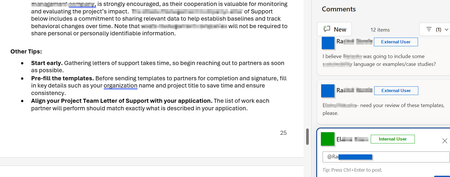
Is anyone aware of whether Microsoft will someday enable the ability to @ mention users who do not belong to the M365 tenant within comments in Office online files? I've attached a screenshot of what this looks like in a Word Online file in OneDrive. There are a number of Microsoft feedback posts about this, but it really feels like an unnecessary gap in functionality. Anyone have any insights on roadmap?562Views0likes1Comment
Word Document Scrambled
I have been using the online version of Microsoft Word via Onedrive.com. The document I have been working on does not exist on my harddrive. It only exists on my OneDrive. The word document is 67 pages long and 31,788 words in total. It is a cumbersome document to review, to say the least. So, of course I was devastated when I discovered that Microsoft Word had glitched. Its not a minor glitch either. Its a radnomized duplication glitch. In some places one sentence is duplicated, one after the other. In some places a paragraph is duplicated, one full paragraph after the other. In other places, its all messed up. It has copied a single sentence and pasted it in the middle of another paragraph 1 or 2 pages away. One paragraph I saw was composed of sentences copied from at least 2 other paragraphs. This glitch has made a chimera out of a year of hard work. I had a chat message conversation with a customer support agent today while I was at work. We were unable to fix it. Although, he only offered me two things to try. He wanted me to log onto Onedrive.com from a different computer (in private web browser) and then log onto Onedrive.com from a different internet source. I was unable to log onto Onedrive.com from a different computer (in private web browser). It wanted me to either insert a USB passkey or scan a QR code with my phone for the pass key. I don't have the USB and when I tried my phone it just said that my phone doesn't have a passkey. My passkey is stored on my laptop. So, I was only able to log onto Onedrive.com on my laptop. Next, I tried a different internet source (in private web browser). It didn't work. The document is still scrambled eggs. After that, the customer support agent was all out of suggestions. He sent me here. The customer support agent did seem to think he knew what the glitch was from. He listed a few things. The ones that sounded possible were either Onedrive.com/word document timed out (maybe when the PC went to sleep) or the internet connect dropped. And supposedly those can cause a duplication problem. Does any of this sound familar to anyone? Suggestions? I'm begging for a quck fix so I don't have to scrutinize 67 pages and 31,788 words.247Views0likes1CommentVBA concern: support for macros or controls not installed when software was installed
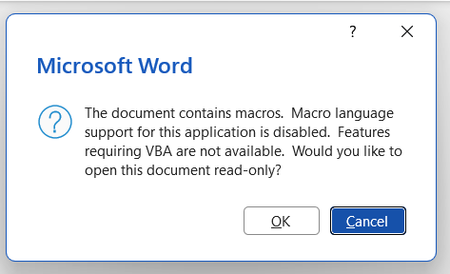
Background: I want to use Zotero, a citation manager, on Word but it uses macros. I get an error message every time I open Word saying VBA wasn't installed at the time I downloaded Office. Image of the error message screen shotted below. I have tried a number of different things: Macros are enabled in the trust centre VBA are enabled in the trust centre I have ran rapid and online repair on Office on the control panel I have attempted 'change' office on my control panel to access the 'expand/add features' with the hopes of getting VBA but this does not appear as an option for me. When I select 'change' in the Control Panel the follow pop up appears: My current impression is that I must download VBA to be able to use VBA. I appreciate that VBA is supposed to automatically download with Office but this does not seem to have happened in my case. Please advise on what I should do next. Thanks in advance.188Views0likes1Comment