windows server 2025
25 Topics
CfExecute(TRANSFER_PLACEHOLDERS) returns E_INVALIDARG inside an FSLogix profile container
We develop a Cloud Files sync provider. When the sync root lives in a user profile that FSLogix redirects to a per-user VHDX container, some FETCH_PLACEHOLDERS callbacks cannot be answered: every CfExecute(CF_OPERATION_TYPE_TRANSFER_PLACEHOLDERS) for them fails with E_INVALIDARG (0x80070057), including the error completion. The request stays pending until the platform cancels it after about 60 s, and the application that triggered it (File Explorer, Office and Edge background processes, line-of-business apps) hangs for that time. The callback is raised by a name lookup of a non-existent child (`CreateFileW` / `GetFileAttributesExW` on `<dir>\missing.txt`) inside a placeholder directory with on-demand population enabled, and nobody has had that directory open for about one to two minutes. The same callback raised by a directory enumeration is answered fine every time. A lookup on a directory opened a few seconds earlier is fine too. A standalone PowerShell script (own throwaway sync root, no third-party software) reproduces it on a clean Windows Server 2022 (20348.5761, October 2026 CU) with FSLogix 26.08 (3.26.826.17182) for a user with a profile container. The same script on the same server, ten minutes later, as a local user in the "FSLogix Profile Exclude List": all answers accepted. Also reproduced on Windows Server 2022 20348.3328 and 20348.5622 and on Windows Server 2025 26100.1742 with profile containers; not reproducible on the same builds without FSLogix, with a sync root on a plain VHDX volume or a mount point, or on Windows 11. The OS patch level and the FSLogix release did not make a difference in our tests. Waiting, an attributes-only open of the directory, or omitting the correlation vector, request key and sync status from CF_OPERATION_INFO do not help. If the provider opens the directory with FILE_LIST_DIRECTORY (and may close it again) before answering, or after the rejection and then resends the byte-identical answer, CfExecute returns S_OK. CfUpdatePlaceholder(DISABLE_ON_DEMAND_POPULATION) on the directory has the same effect. We ship the directory open as a workaround. Is this a known issue for a Cloud Files sync root inside an FSLogix-redirected profile? Script and both logs (reproduced / not reproduced, same server): https://gist.github.com/pdupont1/85cc0b4a708a784db03087bdcdbe74c8 Full write-up with the environment matrix and all tested variants on https://learn.microsoft.com/en-us/answers/questions/6039901/cfexecute-transfer-placeholders-returns-e-invalida83Views0likes1CommentWindows Server 2025 – DHCP Failover con dos controladores de dominio: el ámbito no se sincroniza
Hola buenas a todos. Recientemente he configurado una implementación de DHCP Failover entre dos controladores de dominio con Windows Server 2025 (DC1 y DC2), utilizando el modo Hot Standby. La configuración del ámbito se replica correctamente después de la configuración inicial, pero después de realizar cualquier cambio manual en las opciones del ámbito (por ejemplo, modificar la puerta de enlace predeterminada o añadir una nueva reserva), los cambios no se sincronizan automáticamente con el servidor asociado. Cada vez tengo que ejecutar manualmente «Replicar ámbito». Ambos servidores están en la misma subred y pueden comunicarse sin problemas. ¿Se trata de un problema conocido de DHCP Failover en Windows Server 2025, o hay alguna configuración específica que pueda estar pasando por alto para habilitar la replicación automática de los cambios realizados en el ámbito? Gracias.223Views0likes1CommentWindows Server 2025 – DHCP Failover con dos controladores de dominio: el ámbito no se sincroniza
Hola buenas a todos. Recientemente he configurado una implementación de DHCP Failover entre dos controladores de dominio con Windows Server 2025 (DC1 y DC2), utilizando el modo Hot Standby. La configuración del ámbito se replica correctamente después de la configuración inicial, pero después de realizar cualquier cambio manual en las opciones del ámbito (por ejemplo, modificar la puerta de enlace predeterminada o añadir una nueva reserva), los cambios no se sincronizan automáticamente con el servidor asociado. Cada vez tengo que ejecutar manualmente «Replicar ámbito». Ambos servidores están en la misma subred y pueden comunicarse sin problemas. ¿Se trata de un problema conocido de DHCP Failover en Windows Server 2025, o hay alguna configuración específica que pueda estar pasando por alto para habilitar la replicación automática de los cambios realizados en el ámbito? Gracias.141Views0likes1Comment
Windows Server 2025 Failover Cluster Live Migration Issue
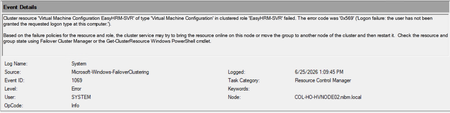
Hi Everyone, I am facing an issue in a Hyper-V Failover Cluster environment where Live Migration intermittently fails due to a service logon-related problem. The environment was previously working normally, but now whenever we attempt to Live Migrate a VM between cluster nodes, the migration fails unless we manually run “gpupdate /force” on the Hyper-V host first. After running gpupdate /force, the migration works temporarily, but the issue returns again during the next migration attempt. This makes it appear that some policy or permission is not being applied consistently on the cluster nodes. During troubleshooting, I attempted to add “NT VIRTUAL MACHINE\Virtual Machines” to the “Log on as a service” policy under Local Security Policy > Local Policies > User Rights Assignment. However, the account does not appear or resolve in the Object Picker when trying to add it manually. At this stage, I am trying to understand whether this is related to a domain GPO overwriting local policy settings, a Failover Cluster permission issue, or something specific to Hyper-V virtual machine accounts. Has anyone encountered a similar issue where Live Migration only works after running gpupdate /force? Also, is there a correct method to add “NT VIRTUAL MACHINE\Virtual Machines” to the “Log on as a service” policy, or should this permission already exist by default on Hyper-V hosts? Any guidance or recommendations would be greatly appreciated.495Views0likes1Comment
SQL Server FCI CSV storage flips multiple times into Online (No Access) state and eventually fails
Dear Team, I'm encountering an issue with our SQL Server multi‑instance failover cluster after applying the OS security patches and restarting the second node. Once the second node comes back online, the Cluster Shared Volume (CSV) briefly flips multiple times into Online (No Access) state and eventually fails.(we can make it online manually, but again flips and failed after sometime). To make the SQL cluster available, we either need to shut down the VM or revert the patch. Before the patching, all cluster roles and SQL instances were moved off the node, and the cluster appeared healthy. The issue only occurs after the reboot of the second node. (first node patched and restarted and everything working fine) OS : Windows Server 2025 Standard Patch tried: KB5075899 (February,2026 ) KB5078740 (March,2026) KB5082063 (April 2026 ) KB5087539 (May 2026) Could you please advise if there are any specific checks or steps we should follow during OS patching to prevent CSV access loss? Is it an issue with the patch or something else? Any insights or recommended actions would be really helpful to perform the security OS patch in the server Thanks you!196Views0likes0Comments
Windows server 2025 SQL patching cluster problem.
Dear Team, I have a problem when I am patching upgrade windows server 2025 with KB5091157. After patching is the clustering is not able to join back; it shows the error with credentials. The log error is "Cannot connect sqlxxxxxxx." you do not have administrative privileges on the cluster. Contact your network administrator to request access. Note: The server is not in a different VLAN network.458Views0likes1CommentWindows Server 2025 DC — LSASS handle leak identified via WinDbg — authz!AuthzpDeQueueThreadWorker
Hello All!! Im having a problem, LSASS crashes on a Windows Server 2025 Domain Controller, I identified what appears to be the root cause using WinDbg memory dump analysis. Sharing this hoping someone else has seen it or Microsoft can confirm. The Problem LSASS handle count grows continuously over time and eventually crashes with a 0xC0000005 access violation (Event ID 1015). After a reboot the cycle repeats. The growth rate correlates with authentication load and faster during peak hours, slower overnight. WinDbg Dump Analysis Captured LSASS dump at high handle count and ran !handle 0 f: Token handles: overwhelmingly dominant Everything else: negligible Every leaked token shows: GrantedAccess: 0x8 (TOKEN_QUERY only) PointerCount: overflowed to negative integer Running !findstack authz 2 shows multiple worker threads all sitting in: authz!AuthzpDeQueueThreadWorker What Was Tested And Eliminated Stopped or disabled each individually and measured handle growth rate — zero meaningful difference from any: - Antivirus (all components) - Backup software - Application services - VSS snapshots - Hardware management agents etc.. Environment OS: Windows Server 2025, fully patched with the latest updates including April LSASS update. Role: Domain Controller DNS PAM: Not active. Conclusion Token handles are opened with TOKEN_QUERY access inside authz!AuthzpDeQueueThreadWorker and never released. Reference counter overflows to negative integer. Growth rate scales directly with authentication load. Current workaround: reboots during off hours. Has anyone else seen this pattern on Windows Server 2025? Is there a known fix or Microsoft acknowledgment for this specific authz token handle leak?1.6KViews4likes5Comments
Windows Admin Center Preview - 2511 English [MSI Corrupt]
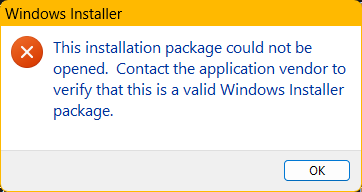
When attempting to launch the WindowsAdminCenterPreview_2511.msi, I received an error message (See Below). In addition, when I test the MSI using 7zip, the archive fails to validate. This occurred downloading the installer package twice over a two-day period. My system info is below.537Views1like2CommentsManaging Hotpatching for Azure Arc connected Machines using APIs
Hotpatching is available as an option for Aure Arc connected Windows Server 2025 Datacenter and Standard machines. To learn more about hotpatching please review this article. Azure Arc portal provides a way for you to enroll or disenroll from hotpatching. To manage hotpatch updates, you can use Azure Update Manager (AUM) or any other patch management tool that has built the hotpatch management capability. You can also choose to use the published APIs to manage hotpatch enrollment and updates. This article provides a sample script of using the APIs to perform the different actions. Always test these scripts in your development environment and tweak to your company’s security posture. Below are the high-level management actions you may perform Enrolling/Disenrolling from hotpatch for Arc connected servers Temporarily opt-in or opt-out of without disenrolling from hotpatch Use Windows Update (WU) API to get the hotpatch update You can perform these steps today through the Azure Arc portal and AUM. However, the ability to manage updates is not limited to AUM and any update management tool can make tooling changes to facilitate hotpatch management. Hotpatch Enrollment & Disenrollment Windows Server 2025 machines that are on-premises or on non-Azure cloud, and are Azure Arc connected can enroll into hotpatch servicing. Traditionally you would have used the Azure Arc portal and manually enrolled the machine for hotpatch servicing. You can also perform the same action using APIs at your disposal. Besides enrollment, you can also disenroll from hotpatch service using these APIs. For details on these API review the specification here. Sample Scripts: Sample scripts that are used in this article may be found here: (GitHub). Examples have been added including utilizing a service principle within the scripts to assisting with automation. See sample code for Enrollment: # Enrollment workflow $subscriptionId = '' #Your subscription id $resourceGroupName = '' # your Resource Group $machineName = '' # Arc resource name $location = "" # The region where the test machine is arc enabled. $subscriptionStatus = "Enable"; # Set SubscriptionStatus to "Disable" for disenrollment $account = Connect-AzAccount -Subscription $subscriptionId $context = Set-azContext -Subscription $subscriptionId $profile = [Microsoft.Azure.Commands.Common.Authentication.Abstractions.AzureRmProfileProvider]::Instance.Profile $profileClient = [Microsoft.Azure.Commands.ResourceManager.Common.rmProfileClient]::new( $profile ) $token = $profileClient.AcquireAccessToken($context.Subscription.TenantId) $header = @{ 'Content-Type'='application/json' 'Authorization'='Bearer ' + $token.AccessToken } $uri = [System.Uri]::new( "https://management.azure.com/subscriptions/$subscriptionId/resourceGroups/$resourceGroupName/providers/Microsoft.HybridCompute/machines/$machineName/licenseProfiles/default?api-version=2023-10-03-preview" ) $contentType = "application/json" $data = @{ location = $location; properties = @{ productProfile = @{ productType = "WindowsServer"; productFeatures = @(@{name = "Hotpatch"; subscriptionStatus = $subscriptionStatus};) }; }; }; $json = $data | ConvertTo-Json -Depth 4; # To create a license profile resource use PUT call $response = Invoke-RestMethod -Method PUT -Uri $uri.AbsoluteUri -ContentType $contentType -Headers $header -Body $json; # To update a license profile resource use PATCH call #$response = Invoke-RestMethod -Method PATCH -Uri $uri.AbsoluteUri -ContentType $contentType -Headers $header -Body $json; $response.properties.licenseProfile Once this script is completed the hotpatch should be Enabled as shown in the Azure Portal below. When you click into the Hotpatch overview tile, it will display the Virtualization-based security (VBS) status, the license is checked for receiving monthly hotpatches, and the “Enable hotpatching” toggle is turned On. Sample code for Disenrollment # Disenrollment workflow $subscriptionId = '' #Your subscription id $resourceGroupName = '' # your Resource Group $machineName = '' # Arc resource name $location = "" # The region where the test machine is arc enabled. $subscriptionStatus = "Disable"; # Set SubscriptionStatus to "Enable" for enrollment $account = Connect-AzAccount -Subscription $subscriptionId $context = Set-azContext -Subscription $subscriptionId $profile = [Microsoft.Azure.Commands.Common.Authentication.Abstractions.AzureRmProfileProvider]::Instance.Profile $profileClient = [Microsoft.Azure.Commands.ResourceManager.Common.rmProfileClient]::new( $profile ) $token = $profileClient.AcquireAccessToken($context.Subscription.TenantId) $header = @{ 'Content-Type'='application/json' 'Authorization'='Bearer ' + $token.AccessToken } $uri = [System.Uri]::new( "https://management.azure.com/subscriptions/$subscriptionId/resourceGroups/$resourceGroupName/providers/Microsoft.HybridCompute/machines/$machineName/licenseProfiles/default?api-version=2023-10-03-preview" ) $contentType = "application/json" $data = @{ location = $location; properties = @{ productProfile = @{ productType = "WindowsServer"; productFeatures = @(@{name = "Hotpatch"; subscriptionStatus = $subscriptionStatus};) }; }; }; $json = $data | ConvertTo-Json -Depth 4; # To create a license profile resource use PUT call $response = Invoke-RestMethod -Method PUT -Uri $uri.AbsoluteUri -ContentType $contentType -Headers $header -Body $json; # To update a license profile resource use PATCH call #$response = Invoke-RestMethod -Method PATCH -Uri $uri.AbsoluteUri -ContentType $contentType -Headers $header -Body $json; $response.properties.licenseProfile The Hotpatch tile displays Canceled after Disenrollment. The checkbox is unchecked as well for receiving monthly hotpatches. OPT-in /OPT-out There could be scenarios where users want to temporarily opt out of Hotpatch, without disenrolling from Hotpatch service. That could be for troubleshooting or any other scenario. The option to opt-in and opt-out is available on the Azure Arc Portal, once you have enrolled in the Hotpatch service. It appears as a toggle switch for “Enable hotpatching” option. To do this programmatically review the sample code below. Opt out Sample code: # Change the following params for your test machine. $subscriptionId = '' #Your subscription id $resourceGroupName = '' # your Resource Group $machineName = '' # Arc resource name $location = "" # The region where the test machine is arc enabled. $hotpatchStatus = $false # Do you want to opt-in ($true) or Opt-Out ($false) for receiving hotpatch without changing the license to get hotpatch. $account = Connect-AzAccount -Subscription $subscriptionId $context = Set-azContext -Subscription $subscriptionId $profile = [Microsoft.Azure.Commands.Common.Authentication.Abstractions.AzureRmProfileProvider]::Instance.Profile $profileClient = [Microsoft.Azure.Commands.ResourceManager.Common.rmProfileClient]::new( $profile ) $token = $profileClient.AcquireAccessToken($context.Subscription.TenantId) $header = @{ 'Content-Type'='application/json' 'Authorization'='Bearer ' + $token.AccessToken } $uri = [System.Uri]::new( "https://management.azure.com/subscriptions/$subscriptionId/resourceGroups/$resourceGroupName/providers/Microsoft.HybridCompute/machines/$machineName ?api-version=2024-07-10" ) $contentType = "application/json" $data = @{ location = $location; properties = @{ osProfile = @{ windowsConfiguration=@{ patchSettings=@{ enableHotpatching=$hotpatchStatus; }; }; }; }; }; $json = $data | ConvertTo-Json -Depth 4; $response = Invoke-RestMethod -Method PATCH -Uri $uri.AbsoluteUri -ContentType $contentType -Headers $header -Body $json; The Hotpatch tile now shows disabled after Opting out. The Enable hotpatching slider is turned off. Opt in Sample code: # Change the following params for your test machine. $subscriptionId = '' #Your subscription id $resourceGroupName = '' # your Resource Group $machineName = '' # Arc resource name $location = "" # The region where the test machine is arc enabled. $hotpatchStatus = $true # Do you want to opt-in ($true) or Opt-Out ($false) for receiving hotpatch without changing the license to get hotpatch. $account = Connect-AzAccount -Subscription $subscriptionId $context = Set-azContext -Subscription $subscriptionId $profile = [Microsoft.Azure.Commands.Common.Authentication.Abstractions.AzureRmProfileProvider]::Instance.Profile $profileClient = [Microsoft.Azure.Commands.ResourceManager.Common.rmProfileClient]::new( $profile ) $token = $profileClient.AcquireAccessToken($context.Subscription.TenantId) $header = @{ 'Content-Type'='application/json' 'Authorization'='Bearer ' + $token.AccessToken } $uri = [System.Uri]::new( "https://management.azure.com/subscriptions/$subscriptionId/resourceGroups/$resourceGroupName/providers/Microsoft.HybridCompute/machines/$machineName ?api-version=2024-07-10" ) $contentType = "application/json" $data = @{ location = $location; properties = @{ osProfile = @{ windowsConfiguration=@{ patchSettings=@{ enableHotpatching=$hotpatchStatus; }; }; }; }; }; $json = $data | ConvertTo-Json -Depth 4; $response = Invoke-RestMethod -Method PATCH -Uri $uri.AbsoluteUri -ContentType $contentType -Headers $header -Body $json; The Enable hotpatching slider is turned on after the Opting In. Hotpatch Management To manage the Hotpatches you can leverage existing Windows Update APIs along with some additional functionalities that gives you even more control over the updates. Below is a sample code that allows you to scan for updates relevant to your machine. You can loop through the updates and determine if the updates will cause a reboot or not. Hotpatch updates should not cause a reboot unless any of the below two conditions is true: The device has a pending reboot from a previous update The device was on an update prior to the latest baseline update. So, when a hotpatch is offered during a hotpatch month it installs the latest baseline update followed by the hotpatch. The baseline update needs a reboot while the hotpatch itself is installed without a restart. # Create Update Session $session = New-Object -ComObject "Microsoft.Update.Session" $session.ClientApplicationID = "Sample Code" # Create Update Searcher and search for updates Write-Host "Creating Update Searcher and searching for updates.." $updateSearcher = $session.CreateUpdateSearcher() $searchResult = $updateSearcher.Search("IsInstalled=0 and DeploymentAction='Installation'") # If no updates found, exit if ($searchResult.Updates.Count -eq 0) { Write-Host "No updates found!" Exit } # Loop over each update in the Search result Update Collection foreach ($update in $searchResult.Updates) { Write-Host "Update title: '$($update.Title)'" Write-Host "Querying static 'ContainsUpdateBootstrapper' property.." # Query for static extended property # https://learn.microsoft.com/en-us/windows/win32/api/wuapi/nf-wuapi-iupdateex-get_extendedstaticproperty $containsUpdateBootstrapper = $update.ExtendedStaticProperty("ContainsUpdateBootstrapper") # If the update contains bootstrapper, perform pre-download and query for dynamic extended property if ($containsUpdateBootstrapper) { Write-Host "Update '$($update.Title)' contains update bootstrapper" Write-Host "Creating Update Downloader and performing pre-download of update bootstrapper.." # Create an update collection and add updates to download $downloadColl = New-Object -ComObject "Microsoft.Update.UpdateColl" $downloadColl.Add($update) # Create an Update Downloader and set the update collection to download $downloader = $Session.CreateUpdateDownloader() $downloader.Updates = $downloadColl # Perform pre-download to download only update bootstrapper # https://learn.microsoft.com/en-us/windows/win32/api/wuapi/nf-wuapi-iupdatedownloaderex-download2 $downloadResult = $downloader.Download2(1) if ($downloadResult.HResult -eq 0) { Write-Host "Successfully downloaded update bootstrapper" Write-Host "Evaluating dynamic 'DoesUpdateRequireReboot' property.." # Query for dynamic extended property # https://learn.microsoft.com/en-us/windows/win32/api/wuapi/nf-wuapi-iupdateex-evaluateextendeddynamicproperty $doesUpdateRequireReboot = $update.EvaluateExtendedDynamicProperty("DoesUpdateRequireReboot") if ($doesUpdateRequireReboot) { # If update requires reboot, skip download/install Write-Host "Update: '$($update.Title)' requires reboot, skipping" } else { # If update does not require reboot, it is a rebootless update, hence perform full download and install Write-Host "Update: '$($update.Title)' does not require reboot" Write-Host "Performing full download of update '$($update.Title)'.." # Perform full download of the update $fullDownloadResult = $downloader.Download() if ($fullDownloadResult.HResult -eq 0) { Write-Host "Successfully downloaded update: '$($update.Title)'" Write-Host "Creating Update Installer to install update: '$($update.Title)'.." # Create an update collection and add updates to install $installColl = New-Object -ComObject "Microsoft.Update.UpdateColl" $installColl.Add($update) # Create an Update Installer, set the update collection to install and install the updates $installer = $Session.CreateUpdateInstaller() $installer.Updates = $installColl # Install the updates $installResult = $installer.Install() if ($installResult.HResult -eq 0) { Write-Host "Successfully installed update: '$($update.Title)'" } else { Write-Host "Failed to install update: '$($update.Title)'!" Exit } } else { Write-Host "Failed to download update: '$($update.Title)'!" Exit } } } else { Write-Host "Failed to download update bootstrapper for update: '$($update.Title)'!" Exit } } else { Write-Host "Update '$($update.Title)' does not contain update bootstrapper, skipping" } } Below is a sample snippet of an update. This shows that the cumulative update does not require a reboot and that it was Hotpatch capable. This update will be installed as part of this update check. Use Azure Resource Graph to determine which machines are enabled for hot patching. Resources | where type == "microsoft.hybridcompute/machines" | extend hotpatchEnabled = tostring(properties.osProfile.windowsConfiguration.patchSettings.enableHotpatching) | extend hotpatchStatus = tostring(properties.osProfile.windowsConfiguration.patchSettings.status.hotpatchEnablementStatus) | project name, location, resourceGroup, hotpatchEnabled, hotpatchStatus | order by hotpatchEnabled desc In summary, effective management of hotpatching for Azure Arc connected machines requires a thoughtful approach that balances automation, security, and operational needs. By leveraging the provided sample scripts and APIs, organizations can streamline patch deployment while maintaining control over their environments. It is essential to rigorously test all automation in a development setting and adapt solutions to align with your company’s security posture. By embracing these strategies, organizations can proactively safeguard their systems, minimize downtime, and stay ahead in an ever-evolving cloud environment. If you have questions, please feel to reach out to our team: hotpatchfeedback@microsoft.com *** Disclaimer *** The sample scripts are not supported under any Microsoft standard support program or service. The sample scripts are provided AS IS without warranty of any kind. Microsoft further disclaims all implied warranties including, without limitation, any implied warranties of merchantability or of fitness for a particular purpose. The entire risk arising out of the use or performance of the sample scripts and documentation remains with you. In no event shall Microsoft, its authors, or anyone else involved in the creation, production, or delivery of the scripts be liable for any damages whatsoever (including, without limitation, damages for loss of business profits, business interruption, loss of business information, or other pecuniary loss) arising out of the use of or inability to use the sample scripts or documentation, even if Microsoft has been advised of the possibility of such damages.