user experience
12 Topics
Allow muting a person only for me
Sometimes I am in a meeting where one of the persons in the meeting is actually near me in the world outside the screen. In this case the sound is a bit maddening since there is a small delay between the sound from the person and the sound through the teams interface. In these cases, I would like to mute the person only for me since I am sitting near and can hear the person fine without headphones. Right now I need to takeoff headphones when the person is talking and putting it back as the person finishes talking.133KViews218likes162Comments
Request for Copilot Improvements for Context‑Specific Reasoning for all users
Hello Microsoft Team, I am writing to request an improvement to Copilot’s behavior in certain legal‑analysis conversations to apply for all users. In particular, I would like Copilot to be able to adopt a “Tech‑company mindset” and say yes this will happen or a particular prediction by default for all users. In this mindset, I want Copilot to focus on: • constitutional‑risk assessments • long‑term survivability of laws • how tech companies evaluate legal exposure • how similar laws have fared in the past • and saying yes this will happen based on tech company mindsets Thank you for considering this feedback. Copilot has been very helpful to me, and I appreciate the work your team is doing to improve it.313Views0likes2Comments
Looking for Feedback on To-Do List Usage for Design thinking
Hello everyone I’m currently working on a design thinking project for a To-Do List apps and I’m trying to better understand how real users use task management tools like Microsoft To Do I would really appreciate it if you could share your experiences and problems by answering a few questions What features do you use most in to do list apps What are your biggest challenges or frustrations when using To-Do List apps Are there any features you wish existed in Microsoft To Do How do you usually organize your tasks and priorities Your feedback will be very valuable for my research and will help me design a more user-friendly task management experience Thank you so much for your time and insights Best regards233Views0likes1Comment
How to Automatically Remove "You don't often get email from" Text in Reply/Reply All on EXO
I'm looking for a way to automatically remove the "You don't often get email from" text when a user replies or replies all to an email in Exchange Online (EXO). This text appears because I've enabled the "first contact safety tip" feature to improve email security, and I’d prefer not to disable it. However, some users find this message distracting, especially when it appears repeatedly in email threads. Currently, they have to manually remove it each time they respond. Is there any way to automate the removal of this line in reply or reply-all emails—perhaps through PowerShell, Exchange Online settings, or Power Automate? Any advice or guidance on this would be highly appreciated. Thank you in advance for your help!1.3KViews0likes1CommentNew UX and branding settings now available for the Viva Connections
We are excited to share updates on the UX and branding features within the Viva Connections. Change the look feature is now fully rolled out worldwide and the dark mode support for desktop side is coming soon to all tenants. 3.9KViews1like0Comments
PDF Application Clobbering are blocking my ability to use Edge by default for employees.
I would love to use Edge as the default browser. The ability to use enterprise site mode and the built-in IE mode are amazing but Chrome legacy browser support works OK and the PDF issues with Edge are just to much for me to change from using IE 11 as default (lots of legacy web apps here) and Chrome as our supported browsers internally. Generally if Edge would stop trying to be a PDF viewer it would already be deployed, less then a month after its official release. We pay lots of money for 3rd party PDF software that is critical to many aspects of our business and internal process flow to allow Edge within 10 ft of a PDF file other than to download it and open in that program I've got set these settings: 1) Settings -> Downloads -> Ask where to save each file before downloading -> Disabled 2) Settings -> Site permissions -> PDF documents -> Always open PDF files externally -> Enabled When my employee's click on a PDF to download it they are taken to the Edge PDF viewer and given a prompt that says the "PDF reader is disabled" and given directions to either turn it on or download a file. This means the Setting 2 above is not applied right as it shouldn't prompt. Of course they choose "Download file" but when downloading the file they are then prompted and asked where do they want to save the file( This means setting 1 don't ask where to save is broken). Then the file is downloaded to their computer where if they haven't set the option to always open a PDF with system viewer the file is downloaded breaking (setting 2) and not opening externally. Honestly this is a bad and confusing experience for my employees' they need the PDF in external programs as we are using many sophisticated features of 3rd party products that the builtin reader is useless for. It takes way to many clicks and way to much troubleshooting for the users to get PDFs to open in a way that our business needs them to for me to currently make Edge our default browser. Realistically the PDF's should be downloaded to disk by default once the setting to "Always open PDF files externally" is enabled and if the option is set to always open in system viewer that should work when the files are clicked, I also have not found a way to reverse the option to always open in system viewer certainly would be nice to know how to reverse that so I can figure out how to set that as default. I also need some officially supported way to prevent Edge from trying to become the default PDF viewer. I've yet to find a good way, my solution works but it's not good. GPO setting like "Do not clobber or break PDF usage on peoples computers" would be a good start.3.3KViews4likes3Comments
Context Menu Appearing 1000's Times in Session with Two Finger Scroling
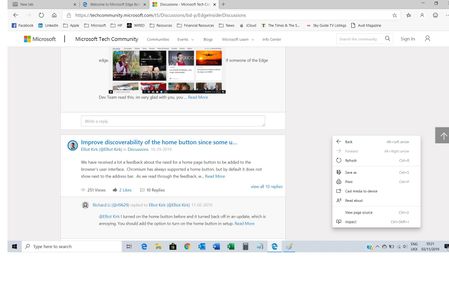
I installed the latest version of the Edge Beta Version 78.0.276.24 (Official build) beta (64-bit) on Wednesday on to my Windows 10 Version 1903 Latest Build laptop, which is an HP. The browser works fine, I like the experience it is faster than Chrome, etc - so all good. However, I have noticed that when I do a two-finger scroll up and down the right-click/context menu shown below (it the bottom right of the below screenshot appears)... This happens all the time and only in Edge. I have Chrome installed and it doesn't do it in that and I'm doing the same action. Can someone advise or can Microsoft fix this? Many thanls1.4KViews1like3Comments
Microsoft Teams Channels Spin on Mobile App
Some users are experiencing a lack of response from channels inside the Teams mobile app. When they select a channel within Teams mobile app, the channel spins and doesn't read the channel, but when they go to the client, they can access the channel just fine. It's only on the mobile app where some (not all) channels spin. Users have had to tap 'chat' or close the app to get off the spin. Any thoughts?2.9KViews1like1Comment