usb
17 TopicsUSB Driver Documentation Updates on UCSI, USB4 Testing
Over the past few months, we've been running a freshness pass across the USB driver documentation on Microsoft Learn and the USB4 design guidelines. The goal is straightforward: make sure the docs match the current Windows 11 driver stack, read clearly, and get you to the answer faster. Here's what changed. USB4 required testing: new Basic Validation Tests The USB4 ecosystem has grown significantly. As the number of USB4 router implementations grows, so does the need for a clear, repeatable validation baseline. We added a new Basic Validation Tests section to the USB4 Required Testing page. The existing page already listed the recommended end-to-end test scenarios: driver verifier, domain power-down, wake replay, interdomain connections, and so on. What was missing was a concise set of smoke tests that OEMs and IHVs could run quickly to catch regressions in incremental USB4 firmware and driver updates without needing a full test pass. The new section fills that gap with nine concrete test scenarios: USB4 HLK Tests: run all System.Fundamentals.SystemUSB.USB4.* and Device.BusController.USB4.* tests. Basic Enumeration: attach a USB4 dock and a Thunderbolt 3 dock, each with a display, USB3 storage, and USB2 input. Verify clean enumeration in Device Manager, functional input, file copy, and display extension. Display: verify two 4K displays at 60 Hz concurrently, both tunneled through a USB4 dock and directly via DisplayPort Alt Mode. Camera (Isochronous) Streaming: stream from a USB3 camera through a USB4 dock for at least one minute with no visible glitches. System Standby: attach a full dock topology, cycle standby five times with 30-second to 2-minute waits, and verify all devices survive each transition. System Reboot: same topology, same verification, but with a full reboot instead of standby. System Hibernate: same again, with hibernate. Minimal Compatibility and Interoperability: test at least 3 display models and at least 10 USB4 dock or device models spanning Intel Thunderbolt 4, Intel Thunderbolt 5, Via USB4, Asmedia USB4, Realtek USB4, Intel Thunderbolt 3 Titan Ridge, and Intel Thunderbolt 3 Alpine Ridge. Basic Plug/Unplug with USB4 Switch: configure the USB4 Switch with a USB4 dock on port 1 and a Thunderbolt 3 dock on port 2, run ConnExUtil.exe /cxstress for a minimum of 15 minutes (24+ hours for long-term stability), then verify the port still enumerates and charges after the test. Each test includes explicit pass criteria: no yellow bangs, no visual glitches, expected resolution and refresh rates confirmed in the Advanced Display settings. The interoperability test (test 8) is particularly important as USB4 matures: it ensures your platform works across the full range of silicon vendors, not just the one on your bench. If you're validating USB4 firmware or driver updates and need a quick confidence check before a broader test pass, this is the list to start with. UCSI driver docs: cleaned up and refocused on Windows 11 The UCSI driver article got a thorough refresh: updated architecture diagram, clearer UCSI 2.0 _DSM backward-compatibility guidance, reformatted UCSIControl.exe test instructions with proper inline code for registry paths, and consistent code-style formatting across the DRP role detection and charger mismatch example flows. We also removed outdated Windows 10 Mobile references so the article now focuses exclusively on Windows 10 desktop and Windows 11. USB generic parent driver (Usbccgp.sys): plain language rewrite The Usbccgp.sys article, the starting point for anyone building composite USB devices, was rewritten for clarity. We simplified jargon-heavy sentences, expanded abbreviations on first use (e.g., "information (INF) file"), updated cross-references to sentence case per the Microsoft Learn style guide, and added customer-intent metadata for better search discoverability. Community fix: interrupt endpoint direction Here's a small one that matters more than it looks. In the How to send a USB interrupt transfer (UWP app) article, the Interrupt IN transfers section incorrectly stated that HID devices like keyboards "support interrupt OUT endpoints." Endpoint direction is fundamental (IN means device-to-host, OUT means host-to-device) and getting that wrong in official documentation can send you down entirely the wrong debugging path. A community contributor spotted the error and submitted the fix. It now correctly reads "interrupt IN endpoints." If you've ever stared at a USB trace wondering why your interrupt transfer wasn't behaving, this might have been part of the confusion. Thank you to everyone who submits pull requests. This is exactly the kind of contribution that makes the docs better for all of us. What's next These updates are part of a broader freshness initiative across the Windows Hardware driver documentation. If you spot something that looks outdated or confusing, our documentation is open source. Submit a PR on the windows-driver-docs GitHub repository. You can also drop a comment below.470Views0likes0CommentsExploring USB4 in Windows Device Portal
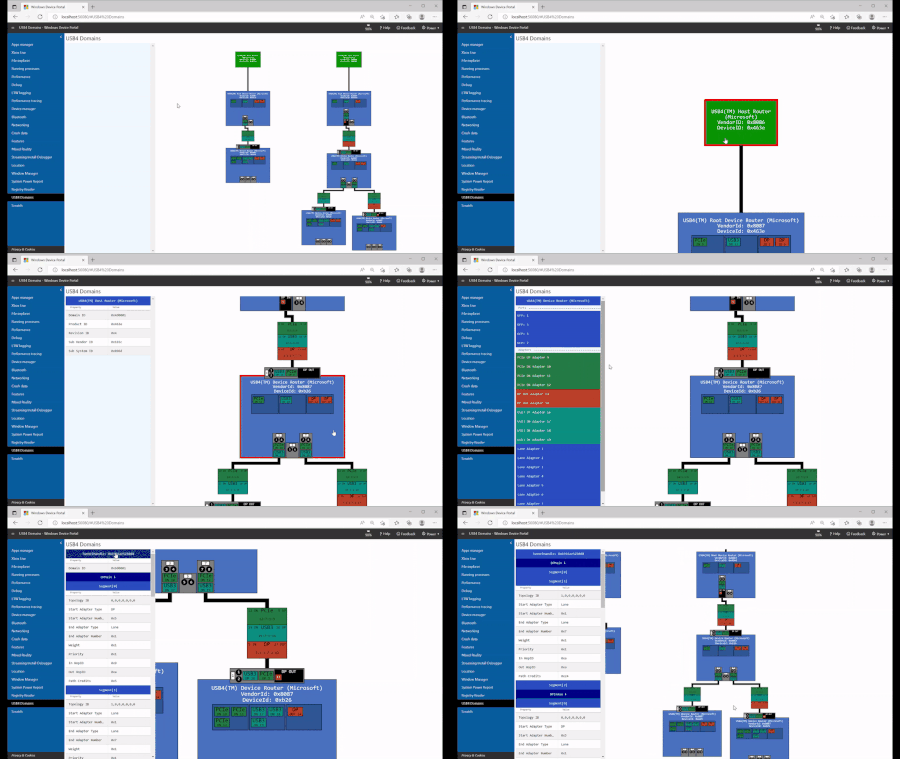
Overview USB4™ brings high-speed connectivity and advanced tunneling capabilities to modern Windows devices. To help developers and IT professionals visualize and manage USB4 topologies, Windows provides the USB4 domain viewer via the Windows device portal. Key Features of the USB4 Domain Viewer Topology Visualization Displays USB4 host routers (in green) and device routers (in blue). Supports click-and-drag navigation and zooming for detailed inspection. Automatically updates as the topology changes. Host Router Details Each host router includes Name, VendorId, and DeviceId. Selecting a router reveals additional details in the sidebar. Device Router Details Shows adapters and ports, distinguishing in-use adapters from unused ones. Selecting an adapter highlights it with a red circle for quick identification. Tunnel Visualization Tunnels between device routers are illustrated clearly. Each tunnel uses a colon-separated unique ID (e.g., 8:1:1:9) for easy reference. Context-Specific Sidebar Updates dynamically based on selected elements (routers, adapters, tunnels). Allows collapsing or expanding details for streamlined viewing. Why It Matters The USB4 Domain Viewer simplifies troubleshooting and topology analysis for OEMs, IHVs, and developers. By providing real-time visualization and granular details, it accelerates debugging and ensures compliance with USB4 standards. Getting Started Access the USB4 Domain Viewer through the Windows Device Portal on supported devices. For more details, visit the official Microsoft Learn documentation. © 2025 Microsoft. USB4®, USB Type-C® and USB-C®, USB 2.0 Type-C™ are registered trademarks of USB Implementers Forum, Inc. Thunderbolt™ is a trademark of Intel Corporation. This article is not endorsed by or affiliated with USB-IF.877Views0likes0CommentsEnding USB-C® Port Confusion
The Blank Display (and Why It Can Still Happen) Five minutes before a customer demo, I plug my 4K monitor into the USB-C port on a brand-new laptop. The display doesn’t light up, and now I’m scratching my head—the cable fit, so why isn’t it working? USB4® carries the promise of a single USB Type-C® port that can do it all – charging, high speed data, multiple displays, and compatibility with Thunderbolt™ peripherals. However, Windows Diagnostics Data shows that 27% of PCs with USB4 have encountered a limited functionality notification, meaning that a customer plugged a USB-C device in, but a feature (alternate mode) that device needs was not implemented on the PC and Windows notified the user. The reversible USB Type-C connector isn’t the problem, the inconsistent implementations of USB-C port capabilities across the PC ecosystem is. USB Power Delivery on USB-C ports can deliver up to 240 W of power, and USB4 (which is only available over USB-C) can deliver up to 80Gbps bandwidth (up to 120Gbps for Displays), DisplayPort Alt Mode, DisplayPort and PCIe tunneling, and support for Thunderbolt™ peripherals – all through one connector. But the promise of 'universal' in Universal Serial Bus (USB) only matches user expectations if every port delivers a consistent experience, regardless of laptop manufacturer implementation choices. So why does the demo fail? Because not all USB-C ports are created equal. You can’t tell which ones deliver the full experience just by looking at them. In this case, if the PC doesn’t support DisplayPort Alternate Mode functionality, that monitor won’t light up even though the cable fits. PC manufacturers can implement ports that look identical but differ wildly in functionality: one may charge your laptop and run a 4K display; another might only deliver USB 2.0 data speeds. The USB specification allows this, and without clear enforcement, the consumer experiences frustration, guesswork, and endless troubleshooting. This isn’t new. As USB specification versions have evolved and added new capabilities, the complexity has sometimes left consumers in the dark, especially when ports aren’t labeled clearly. Most people don’t know what “USB 3.2 Gen 2x2” means or which port supports what features. That’s why we’re pleased to see the USB-IF introduce simpler, clearer branding guidelines like “USB 40Gbps” and “USB 80Gbps”, making it much easier for everyone to understand exactly what each port can do. We think it’s important for this clear branding to carry through to the actual customer experience with USB-C ports on Windows 11 PCs. While the USB specifications give PC manufacturers the ability to choose which optional features the port supports, we set out to establish a minimum bar for USB-C port capabilities on PCs. Figure 1 Table of the capabilities required by WHCP for mobile Windows systems The Windows Hardware Compatibility Program (WHCP) comes in to turn this table into reality – turning optional features into mandatory ones, and ensure a consistent level of performance you can count on. The table above reflects what you can reliably expect from USB-C ports on WHCP-certified mobile PCs. Some USB 40Gbps and USB 80Gbps ports on Windows 11 PCs are also certified by Intel under the Thunderbolt™ brand, allowing them to be labeled as Thunderbolt™ 4 or Thunderbolt™ 5, respectively. You can rest assured that Thunderbolt™-branded ports meet all the rigorous requirements of both Microsoft’s WHCP program and Intel’s Thunderbolt™ program. Additionally, to qualify to use the Thunderbolt™ brand from Intel, the product must first be certified by the USB-IF. Two Firm Promises of USB-C on Windows 11 When we set out to improve the USB-C experience with WHCP, we started by defining the customer promises that we wanted to achieve. This came down to two simple goals: USB Data, Charging and Display “just works” on all USB-C ports: Your favorite USB 1, USB 2, and USB 3 peripherals, chargers and displays will work exactly as advertised on any USB-C port on your WHCP-certified Windows 11 device. Systems that support USB 40Gbps also give full compatibility with USB4 and Thunderbolt™ 3 peripherals: On a WHCP-certified USB 40Gbps system, you can also plug in any USB4 or Thunderbolt™ 3 device and trust it will work every time on every port. To ensure that certified Windows 11 PCs deliver on these goals, we introduced new and updated WHCP requirements alongside the release of Windows 11, version 24H2, that are laser focused on them. What every USB-C port needs to nail WHCP compliance All mobile systems with USB-C ports Meeting our first customer promise, that USB Data, Charging and Display “just works” on all USB-C ports, requires any WHCP compliant mobile PC with USB-C to support a baseline set of requirements. No matter what speeds your USB-C ports support, every port can be expected to deliver the following: You can trust that your devices will work flawlessly, avoiding the frustration of unreliable connections, as we require USB-IF certified silicon in the PC. This guarantees that every connection is robust and reliable through USB-IF certification or equivalent electrical compliance, rigorously tested for compatibility in a lab. Your devices will charge efficiently and consistently as every USB-C port on a certified PC needs to support USB Power Delivery charging. DisplayPort Alt-Mode is required for all USB-C ports to support connecting monitors. When you plug a display in, you can feel confident it will work well because the ports have to be VESA certified. The Microsoft driver stack requirement means PCs are validated using Microsoft’s built-in USB controller drivers. This ensures that security and feature updates arrive via Windows Update, keeping your system secure and up-to-date without any hassle. All Mobile Systems Advertising USB 40Gbps or 80Gbps Support WHCP qualified systems with USB 40Gbps or 80Gbps also deliver the second customer promise, full compatibility with USB4 and Thunderbolt™ 3 peripherals, ensuring top-tier performance and compatibility: This ensures lightning-fast data transfers, making large file transfers and high-speed internet connections a breeze. Baseline bandwidth means every certified Windows 11 PC advertising USB 40Gbps must sustain full speed 40Gbps links on all USB-C ports. To enable you to expand your system’s capabilities without any compatibility issues, we require PCI Express tunnelling that allows external GPUs and NVMe enclosures to work seamlessly because host routers tunnel PCIe on every port. You can continue using your favorite peripherals without any interruptions as we require Thunderbolt™ compatibility ensures that existing Thunderbolt™ docks remain plug and play. DisplayPort requirements ensure support for up to two 4K monitors at 60Hz, providing a stunning visual experience for your work and entertainment. Finally, sleep and resume resilience ensures that host routers survive low-power states without dropping tunnels. This means your system remains reliable and connected, even when it’s in sleep mode. WHCP eliminates the worry of powering devices you plug-in by requiring uniform port power requirements ensures that each USB 40Gbps port sources at least 15 W (7.5 W on tablets). Note: USB4 ports on the system must support sourcing at 15W from all ports but not all at the same time. Tablet form factor systems are not required to support 15W but must support at least 7.5W. Systems may limit individual port power below 15W when total requested power across multiple ports exceeds the system’s power budget. WHCP already covers the next spec bump. Any PC that advertises USB 80 Gbps must meet all the above requirements, while also supporting operation in symmetric 80 / 80 Gbps mode and asymmetric 120 / 40 Gbps mode for increased display bandwidth. How we enforce it: The Hardware Lab Kit That “it just works” moment isn’t magic; it’s the result of a tightly choreographed process: Translate Pain into Policy We reflect on user feedback, telemetry, and field failures—like the left-port-only monitor issue—and convert each into a discrete WHCP requirement with acceptance criteria. Author Automated Tests Our team writes reproducible, automated Windows Hardware Lab Kit (HLK) test cases for every requirement: signaling timing, speed negotiation, power delivery, DisplayPort/PCIe tunnels, sleep/resume resilience, and more. Partner-Led Validation OEMs, silicon vendors, and accessory brands run these HLK tests and submit logs to Microsoft. Any failure halts certification until the issue is resolved in hardware or firmware. Continuous Evolution WHCP updates with every Windows release. New tests and criteria flow via Windows Update—so fixes and feature enhancements reach end users without new hardware. Learn how to run HLK tests and meet the USB4 requirements at aka.ms/whcp If You’re an OEM or Accessory Maker Robust USB on Windows requires end-to-end testing—protocol compliance, signal integrity, power negotiation and security—and Microsoft’s USB Test Tool (MUTT) suite of hardware and automated scripts streamlines WHCP certification. Download MUTT and dive into the full device-, silicon-, and system-level requirements (including test collateral) for USB4 on Microsoft Learn: MUTT suite: https://learn.microsoft.com/windows-hardware/drivers/usbcon/microsoft-usb-test-tool--mutt--devices USB4 requirements: https://learn.microsoft.com/windows-hardware/design/component-guidelines/usb4-required-testing PC manufacturers are on track to achieve WHCP compliance across most systems in the coming years. © 2025 Microsoft. USB Type-C® and USB-C®, USB 2.0 Type-C™ are registered trademarks of USB Implementers Forum, Inc. Thunderbolt™ is a trademark of Intel Corporation. This article is not endorsed by or affiliated with USB-IF.16KViews4likes9CommentsUSB Type-C Notifications in Windows: What OEMs Need to Know
Windows 11 includes built-in USB Type-C troubleshooting notifications designed to help users identify and resolve issues like slow charging, unsupported accessories, and faulty connections. These notifications are part of a broader effort to improve device reliability and user experience. While our previous post focused on the user experience, this update is for OEMs highlighting what’s required to ensure these notifications function correctly on your platforms. Why Notifications Might Not Appear USB Type-C notifications rely on accurate platform configuration. If notifications aren’t showing up, it’s often due to: Missing or incorrect ACPI markup: Windows uses ACPI descriptors to identify USB Type-C ports and their capabilities. If the port isn’t correctly marked as user-accessible or Type-C, notifications may not trigger. Incorrect connector type reporting: Mislabeling a Type-A port as Type-C (or vice versa) can lead to unexpected behavior or missed alerts. Internal vs. external port confusion: Ports marked as internal may suppress notifications even if they’re physically accessible to users. Validation and Testing To ensure compatibility: Use the Windows Hardware Lab Kit (HLK) to validate USB port descriptors. Confirm that _UPC (USB Port Capabilities) and _PLD (Physical Location of Device) ACPI methods are correctly implemented. Test with various charging scenarios, including underpowered chargers and hubs, to verify that notifications appear as expected. The link below has a table of the notifications and expected behaviours. Security Considerations Some OEMs may choose to disable data over USB Type-C in untrusted environments. If implementing such features: Ensure the policy applies only to externally accessible ports. Consider offering user toggles for data disablement. Validate that disabling data doesn’t interfere with critical internal devices (e.g., touchpad, keyboard). Recommendations for OEMs Audit ACPI descriptors and USB Device-Specific Method for all USB ports. See https://learn.microsoft.com/en-us/windows-hardware/drivers/bringup/usb-device-specific-method---dsm-#function-7-query-if-_upc-supports-usb-c-port-capabilities-as-defined-in-acpi-specification-65 Validate notification behavior across all supported configurations. Coordinate with Microsoft WHCP to ensure new platforms meet testing requirements. Document exceptions clearly if certain ports or configurations are unsupported. Learn More For technical details and troubleshooting guidance, refer to the official documentation: https://learn.microsoft.com/windows-hardware/drivers/usbcon/usb-type-c-troubleshooting-notifications1.3KViews1like0Comments
Enable Developer Mode at supervised iPad
We've just started introducing Microsoft InTune. We've managed to get our iPads registered an the onboarding seems to work. Now i've the challenge, that one of our users needs for testing and developing iOS Apps with apple xcode to have the developer mode enabled at his iPad device. XCode is not able to connect to the iPad and i think thats why the swith in Data Security and Privacy Settings doesn't even show up (and can not be enabled cause of this). I worked through all the settings regarding USB connections ("Limitiation") in InTune. No success so far. Is there any setting i can check to enable the user / the device to connect via USB to a Mac ? Any ideas appreciated Regards751Views1like2CommentsHow to recover files from corrupted USB drive on Windows 10?
Recently, I ran into a frustrating issue with my USB flash drive that left me feeling completely stuck. I plugged it into my Windows 10 PC, and while the drive did show up in File Explorer, I couldn’t open it. Instead, I got an error that said: "E:\ is not accessible. The file or directory is corrupted and unreadable." One day the USB was working fine, and the next day, I couldn’t access anything. The worst part is that this drive holds a lot of important family photos. So, formatting the USB drive (as many people suggest online) isn’t really an option for me right now. I’ve seen some people suggest using data recovery tools, but I’m not sure which ones actually work, or if I should go to a professional. Has anyone successfully recovered files from a corrupted USB like this? Any advice would be greatly appreciated.572Views0likes3Comments
Usb problems with Teams
I teach music through Teams and use a Focusrite sound interface. I have two questions... 1- When using the interface with Skype and Zoom I am able to have 2 channels working together, one for instrument and the other for speech. When using Teams, only the first channel is recognised. Any ideas? 2- I want to add another webcam via USB but currently when I try to connect my USB mouse it stops the sound interface working. Any ideas? I currently use a Surface Pro with only 1 USB port and so I have tried using a 4 to 1 USB extension. This works really well for audio recording on my imac. Any help would be greatly appreciated! Thanks, Stuart33KViews3likes14Comments
Enumerated USB Audio CODEC
In Windows 10 (and I assume 7 and earlier) if I plug a USB hardware device into several different USB ports on my computer running Windows 10, a new enumeration results even though the same driver is used. Example; if I plug the hardware into my computer's left most USB port on the front panel the hardware is enumerated as USB Audio CODEC. When I plug the same hardware into my computer's right most USB port on the front panel the hardware is enumerated as USB- 1 USB Audio CODEC. The saga continues especially when using USB hubs and the enumeration could easily get to be double digit enumeration names. 3rd party software that uses this hardware depends on seeing consist naming of the hardware that is plugged in, so the user must go to the software setup section and verify the correct hardware is selected in case the hardware was plugged into a different USB port on the computer. I'd like to be able to wipe the USB enumeration table from my Windows 10 installation since I've now decided what exact USB port the hardware will always be connected to (so the only enumeration name would be USB Audio CODEC). The Microsoft Community (non tech) suggested I use the USBDeview utility to delete the table. I have tried that and it did not work. As a test I deleted the last two enumerated devices; USB- 8 Audio CODEC and USB- 9 Audio CODEC from the list, rebooted. I then plugged the hardware into a new USB port on my computer, the OS enumerated the hardware as USB- 10 Audio CODEC. Is there a way to fix this issue or should I just live with the problem? Is there a limit to the number of enumerated names? Regards, Steve943Views0likes1Comment
USB Blocking After specific hours
Hello All, We have implemented Bitlocker for OS Drive and USB, which encrypts the drive on a Domain Joined Machines Recently we observed in one virtual session in their environment that if the USB drive/key is not used for one month or so on the workstations, the drive get disabled on workstations. I tried to check on all Group Policies settings for bitlocker and normal these settings seems not available. I guess they have integrated some additional tool But is it achievable using group policies.?613Views1like0Comments