sharepoint
100 TopicsSharePoint AI innovations hit GA, powering new Copilot app and agents
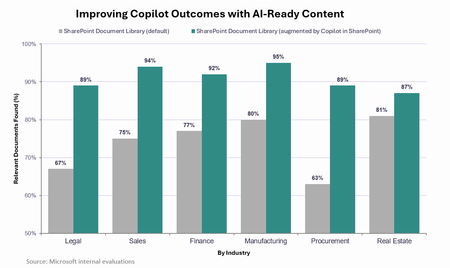
SharePoint AI innovations hit GA, powering new Copilot app and agents Today we announced the new Copilot app, bringing together how people assist, delegate, build, and automate work in one experience powered by Work IQ. Because Work IQ grounds these experiences in your work and organizational context, the quality and structure of knowledge behind them matters more than ever. The better that content gets, the better Copilot gets: in Microsoft evaluations, responses in the Copilot app improved by an average of 17 percentage points when the underlying content had been enriched and structured by Copilot. That’s why over the past year we’ve invested in Copilot’s content experiences and tools – both in the Copilot app and inside the content repository itself with the Copilot in SharePoint preview. In just the past month, millions of users have tried this preview, applying it to real-world challenges to translate complex content into tangible business value and accelerate their organization’s AI transformation.5.5KViews4likes1CommentSharePoint AI page authoring: Select, describe, and refine
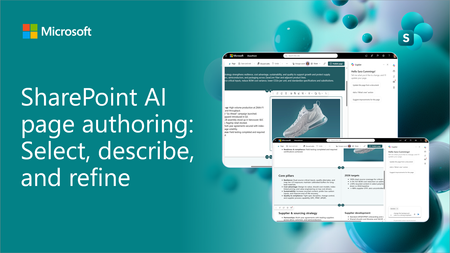
SharePoint AI page authoring is getting an updated experience with on-canvas selection. Authors can select a web part or section, describe the intended change in natural language, and review the results directly on the page. See the updated experience in action and learn how it makes page editing faster and more intuitive for both new and experienced authors.2.1KViews1like3CommentsIntroducing SharePoint News and Viva Engage cross-posting
SharePoint News can now be cross-posted directly to a Viva Engage storyline or community. The original post retains its full SharePoint experience, while comments, replies, and reactions stay synchronized across both platforms.3.2KViews12likes18CommentsWhat's New in Copilot in SharePoint: September 2026
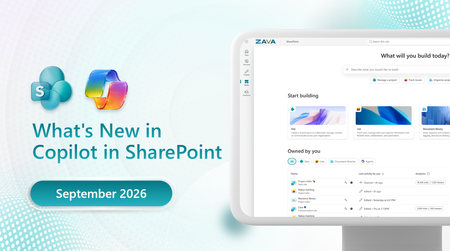
Your monthly roundup of what's new in Copilot in SharePoint. Copilot in SharePoint helps you do more with your content — ask questions, run workflows, and create sites, pages, interactive reports, and Office files using natural language. This month, reusable skills can follow you across SharePoint and OneDrive, Copilot can measure and improve those skills with evaluations, and new guidance helps AI agents build live, SharePoint-safe experiences. Here's everything that's new.8.7KViews3likes0CommentsSharePoint Flexible Sections just got more predictable and easier to use
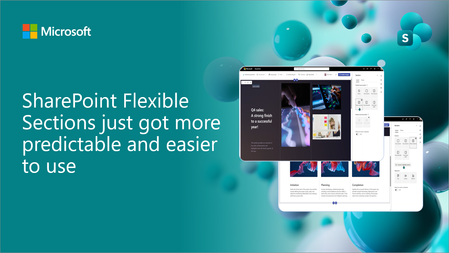
A new set of usability updates makes Flexible Sections more predictable and easier to author: column layout guides for cleaner reflow, a persistent grid toggle for at-a-glance structure, and one-click, non-destructive conversion from standard sections. Watch the demo and share your feedback in the comments; it's what keeps shaping what we build nex1.6KViews4likes3CommentsUpcoming changes to classic experiences in SharePoint Online
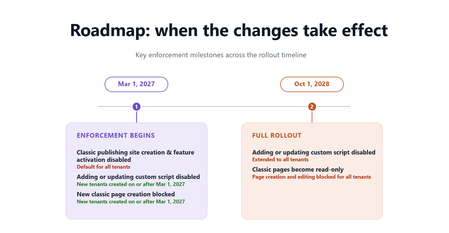
For the latest details, timelines, FAQs, and implementation guidance, read the full Microsoft Learn article. In 2016, we introduced modern SharePoint and the SharePoint Framework to our online service – a cloud-born user experience & developer extensibility framework. Ten years later, we continue to invest in this stable platform to provide reliable, well-governed, AI-ready, mobile-friendly, and secure-by-default foundations for customers’ publishing and content management needs. Also in 2016, we renamed our previous publishing and UX extensibility system to “classic”. These features were designed to ease our customers’ transition from on premises environment to the cloud service. Now, ten years later, these classic features are used by fewer than 5% of our monthly active tenant base, and the classic SharePoint page content is not participating in the latest ways content should be secured, managed, and shared. Classic pages are also not fully represented in the content formats that power Microsoft 365 Copilot, which can reduce the coverage and accuracy of Copilot responses that draw on classic content. As such, over the next two years, we will take steps to retire classic SharePoint pages and custom scripting add/update capability in SharePoint Online from Microsoft 365 – below you will find details on timelines, assessment tooling, and migration guidance. Overview We are introducing a set of changes to classic experiences in SharePoint Online across two phases. No classic page content or data will be deleted by Microsoft in these phases. Existing pages will remain accessible in a read-only form. Phase 1 – Beginning March 1, 2027 The following changes will take effect: For all tenants Creation of new classic publishing sites and activation of the classic publishing feature will be disabled for site collection and sub sites. The AllowClassicPublishingSiteCreation tenant setting will be enforced as False and cannot be changed. For new tenants created on or after March 1, 2027 Users cannot create new classic pages — including wiki pages, web part pages, blog pages, publishing pages, and custom ASPX pages. The ability to add or update custom scripts will be disabled by default, and the site setting DenyAddAndCustomizePages will be enforced as True and cannot be changed. Note that this setting applies only to classic pages — modern SharePoint pages are not affected, and custom solutions built on the SharePoint Framework (SPFx) will continue to work under your organization's existing governance. Phase 2 - Beginning October 1, 2028 The following changes will extend to all tenants: Classic user-created pages — including wiki pages, web part pages, blog pages, publishing pages, and custom ASPX pages — will become read-only. Users will no longer be able to create or edit these classic pages. The ability to add or update custom scripts will be disabled and the DenyAddAndCustomizePages site setting will be enforced as True and cannot be changed. What you should do now For SharePoint administrators: No data or content will be deleted by Microsoft as part of this change, and all existing data governance features will continue to be honored and continue to function. Discover and assess your classic SharePoint environment Identify usage of classic sites and pages across your tenant. Use the “SharePoint Classic Activities” Purview Audit log category - included in Audit (Standard) and available to all organizations, and events (ClassicPageCreated, ClassicPageEdited, and ClassicPageViewed) to identify active classic page usage, and leverage the Microsoft 365 Assessment Tool to understand the overall classic scope and modernization feasibility. Prioritize based on business importance and usage If your assessment finds no classic content, none of these changes apply to your organization — no action needed. Otherwise, focus first on high-value or frequently updated classic sites and pages, and identify where modernization will have the greatest impact. Classifying content by business criticality can help guide a phased migration plan. Transform to modern SharePoint experiences before enforcement deadlines SharePoint administrators should use modernization tools such as SharePoint PnP Modernization and SharePoint Page Modernization Agent to convert classic pages into modern SharePoint experiences where applicable. Microsoft will continue enhancing the tooling to accelerate page modernization with best-effort fidelity reservation, but it may not fully automate complex scenarios; modernization is a project that typically requires planning, resourcing, and highly customized pages often need redesign or manual rebuilding. Adopt a phased migration strategy Combine centralized IT-led planning and prioritization with distributed execution by site owners over time. Most organizations find success by modernizing page content in waves rather than attempting a single large-scale migration. For detailed guidance, tools, and step-by-step recommendations, refer to the Microsoft Learn article. For site owners and content authors: Site owners should work with their SharePoint administrators to identify classic sites and pages that are still actively used and determine which content should be modernized, retired, or replaced. Documentation, assessment tools, and migration guidance linked below can help organizations understand available modernization options and prepare for the transition. How do I get help? Refer to the following documentation, tools, and Microsoft partner resources to support your migration from classic SharePoint experiences: Modernize your classic SharePoint sites | Microsoft Learn Transform classic pages to modern pages | Microsoft Learn Microsoft 365 Assessment Tool Microsoft Solution Providers Learn more For complete details, timelines, FAQs, and ongoing updates, see the Microsoft Learn announcement. A Message Center post in the Microsoft 365 admin center has been sent to all tenants. (MC1464926 & MC1464924)7.7KViews0likes4CommentsSharePoint Showcase: 5 Ways Organizations Improve Business Processes with Copilot in SharePoint
AI becomes most impactful when it helps with the work teams already do every day. The challenge is rarely a lack of information. It is turning trusted information into a clear, repeatable process without starting from scratch each time. That is where Copilot in SharePoint can help. It works with the content and structure already in SharePoint, including sites, pages, lists, libraries, and files. Teams can ask questions, compare and summarize content, organize information, create outputs, and turn repeatable multi-step processes into reusable skills. The examples below are based on real customer scenarios from organizations exploring Copilot in SharePoint. To protect customer confidentiality, organization names and identifying details have been generalized. What matters is the pattern: start with trusted SharePoint content, define the work that needs to happen, keep people in control, and make the process easier to repeat.2.1KViews0likes0CommentsSharePoint Showcase: 10 Custom AI Skills Every SharePoint Site Owner Should Build
In this edition of SharePoint Showcase, we explore how skills work, how to create or install them, and ten practical examples to help SharePoint site owners get started. These examples are not an exhaustive list, but a curated starting point for identifying everyday processes that can become reusable, team-ready skills.9.7KViews4likes2Comments
Beyond Benchmarks: The Lifecycle of Measuring Agentic Quality in AI Content Management
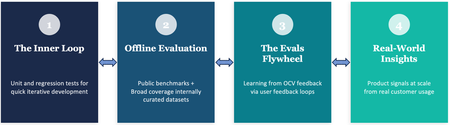
By Sujay Kumar Jauhar, Spriha Chandrayan, Natasha Gaitonde, Zhen Lei, Reed Pankhurst, Anush Sankaran, Amrit Shandilya, Ryen W. White Organizations put their most important content in OneDrive and SharePoint, trusting us to deliver AI experiences they can depend on. That trust runs across everything Copilot does with their content — surfacing the right information through retrieval, and, increasingly, driving agentic workflows that reason over documents and take action on their behalf. Living up to that trust is what we care about most, and it's why we put the quality of these experiences — and consequently the ways we measure that quality — at the center of how we build. It turns out that this is a non-trivial problem, because quality in AI is rarely binary. An agent can call exactly the right tools and still produce an answer that's subtly, confidently wrong. A search result can be technically relevant and still miss what the user was really after. An AI-generated page can be well-structured and fluent and still omit the one detail that mattered. Quality here is continuous, context-dependent, and multidimensional — and when these experiences are serving hundreds of millions of enterprise users, measuring it demands scientific rigor across the full lifecycle of building AI products. Across OneDrive and SharePoint — the knowledge platform for Copilot and Agents — we’ve spent the past year building a rigorous practice around evaluation: determining what to measure, developing the right methods to measure it, and learning how to act on those measurements to improve our systems and experiences. In software engineering, tests verify correctness and telemetry monitors health. The boundaries are well-defined: a function returns the right value or it doesn’t; a service meets its service level objective or it doesn’t. AI evaluation requires an analogous discipline, but the problem is structurally harder — there is rarely a single correct answer, and quality depends on factors that shift with every user, task, and context. This post describes the evaluation practice we are building across Copilot capabilities in OneDrive and SharePoint. It follows the arc of what we think of as the evaluation lifecycle — from rapid inner-loop validation, through rigorous offline measurement, to customer-grounded evaluation that evolves with real feedback, and ultimately to understanding whether our metrics predict what users actually experience. Each stage addresses a question the previous ones cannot, but they don’t run in a straight line. What we learn downstream can reshape the data and methodology of upstream measurements. That’s what makes this a lifecycle — and together they form a strategy for building AI systems that aim to earn user trust at enterprise scale. We're on a journey — learning and evolving as we build this practice. Some of the things we're actively working on, omitted from this blog post for the sake of brevity, are: holding ourselves to public, industry-standard benchmarks such as GAIA and GDPval, with more in the pipeline; and investing in the foundations that keep evaluation trustworthy, by generating realistic synthetic evaluation data so our test sets keep pace with new models, and monitoring the health of our benchmarks for saturation. The inner loop: "Did I break anything?" The first requirement of any AI development workflow is a fast feedback signal. Teams are experimenting constantly on internal builds — adjusting prompts, swapping model versions, rearchitecting retrieval pipelines — and they need to know within minutes whether a change helped or hurt. That is the role of our unit-level evaluations: a rapid inner loop for feature crews. A developer modifies a system prompt or adjusts the grounding context, runs it against a targeted set of test cases, and gets immediate feedback on whether key behaviors are preserved. These checks are fast, focused, and designed to catch regressions before they compound. The distinction from traditional unit testing is worth noting. In software, a test asserts an exact expected output. In AI, you are validating behavioral properties — coherence, completeness, tool selection, factual consistency — against approximate expectations. The pass/fail boundary is softer, but the engineering purpose is the same: give teams confidence to iterate without fear of silent degradation. One of the crews building Copilot's agentic features over SharePoint Lists knows this loop well. They keep a large set of prompts that engineers run whenever they change something — a tweak to a tool's description, a different setting passed to the model, a reworded prompt. Many of those questions run over the same synthetic data: lists of bakery orders, each row carrying details like the baker, the delivery agent, the profit on the order, and its status. The same lists come in a range of sizes, from a few thousand rows up to a million. The largest are used to push the system's limits but the inner loop lives at the lower end. There, most questions are ones the system has gotten right for a long time, so when a change quietly breaks one of them, it shows up right away. An engineer can try an idea, run the set quickly, and whether they've introduced a regression. Fast iteration checks are essential, but they only tell you whether something regressed. They cannot tell you how good the system actually is. Offline evaluation: "How good is this, really?" This is the domain of our offline evaluation practice. We maintain curated, scenario-focused benchmarks evaluated in a controlled harness that reflect the tasks and content types our enterprise users encounter, alongside public benchmarks that situate our systems in the broader AI landscape. The goal is to bring each AI scenario to a state of decision-readiness: explicit success criteria, representative evaluation datasets, metrics we attempt to validate against real outcomes, and systematic coverage of known failure modes. We try to do this rigorously by running evals against the real product. Each test case is a plan — a short script of things a user might ask for — paired with criteria (or assertions) describing what a good outcome looks like, sorted by how much each one matters: Critical, Expected, or Aspirational. An LLM plays the user: it drives the live product through the browser, sends the opening request, and then reacts the way a person would, confirming an action card here or answering a clarifying question there, so the system is exercised end to end. When the conversation finishes, the harness gathers the evidence of what actually happened — the responses in the chat, the state of the page, and screenshots where the judgment is visual. That evidence goes to a second model acting as judge — the increasingly standard "LLM-as-a-judge" approach — which scores the run against the original assertions. And because a model grading a model is only as trustworthy as its agreement with people, those scores are calibrated against human raters. Using a high-priority, curated slice of these evals, the team ran big proposed changes side by side to see which ones came out ahead. One of those comparisons looked at how the orchestrator is told about the tools it can use. At one extreme, you hand the model the full description of every tool up front; at the other, you give it only short, tweet-length summaries and let it pull a tool's full description and parameters only when it decides it needs them. Configuration Quality % Latency vs. default Cost vs. default Baseline 83.0 1.00x 1.00x Default tool discovery 90.3 1.11x 0.62x Rearchitected tool discovery 85.6 0.97x 0.73x Semantic tool search 92.8 0.95x 0.74x Hybrid 93.5 0.82x 0.62x Table 1: A comparison of the different approaches for tool selection we experimented with. Based on internal evaluation results using our internal test environment, and test configurations of the product. Quality was measured through LLM judgement of AI responses based on a set of criteria, latency was measured by the harness running the evaluations, and cost is based on publicly disclosed price heuristics for token usage for the LLM API being used for orchestration. Results were calculated from 500 scenario tests based on synthetic data. The table above summarizes our results from an internal offline evaluation on a curated slice. In this evaluation, we found that the baseline which loads everything up front was, predictably, the most expensive. The out-of-the-box tool-discovery method cut token usage sharply — but was a bit slower. Pushing further, a rearchitecting of the orchestrator for tool discovery did speed things up, but at the cost of quality. Meanwhile semantic tool search improved on both quality and latency relative to the baseline but wasn’t as cost-efficient as the default tool discovery method. Overall, in this evaluation, a strong balance of quality, token usage, and latency came from a hybrid — the standard tool-learning architecture with a few targeted semantic-search changes, which still resulted in a more than 35% reduction in token usage when compared with full tool descriptions. Offline benchmarks, however carefully constructed, have an inherent limitation. They represent a fixed snapshot — based often on what product teams believe will be important use cases, particularly for features that have not yet shipped to real customers. As the product evolves and real usage patterns emerge, the gap between what our benchmarks measure and what actually matters can widen. The evals flywheel: "Are we measuring what users care about?" This is the motivation behind what we call the Evals Flywheel: a closed-loop system that translates real user dissatisfaction directly into better evaluations and, ultimately, better systems. In software engineering, there is a well-established discipline of turning production bugs into tests. In the AI analog, user feedback provided with appropriate consent helps produce new evaluation data, systematic failure diagnoses, and targeted improvements. Take for instance a user that consents to share feedback with us (via a thumbs down). At first glance, this seems like a single interaction. But to us, it's an opportunity to learn. We investigate what happened, identify the underlying reason for the user dissatisfaction, and ask a critical question: was this an isolated mistake, or does it reveal a broader weakness in how the system understands documents like this one? Here's a representative example. A user uploaded a 120-page quarterly financial report packed with dense tables, nested headers, footnotes, and appendices. They asked a straightforward question: "What was our actual spending in Q3?" The answer seemed like it should be easy — the relevant numbers were all in the document. The assistant responded confidently with a figure from one of the summary tables; but it cited the budgeted amount, not the actual spend. The mistake stemmed from the document's complexity. The table spanned multiple pages, with a top-level "Q3" header extending across several sub-columns such as Budget, Actual, Forecast, and Variance. On its own, that's one mistake in one document. However, it pointed at something more general: whenever a table uses a heading that spans multiple columns, or stacks two rows of headers, or tucks a small table inside a larger one, then the link between a header label and its value turns fragile. Understanding the text is often not enough — the assistant must also accurately preserve and reason over intricate document structure, table relationships, and context that can span dozens of pages. Hence, instead of patching that single file, we built a family of evaluation documents that deliberately stress that exact structure. Each eval document pairs a question with the single correct answer and a short list of "tempting but wrong" answers which are the nearby values a confused reader would most likely grab. That last part is the key: an eval that only checks for the right answer can be passed by luck, but an eval that includes likely distractors tells you whether the system is genuinely reasoning or just guessing. This example reflects a repeatable method. The first step is resisting the urge to treat a user dissatisfaction as an isolated bug. Instead, we ask why it happened and not "what's the right answer for this question." That root-cause identification is what turns the user feedback into a useful signal. The payoff is a flywheel between real-world experience and offline evaluation. The improvement ships back into the product, where future interactions validate it — and surface the next gap. Each loop widens our coverage and, just as importantly, helps us prioritize the improvements that matter most to the people using the product. But it raises a deeper question: when our benchmarks are representative of user concerns, do improvements actually translate into better experiences in production? Real-world insights: "Does this actually matter to users?" It is possible to improve a benchmark score and have it mean nothing in practice. A model that scores five points higher on an offline evaluation may produce no detectable difference in user satisfaction or task success. Conversely, a change that barely moves the needle offline might transform the user experience in unexpected ways. This gap between offline measurement and real-world impact is the focus of our online evaluation work. Through production telemetry, we study user-AI interaction patterns at scale. The objective is not simply to monitor system health, but to develop an empirical understanding of how users experience our AI features in context. In traditional software, production telemetry provides crisp, well-defined signals: uptime, latency percentiles, error rates. In AI, the equivalent signals — satisfaction, intent alignment, task success — are inherently noisier and harder to define. The central challenge here is alignment: do our offline metrics predict real user value? Answering that depends first on being able to measure value reliably in production at all. Consider a recent experiment on one of our top-of-funnel entry points — the most common way users first reach the assistant. The team suspected that engagement was low (around 1%) simply because users weren't noticing the entry point. So they ran a user-level A/B test across a sample of 900,000 Copilot-licensed users over 21 days, swapping the entry point's icon for a more contextually relevant one. The effect was a statistically significant 42% lift in click-through, alongside a 1.7% increase in active users. That result is encouraging, but it also illustrates a subtle nuance. We moved an engagement metric sharply without touching quality at all — this tells us that we had an education gap, but didn’t inform our understanding of the AI system’s performance. To get closer to that distinction, we looked at kept rate: the share of AI responses where the user does something that signals the answer was worth keeping — copying the result, clicking through to a citation or a suggested follow-up, or providing a thumbs up. And because it's captured passively, from actions users take anyway, it scales to every response rather than the small fraction where someone leaves explicit feedback. Even an indirect, partial signal like kept rate lets us close the offline-online loop. Once we have a read on what users valued, we can start to ask how well it correlates with our offline benchmarks. When offline gains track with a rise in kept rate, for example, it's early evidence the benchmark is steering us toward something real; when they are uncorrelated, it's a warning that we may be hill-climbing in a wrong direction. Beyond quality Quality matters — but in production systems, it is entangled with cost and latency in ways that cannot be evaluated in isolation. A high-quality response that is unacceptably slow degrades the user experience regardless of its correctness. Or a frontier model that is marginally better than a smaller alternative may not justify the cost differential. This is the next frontier of our evaluation work: learning to reason about quality, cost, and latency as a tradeoff surface rather than independent dimensions. The goal is to build the instrumentation and frameworks that make these tradeoffs visible and deliberate, so that teams can make principled decisions about how they ship. To make this concrete, consider some early findings from our internal evaluations. We took a range of system configurations — models, reasoning levels, tool access — and, for a set of representative tasks — QA over lists, the AppWorld public benchmark, and a collection of complex multi-step plans that stress-test the Copilot in SharePoint agent — plotted each one by the quality it achieved against what it cost to run. The result is a Pareto frontier: the curve of the best quality reachable at each price, with everything below it dominated by something strictly better. Two things stand out. First, different tasks live in different performance regions. Simple, factual lookups like those in ListsQA cost fractions of a cent; harder, more agentic tasks like those in AppWorld and Copilot in SharePoint run to cents or dollars; there is no single answer to what "good" costs. Second, the shape of each curve tells you where spending more is actually worth it. Where the frontier rises sharply, additional cost buys real quality; where it flattens, you have hit diminishing returns, paying more for gains a user may not notice. In short, the decision stops being "is the quality good enough to ship?" and becomes "which point on this curve is right for this scenario?" given budget and latency constraints — a question a feature crew can answer, with the tradeoffs in front of them. What we've learned so far We are still early in this work. Models are improving rapidly, user expectations are evolving, and the definition of quality continues to shift. But several principles have become clear to us. No single evaluation approach is sufficient. Inner-loop checks catch regressions but cannot establish absolute quality. Offline benchmarks provide rigor but go stale. Customer feedback grounds evaluation in real needs but covers only the cases where dissatisfaction is expressed. Online metrics reveal real behavioral patterns but cannot always explain the mechanisms behind them. A credible evaluation practice requires all of these, operating in concert and informing each other. Evaluation is not a gate you pass before shipping — it is a continuous discipline that evolves with the product. The teams that build the best AI experiences are not necessarily those with the highest benchmark scores, but those with the clearest understanding of where their systems fall short and the most systematic approach to closing those gaps. And measuring what matters is itself a scientific problem, one that demands the same rigor we apply to the systems being measured. Developing evaluation methods that are reliable, predictive of real user value, and robust to the rapid evolution of AI capabilities is core to our mission across OneDrive and SharePoint. It is how we work to earn the trust of the enterprise users who depend on these experiences, and we are committed to advancing this work and sharing what we learn.1.5KViews2likes0Comments