sharepoint
33 Topics
MCP Integration for OneDrive/SharePoint
Hi OneDrive Team, I'm reaching out to explore Model Context Protocol (MCP) server integration for OneDrive and SharePoint. I am looking to integrate OneDrive/SharePoint data access into ThoughtSpot application using MCP solution. Are there existing MCP server implementations (official or community-driven) for OneDrive/SharePoint? If available, what are the connection endpoints and authentication details needed to set up the MCP server? If no MCP server currently exists, are there any upcoming plan on this and is there any alternate recommended approach present. Also could you please provide a SPOC from your team who can support further discussions and technical guidance on this integration? I'd like to schedule a follow-up conversation to explore the best path forward and discuss the use case. Thanks in advance for your help.202Views0likes0Comments
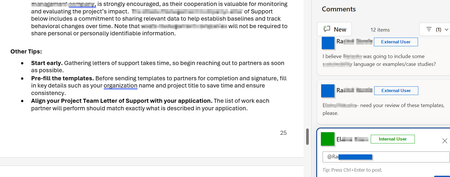
Unable to @ mention external collaborators in comments within Office online files
Is anyone aware of whether Microsoft will someday enable the ability to @ mention users who do not belong to the M365 tenant within comments in Office online files? I've attached a screenshot of what this looks like in a Word Online file in OneDrive. There are a number of Microsoft feedback posts about this, but it really feels like an unnecessary gap in functionality. Anyone have any insights on roadmap?586Views0likes1Comment
Sharepoint Shortcut to OneDrive
Hi, We’ve been using “Add shortcut to OneDrive” from SharePoint instead of the “Sync” option. Recently, however, some users have reported missing files. After investigating, I noticed that the shortcut appears to have been converted into a local copy in the user’s OneDrive. I realized this because the folder no longer shows the shared (people) icon, and I’m able to re-add the shortcut without any errors. Normally, if a shortcut already exists, SharePoint would display an error indicating that the shortcut is already present in OneDrive. Has anyone else experienced this issue? Thanks, Sur178Views1like0CommentsI lose Sharepoint sync
We have all company files shared in SharePoint and synced with OneDrive. Lately it has happened to us that some users, not all, suddenly have the synchronization fail, all at the same time, with a Onedrive notification appearing on the desktop saying "Folder was deleted. Folder will stop synchronizing. A copy of these files will be left on the PC". If the user doesn't realize it, they are still working on the files, but they are not syncing to SharePoint. Why could this be happening?297Views0likes1Comment
Syncing Sharepoint files using OneDrive on Windos Server 2019
Hi everyone. We are a small office and use Sharepoint in Microsoft 365 to keep our office files. We have an on-premises Windows Server 2019 server and is currently using OneDrive to sync Sharepoint files to the server. The folder that was created by OneDrive on the server is also being shared to all PCs in our office mapped as the J drive. We are using Active Directory. So, users can do changes to the files or create new ones from their PCs using the J drive and they get uploaded/updated to Sharepoint when OneDrive syncs the files. This part is working good as expected. The issue we are having is that there are 4 employees that work remotely so we shared the SharePoint folders with them and they installed OneDrive directly on the computers to get access to the SharePoint folders. If one of these 4 users creates a folder, this folder gets downloaded with the parent folder permissions on our on-premises server. But, if one of these 4 users adds a file, this file is being downloaded with Administrator permissions only so no one in the office can see the files until someone manually changes the file permissions on the server to allow users to get access to the file. We have tried almost everything we can think of to try to give the right permissions to the files downloaded from OneDrive but with no success yet. I would really appreciate any recommendations.1.3KViews0likes2Comments
Sharepoint synchronization issues
Hello all, for a project we chose Sharepoint 365 as data storage and created a link from the Documents library to OneDrive, so all data stored in Documents is synchronized with the users device (about 30 users are working in this project and are synchronizing this data). In the Documents library currently there are about 11000 folders (in the root) with subfolders and files each folder. The problem is, that changes are synchronized veeeeeery slowly. When a user creates a file/folder oder changes a file/folder locally it takes hours to days(!) until the change is synchronized to Sharepoint (online). We see, that the OneDrive app is searching and detecting changes, synchronizing changes and finishes synchronization, but the change is not synchronized, also the file/folder is still tagged with the "pending synchronization" icon. OneDrive restart, Windows reboot, nothing helps.. Sometime later (hours to days) the change is synchronized, but now other users have the problem, that this change needs to be synchronized with them and this process also can take hours to days. The problem concerns all users that are working in this project. So, all users are cery frustrated and we have no idea, what we can do. We hope there is someone who knows possible solutions. We use Win11, OneDrive 24.091.0505.0003, Sharepoint 365, 1Gb Internet connection Regards Florian960Views0likes2CommentsOneDrive: Unable to add shortcut for shared files under "My Files"
There are certain files that are shared with me in SharePoint. I have the editable rights for these files. I need to access these files in tableau. So I am trying to create a shortcut of these files so that the shared files are accessible through "My Files" folder in Tableau. I am referring to this Microsoft link but i am not getting the option "Add shortcut to OneDrive". https://support.microsoft.com/en-us/office/add-and-sync-shared-folders-to-onedrive-8a63cd47-1526-4cd8-bd09-ee3f9bfc1504?ui=en-us&rs=en-us&ad=us Can someone please help and advise what is wrong here.60KViews2likes22CommentsCan't resync between cloud and desktop
I have eight SharePoint Directories synced to my Desktop File Explorer (also known as OneDrive sync when initiating the sync function from the browser). Over the past month, 3 of those directories have come up with error messages that were only resolved by 'stopping sync'. Now, I can't sync them again as when I try to sync from the SharePoint directory in the browser, I get an error message saying "Sorry, we can't sync this folder. You're already syncing a shortcut to a folder from this shared library." Except, I'm not! The folder does not show the cloud icon on the desktop version (to confirm that its syncing) and the folder does not show up in my list of synced directories to restart sync (screenshot attached, taken from OneDrive icon/Settings/Account). I've even moved two of the folders into another location and it still says I'm syncing them. Can anyone assist please?469Views0likes0CommentsOneDrive showing incorrect user
Hi all, When I edit a shared document through OneDrive (or Teams or Sharepoint) through the web, it correctly shows those edits as being attributable to me. However, if I open that document on my local machine, the edits are being attributed to another user. I am collaborating as an invited guest (invited through Azure AD) using B2B collaboration (I think). I am by no means an experienced or advanced 365 / Azure / Sharepoint administrator. A more detailed background (I hope is not too confusing): My local machine is a Mac. I have a 365 Business Std subscription for my own organisation (Org A) and I'm the global admin (Org A Admin). I work with a different business (Org B). As I'm the most knowledgable person at Org B when it comes to MS365, I help them manage their own 365 subscriptions (a combination of 365 Bus Std and Exchange Online P1). I have access to the global admin account for Org B (Org B Admin). I have recently begun to introduce Org B to Teams so that we can collaborate on certain projects using Teams and Sharepoint. To do this, as Org B Admin, I created a Team under Org B (call it Team B). I then invited Org A Admin to Team B as this is my day-to-day work account. I sent this invite from within Team B while logged in as Org B Admin. For a while, I collaborated this way successfully as Org A Admin. I then decided to 'upgrade the collaboration' by setting up B2B collaboration between Org A and Org B. I made the necessary changes to the incoming/outgoing collaboration settings for both organisations. I deleted my existing external user at Org B and reinvited myself as a guest through Azure AD at Org B (mailto:tyrone@OrgA) I collaborated this way for a while using Teams. I edited documents through Teams - sometimes through the Teams interface but also by synchronising files to my local machine using OneDrive. Any edits I made were always shown as originating from my Org A account, i.e. tyrone@OrgA. I was able to move between Org A and Org B in Teams without any problems. When I opened Teams on my local machine, I could move between Org A and Org B in the top right of the app. Two instances of OneDrive opened when I logged in to my machine - one synchronised Org A files and the other synchronised Org B files. From yesterday, when I edit a document in Team B on my local machine, the edits I make show as being done by Org B Admin and not mailto:tyrone@OrgA. However, when I make edits through the Teams interface, these edits are correctly shown as being made by mailto:tyrone@OrgA. It appears as though my guest account at Team B (mailto:tyrone@OrgA) is being confused with Org B Admin. I've tried everything I can think of to fix this: I logged out of all my local Office applications (including OneDrive and Teams) I deleted and reinstalled all the Office applications (including OneDrive and Teams) I deleted all local caches, plist files, etc. I deleted my guest account at Org B and ensured that my user account was also deleted from Team B. I logged back into to local Office apps, Teams and OneDrive using my Org A credentials and all is working fine. I invited myself back to Org B using the Azure AD interface as a guest. I added myself back to Team B (using the Teams admin interface under Org B). I then navigated to Team B through my local machine (where I'm logged in to the Office apps as Org A Admin), edited the file locally, and again my edits were attributed to Team B Admin. Same thing happened if navigating to the Team through the Teams online interface. Any help to fix this would be appreciated. Thank you. 🙏Solved7.4KViews0likes4Comments