settings
2523 Topics
Stop Automatic Calling when Screensharing
I screenshare a lot in my position; I call the coworker (Phone/Headset) and train them on what I need them to look at. I am in a large office building, and the automatic calling of the receivers' PC is disruptive, as I do not was the whole office to hear my conversation or have people hear my trainee. I see no way to disable the team auto-call once I start to screen share or in the Options. All my coworkers feel this frustration as well. I do use the computer microphone/speaks aspect when working from home, but would disable it totally, if it would stop the auto-call. I do not want it to affect meeting invites to others, as others around the country can use their PC speak/microphone, if they want. Please advise.139Views0likes2Comments
Cross-Tenant Shared Meeting Room Spaces
We have two M365 tenancies under our group. We need to allow users from both tenants to use Meeting room resources (book rooms, use calendars etc..). Is this just about configuring Exchange OR Sharing in EXO or do we need anything beyond that to facilitate Teams meeting room resource sharing? Would we also need to sync these meeting room objects across tenancies to allow users to see them in GAL etc.. ? Thank you!4.6KViews0likes4CommentsTeams is unable to access your calendar
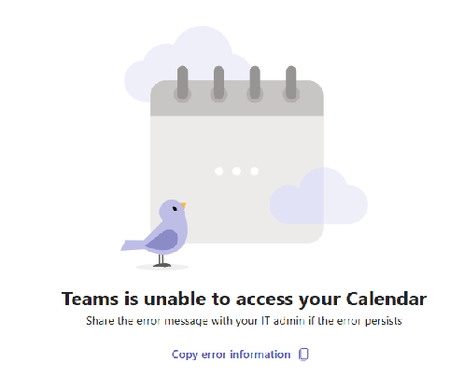
I started the below error on a lot of computers today. My co-worker did not get the error UNTIL he updated to the same version of Teams as me You have Microsoft Teams version 25072.1609.3541.7814. You've got the latest version. It was last checked on 4/7/2025. The issue is with multiple windows 11 users and their local teams installation. Brand new issue and trust me I'm the admin there were no changes by me. (in Exchange or Teams) I've run the Exchange connectivity test (ok) The MS remote connectivity test fails with this error Make sure user has Exchange Web Services EWS and REST API protocols enabled. The Microsoft 365 Teams Calendar App diagnostics referenced in the link requires a Microsoft 365 admin account to be executed This worked Friday, it does this today. What changed?Solved2.8KViews3likes11Comments
Not receiving any notifications in my Samsung S26 Ultra
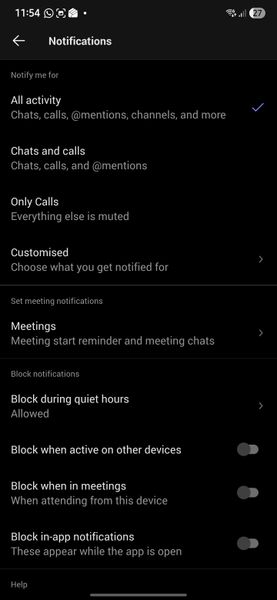
Hello, Since I moved to Samsung S26 Ultra, I am not getting any notifications. Following are my settings. Please help to fix the issue. Following are settings in Samsung phone Following are settings in my Teams app in deskop Following is the settings set for all my channels Thanks16Views0likes0Comments
Assign a phone number for user using Direct Routing
Hello, I have setup a trunk for direct routing. I think I have all the proper licensing in place for my user, ie: phone system and calling plan. I am now trying to assign a phone number however the phone number type drop down ( in the general information section of my user in teams admin ) does not have the direct routing option. The only option given is Calling Plan. I want to use number that is on the Direct Routing trunk, not a Calling Plan number. How can I make it so Direct Routing is an option under Assign Phone number -> Phone number Type?20KViews0likes3CommentsSharing sound
Teams screen sharing does not show “Include sound” option for multiple users I’m having an issue with Microsoft Teams screen sharing that I haven’t been able to resolve. I work in a call center, and we use Teams for peer coaching and training. When an agent shares their screen, I need to be able to hear both the agent and the customer they are speaking with through our call-center application (Amazon Connect). The problem is that most of our agents do not have the “Include sound” / “Include computer sound” option when they click Share in Teams. They can share their screen normally, and I can hear the agent speaking, but I cannot hear the audio from the call they are handling. What makes this especially strange is that the option does appear for me when I share my screen. Or if it doesn't show I can simply re-download the desktop version and it will fix itself.... but that doesn't work for anyone else. We have already tried: Reinstalling Teams Using the Teams desktop application Using Teams in a web browser Trying different browsers Restarting the computers Having multiple affected agents repeat the same troubleshooting Nothing has brought the audio-sharing option back for them Any suggestions for what we should check would be greatly appreciated.141Views0likes2Comments
Profile Picture not updating
Hi Community, Today I updated my profile picture on teams and picture gets updated as well but I am only able to see the updated picture on hovering over the profile, but unable to see the updated picture on my profile icon. Is this a bug or something? Please fix this @96KViews0likes11Comments
Has anyone successfully used "Hide attendee names" in Teams Meetings or Webinars with Teams Premium?
Hello, I'm trying to understand the current status of the**"Hide attendee names"** feature in Microsoft Teams. Our organization has Teams Premium, and according to Microsoft's documentation, the feature should be available for both Meetings and Webinars. The documentation even provides separate instructions for each scenario. However, during a recent Microsoft Support call, I was told that the feature is actually available only for Town Hall events and not for standard Teams Meetings or Webinars. This appears to contradict the current Microsoft documentation, so I'm looking for real-world feedback from other administrators. Questions: Has anyone successfully enabled Hide attendee names in a standard Teams Meeting? Has anyone used it in a Webinar? We have Teams Premium. If it works for you, what licenses are assigned to the organizer? Do you actually see the Hide attendee names option in Meeting Options? Is there any specific policy, rollout, or configuration required? Has Microsoft Support ever told you that the feature is Town Hall only? Microsoft documentation: https://support.microsoft.com/en-us/teams/meetings/hide-attendee-names-in-microsoft-teams-meetings-and-webinars At this point I'm trying to determine whether: The documentation is incorrect or outdated. The feature is being rolled out gradually. There is an undisclosed licensing or policy requirement. Microsoft Support provided incorrect information. The feature has been silently restricted to Town Hall events. Any feedback from tenants where this is actually working would be very helpful. Thanks! Giuseppe245Views0likes2Comments