rds
68 Topics(Azure) Virtual Desktop Optimization Tool now available
Optimizing images has always been an important component of preparing images as part of a traditional Remote Desktop Services (RDS) infrastructure or virtual desktop infrastructure (VDI). Optimizing session hosts, in particular, can increase user density and eventually lower costs. With the Virtual Desktop Optimization Tool, you can optimize your Windows 10, version 2004 multi- and single-session deployments in Windows Virtual Desktop. Note: The information in this post is community-driven; nothing has yet been officially launched by the Windows Virtual Desktop product team. Credit goes to Robert M. Smith and Tim Muessig from Microsoft, previously known as the VDIGuys, for creating this tool and make it available for free for the community. Windows 10 multi-session image name change As noted in recent announcements, Office 365 ProPlus is now Microsoft 365 apps for Enterprise. With this name change, we have updated the Windows Virtual Desktop image names in Azure Marketplace. As a result, when you are looking for an image in the Azure Marketplace image gallery, you should begin by selecting Windows 10 Enterprise multi-session, version 2004 + Microsoft 365 Apps – Gen1 as your baseline image. How the Virtual Desktop Optimization Tool works The (Windows) Virtual Desktop Optimization Tool disables services in the operating system that you most likely won’t need for your Windows Virtual Desktop session host. To make sure that your line-of-business (LOB) applications continue running as they should, there are some preliminary steps that should first performed. Note: There are settings default disabled when you run the scrip out of the box such as AppX Packages for the Windows Calculator. We strongly suggest analyzing the tool via the JSON files that include the default settings. This also gives you the opportunity to enable them before running the tool so they remain untouched. I'll explain more about this later on in the article. The full list of enhancements for native Windows services will be available soon. Bookmark Run and tune your Remote Desktop Services environment for the latest updates. Expected performance gains Windows Virtual Desktop value-added services provider and Microsoft partner LoginVSI performed early tests with the Virtual Desktop Optimization Too and gained over 100 users in their internal benchmarking lab environment with a Windows 10, version 2004 single session. We, therefore, assume that this gain will also be possible with Windows 10 Enterprise multi-session. VSImax asserts a maximum number of users that are able to log on to the virtual desktop hosts pool as part of the underlying infrastructure. That number is the "sweet spot" as going over that number will decrease performance for all users. (Thanks to LoginVSI for sharing these results with us.) Note: We recommend you use simulation tools to test your deployment using both stress tests and real-life usage simulations to ensure that your system is responsive and resilient enough to meet user needs Remember to vary the load size to avoid surprises. Desktops in the Cloud on Performance Optimizations for Windows Virtual Desktop with Robert and Tim (aka VDI Guys) We recently had the creators of the Virtual Desktop Optimization tool as guests on our Desktops in the Cloud video-podcast. Robert and Tim explained everything you should know, as well as best practices and lessons learned. A must watch in extension to this article. Watch it below. How to use the Virtual Desktop Optimization Tool The Virtual Desktop Optimization Tool makes it possible to disable uncommon services for virtual desktop environments, such as Windows Virtual Desktop. Note: We recommend that you run the script after the Sysprep (System Preparation) process, most likely as startup script w with a large set of virtual machines. This is due to the AppX Packages that conflict and most likely the sysprep will fail. Download all scripts from the Virtual-Desktop-Optimization-Tool GitHub repository. Select Clone or download, followed by Download ZIP. Unzip the folder to your Windows Virtual Desktop session host(s) to a specified folder (e.g. C:\Optimize or C:\Temp). Note: You could also run the scripts as part of your image management procedure e.g. Azure image Builder (AIB) or Azure DevOps. Important information before running the tool There are settings default disabled when you run the scrip out of the box such as AppX Packages for the Windows Calculator. We strongly suggest analyzing the tool via the JSON files that include the default settings. This also gives you the opportunity to enable them before running the tool so they remain untouched. You can find the JSON file in the Windows built number folder, under ConfigurationFiles - e.g. C:\Optimize\2004\ConfigurationFiles. You've to put the settings to Enabled - that you want to keep as default. Below is the example file for AppX Packages, there are JSON files for Services and scheduled tasks as well. Another option is to remove the while entry out of the JSON file. AppxPackages.json - Example Windows Calculator App { "AppxPackage": "Microsoft.WindowsCalculator", "VDIState": "Enabled", "URL": "https://www.microsoft.com/en-us/p/windows-calculator/9wzdncrfhvn5", "Description": "Microsoft Calculator app" }, Services.json - example Windows Update Service { "Name": "UsoSvc", "VDIState": "Enabled", "Description": "Update Orchestrator service, manages Windows Updates. If stopped, your devices will not be able to download and install the latest updates." }, Prepare to launch Windows PowerShell and select Run as Administrator. In PowerShell, change the directory to the folder to which you downloaded the scripts, e.g. C:\Optimize or your own specific folder. Run the following command: Set-ExecutionPolicy -ExecutionPolicy Bypass Run the Virtual Desktop Optimization Tool using the following command: .\Win10_VirtualDesktop_Optimize.ps1 -WindowsVersion 2004 -Verbose Note: When you use a different version of Windows 10, you must change the WindowsVersion parameter. Version 1803 and later are supported for Windows 10 Enterprise. Windows 10 multi-session support is only available with Windows 10, version 2004 and later. Select Yes when prompted to reboot the session hosts(s). Start your Windows Virtual Desktop session. As you can see in the Task Manager comparison below, the number of threads and handles has decreased noticeably after running the Virtual Desktop Optimization Tool. Do you have any problems with orphaned Start Menu shortcuts after running the tool? Have the user open Task Manager, then end the following two processes: ShellExperienceHost.exe StartMenuExperienceHost.exe Have them check the Start Menu and they should be gone. Happy optimizing! 🙂 Let us know your feedback on the tool in the comment section below. Prefer to watch and learn? There’s also a video on Azure Academy available later this week by Dean Cefola. You can find it here.177KViews11likes41Comments
Users "Status" fields blank on RDS with Windows Server 2025
Hi, we have two RDS Server with Windows Server 2025 installed (In-Place Upgrade from Server 2019). In Task-Manager under the "Users" Tab all fields of the "Status" row are blank. We cant see if a user is connected or disconnected. In cmd with "query user" it works. Someone else discovered this problem?1.7KViews3likes7Comments
Maximum number of concurrent shells for the Remote Desktop Services plug-in has been exceeded
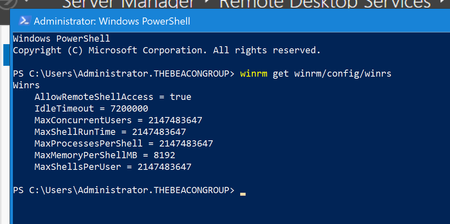
Server 2019 Standard (2 each) When opening Server Manager, it takes quite awhile to read the RDS servers and eventually comes back for the local server with the error: Maximum number of concurrent shells for the Remote Desktop Services plug-in has been exceeded. Restart Server Manager, and then try again. I have increased the MaxConcurrentUsers to 2147483647, as well as the MaxShellsPerUser just to make sure: On a Server 2012 R2 server, I have both of the 2019 servers in the server list and open the RDS portion of server mgr and do NOT get this error. It ONLY happens when opening RDS in Server Mgr on the 2019 servers. I have scoured all over the Inter-webs for an answer to no avail. Anyone have a fix for this?7.5KViews3likes11Comments
Windows Server 2025 Terminal Servers - start menu pinned icons
I'm designing the config for some terminal servers running Server 2025. I want to pin specific icons to the start menu. In Server 2022 (or Windows 10), this was simply a process of setting up the reference machine how I wanted it, then Export-StartLayout -Path "C:\Export\MStartMenuLayout.xml" to generate the config file, whcih was then applied using the GPO Computer Configuration\Policies\Administrative Templates\Start Menu and Taskbar\Start Layout - this worked fine. On Server 2025 (and Windows 11), however, it appears that this doesn't work the same any more. Although the export command works, it generates a JSON file now rather than an XML. OK, so I saved the file with the JSON extension, and copied the old GPO, amending the name of the config file to point to the new one. However, it still doesn't work and this documentation: https://learn.microsoft.com/en-us/windows/configuration/start/layout?tabs=intune-10%2Cintune-11&pivots=windows-11 Would appear to indicate that it can only be done using Intune. If it was Windows 11 I could do that, but as this is Server 2025 it isn't an option - Intune cannot manage server OSs even if I wanted to do that. Can anyone suggest any alternative methods of doing this? All I want to do is configure a common set of pinned apps for all users - I'm not bothered about configuring any other aspects of the start menu as the defaults are OK. Thanks1.5KViews2likes0Comments2012 R2 License Server issuing Built-in OverUsed CALs for 2008 R2 Session Host Servers
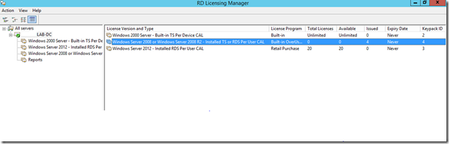
First published on TECHNET on May 07, 2015 Hello AskPerf! My name is Prachi Singh and today I will be talking about a behavior that can occur when users attempt to pull licenses from a 2012 R2 License server via a 2008 R2 Session Host.46KViews2likes4Comments
RDS Connection Broker High Availability
We're starting to plan for a fully available Windows Server 2025 RDS farm. We already have a SQL Server cluster on Linux Ubuntu in the environment. I couldn't find any Microsoft documentation stating whether a SQL Server cluster on Linux can be used. Does anyone have any official references on this topic? Current SQL Server cluster environment: 2 SQL Server Standard 2022 Linux Ubuntu 22.04, Linux cluster (Pacemaker + Corosync) Thank you.284Views1like1CommentMVP & RD Impact at the 2025 Microsoft Global Hackathon
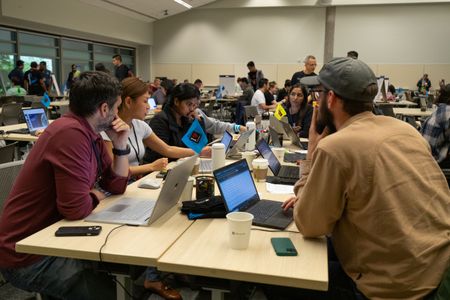
Produced by The Garage, the Microsoft Global Hackathon is the largest private hackathon on the planet. Since its launch in 2014, it has grown into a company-wide, multi-day event that empowers employees, interns, and invited guests to innovate across disciplines, roles, and geographies. With over 73,000+ participants this year and thousands of projects annually, the Hackathon fosters a culture of experimentation, inclusion, and bold thinking. This year’s Global Hackathon took place during the week of September 15 and was more than just a coding event — it was a global celebration of creativity, collaboration, and community. Almost one hundred MVPs and RDs joined forces with employees and innovators from around the world to tackle challenges that matter — from reimagining customer support to shaping the future of AI. Global Collaboration — Local Impact MVPs and RDs from every corner of the globe participated virtually, forming diverse, cross-functional teams that reflected the depth and breadth of Microsoft’s global community. Whether launching new ideas or joining existing projects, these community leaders brought fresh perspectives, deep technical expertise, and a passion for impact. “We’re thrilled to see MVPs and RDs driving meaningful collaboration across Microsoft. Their energy and expertise elevate the Hackathon experience for everyone involved.” — Alice Piras, Microsoft MVP Program Engagement Lead. Innovation in Action MVP- and RD-led or supported projects spanned a wide range of themes — each aligned with real-world challenges. Some were even recognized with awards for their ingenuity and impact. Here are just a few general examples: Customer Service Innovation: Projects explored how AI agents could assist customer support teams by retrieving information, managing documents, and streamlining workflows. Financial Services Transformation: Hackathon teams developed solutions to simplify complex processes like insurance claims and policy management using intelligent automation. Security & Compliance: Participants experimented with proactive security assessments and AI-powered frameworks to help organizations strengthen their digital posture. Sustainability & IoT: Several teams focused on environmental optimization, using data and AI analytics to improve system performance in areas like aquaponics and smart farming. Digital Identity & Inclusion: Community-led projects addressed secure onboarding and compliance challenges, with a focus on accessibility and user experience. These projects exemplify not only technical excellence but also a commitment to inclusive innovation and community-driven problem solving. Voices from the Community “Hackathon wasn’t just about building, but about creating something that could make an impact — and agentic retrieval made that possible for us.” — Shrushti Shah, MVP “It was an incredible experience collaborating with three MVPs from across the globe on a shared mission for this Hackathon. We didn’t just work together — we learned together, exchanging diverse perspectives to create something amazing in just three days.” — Maya Stewart, Microsoft, Sr. Product Manager "My Global Hackathon experience this year was nothing short of amazing! I decided to work on two projects: one where I made major contributions to an open-source project I’ve long been interested in — and another where I saw firsthand how GitHub Copilot excels at boosting productivity. Overall, I’m still energized after the Hackathon and deeply appreciate the collaborative spirit of working with fellow MVPs and Microsoft employees to achieve shared goals." — Jeremy Sinclair, MVP “It was inspiring to see how diverse backgrounds and ideas came together to build something meaningful. The culture of openness and support made this Hackathon one of the best experiences I’ve had.” — Thomas Schissler, MVP “The Garage Hackathon team engaged with the MVP/RD team again this year to invite Microsoft Most Valuable Professionals and Regional Directors to participate as hackers and advisors in the global event. The industry experts and influencers brought their knowledge and insights about Microsoft products — adding value to hacking teams from across the company.” — Susie Kandzor, Microsoft, Sr. Director of Hacking. Building Bridges Across Microsoft Beyond the code, the Hackathon was a powerful networking catalyst. MVPs and RDs expanded their circles of collaborators, mentors, and speakers — building bridges across product groups, engineering teams, and regional communities. “I’m incredibly grateful to our MVPs and RDs for their energy and contributions during this year’s Hackathon. Their technical depth and collaborative spirit made a real impact — and I’m excited to see how we can make next year’s experience even bigger and better.” — Justin Garrett, Microsoft, MVP Program Principal Program Manager. Inspired by Their Stories? MVPs and RDs are at the heart of Microsoft’s global community — driving innovation, mentoring others, and building solutions that make a difference. Want to learn more about the MVP Program or nominate someone who’s making an impact? Check out the MVP Communities site. Follow us on social media on X and LinkedIn. Learn More Take a peek at the history behind the Microsoft Hackathon — where thousands of innovators from around the world unite to turn bold ideas into real-world breakthroughs.1.3KViews1like0CommentsRDS Farm with FIDO2 Key
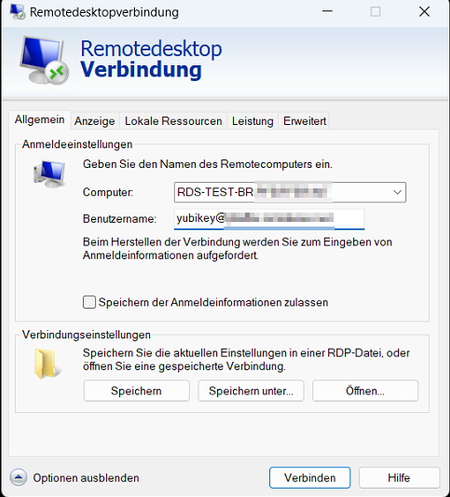
Hello everyone, I'm trying to install an RDS farm with fido2 (Yubikey). I think I have created the conditions. The farm is onPrem (hybrid joined), the FIDO2 key is registered in Entra. The farm works correctly with normal credentials. However, setting up the FIDO2 key is giving me a headache. If I log in directly to one of the session hosts, FIDO2 works. But if I want to log in via the session broker, as it should be. I am connected to the session broker as a host and not forwarded to the hosts. But I only found this out by chance when I added the user to the Remodesktopuser group on the broker as a test. Otherwise you just get the message: "Access to the session was denied" and the broker's event log says "Couldn't find the file" #################### redirectclipboard:i:1 redirectprinters:i:0 redirectcomports:i:1 redirectsmartcards:i:1 devicestoredirect:s:* drivestoredirect:s: session bpp:i:32 prompt for credentials on client:i:1 server port:i:3389 allow font smoothing:i:1 promptcredentialonce:i:1 gatewayusagemethod:i:2 gatewayprofileusagemethod:i:1 gatewaycredentialssource:i:4 full address:s:RDS-TEST-BR.xxxxxxxxxxxxx gatewayhostname:s:rds-test.xxxxxxxxxxxxx workspace id:s:RDS-Test-BR.xxxxxxxxxxxxx use redirection server name:i:1 loadbalanceinfo:s:tsv://MS Terminal Services Plugin.1.Test use multimon:i:1 alternate full address:s:RDS-TEST-BR.xxxxxxxxxxxxx screen mode id:i:2 desktopwidth:i:800 desktopheight:i:600 winposstr:s:0,3,0,0,800,600 compression:i:1 keyboardhook:i:2 audiocapturemode:i:0 videoplaybackmode:i:1 connection type:i:7 networkautodetect:i:1 bandwidthautodetect:i:1 displayconnectionbar:i:1 enableworkspacereconnect:i:0 disable wallpaper:i:0 allow desktop composition:i:0 disable full window drag:i:1 disable menu anims:i:1 disable themes:i:0 disable cursor setting:i:0 bitmapcachepersistenable:i:1 audiomode:i:0 redirectlocation:i:0 redirectwebauthn:i:1 redirectposdevices:i:0 autoreconnection enabled:i:1 authentication level:i:2 prompt for credentials:i:0 negotiate security layer:i:1 remoteapplicationmode:i:0 alternate shell:s: shell working directory:s: gatewaybrokeringtype:i:0 rdgiskdcproxy:i:0 kdcproxyname:s: enablerdsaadauth:i:1 username:s:yubikey@xxxxxxxxxxxxx ####################3.8KViews1like7Comments