planner
807 TopicsIntroducing a refreshed design, task chat, and more in Microsoft Planner
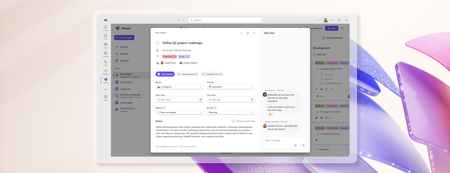
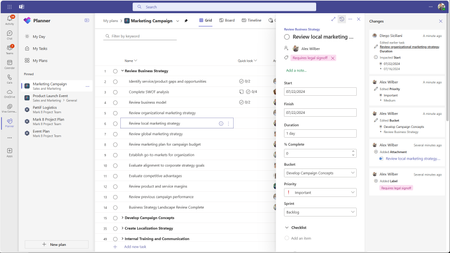
We’re excited to announce that a modernized user interface and new features are now rolling out to basic plans in both Planner in Teams and Planner for the web. The updated design offers enhanced navigation, responsive layouts, a new goals view for setting objectives and priorities, and task chat—one of your most requested features—to enable real-time collaboration and @ mentioning team members. This release aims to make planning easier for everyday users while preparing for future AI-powered capabilities. Our goal is to streamline planning by making it more intelligent and connected, so teams can concentrate on achieving results rather than managing tasks. What's new in Planner A refreshed design: With this rollout, users will be able to manage their plans in a cleaner, more modern interface that brings a more consistent planning experience across work. Planner’s new look was designed to feel simpler, allowing users to find what they need. It reduces visual clutter, improves layout and spacing, and creates a more focused workspace. Task chat with @ mentions: A new task chat is coming to basic plans, bringing real-time, threaded conversations directly into tasks, including @ mentions, rich formatting, emojis, and notifications to help keep decisions tied to the specific task at hand. Plan members who are @ mentioned in a task will receive a notification in their Teams Activity feed and via email and can select the notification which takes them directly to the task card for additional context. Note that previously, users received notifications for every task comment, but as a result of customer feedback, we now only send notifications to mentioned users. The ability to @ mention team members directly in a task has been a top request, and we’re excited to roll this out in a familiar, chat-based experience. Please note, premium plans will continue to utilize the existing task conversation experience. This will converge into the new experience at a later point in time. Goals view: Basic plans will now include a dedicated Goals view, allowing teams to set clear, well-defined objectives to help prioritize work. By connecting tasks to shared goals, teams achieve greater alignment, gain clarity on priorities, and track progress and outcomes—driving the plan forward together. Access to Goals view in basic plans requires either a Planner premium license or a Microsoft 365 Copilot license. Notes on availability Please note that not all users will see the new Planner interface at the same time. This refreshed interface, along with Task chat and Goals view, begins rolling out to basic plans today and will continue to roll out over the coming weeks. This is only the beginning This redesign lays the groundwork for many more improvements coming to Planner in the next few weeks and months, including: Project Manager agent in basic plans – to help with task execution and the creation of status reports. Custom templates. Planner in Outlook. Stay tuned for announcements regarding these updates and more aligned to our long-term vision for integrated work management. Feature availability, naming, and timelines are subject to change. Please refer to the Microsoft 365 Roadmap for the latest status. Addressing your feedback We heard your feedback about inconsistencies between basic and premium plans. This refresh starts closing those gaps, so features appear consistently across plans based on your license. For example, users with a Planner premium license will now see Goals in basic plans, and users with a Microsoft 365 Copilot license will soon have access to Project Manager Agent in basic plans as well. Tell us what you think about the new Planner interface, Task chat, and Goals view by selecting More (circled question mark icon) in the top right corner of the app, then selecting Feedback from the dropdown menu. We also encourage you to share any feature requests by adding your ideas to the Planner Feedback Portal. Your feedback helps inform our feature updates, and we look forward to hearing from you. Learn more Visit planner.cloud.microsoft to access Planner directly from your browser. Sign up to receive future communication about Planner. Learn more about Planner in our Frequently asked questions. Check out the Planner adoption page and Planner help & learning page to learn more about Planner. Visit the Microsoft 365 roadmap for feature descriptions and estimated release dates for Planner. Walk through the interactive demos for Project Manager Agent in Planner and Project Manager Agent skills in Teams meetings.22KViews7likes50Comments
Timeline zoom
Hello, Is there a way to lower the zoom level in the Timeline view to less than 1 week? I have a couple projects with multiple dependent task per day but if I use the maximum zoom level in the Timeline view I don’t get a good overview of the different task in for example a 4 day period. I was expecting a Gantt chart like view, like what you have in Microsoft Project, in where you can zoom to a minute level granularity even.10Views0likes0CommentsCan I delete or reorder the un-used labels in Planner?
I noticed that there are a lot more color labels in Planner and picked the brighter colors that are lower in the drop-down list. When I use "Group By Labels" to view my planner according to these color labels, my tasks are listed way to the right end side of the board, with a bunch of empty color label columns I didn't use. I tried re-ordering and deleting those un-used color labels but I can't seem to find the features. This really defeats the purpose of adding all the new labels...44KViews27likes28CommentsMicrosoft Project Online is retiring: What you need to know
After more than a decade of supporting project managers and teams around the world, Project Online will officially retire on September 30, 2026. We know this is a significant change, and we want to acknowledge the impact it may have on your organization, your workflows, and your planning processes. This update is exclusive to Project Online and does not affect Project desktop, Project Server, or Planner. Why this change is happening Project Online has served organizations well, but its legacy architecture limits innovation and integration that enhance today’s collaborative work environments, as we announced in 2018. With certain SharePoint Online workflow design tools deprecating in 2026, Microsoft is prioritizing innovation within Planner, Microsoft 365 Copilot, and the Project Manager agent, which represents a new generation of work management tools designed to be more intuitive, scalable, and powered by AI. These tools are built to support both simple task tracking and complex project planning, while integrating deeply across Microsoft 365. What this means for you No immediate disruption: Your current Project Online environment will continue to function as expected until the retirement date. Key dates: October 1, 2025: End of sale for new customers for Project Online-only SKUs. September 30, 2026: Official retirement date – Project Online will no longer be available. Project desktop remains available and is not impacted by this change. Planner remains available, bringing together the simplicity of To Do, the collaboration of Planner, the power of Project for the web, and the intelligence of Microsoft 365 Copilot into a simple, familiar experience. Transition options There are several transition options available, depending on your organization’s needs: Planner: A unified solution for modern work and project management. Premium features in Planner (included in Planner and Project Plan 3 and Planner and Project Plan 5) deliver portfolios, baselines, dependencies, and Gantt charts. Premium license holders (including Project Online customers) already have access to Planner and Project desktop. Now in public preview, Planner introduces Project Manager agent—an AI assistant that automates task creation, status reporting, and execution, adapting to your project’s context and generating professional reports across Planner views—for Microsoft 365 Copilot users. Project Server Subscription Edition: Designed for organizations needing advanced project and portfolio management (PPM) or a close match to the feature set of Project Online. Project Server Subscription Edition provides comprehensive planning, scheduling, and resource management tools, built on the latest SharePoint Server technology. Dynamics 365 Project Operations: Tailored for customers who require robust timesheet management and resource scheduling, Dynamics 365 Project Operations offers integrated tools for project delivery and financials. How to prepare This retirement will happen automatically on the specified dates with no admin action required. You may want to notify your users and update any internal documentation to reflect the above changes. Evaluate the alternatives proposed above and plan the transition immediately. Back up your data, if needed, before the retirement date. Looking ahead We fully understand the challenge associated with this or any product retirement. We remain excited about the future of our Work Management solutions with enhancements coming to Planner, including advancements in AI-powered project management. With Planner and our AI-powered roadmap, we’re building a future where project management is intuitive, collaborative, and deeply integrated into the flow of work across Microsoft 365. Planner and the Project Manager agent are just the beginning of a more intelligent, integrated, and collaborative project management experience. For more information, visit the Planner Blog or reach out to your Microsoft account team. Frequently asked questions What exactly is being retired? Only Project Online is being retired. This does not affect: Project desktop Project Server Subscription Edition Planner – basic and premium capabilities When is Project Online retiring? October 1, 2025: End of sale for Project Online-only SKUs for new customers. September 30, 2026: Official retirement date. Will my current projects in Project Online stop working before the official retirement date? No. Existing customers can continue to use Project Online with full support until September 30, 2026. Your current projects, integrations, and team member access will remain functional during this period. Why is Microsoft retiring Project Online? The legacy architecture of Project Online limits our ability to deliver modern, AI-powered experiences. Microsoft is investing in Planner and the Project Manager agent to provide more intuitive, scalable, and collaborative project management tools. What are my options after Project Online retires? Depending on your needs, you can transition to: Planner – Planner with premium licenses already included if you have a Planner and Project Plan 3 or Planner and Project Plan 5 license Project Server Subscription Edition Dynamics 365 Project Operations Project desktop – available with Project Standard 2024 or Project Professional 2024 Is Planner included in my Microsoft 365 subscription? Planner with premium features is available through Planner Plan 1, Planner and Project Plan 3, or Planner and Project Plan 5 licenses. Planner Basic is included in Microsoft 365 E3 and E5 subscriptions. Users with E3, E5, and equivalent licenses can also participate as team members on Planner premium plans. What is the Project Manager agent? An AI-powered assistant that helps automate task creation, status reporting, and execution. It works across Planner views and helps teams stay on track with minimal manual effort. It also provides Copilot chat capabilities inside Planner. Can I continue using Project desktop? Yes. Project desktop is not impacted by this change and will continue to be available. What happens to my Project Online projects at the end of September 2026? After Project Online is retired in September 2026, you will no longer be able to access your projects or any associated data within the service. To avoid disruption and potential data loss, it is essential that you back up your data/projects and complete your transition to either Planner or Project Server Subscription Edition before the retirement date. I’m an existing customer of Project Online, when will I stop being able to create new tenants? Starting April 1, 2026, current customers will no longer be able to create new tenants in Project Online. What is happening to Project Server 2016 and Project Server 2019? Both products will come to extended support on July 14, 2026. We recommend upgrading to Project Server Subscription Edition. Where can I find more information and updates? Visit the Planner Adoption page. Visit the Microsoft 365 Roadmap for feature descriptions and estimated release dates. Stay up to date on the latest announcements from the Planner and Project team by visiting the Planner Blog and Project Blog. Visit the Planner help & learning page to learn more about existing capabilities in Planner. Watch Planner demos for inspiration on how to get the most out of Planner in Microsoft Teams.195KViews13likes195CommentsTransitioning to Microsoft Planner and retiring Microsoft Project for the web
Today, we are announcing the transition to Planner, which aims to provide a unified work management experience through a modern work stack integrating Project for the web, To Do, and Planner. In August 2025, we will retire Project for the web, as well as the Project and Roadmap apps in Microsoft Teams. Users will be redirected to Planner for the web and Planner in Teams as Project for the web becomes Planner. Streamlined tools with a focus on innovation and user experience Previously, Project for the web, Project in Teams, and Roadmap in Teams operated as separate endpoints from Planner. Since Planner for the web and Planner in Teams include the same premium plans as Project for the web, we are consolidating our endpoints to ease confusion. Additionally, Planner integrates basic plans—those created with a Microsoft 365 E3 or E5 license—into a single solution. By unifying our platforms and capabilities, we’ve created an integrated experience within one app, allowing users to seamlessly access both premium and basic plans with a premium plan license for an improved work management experience. This transition is the next step in delivering the experience announced at Microsoft Ignite 2023. No migration or change in licensing is required—all plans previously created in Project for the web are accessible in both Planner for the web and Planner in Teams. With a premium license, Planner provides access to familiar capabilities such as basic plans, along with premium features like Goals, Sprints, Task History, Advanced Dependencies with lead and lag, Baselines, and more. Additionally, it includes our next-generation AI-powered work management tools, including Copilot and the Project Manager agent. Transitioning to Planner (redirect from Project for the web and Project and Roadmap apps in August 2025) Starting in early August, for users who have not already transitioned, when launching Project for the web or Roadmap for the web, users will see a page redirecting them to open Planner for the web https://planner.cloud.microsoft/; you may also use Planner in Teams. Existing Project and Roadmap tabs in Teams will no longer open the associated projects but will inform users to re-pin their tab using the Planner tab for Teams. The Project tab and Roadmap tab apps are no longer available in the Teams app store. Users can manage and create premium plans in Planner, like their current usage in Project for the web. The Project Power App will retain its user experience and be renamed “Planner Power App.” Benefits of using Planner, plus new capabilities Customers find that having too many work management apps can reduce collaboration, miss opportunities, and lower productivity. Planner addresses this by offering one work management solution: A consolidated view of all tasks in “My Tasks” and “My Day.” Access to premium and basic plans and features, from task management to enterprise-level capabilities with low code/no code extensibility. Planner supports your company's work management journey with familiar features, enhanced experiences, and a focus on innovation with a foundation of AI and security including: AI capabilities to automate and boost productivity. Enterprise-grade security at every level. Collaboration between humans and AI for efficient team project management. Copilot in Planner (public preview) and Microsoft 365 Copilot with the new Project Manager agent (public preview) help users work smarter. Project Manager agent automates project management tasks, from plan creation to task execution for you and your team. Easily create new plans, generate tasks by adding goals, assign tasks to the agent, and tracks the agent’s progress. Between late April and early September 2025, we will introduce the following functionalities to Planner: Planner rollout to Government Cloud Community (GCC) High. Users will be able view and manage non-default environment (named organization) plans directly in Planner. The Project Power App will be renamed “Planner Power App” (buttons will be updated accordingly). Project Microsoft 365 admin center settings will migrate to the Planner page. Tenants with premium licenses with no Microsoft 365 license will gain access to basic plan functionality in Planner. Project for the web features that will not be available in Planner to simplify the solution include: Roadmaps: Planner will not support opening Roadmaps. Instead, users can use the Planner Portfolio feature to re-create their existing Roadmaps as Portfolios. Note that Portfolios in Planner will not support adding rows for Azure DevOps or Project Online. Roadmap data will remain available in Dataverse. Import .mpp files: The ability to import a plan created in Project desktop is not available in Planner but can be done through Planner (formerly Project) Power Apps/Accelerator. Learn how to move your project from Project desktop to Planner Power Apps. Roadmap tab in Teams: Users are not able to pin Portfolios as a tab in Teams. How can you prepare for the transition? To ensure a smooth transition to Planner, we recommend that administrators notify users and update any internal documentation to reflect the changes. This retirement will happen automatically in August with no admin action required before or after the rollout. We recommend that you re-create existing Roadmaps as Portfolios in Planner before the redirect begins; and to proactively re-pin your Project in Teams tabs using the Planner in Teams tabs. Supporting resources are available, including detailed guidelines on how to re-create existing Roadmaps as Portfolios in Planner, how to create a new plan with Copilot in Planner (public preview), and how to access and use the Project Manager agent to generate tasks for a plan and assign Project Manager to tasks for execution. We also recommend visiting the Microsoft Planner adoption page for additional helpful resources and information. Resources Check out the “Transitioning to Planner and retiring Project for the web” section in our Frequently asked questions about Microsoft Planner article. Visit the Planner Adoption page. Visit the Microsoft 365 Roadmap for feature descriptions and estimated release dates. Stay up to date on the latest announcements from the Planner and Project team by visiting the Planner Blog and Project Blog. Visit the Planner help & learning page to learn more about existing capabilities in Planner. Watch Planner demos for inspiration on how to get the most out of Planner in Microsoft Teams.411KViews12likes138Comments
[BUG] msdyn_project silently renamed from "Plan/Plans" to "Project/Projects" in new environments
We need clarification from Microsoft on whether this is a bug or an intentional breaking change. Overnight and without any announcement, the msdyn_project table now ships with display name Project / Projects in newly provisioned environments. Dev and UAT environments provisioned a few months ago have Plan / Plans out of the box. All environments are running the exact same PSCore version: 1.0.163.730. The entity is as expected, marked non-renameable — read-only in the maker portal — so there is no way to align environments manually. Solution import from an existing environment (where msdyn_project = "Plan") into a newly provisioned Production environment fails with: 0x8004023B: Entity 44286cce-2389-4532-ac04-7a18a2818e9a is not a renamable entity. Hence Entity Display Name cannot be modified The only workaround — and why it is not acceptable It is technically possible to manually edit customizations.xml inside the solution ZIP before importing, removing the <DisplayName> node for msdyn_project. The import will then succeed, but Production will permanently show "Project" while Dev and UAT show "Plan" — a broken inconsistency across environments. More importantly, this is not how ALM is supposed to work. Developers should never have to manually patch solution artifacts to work around a platform-level inconsistency introduced silently by Microsoft. This is incompatible with automated CI/CD pipelines and unsustainable for any team managing multiple environments. The question for Microsoft Is this a bug or a planned change? If it is a bug: when will it be fixed, and is there a supported workaround in the meantime? If it is a planned change: why was it not communicated, and what is the supported migration path for teams with existing environments and solutions? [UPDATE]: After 3 attempts of resetting and reprovisioning the Production environment, msdyn_project finally came up with Plan / Plans — same process, same PSCore version each time. The behavior is non-deterministic. The only workaround currently available is to keep resetting your environment until you get lucky, which is not an acceptable answer for any type of deployment.51Views0likes0Comments
2026.02.20 - Planner UI update is worse
The UI changes to Planner within the latest Teams desktop app update (version 26032.208.4399.5) has regressed in its functionality and is worse than before. Previously, all of the contents of an item in the Planner were visible at the same time. Now I have to tab between Task Details, Attachments and Checklist, and am unable to view these at once, which has become a critical workflow for me. It is extremely irritating, as I've developed a workflow around how Planner was presented (which was that everything within a task was visible at once), and now it has been compartmentalised. Please unwind this - it is a regressive update and provides less information and requires more interaction to work through the detail of a task.1.7KViews18likes11Comments
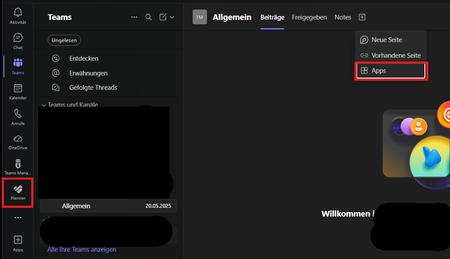
Planner tab missing from Teams channel only shows as separate app
Our users can no longer open the Planner in the Teams channel; they can only access it via the app. This has been the case for a short while now. Does anyone know of a fix for this, or is this how it’s supposed to work? It cannot be selected via apps.179Views0likes0Comments
Teams Planner Duplication
Does anyone know if you can duplicate Microsoft Teams Planners for onboarding tasks? I am trying to create an easily replicable Teams Planner with links to files in Sharepoint folders, for example. I want to be able to copy this planner for each new hire and have a copy of all the files and planner tasks in the new copy. Any advice or expertise would be much appreciated!40Views0likes0Comments