onenote
800 Topics
Drawing on OneNote for IOs
I'm ready to give up on OneNote... it used to be good. I have two problems that regularly interrupt my work. The first problem I noticed was that when I double tap my Apple Pencil, although it is set to go to the eraser, it does that for a brief moment and then turns into that text-to-type pen. The second, and more important, problem, is that quite regularly all the drawing pens suddenly are greyed out and there is nothing I can do (other than possibly waiting a long time) to get them working again. The first problem I can work with, it's just annoying, the second has got me ready to shift my notes from OneNote. Has anyone got any suggestions for fixing either of these? The support crew have had me try the same things each week, and none of it works. Thanks in anticipation!50Views1like1Comment
OneNote Desktop sync issue
Hello dear community, I installed OneNote from the Store on my Windows 11 laptop and connected it to my notebook in the Microsoft cloud. I opened a notebook in it, and it apparently syncs, but no notes appear on my device. When I click the link to the OneNote notebook in OneNote, the web version opens successfully and shows the notes. It also works successfully on my phone. So far, I have tried the following: - Uninstalling and reinstalling OneNote - Signing out of OneNote and signing back in - Creating a new notebook as a test → same problem Do you have any other ideas? Thanks. Best regards, BD61Views0likes1CommentOneNote breaks if I move it onto an external display
Hi guys I use OneNote extensively for work as my virtual notepad. At most of my working locations, I use my laptop - Dell Latitude 7440 - connected to either a Dell Docking station + 2 monitors, or a pair of samsung monitors which have an inbuilt hub, connect via USB-C and are daisychained together. I've never had any issues with OneNote in the past, but recently have found that if I try and move my OneNote window onto either external monitor, it seems to break OneNote - the whole window becomes just the index list which is normally a column on the left (where it shows all your notebooks and pages) and it won't actually display any of the content from the notebooks/pages. If I try minimizing that column, it has a complete breakdown as if its unable to properly load the actual page content. The only way to fix this is to drag the window back to my laptop screen and then close it and reopen. Has anyone else experienced this? It's really frustrating and affecting my productivity as I often need it side-by-side with other screens.2KViews3likes6CommentsClassic LTI App Retirements, Preview of OneDrive LTI Migration Tool for Canvas
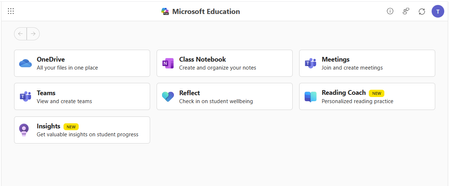
Classic Microsoft LTI® Apps Retiring in 2026: What You Need to Know and How to Prepare Microsoft is continuing its investment in a unified, modern Microsoft 365 LTI experience. As part of this evolution, several classic Microsoft LTI apps will be retired in September 2026. This post outlines: Which classic LTI apps are retiring and when What happens to existing course links and content created in classic LTIs retiring What actions you should take now to prepare, and start transitioning to Microsoft 365 LTI New migration tooling available to support transition Classic Microsoft LTI® Apps Retiring September 17, 2026 As we shared last September in our Microsoft 365 LTI GA release Blog, the following classic Microsoft LTI apps will be retired on September 17, 2026: Microsoft OneDrive LTI (1.3) OneNote Class Notebook LTI (1.1) Microsoft Reflect LTI (1.3) Microsoft Teams Assignments LTI (1.3) After September 17, 2026, any links or placements of these classic apps in courses will stop working. However, the files, notebooks, assignments, and check-ins created by these classic apps will continue to be available to copy and reuse. Replacements for these classic experiences are now available through the unified Microsoft 365 LTI built on the LTI® 1.3 Advantage standard. This delivers modern security, simplified identity mapping with Microsoft Entra, LMS enrollment and grade syncing, and a single deployment model for LMS administrators. We’ll continue to update our migration guides as additional tools and guidance become available. NEW: Preview the OneDrive LTI Migration Tool for Canvas Canvas LMS Customers: We are excited to announce that the Microsoft OneDrive LTI Migration Tool for Canvas is now available in Preview! This tool helps institutions using Canvas LMS migrate OneDrive content links from the classic Microsoft OneDrive LTI app to the new Microsoft 365 LTI app — preserving existing file links in courses so educators and students experience a seamless transition. For new preview deployments: detailed deployment instructions are available in the Canvas migration guide, which has been updated with configuration steps and guidance for using the migration tool. If you participated in the private preview: If you have already deployed the OneDrive LTI Migration Tool in Canvas during the private preview, no action is required. Your existing deployment will continue to work as part of the Public Preview, and in GA. If you deployed the private preview in a testing environment, we suggest that you follow the new Canvas migration guide in your production environment. Below is guidance to assist with transition from the other classic LTI apps and on additional LMS platforms. We will continue to communicate updates to this guidance as it evolves. If you use the classic Microsoft OneDrive LTI 1.3 with an LMS other than Canvas Deploy Microsoft 365 LTI with the OneDrive app enabled and guide educators to use the new Microsoft 365 LTI (Microsoft Education menus) to create file links or embeds in course content. Disable/hide/remove placements of the classic Microsoft OneDrive LTI app in your LMS but do not uninstall or disable the app. Files linked or embedded with the classic Microsoft OneDrive LTI will stop working when the app is retired, so those links and embeds must be replaced using the new Microsoft 365 LTI (Microsoft Education) app ahead of the retirement date. OneNote Class Notebook LTI 1.1 (All LMS platforms) The new OneNote Class Notebook LTI 1.3 integration is now available in the Microsoft 365 LTI app, with automatic roster sync and streamlined setup. Deploy Microsoft 365 LTI with the OneNote Class Notebook app enabled, and guide educators to use the new app. Disable/hide/remove placements of the classic OneNote integration, but do not uninstall the app to avoid migration issues during transition. While there is no direct migration path from OneNote Class Notebook LTI 1.1 notebooks to Microsoft 365 LTI Class Notebooks, educators can copy sections/pages from one notebook to another using the right-click menu on Sections and Pages (and selecting “Move/Copy”) in OneNote on Windows, OneNote Web, and OneNote for Mac. Instructions are also available for content transfer using OneNote on Mac, iOS, or Android. Microsoft Teams Assignments LTI 1.3 (All LMS platforms) Deploy Microsoft 365 LTI with the Assignments app enabled, and guide educators to create assignments using the new app. Disable/hide/remove placements of the legacy Teams Assignments LTI app as soon as you install the new Microsoft 365 LTI and enable the Assignments app, and guide you users to copy their existing assignments using the new app. Teams Assignments created by the classic LTI 1.3 app can be reused as in the new Microsoft 365 LTI Assignments experience (which does not require a Team) Assignments created in the LMS or via the Assignments app in Microsoft Teams can be copied and reused using the Create from Existing functionality in the Microsoft 365 LTI (Microsoft Education) Assignment instructor flow. Microsoft Reflect LTI 1.3 (All LMS platforms) Deploy Microsoft 365 LTI with the Reflect app enabled, and guide educators to create new Reflects in the new Microsoft 365 LTI experience. There is no migration path for reflects created in the classic Reflect LTI 1.3 app to the Reflect experience in the new Microsoft 365 LTI Reflect app. We recommend transitioning to the new Reflect experience in Microsoft 365 LTI as soon as possible, and remove the classic app ahead of the September 17, 2026 retirement. Stay Connected We love hearing from you! There are a few ways to stay engaged with Microsoft and your peers on the LMS integrations. Follow this blog! Click Register at the top right to create an account and profile for the Microsoft Tech Community and Follow the Education Blog so you don’t miss any of our updates. Join the free Education Insiders Program to preview updates, get support from other community members, meet the team, and influence the roadmap. Join us for Microsoft 365 LTI office hours to connect with your peers and share feedback directly with Microsoft experts. When: 1st and 3rd Thursday of each month @ 11AM EST Where: https://aka.ms/LTIOfficeHours Getting help and giving feedback LMS and Microsoft 365 admins can contact Microsoft Education Support to help resolve configuration and deployment issues, for themselves or on behalf of users. Educators and Learners can contact support or give feedback directly from the app through the help and feedback menu. TJ Vering Principal Product Manager Microsoft Education https://linkedin.com/in/tvering Learning Tools Interoperability® (LTI®) is a trademark of the 1EdTech Consortium, Inc. (https://1edtech.org/)1.2KViews0likes0Comments
Disable incessant nagware popups
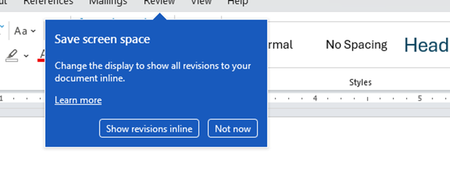
I don't know about everyone else, but I am sick and tired of the nagware pop ups in Word, Excel, PowerPoint, Outlook, etc. Every single product harasses me with pop ups trying to tell me "hey, did you know this feature was here?", "you can do this if you click that", "let me hold your hand through using products you've used for decades even though you don't want daddy Microslop to do that". This is a prime example. I keep getting the same ones again and again and again and everything I've read indicates they should only appear once. But they don't. They keep coming back like a psychotic stalker ex who wants alimony even though you were never married. How do I get this nagware to stop?!159Views0likes1Comment
Office365 Autoupdate on Mac
Last week I had an issue with Autoupdate on Microsoft365 where OneNote failed to update, other app were fine. I tried selecting just this app and updating it but got a download error. Autoupdate indicates "some apps have encountered errors" and retrying just repeats the download error. I've tried machine based fixes but none have worked and I suspect it's something else as I have a Mac mini and MacBook doing the same along with my wife who has a Mac desktop. The issue is still the same a week on.271Views0likes2CommentsOneNote Searching (Indexing ?) Problem (Bug)
This seems to be some sort of bug in the OneNote Search feature (or maybe me). [By the way, I LOVE the Search feature - OneNote is rather useless (for me) without it.] My research into the problem leads me to believe it has something to do with Indexing. Anyway, anything I enter into OneNote now (except for the Title) cannot be found by the OneNote Search feature. My recent problem is in searching for a name (Scott). Search can find old entries with the name Scott and can even find a Scottsdale entry - and Search can find Scott in the Title of a recent entry but cannot find any of the other recent Note entries with Scott in the body (3 of them as a test). I also note that if I manually go to the page with a recent Scott entry, the word Scott is highlighted - but the Notes' containing Scott in it does not appear in the list of notes containing Scott. My OneNote file is huge, probably hundreds of notes (if not thousands) and the Search feature has always worked flawlessly, until now. Can OneNote get too big for Search to work? I really need this feature to work - anyone know what is going on here. ron in shawneeSolved1.9KViews1like7Comments