onedrive
2188 Topics
Collateral storage and creation of M365 Group
Hi there Can you please answer a few questions for me? Is it true that for each campaign created, a Microsoft Team and SharePoint site is also created? And, I discovered that collateral is saved to the creator's OneDrive, (if above is true) is it also saved in the SharePoint site for the campaign? What is the reason for saving it to the user's OneDrive? .And how are past campaigns affected if that user leaves the organisation and the OneDrive account is deleted? Thank you.92Views0likes4CommentsUpcoming September 2026 Microsoft 365 Champion community call
Join our monthly calls to learn more about driving user enablement of Microsoft 365 services. All are welcome. Our next call is September 22, 2026, where we'll explore the OneDrive in mobile experience. Please note that our community calls are in the Teams webinar format, so you must register to receive the link to join. The join link will be sent to you in email with your webinar registration confirmation. The calls start at 5 minutes past the hour for both sessions (at 8:05 AM and 5:05 PM PT) and end at the top of the hour (9:00 AM and 6:00 PM PT, respectively). https://aka.ms/M365ChampionCallAM https://aka.ms/M365ChampionCallPM The on-demand recording will be available on our Driving Adoption > Events pages, as well as on our Microsoft Community Learning YouTube channel. While our calls are open to everyone, you must be a member of the Microsoft 365 Champion Program in order to access the presentation materials - the access link is in the initial welcome email and the monthly newsletter emails sent the week before the community calls. If you have not yet joined our Champion community, sign up here to get access to the monthly newsletters, calendar invites, and program assets (e.g., the presentations). Is there a topic you want us to bring? Share your feedback here: https://aka.ms/Microsoft365ChampionCallFeedback. REMINDER: Our community calls take a break in August and resume in September.171Views0likes0CommentsMicrosoft 365 Champion community call | September 2026 | PM
Join our next community call on September 22, 2026, to learn more about the OneDrive in mobile experience. Host: Tiffany Lee Guest: Lisa Miao Moderator: Jessie Hwang 📢 NOTE: our community call formats are Teams webinars so you must register at https://aka.ms/M365ChampionCallPM to receive the link to join. The join link will be sent to you in email with your webinar registration confirmation. 🗨️ Each call includes an open Q&A discussion section at the end, where you'll have a chance to ask your questions about Microsoft 365. 👋 Was this forwarded to you? Join the Microsoft 365 Champion program today! Champions combine technical acumen with people skills to drive meaningful change. Our community calls are open to everyone, but only Champion program members have access to the presentation resources (access link is in the initial welcome email and in the monthly newsletters). Join now: https://aka.ms/M365Champions. 🎥 The recording will be available on-demand on the Driving Adoption community and our YouTube Community Learning channel later in the week.60Views0likes0CommentsMicrosoft 365 Champion community call | September 2026 | AM
Join our next community call on September 22, 2026, to learn more about the OneDrive in mobile experience. Host: Tiffany Lee Guest: Lisa Miao Moderator: Jessie Hwang 📢 NOTE: our community call formats are Teams webinars so you must register at https://aka.ms/M365ChampionCallAM to receive the link to join. The join link will be sent to you in email with your webinar registration confirmation. 🗨️ Each call includes an open Q&A discussion section at the end, where you'll have a chance to ask your questions about Microsoft 365. 👋 Was this forwarded to you? Join the Microsoft 365 Champion program today! Champions combine technical acumen with people skills to drive meaningful change. Our community calls are open to everyone, but only Champion program members have access to the presentation resources (access link is in the initial welcome email and in the monthly newsletters). Join now: https://aka.ms/M365Champions. 🎥 The recording will be available on-demand on the Driving Adoption community and our YouTube Community Learning channel later in the week.55Views0likes0Comments
OneDrive desktop client continues to experience authentication problems
We're currently investigating a widespread OneDrive desktop client authentication issue affecting many users. Initially, users experienced continuous login prompt loops. In cases where authentication succeeded, OneDrive would repeatedly connect and disconnect, asking users to re-enter their credentials multiple times. We've already attempted: Resetting OneDrive Uninstalling and reinstalling the client Removing and recreating Windows Credential Manager entries Signing users out and back into Microsoft 365 None of these steps resolved the issue. A key finding is that OneDrive Online (browser access) works normally while connected to the corporate network. Users can access their files through the web without issue. However, the OneDrive desktop client continues to experience authentication problems. Today we identified an interesting workaround: when users connect through an external network (such as a mobile hotspot), OneDrive immediately authenticates and syncs successfully. Once we go back on the corporate network and reset OneDrive, the issue returns. No firewall, VPN, or known network configuration changes have been made, and current reviews have not shown any obvious blocked traffic. Given that: OneDrive Online works internally The desktop client fails internally The desktop client works externally (hotspot) We're trying to determine what network, authentication, proxy, DNS, SSL inspection, Conditional Access, or Microsoft 365 endpoint-related issue could be impacting the OneDrive desktop client specifically. Has anyone encountered similar behavior or have recommendations on where to investigate next?156Views0likes1CommentSPMT Needs True Mirror Mode and Resource Throttling
Subject: SPMT Needs True Mirror Mode and Resource Throttling SPMT incremental migration does not behave like a true synchronization or mirror operation. New and modified files are copied, but deleted, renamed, or moved files are not reconciled at the destination, often resulting in orphaned content and duplicates. Microsoft has previously confirmed this as expected behavior. Administrators have had reliable mirror-style functionality available since the circa 1990s through tools such as Robocopy. In comparison, SPMT's incremental migration capability feels incomplete for modern enterprise migration scenarios. Requested enhancements: Optional mirror mode similar to robocopy /MIR Delete destination content that no longer exists in the source Detect and process renames Detect and process moves Pre-migration analysis and dry-run reporting Configurable safeguards for deletions Additionally, SPMT appears to consume storage resources aggressively. During migrations, disk I/O activity can become saturated and disk idle time can fall close to zero regardless of migration batch size. This behavior can negatively impact file servers and production workloads. Requested performance controls: I/O throttling CPU throttling Concurrency controls Bandwidth limits Scheduling and business-hours policies Dynamic backoff based on source-server load Current behavior requires administrators to perform manual cleanup and reconciliation after incremental migrations while also managing significant infrastructure impact during migration runs. A modern migration tool should provide both synchronization intelligence and resource governance controls. Frankly, from an infrastructure perspective, your complaint about the I/O behavior is probably the stronger one. Many migration tools deliberately maximize throughput, but not providing an obvious way to cap I/O, threads, or overall system impact can be problematic in production environments. The lack of mirror semantics combined with aggressive scanning/copy behavior is what tends to frustrate admins the most.109Views0likes0Comments
How much of your Microsoft 365 environment can you actually see at once?
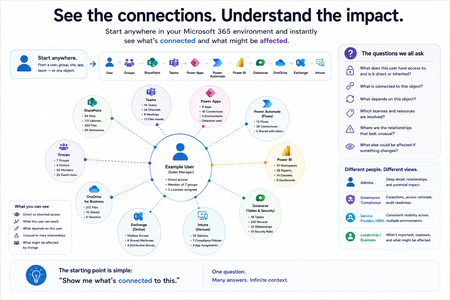
Not how many users you have. Not how many sites, teams, apps or flows you have. How much of it can you actually see connected together? I've been working across Microsoft 365 environments for a while, and I kept running into the same thing. There is no shortage of information. If anything, there is probably too much of it. Users, groups, permissions, SharePoint, Teams, Power Apps, Power Automate, Power BI, Dataverse, OneDrive, Exchange, Intune, licensing, configuration... It's all there. But when you're actually trying to understand how everything fits together, it can be a different story. You open one blade. Find something. Open another. Cross-check it. Go back. Open something else. Before long, you're jumping between different parts of the tenant trying to build the bigger picture in your head. And if you're working with larger environments, that gets difficult pretty quickly. The information isn't necessarily missing. The relationships between the information are what can be difficult to see. That got me thinking about a slightly different question: Instead of "where do I find this information?" "Show me what's connected to this." That's where VisibleState started. Start anywhere. Follow the connections. Imagine starting with a single user. Instead of seeing that user simply as a record with a list of properties, imagine being able to explore the relationships around them: User → Groups → SharePoint → Teams → Power Apps → Power Automate → Power BI → Dataverse → OneDrive → Exchange → Intune Then the questions become different: What does this user have access to? Is that access direct or coming through a group? What resources are connected to them? What depends on something they're associated with? Which licenses are involved? Are there relationships that look unusual? If something changes, what else might be affected? Those questions aren't necessarily about finding another piece of information. They're about putting information that already exists into context. A report can tell you that something exists. A connected view helps you understand what it is connected to. Illustrative example below — not a real customer environment. I'm not suggesting Microsoft 365 doesn't already give us this information Quite the opposite. Microsoft 365 already gives administrators an incredible amount of information and tooling. The thing I've been thinking about is what happens when you want to look across those boundaries. Sometimes I don't want another export. I don't want another list. I don't necessarily want another dashboard. I want to start with something I'm looking at and ask: "What's connected to this?" And then keep following the trail. That's the idea I'm exploring with VisibleState. The interesting part is what happens when you change the viewpoint The same relationships can be useful for completely different reasons. For example: Administrators may want to understand access, permissions and dependencies. Security and governance teams may want to find unusual relationships or exceptions. Compliance teams may need to understand who can access something and why. People managing multiple environments may want a consistent way to understand what's there without rebuilding the picture manually every time. Leadership may not need to see the graph at all. They may simply want to know what's important, what's exposed and what could be affected. It's still the same underlying environment. You're just looking at it from a different angle. And that's where I think things get interesting. Where I'm at with it VisibleState started as something I was building to make my own work easier. I was spending a lot of time investigating environments, tracing access and putting information together for reports. The individual tasks weren't necessarily difficult. It was the jumping between different places and reconstructing the bigger picture that took the time. So I started building something that would let me approach the environment through the relationships instead. It's grown quite a bit from where it started, and I'm continuing to build it. I'm not posting this as a product launch, and I'm not looking for people to sign up. I'm genuinely interested in whether the problem I'm seeing is familiar to other people working with Microsoft 365. So I'm curious... If you could start with any object in your Microsoft 365 environment and immediately see what it's connected to, where would you start? Would it be: Users and access Groups and permissions SharePoint and Teams Power Apps, Power Automate, Power BI and Dataverse Licensing and resources Governance and unusual relationships Something completely different Maybe you've already got a good way of doing this. Maybe you still find yourself jumping between different services and piecing things together manually. Or maybe I'm looking at the problem from the wrong direction. What's the one relationship in your Microsoft 365 environment that you wish you could see instantly?116Views0likes0Comments
OneDrive embedded PowerPoint slides showing blank page or error
I embed PowerPoint files from OneDrive into eLearning courses using the standard embed links. As of today, all of them have stopped working. All my embedded PowerPoint slides are currently down across several live eLearning courses. What I've tried: Tried in a private/incognito browser window - still broken Created a brand new embed link from scratch - still broken Tried a completely different PowerPoint file - still broken So it doesn't seem to be a problem with one specific file or link - it's affecting all my embeds at once. What I see: Sometimes the page shows: "Something went wrong. This is a temporary issue, so try again in a few minutes." with reference codes: Ref A: 137479770EE248B2BD8767C1500F6314 Ref B: SG2EDGE2019 Ref C: 2026-08-25T04:41:15Z Other times the page just loads completely blank, with no error message at all. I also checked the browser's technical console, and it shows one of the files OneDrive needs to display the slides is failing to load (a 404 error on Microsoft's side), which is likely why the page won't display anything. Has anyone else run into this, or is there a known issue being tracked? Happy to share more detail if it's useful.278Views1like5Comments
How to convert pictures to pdf on iPhone?
Hi everyone, I’m trying to convert several pictures on my iPhone into PDF files so I can email or upload them more easily. Sometimes I need to combine the pictures into a single PDF, but I also need to batch-convert them so that each picture becomes a separate PDF. I’ve seen suggestions about using the Files app or the Print menu, but I haven’t found a way to do this with either option. Is there a built-in way to do this on an iPhone, or can it be done through OneDrive or another Microsoft app? I’d like the pictures to remain in the correct order and stay clear without making the PDF unnecessarily large. Any advice would be appreciated. Thanks!239Views0likes3Comments