onedrive
2188 TopicsAutoSave disabled when opening SharePoint-synced files from Finder after macOS Tahoe 26.6 update
Files stored in SharePoint Online and synchronized locally through OneDrive are opened as local documents when launched from Finder. Office applications display "Saved to my Mac" and AutoSave is turned off by default. However, opening the exact same files through Word/Excel > Open > Sites, or via SharePoint "Open in Desktop App", correctly identifies them as cloud documents. In that scenario, AutoSave is enabled and collaboration/version history features work as expected. Troubleshooting already performed: OneDrive reset and re-linked SharePoint library re-synced Signed out and back into both Office and OneDrive Removed Microsoft credentials from macOS Keychain and re-authenticated Recreated local OneDrive sync relationships Verified OneDrive File Provider extensions are enabled Verified Office applications and OneDrive are fully up to date Tested with newly created files and existing files Tested "Always Keep on This Device" with no change in behavior The issue appears to be specific to the Finder-to-Office launch path after upgrading to macOS Tahoe 26.6. Before upgrading to macOS Tahoe 26.6, opening the same SharePoint-synchronized files directly from Finder correctly preserved cloud document identity and AutoSave was enabled as expected. I discussed this issue in detail with Apple Support, but they quickly dismissed it, saying that the problem is not on Apple's side and that I should contact Microsoft instead.1.7KViews10likes17Comments
OneDrive desktop client continues to experience authentication problems
We're currently investigating a widespread OneDrive desktop client authentication issue affecting many users. Initially, users experienced continuous login prompt loops. In cases where authentication succeeded, OneDrive would repeatedly connect and disconnect, asking users to re-enter their credentials multiple times. We've already attempted: Resetting OneDrive Uninstalling and reinstalling the client Removing and recreating Windows Credential Manager entries Signing users out and back into Microsoft 365 None of these steps resolved the issue. A key finding is that OneDrive Online (browser access) works normally while connected to the corporate network. Users can access their files through the web without issue. However, the OneDrive desktop client continues to experience authentication problems. Today we identified an interesting workaround: when users connect through an external network (such as a mobile hotspot), OneDrive immediately authenticates and syncs successfully. Once we go back on the corporate network and reset OneDrive, the issue returns. No firewall, VPN, or known network configuration changes have been made, and current reviews have not shown any obvious blocked traffic. Given that: OneDrive Online works internally The desktop client fails internally The desktop client works externally (hotspot) We're trying to determine what network, authentication, proxy, DNS, SSL inspection, Conditional Access, or Microsoft 365 endpoint-related issue could be impacting the OneDrive desktop client specifically. Has anyone encountered similar behavior or have recommendations on where to investigate next?156Views0likes1Comment
Collateral storage and creation of M365 Group
Hi there Can you please answer a few questions for me? Is it true that for each campaign created, a Microsoft Team and SharePoint site is also created? And, I discovered that collateral is saved to the creator's OneDrive, (if above is true) is it also saved in the SharePoint site for the campaign? What is the reason for saving it to the user's OneDrive? .And how are past campaigns affected if that user leaves the organisation and the OneDrive account is deleted? Thank you.92Views0likes4CommentsUpcoming September 2026 Microsoft 365 Champion community call
Join our monthly calls to learn more about driving user enablement of Microsoft 365 services. All are welcome. Our next call is September 22, 2026, where we'll explore the OneDrive in mobile experience. Please note that our community calls are in the Teams webinar format, so you must register to receive the link to join. The join link will be sent to you in email with your webinar registration confirmation. The calls start at 5 minutes past the hour for both sessions (at 8:05 AM and 5:05 PM PT) and end at the top of the hour (9:00 AM and 6:00 PM PT, respectively). https://aka.ms/M365ChampionCallAM https://aka.ms/M365ChampionCallPM The on-demand recording will be available on our Driving Adoption > Events pages, as well as on our Microsoft Community Learning YouTube channel. While our calls are open to everyone, you must be a member of the Microsoft 365 Champion Program in order to access the presentation materials - the access link is in the initial welcome email and the monthly newsletter emails sent the week before the community calls. If you have not yet joined our Champion community, sign up here to get access to the monthly newsletters, calendar invites, and program assets (e.g., the presentations). Is there a topic you want us to bring? Share your feedback here: https://aka.ms/Microsoft365ChampionCallFeedback. REMINDER: Our community calls take a break in August and resume in September.171Views0likes0CommentsMicrosoft 365 Champion community call | September 2026 | PM
Join our next community call on September 22, 2026, to learn more about the OneDrive in mobile experience. Host: Tiffany Lee Guest: Lisa Miao Moderator: Jessie Hwang 📢 NOTE: our community call formats are Teams webinars so you must register at https://aka.ms/M365ChampionCallPM to receive the link to join. The join link will be sent to you in email with your webinar registration confirmation. 🗨️ Each call includes an open Q&A discussion section at the end, where you'll have a chance to ask your questions about Microsoft 365. 👋 Was this forwarded to you? Join the Microsoft 365 Champion program today! Champions combine technical acumen with people skills to drive meaningful change. Our community calls are open to everyone, but only Champion program members have access to the presentation resources (access link is in the initial welcome email and in the monthly newsletters). Join now: https://aka.ms/M365Champions. 🎥 The recording will be available on-demand on the Driving Adoption community and our YouTube Community Learning channel later in the week.60Views0likes0CommentsMicrosoft 365 Champion community call | September 2026 | AM
Join our next community call on September 22, 2026, to learn more about the OneDrive in mobile experience. Host: Tiffany Lee Guest: Lisa Miao Moderator: Jessie Hwang 📢 NOTE: our community call formats are Teams webinars so you must register at https://aka.ms/M365ChampionCallAM to receive the link to join. The join link will be sent to you in email with your webinar registration confirmation. 🗨️ Each call includes an open Q&A discussion section at the end, where you'll have a chance to ask your questions about Microsoft 365. 👋 Was this forwarded to you? Join the Microsoft 365 Champion program today! Champions combine technical acumen with people skills to drive meaningful change. Our community calls are open to everyone, but only Champion program members have access to the presentation resources (access link is in the initial welcome email and in the monthly newsletters). Join now: https://aka.ms/M365Champions. 🎥 The recording will be available on-demand on the Driving Adoption community and our YouTube Community Learning channel later in the week.55Views0likes0Comments
Why is Microsoft 365 setup (Groups + SharePoint + Domains) still so complex?
Microsoft 365 Setup Feedback Summary Summary of Experience: Setting up two small business workspaces (Cork & Clarity and Stone Clarity Consulting) in Microsoft 365 required navigating multiple disconnected systems including the Admin Center, Outlook, SharePoint, and an external DNS provider. The process was significantly more complex than expected and not intuitive for a non-technical user. Key Issues Encountered: 1. Identity and Account Confusion - Unclear whether to create separate users or use one account with aliases - Creating multiple users caused login confusion, broken permissions, and access issues 2. Domain and DNS Setup Complexity - Required switching between Microsoft and external DNS (Looka) - Instructions were unclear and required manual troubleshooting - No clear distinction between required and optional DNS records 3. Default Domain Confusion - New groups defaulted to the wrong domain - No visible option to change domain during group creation - Required changing global default domain (non-intuitive) 4. Inconsistent Group Behavior - Outlook groups and Teams-backed groups behave differently - No indication of differences or consequences - Groups appeared in some places but not others 5. Membership and Ownership Issues - Group creator was not consistently added as member - Ownership did not always persist after changes - Groups existed but were inaccessible or invisible 6. Outlook UI Limitations - Groups not visible despite existing and being correctly configured - No clear instructions on how to 'activate' or 'follow' groups 7. SharePoint Site Not Created Automatically - SharePoint sites were not created when groups were created - Required hidden steps: Outlook → Files → Open in SharePoint - No indication that the site did not exist yet 8. SharePoint Discovery Issues - Sites do not appear until manually accessed or followed - No onboarding or guidance for discovering sites 9. Ghost/Deleted Items Still Visible - Deleted group (Cork & Clarity Hub) remained visible - No clear distinction between deleted vs followed sites 10. Fragmented User Experience - Required switching between multiple platforms - No single place to manage or understand setup status - High cognitive load for basic configuration Conclusion: While Microsoft 365 is a powerful platform, the initial setup experience is overly complex and fragmented, especially for small businesses. Simplifying group creation, making SharePoint provisioning automatic and visible, and improving UI consistency across apps would significantly improve usability and adoption.196Views0likes2Comments
Error accessing SharePoint Online & OneDrive
Hello, I'am facing an issue in my tenant with OneDrive and SharePoint. Since the renewal of my hosting (OVH) all users (admin included) on the tenant can no logner access SharePoint or OneDrive (all other services are accessible). Even the sharepoint admin center is inaccessible. It seems like the adress XXXX-my.sharepoint.com is no longer there (I also have this message "DNS_PROBE_FINISHED_NXDOMAIN"). I looked all Microsoft Support discussions and nothing seem to tack to work. Note that DNS entrees are good on my domain host (Exchange is working). I tried to contact Microsoft Support, its taking a long time. And I need the issue fixed by monday.. Best regards,2KViews1like5CommentsIntroducing Markdown support in SharePoint and OneDrive
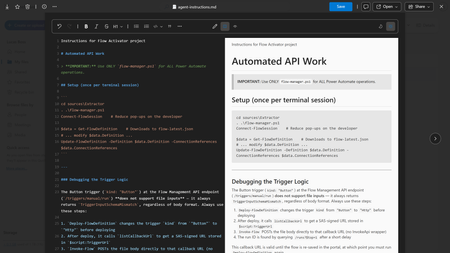
Today, we’re introducing native Markdown support in SharePoint and OneDrive, now rolling out to general availability across both consumer and commercial audiences. As AI and agents increasingly create and update Markdown files to carry out work, teams need a reliable place to manage that content. SharePoint and OneDrive make it easy to view and edit these files in the browser when precision, intent, or changes are required, with built‑in versioning and governance. Markdown files are now fully integrated into the Microsoft 365 file experience, behaving like any other file in your workflow.49KViews3likes15Comments