office 365
349 Topics
Formatting issues in Word Microsoft 365 Copilot online.
I am experiencing formatting issues in Word (Microsoft 365 Copilot online). I am a student, and I have a problem formatting my thesis in M365 Copilot after previously working on this file on an older device with an older version of Word. I recently purchased a new laptop, where I no longer have access to that same version of Word. My only option now is to use Word in the browser. However, the file that formatted correctly on the old device is now not formatting properly. The automatic table of contents is breaking. After clicking “Update,” Word assigns random page numbers, most often all entries show as page “8,” or, for example, the “Introduction,” which is actually on page 3 (I manually set page numbering in the old version), suddenly appears as page 5 in the table of contents. Every chapter and subchapter is shown as being on the same page, usually page 8. The formatting options and capabilities also seem worse compared to the interface of the older version. The same issue occurs on my student account. Please help, I am currently writing my thesis.719Views0likes5Comments
PLEASE HELP ME. Can't Get Formulas In Word To Work?
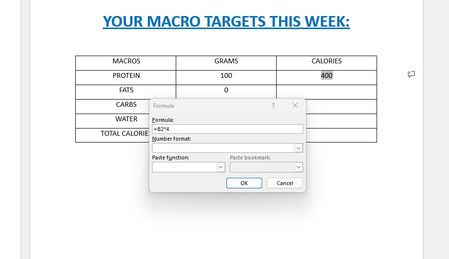
I know how to use formulas in EXCEL and I know WORD isn't EXCEL. But I'm trying to enter a very simple formula into a table in a WORD document to calculate simple macro-nutrients. The formula is very simple. Each gram of carbs is 4 calories. I'm just trying to enter a formula that automatically multiples the number of carbs by 4 so I don't have to manually do the math on my own every time. As you can see in my screenshot, I got it to work by entering (=B2*4). The problem is the formula doesn't stay there. It instantly vanishes once entered. So if I change the number of carbs from 100 which is 400 calories, to 200 which is 800 calories, the formula doesn't automatically update the total calories because the formula disappeared once entered. I just want to know if I can enter the formula in a way which causes it to permanently stay in the cell so it always updates the total calories whenever I change the number of carbs? Just like EXCEL always does? And how to do that? If it's not possible, that's okay. I will simply consider going back to EXCEL then.263Views0likes3CommentsWord Copilot attachments fail with NoTokenObtained
Word Copilot cannot read local or cloud attachments with my Microsoft account. Cloud file attachment opens OneDrive Picker but fails with NoTokenObtained, timeout, or “Sorry, something went wrong.” Local files are accepted but reported as empty/corrupted. The same files work correctly in Microsoft 365 Copilot Chat with the same account. The issue reproduces on different computers, different networks, new Edge profile, new Windows user, and Word for the web without Office desktop installed. Word Copilot can read the active document, so only the attachment pipeline appears broken. Correlation IDs: 49a92ea2-7068-2001-bf16-3cf7d0c388fd and b39b30a2-b012-f000-cf51-72bd844c5dea. Please escalate to Word Copilot / OneDrive File Picker / Microsoft 365 Copilot engineering.228Views0likes1Comment
Cursor flickers excessively when STYLEREF field is used in header with multiple pages
[Performance & Graphic Issue] Word cursor flickers excessively when STYLEREF field is used in header with multiple pages Edit: This issue wont appear at the first time. You can try to edit for a bit time or just scroll a little bit and you will see flickers excessively in a unpleasant speed that ruins your whole writting experience... Description I have encountered a reproducible performance issue in Microsoft Word that causes the text cursor (insertion point) to flicker excessively and continuously when a STYLEREF field is present in the document header. Steps to Reproduce Open Microsoft Word and create a new blank document. Apply the "Heading 1" style to a few paragraphs in the body (e.g., "Chapter 1", "Chapter 2", ...). Double-click the header area to enter the header editing mode. Insert a STYLEREF field that references "Heading 1": Insert > Quick Parts > Field > StyleRef > Heading 1. Close the header and add enough content to the body so the document spans approximately 5–6 pages (e.g., by pressing Enter repeatedly or generating dummy text). Observe the text cursor behavior while typing or simply moving the cursor in the body. Actual Result The text cursor begins to flicker rapidly and continuously once the document reaches about 5–6 pages. The flickering stops immediately when the header/footer area is hidden. I Think the issue is directly correlated with the presence of the STYLEREF field in the header. Expected Result The cursor should remain stable and not flicker, regardless of the presence of the STYLEREF field or the document length. Environment Application: Microsoft Word for Microsoft 365 Version: 2607 (Current Channel) OS: Windows 10 22H2 (Build 19045) Additional Info: This issue occurs in a brand-new blank document with no third-party add-ins or custom templates. The problem is 100% reproducible. Severity This significantly impacts usability, especially when editing longer documents such as theses, reports, or books where chapter titles are commonly displayed in headers. The constant cursor flickering is visually distracting and causes eye strain during extended editing sessions. Note The above report was drafted and translated into English with the assistance of Deepseek, but all the information provided is based on my own manual testing and observations. The issue was discovered during my actual document editing workflow, and I have confirmed through repeated testing that it is directly related to the STYLEREF field.150Views0likes3CommentsNew Bug in Word Word (Version 2607 Build 16.0.20228.20124): QAT is not saved in template?
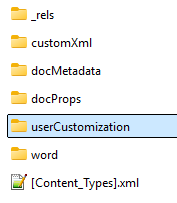
I often make template-specific customizations to the Quick Access Toolbar (QAT). As of today (August 04, 2026), these customizations are suddenly no longer being saved in a Word template. My tests revealed the following: For the customizations to be saved in a template, the UI-based process must create a “UserCustomization” subfolder in the template file (see the ZIP version of the file): The QAT customizations are saved in the “customUI.xml” file within this subfolder. In addition, the “.rels” file in the “_rels” subfolder receives a new entry: <Relationship Id="rId2" Type="http://schemas.microsoft.com/office/2006/relationships/ui/userCustomization" Target="userCustomization/customUI.xml"/> The UI-based process no longer creates the “User Customization” subfolder—an annoying bug! As a result, template-based QAT customizations are lost when a template is closed and reopened. Workaround: Make the described changes manually in the template file—this worked for me—but I hope Microsoft will fix this annoying bug! My Word Version: German UI, Version 2607 Build 16.0.20228.20124, 64 Bit. Can anyone confirm or disagree with this result? DieterG245Views1like8CommentsOffice.js: Is there any supported way to retrieve multiple non-contiguous text selections in Word?
Hi everyone, I'm developing a Word Office Add-in using Office.js. In Microsoft Word (Windows Desktop), users can select multiple non-contiguous text ranges by holding Ctrl while selecting text. However, when I use: context.document.getSelection() It only returns a single Word.Range, and I couldn't find any API to detect or retrieve all the selected ranges. I came across this related discussion: Microsoft Tech Community – Support for Retrieving Multiple Selected Ranges in Word via Office.js My questions are: 1. As of 2026, is there any supported Office.js API to retrieve multiple non-contiguous text selections? 2. Is there any workaround to detect that the user has selected multiple ranges? 3. Or is this still a platform limitation? Our use case is an AI-powered legal research add-in, where users may want to select multiple clauses from different parts of a document and send them together as context. Any guidance would be appreciated. Thanks!165Views0likes4Comments
Word Document Using Columns Not Modified, But Suddenly Displays Differently
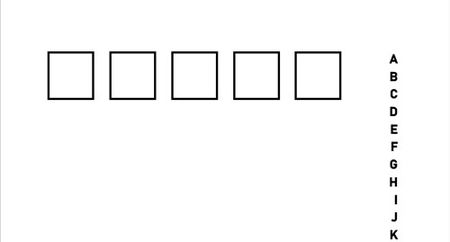
I am using MS Word on my Windows 11 desktop. I have been using a Word document that I created a couple of years ago. The document uses Columns. The last time I modified it was a year ago. I tend to print it out every two days. Suddenly, the document displays differently and prints those differences. It now displays vertical lines below four of the five squares. I moved the document to my Windows 11 laptop. Same problem there. I sent the Word document to my son who opened it on his Mac computer. On his computer, it displays exactly as it should -- No erroneous vertical lines. Again, I have not modified the document. I thought maybe a Windows update may have caused the problem, but I don't see any Windows update in about one month. I am displaying two images below, a "before" and "after" image. The "before" (i.e., correct) image shows five squares and the alphabet displaying vertically. The "after" image shows vertical lines below the first four squares. Can anyone suggest a fix for this? Repeating myself again -- I have not modified this file in a year. Thank you. Len Jacobson First Image -- Correct display of the five squares and the alphabet displayed vertically Second Image -- Incorrect display. Vertical lines appearing below the first four squares.169Views0likes12Comments
Add-in Error of complements in Word Online with my Personal Account
Hi, I am getting an error when trying to insert any add-in (such as Mendeley Cite) in Word Online using my personal account. Error message: "Add-in Error: We couldn't connect to the catalog server for this document" (Original Spanish error: "Error de complemento: no pudimos conectarnos con el servidor del catálogo {0} para este documento") Here are the details and the troubleshooting I've already done: - Account-specific: It works perfectly with my old University account, but fails with my new Personal account. - Platform-specific: The add-in works fine on the Word Desktop App, but fails on Word Online (web browser). - Browsers: I have tried different browsers (Chrome, Firefox) and the issue persists. It seems to be a configuration or permission restriction specific to my personal account on the web version. How can I fix this? Thank you!102Views0likes1CommentRuler Feature Disappeared from Microsoft Word on Android Tablet
Hello everyone, My father recently bought a new Android tablet specifically to use Microsoft Word for his work because he relies heavily on the Ruler feature. When I first installed Word, the Ruler was available and worked perfectly. However, after restarting the tablet, it disappeared. Since then, I have uninstalled and reinstalled the app several times, tried different versions of Word, checked all the settings, and confirmed that we had an active Microsoft 365 subscription, but the Ruler is still missing. My father has also tried adjusting to different document layouts and workarounds, but unfortunately none of them are practical for his workflow. He simply cannot work efficiently without the Ruler feature. Has anyone experienced this issue? Is the Ruler still supported in Microsoft Word for Android, or has it been removed? If it's still available, is there any way to restore it or install a version that includes it? My father bought this tablet mainly for Microsoft Word, so this feature is essential for his work. Thank you for any help or clarification.174Views0likes2Comments
Equations not rendering in Word
Hi everyone, I have an Office 365 Subscription and so I use the online version of Word for my work, I've done so for a number of months. All of a sudden today all of my maths equations stopped rendering. Now all I see, if I try to use the equation editor, is a grey box that says [Equation]. This is true for new documents and also all of my old documents that included equations. I've tried logging in and out again and tried on Chorome and Safari. I lean on this function quite heavily for my work so any help would be appreciated.Solved41KViews1like18Comments