microsoft 365
16 TopicsZoom in or out of forms, tables, and queries when in Form View or Datasheet View
Access now lets you zoom in and out when you’re working with forms, tables, and queries in Form View or Datasheet View. Zoom in for a closer look at your data or zoom out to see more on screen at once. You can adjust the zoom level using the Zoom button on the ribbon, the zoom slider on the status bar, or keyboard shortcuts. Zoom is also available in Print Preview for reports. Zoom isn’t supported in Report View or Design View. This feature is available in Access for Microsoft 365, version 2605 and later. Choose a magnification setting from the ribbon On the Home tab, select Zoom and choose one of the following options: 50%, 75%, 125%, 150%, 175%, 200%, or 500%. To return the view to 100% zoom, click Zoom 100%. If you prefer to use the keyboard, you can press Ctrl + Alt + 0 (zero). Use the zoom slider to quickly zoom in or out On the status bar in the lower right-hand corner of Access, select the zoom slider. Slide to the percentage zoom setting that you want. Press – or + to zoom in gradual increments. Use zoom keyboard shortcuts or mousewheel To zoom in, press Ctrl + Alt + Plus (+). To zoom out, press Ctrl + Alt + Minus (-). To return to 100% magnification, press Ctrl + Alt + 0 (zero). To use the mousewheel and scroll to zoom in or out, press Ctrl + mousewheel. Change your default zoom percentage Access doesn't save zoom settings on closing and reopening a form. Instead, it opens your form using the default zoom setting. To set your zoom default percentage, choose File > Options > Current Database > Application Options and choose the Default Zoom setting. Note Content inside of ActiveX controls, such as the text in a TreeView control, doesn't resize when zoomed. Zooming in Access only affects Access-native controls. If a form uses ActiveX controls, consider replacing them with native Access controls so they scale with the rest of the form.1.2KViews4likes10CommentsAccess Releases 6 Issue Fixes in Version 2209 (Released September 26)
Our newest round of Access bug fixes was released on September 26. In this blog post, we are highlighting some of the fixed issues that our Access engineers released in the current monthly channel build 2209.7KViews4likes1CommentAccess fixes released in Versions 2501 and 2502
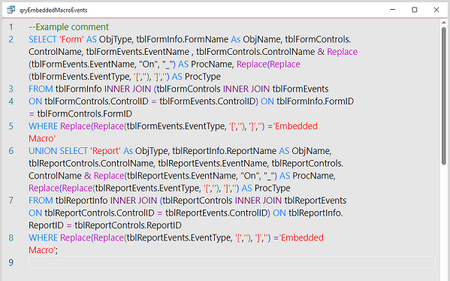
Version 2501 (Build 18429.20132) Bug Name Issue Fixed Ctrl+W doesn’t close the query window when using Monaco SQL Editor Several keyboard shortcuts that were not working properly when editing with Monaco will now function correctly SQL not saved correctly when using Monaco to edit control properties When using the property builder for the Row Source property to open the query editor, and editing with Monaco, spaces might be removed from the SQL, making it invalid Access terminates unexpectedly when setting “Option to enable Monaco SQL Editor” using Application.SetOption Application.SetOption now works correctly to set this option When saving a query with a syntax error using the Monaco editor, the error message might be incorrect In some cases, the editor would report that comments were only allowed at the beginning of a query, even when this was not the issue. File Open dialog doesn’t remember database location when saving backup When saving a backup database, the File Open dialog should default to the location of the open database, rather than the default save location Series sorting does not work in Modern Chart if series display name has been changed The new ability to sort a series in a Modern Chart will now work even if the Display Name of the series has been changed from the default name Version 2502 (Build 18526.20144) Bug Name Issue Fixed Error when saving query after applying a filter in datasheet view When the Monaco editor is enabled applying a filter in datasheet view and saving could generate an error Copying a query from one database does not transfer comments Comments at the beginning of a query should be preserved when copying a query from one database to another Form_MouseWheel event not reporting correct count The Page and Count arguments to this event were always False and 0, but will now report the correct values Some number filter menus not correctly named The Number Filters sub-menu had items for “Less Than...” and “Greater Than...”, but these options should read “Less Than or Equal To...” and “Greater Than or Equal To...” respectively Cannot use VBA code to set some new Modern Chart properties We added some new properties to ChartSeries, for example “Gridlines” and “Word Cloud Shape”, that could be set with the Chart Settings pane. These can now also be set using VBA code. Please continue to let us know if this is helpful and share any feedback you have.1.1KViews5likes4CommentsAccess fixes released in Version 2410
Initial release Version 2410 (Build 18129.20116). Bug Name Issue Fixed Memory leak when using the Properties collection in VBA code Every time there was a reference to the Properties collection (e.g. obj.Properties("Text")) in VBA code, Access would leak memory. If this was done a large number of times, the memory usage of Access could increase significantly. Please continue to let us know if this is helpful and share any feedback you have.864Views3likes0Comments