microsoft 365 compliance center
245 TopicsThe Advantages of Premium Cases in Purview eDiscovery
Capacity & Scale Feature Description Advantage over E3 Enhanced Limits Supports significantly higher limits, including eDiscovery case count and export volume. For example, up to 50,000 cases and 5 TB per search in E5 (versus 10,000 cases and 2 TB in E3). Handles large investigations without splitting into multiple cases or searches. E3’s lower limits would force breaking up big jobs, adding overhead and risk of errors. E5’s higher capacity means fewer workarounds and seamless handling of large-scale litigation. Tenant-Wide eDiscovery Process and Holds Reports (Preview) Provides a central dashboard of all eDiscovery activities and eDiscovery holds across the tenant. Compliance and IT teams get at-a-glance status of ongoing jobs and active holds. Improves oversight and management efficiency for eDiscovery. E3 lacks centralized reporting, making it harder to track many cases. E5’s reporting gives better visibility into operations, which is crucial for heavy workloads and tight deadlines. Expanded Hold Capacity Each legal hold in E5 can encompass up to 2,000 mailboxes and 2,000 sites in one policy. E3 holds are limited to 1,000 mailboxes or 100 sites per policy. Enables placing very large custodian sets on hold with a single action. In E3, exceeding hold limits means juggling multiple policies for one case, increasing complexity. E5 simplifies hold management by consolidating more custodians per hold, reducing admin burden. Search & Collection Feature Description Advantage over E3 Advanced Search Filters Offers richer search criteria beyond keywords. You can filter by sensitive info types (credit cards, SSNs), specific message IDs, or sensitivity labels on documents. This helps pinpoint relevant sensitive content directly. Enables more precise and speedy discovery of critical data. In E3, finding the same info might require complex keyword strings or separate tools (with a higher chance of missing items). E5’s advanced filters mean faster, targeted searches for things like confidential data or GDPR content. Data Source Sync Allows you to refresh custodians’ data sources in a search or hold to catch updates to locations. For example, if a custodian adds a new OneDrive, E5 will detect and prompt you to include it. Ensures no content location is overlooked as the case evolves. E3 has no easy way to know if data moved or new sites were created, potentially leaving gaps. E5’s sync provides complete and defensible collection by keeping holds/searches up-to-date. Cloud Attachment Collection (Hyper-linked Documents) Automatically collects the content of files shared via cloud links (OneDrive/SharePoint) in emails or chats. E5 can retrieve the actual document (and its versions) that was linked, even pulling the specific version that was shared at the time if the version shared feature is enabled. Preserves evidence that E3 would miss. E3 eDiscovery does not fetch linked file content. It would only show a hyperlink, making it difficult to return the associated file. E5 ensures linked documents (with version history) are collected, so the full context of communications is retained. Conversation Threading (Chats & Email) Reconstructs conversations in a threaded view for Microsoft Teams chats and email chains. Reviewers can see messages in context (like a chat transcript or email thread) rather than as isolated items. Greatly improves contextual understanding. E3 exports chats as separate messages with no threading, making it hard to follow the story. E5’s threaded view lets reviewers grasp the full conversation at a glance, reducing confusion and ensuring nothing is interpreted out of context. Custodian & Hold Management Feature Description Advantage over E3 Case-Level Custodian Management Provides a dedicated tab to manage custodians (people) within each case. You add custodians once and can easily apply holds or searches to all their data without re-entering their information each time. Streamlines hold setup and ensures clarity on who is in the case. E3 has no concept of custodians. You must manually input email or site addresses for each search/hold. E5’s approach saves time, reduces errors, and gives a clear view of all people involved in the matter. Bulk Custodian Import Supports importing up to 1,000 custodians at once from a list into a case. Useful for large investigations (e.g., adding an entire department as custodians in one go). Dramatically faster setup for big cases. In E3, adding hundreds of people means typing or pasting each individually, which is time-consuming and error prone. E5’s bulk import means quick, one-time setup for large custodian lists, ensuring no one is missed. “Explore & Add” Custodian Sources Provides an intelligent way to discover related data sources for a given custodian. For example, it can list Teams, SharePoint sites, or groups the person is part of, and let you add those to the case. Helps capture all relevant locations for each person. In E3, you might overlook a Teams channel or group mailbox a custodian was involved in. E5’s explore feature surfaces those connections, improving completeness of your holds and searches by including collaboration spaces that might otherwise be missed. In-Place Review & Analytics Feature Description Advantage over E3 Advanced Indexing and OCR Automatically re-indexes content that was partially indexed or had errors and performs OCR (Optical Character Recognition) on images to extract text. This means files with images or previously unsearchable formats become searchable in E5. Ensures “no stone is left unturned.” E3 would flag such content as “unindexed” (meaning you know a file exists but not what’s inside it). With E5, far more data is searchable, even text inside images or scanned PDFs, reducing the amount of partially indexed content and the chance of missing critical evidence due to format issues. In-Place Review Sets Lets you create a review set of collected data in the cloud. Review sets offer contextual review of conversations, powerful query and filtering capabilities, and query reports for additional insights. Pre-review culling is possible in E5. E3 has no in-product review capability. You must export everything to an outside tool for examination. E5’s review sets allow the team to filter out irrelevant data and focus on what matters before exporting. This reduces the volume (and cost) of data sent for attorney review and keeps data in a secure, auditable environment during analysis. Tagging and Metadata Filters Enables applying tags (labels like “Responsive,” “Privileged,” “Personal Data”) to documents and emails in a review set, and filtering by these tags or other metadata fields. Improves organization and review workflow. E3 cannot tag items in-place, so keeping track of important documents is harder. In E5, tagging allows systematic categorization for quick retrieval (e.g., find all items tagged Highly Relevant instantly). These tags also carry over on export, so any work done during review isn’t lost when handing off to external counsel. Email Threading and Analytics Automatically identifies and stitches together email threads, showing only the last inclusive email that contains the entire conversation. Earlier duplicate emails in the chain are noted and can be skipped. Cuts down review volume and improves context. E3 reviewers would see every single email (even if content repeats across replies). This saves review time and ensures attorneys see the full discussion in one place rather than piecemeal. Conversation View Displays collected Teams (and other chat) messages in a conversation format in a review set, similar to how one would view a chat in the app, instead of individual out-of-context messages. Makes reviewing chat evidence much easier. In E3, chat messages are isolated, forcing reviewers to manually piece together who said what when. E5’s conversational view provides full context at a glance, so nothing is misunderstood or missed in chat-based communications. Near-Duplicate Detection Finds and groups nearly identical documents (e.g. multiple versions of a file or emails with only slight differences). Reviewers are informed which items are alike. Saves time and ensures consistency. E3 requires manually spotting similar files. E5 can let a reviewer examine one version and then quickly tag all its close duplicates the same way. This speeds up review and ensures similar content is handled uniformly (no conflicting judgments on essentially the same document). Themes (Topic Analytics) Uses analytics to cluster documents by themes/topics. For example, it might reveal a group of emails all discussing “Project X” or detect an unusual theme (like frequent mentions of “resignation”). Uncovers hidden patterns that simple keyword searches in E3 might miss. This insight helps investigators spot important threads of discussion or issues they weren’t explicitly searching for, leading to a more thorough understanding of the data set. It adds a layer of proactive insight absent in E3. Global Deduplication Automatically de-duplicates exact copies of emails or files across all custodians using review sets. Each unique item is retained once for review, with duplicates noted. Prevents redundant review work. In E3, the same email stored in five mailboxes would appear five times and could be reviewed and tagged inconsistently by different people. E5’s deduplication means reviewers spend time only on unique content improving efficiency and ensuring consistency in treatment of identical items. Export & Integration Feature Description Advantage over E3 Guest Reviewer Access Allows secure, read-only external access to a review set for outside experts (like outside counsel). Guest reviewers can be invited to review and tag documents in your E5 case via secure Azure AD access (with MFA), without data leaving the tenant. Enables collaboration with outside counsel without exporting data. E3 cannot extend access to external users. You’d have to export files and send them out, which is slower and riskier. E5 keeps the data in-place and governed, letting external reviewers work more efficiently while your organization retains control and visibility. Import External Data Supports ingestion of data from outside M365 into eDiscovery. You can load files like PST emails, PDFs, or documents from file shares into an E5 review set, maintaining custodians’ identity and metadata. Brings all relevant data under one roof. E3 cannot handle content beyond Exchange/SharePoint/Teams, so any non-M365 data would be reviewed separately. E5’s ingestion means even file server or third-party data can be included in the case, making your eDiscovery truly comprehensive and eliminating blind spots between different systems. Rich Export with Metadata Exports include a detailed load file with extensive metadata from the review (custodian info, email thread indices, attachment names, message IDs, tags applied, etc.). This is in addition to the actual content files. Simplifies downstream processing and preserves review decisions. E3’s export is basic (limited metadata), often requiring additional data processing in third-party tools. E5’s comprehensive load file means that all important context (including tags like “Privileged” that your team applied) travels with the exported data, so external reviewers immediately see those cues. This saves time and prevents rework. MIP Search and Decryption Integration Can automatically decrypt protected content (encrypted by Microsoft Information Protection, e.g. with sensitivity labels/Azure RMS) during eDiscovery. Encrypted emails and documents are made readable and searchable when added to a review set. Ensures encrypted files aren’t “invisible” in your investigation. E3 often cannot search or preview MIP-protected emails/docs until they’re manually decrypted after export (if at all). E5 seamlessly includes these encrypted items in search results and review, so you don’t miss evidence that was simply locked behind encryption. Insider Risk Management Escalation Integrates with Microsoft Insider Risk Management (IRM) alerts. With E5, if an insider risk policy flags a user (e.g., for a potential data theft), you can one-click escalate to create an eDiscovery case that automatically targets that user’s content around the incident. Enables a fast, seamless response to insider threats. E3 has no IRM at all, so there’s no such trigger. In E5, the moment a high-risk activity is detected, the legal team can immediately jump into collecting and reviewing the related data. This tight integration means quicker investigations and potentially mitigating issues before they escalate. Communication Compliance Escalation Ties into Communication Compliance (E5’s internal communications monitoring for policy violations). If a serious policy violation is found (e.g., harassment in Teams chats or inappropriate sharing of sensitive info), it can be escalated directly into an eDiscovery case for further investigation. Offers proactive discovery of misconduct. E3 lacks built-in communication monitoring, so issues may go unnoticed until too late. With E5, compliance officers can swiftly pivot from detecting a problem to launching a full eDiscovery inquiry, ensuring faster and more thorough handling of incidents like HR violations or data leaks. Graph API & Automation Fully supports the Microsoft Graph API for eDiscovery. This means eDiscovery tasks (case creation, adding custodians, running searches, exporting data) can be automated or integrated into other applications via scripting/programming without additional cost. While API support is supported for E3, the E3 export API is a metered solution. E5 allows organizations to streamline eDiscovery workflows – for example, auto-create a case and hold when HR flags an employee exit, or integrate with third-party legal management tools without additional cost. Teams and Copilot Interactions Purge Provides an incident response capability to search and purge Teams chats or Microsoft 365 Copilot interactions if sensitive information was shared. Authorized investigators can directly delete up to 100 Teams chat messages (across participant mailboxes) in one go via the eDiscovery interface (leveraging Graph API) when necessary to contain a data leak. Allows quick containment of spills that E3 cannot do. E3’s content search can purge emails but cannot delete Teams messages or Copilot content. With E5, if confidential data pops up in a Teams chat, compliance can not only find it but also bulk-delete those messages from user mailboxes to mitigate further exposure. This capability is crucial for responding to internal data mishandling in real time.Collecting Microsoft 365 Copilot Data with Microsoft Purview eDiscovery
Copilot Data Collection Reference Table Data Type Storage Location Item Class Collection Strategy Copilot Prompts (user questions sent to M365 Copilot) Exchange Online: Hidden folder in the user's mailbox. Compliance copies stored similar to Teams chats, but with unique item classes. IPM.SkypeTeams.Message.Copilot.<AppName> (e.g., .Word, .Excel, .Outlook, .BizChat). Additional AI-related classes may also apply: IPM.SkypeTeams.Message.ConnectedAIApp*, IPM.SkypeTeams.Message.CloudAIApp*, IPM.SkypeTeams.Message.TeamCopilot*, IPM.SkypeTeams.TeamCopilot* 1. Add the user's Exchange mailbox as a data source to the search. 2. In the condition builder you can optionally filter the search to only return Copilot prompts by adding a condition of "Item class contains any of Copilot activity". This automatically applies all relevant M365 Copilot item classes as a condition of the search. 3. Add any further additional conditions such as date range or keywords to narrow results as required. You can also use the Item Class condition to exclude M365 Copilot interactions from your collections when targeting a user’s mailbox. Notes: · Additional item classes may be added. The item class condition will be updated accordingly. Copilot Responses (AI-generated answers) Exchange Online: The same hidden folder in the user's mailbox as prompts. The same IPM.SkypeTeams.Message.Copilot.<AppName> pattern as prompts The same collection strategy used for prompts. Copilot Memories (personalized saved information Copilot "remembers") Exchange Online: Hidden CopilotMemory subfolder within the user's mailbox contacts. Stored as contact entries separate from prompts and responses. IPM.Contact Each memory item appears as a contact card within Exchange, which is distinct from the message-based item classes used for prompts/responses. 1. Add the user's Exchange mailbox as a data source to the search. 2. In the condition builder you can optionally filter the search to only return Contacts by adding a condition of "Item class contains any of Contacts". Notes: · Copilot memories will not be preserved under a legal hold or retention policy. · This will return both Copilot memories stored in contacts as well as traditional contacts from the user’s Exchange mailbox. Copilot Pages (AI-generated, user-editable documents) SharePoint Online: Stored in a user-owned SharePoint embedded container (shared with Loop workspace content and Copilot Notebooks). File format is .page. Not stored in the user's mailbox. N/A These are SharePoint files (not Exchange items), so no item class applies. Identify them in search results by the .page file extension. 1. Add the custodian’s SharePoint embedded site URL as a data source to the search. Alternatively, tenant-wide searches of all SPO sites will include all SharePoint Embedded containers 2. Optionally use the condition builder with conditions such as date range, keywords or file type to further filter results returned Facilitator agent interactions in a Team meeting chat Exchange Online: Hidden folder in all meeting attendees’ mailboxes. Compliance copies stored as Teams chats IPM.SkypeTeams.Message 1. Add the user's Exchange mailbox as a data source to the search. 2. In the condition builder you can optionally filter the search to only return Copilot prompts by adding a condition of "Item class contains any of Instant messages". 3. Add any further additional conditions such as date range or keywords to narrow results as required. Facilitator agent meeting notes (loop) SharePoint Online: Facilitator meeting notes are stored as a .loop file in a OneDrive folder titled Meetings of the user who initiated Facilitator in Teams N/A These are SharePoint files (not Exchange items), so no item class applies. Identify them in search results by the .loop file extension. 1. Add the user's OneDrive URL as a data source to the search. 2. In the condition builder you can optionally filter the search to only return loop files by adding a condition of "File type equals any of loop". 3. Add any further additional conditions such as date range or keywords to narrow results as required. Notes: · With eDiscovery premium enabled cases you can follow the standard workflow for collecting Team meeting messages and select to include cloud attachments in your collection. This will automatically pull into the export or review set any Facilitator agent meeting notes. Facilitator created word/loop documents SharePoint Online: When the facilitator agent is asked to create a word or loop document during a meeting they are stored in the requesters OneDrive in a folder called N/A These are SharePoint files (not Exchange items), so no item class applies. Identify them in search results by the .loop file extension. 1. Add the user's OneDrive URL as a data source to the search. 2. In the condition builder you can optionally filter the search to only return loop and doc files by adding a condition of "File type equals any of loop, docx". 3. Add any further additional conditions such as date range or keywords to narrow results as required. Notes: · With eDiscovery premium enabled cases you can follow the standard workflow for collecting Team meeting messages and select to include cloud attachments in your collection. This will automatically pull into the export or review set any Facilitator generated loop or word documents. Facilitator generated and assigned tasks Exchange Online: When the facilitator agent creates and assigns a task to an individual, it is created as a to-do item in the assigned individual's Exchange Mailbox IPM.Task 1. Add the user's Exchange mailbox as a data source to the search. 2. In the condition builder you can optionally filter the search to only return Tasks by adding a condition of "Item class contains any of Tasks". 3. Add any further additional conditions such as date range or keywords to narrow results as required. Application-Specific Item Classes for Prompts & Responses For more granular filtering by Copilot application, the following item class values can be used in KQL queries: Application Context Item Class Value Microsoft Copilot Chat (BizChat / Teams) IPM.SkypeTeams.Message.Copilot.BizChat Copilot in Excel IPM.SkypeTeams.Message.Copilot.Excel Copilot in Loop IPM.SkypeTeams.Message.Copilot.Loop Copilot in Outlook IPM.SkypeTeams.Message.Copilot.Outlook Copilot in PowerPoint IPM.SkypeTeams.Message.Copilot.PowerPoint Copilot in Teams IPM.SkypeTeams.Message.Copilot.Teams Copilot in Whiteboard IPM.SkypeTeams.Message.Copilot.Whiteboard Copilot in Word IPM.SkypeTeams.Message.Copilot.Word To target all Copilot applications at once, use the wildcard query ItemClass:IPM.SkypeTeams.Message.Copilot.*. For a wider list of AI data sources, see the following link: https://learn.microsoft.com/en-us/purview/edisc-search-copilot-data#data-sources-for-ai-data Important Notes for eDiscovery Practitioners Excluding Copilot Data from Broader Searches Because Copilot prompts and responses reside in the same Exchange mailbox as emails and Teams chats, they will appear in broad mailbox searches unless explicitly filtered out. To exclude Copilot items, use the condition "Item Class Contains none of Copilot activity" in the condition builder, or add (-ItemClass:IPM.SkypeTeams.Message.Copilot.*) in KQL. Some eDiscovery managers run separate searches, one for Copilot data and one for other communications, to keep collections distinct. Copilot Memories: Retention & Hold Limitations Purview retention policies and eDiscovery holds do not currently apply to Copilot memory items. Memory items remain until a user deletes them or an admin explicitly removes them via eDiscovery or Graph API. Additionally, deleting a Copilot prompt and response does not delete any memory derived from that conversation. Memories must be removed separately if required. Copilot Pages: Do Not Treat Like Prompts/Responses Copilot Pages are not stored in Exchange mailboxes. Searching only a custodian’s mailbox will not return Copilot Pages. Treat Copilot Pages the same way as you do for SharePoint content in your existing eDiscovery workflow. For collections, keyword searches will generate hits on text content within the .page file if either the SharePoint Embedded URL is included in the search or the search is a tenant-wide search of all SharePoint sites Be aware that full-text search within .page files in Purview eDiscovery review sets is not currently available. Instead you can use filters such as Subject/Title or Native File Type to locate Copilot Pages in your review set and review the content. When an eDiscovery hold is placed on a custodian’s mailbox, it does not automatically extend to the SharePoint Embedded site where the Copilot Pages are stored. Instead, ensure the hold policy includes the URL for the user-owned SharePoint Embedded site that contains the Copilot Page(s) that must be preserved. Audit Logs vs. eDiscovery for Copilot Content Audit logs record that a Copilot interaction occurred (time, user, workload context) but do not include the actual prompt or response text. To retrieve the substance of Copilot interactions, use Purview eDiscovery searches against the mailbox. Copilot Prompts and Responses: HTML Transcription Copilot prompts and responses are stored as individual messages within the user’s mailbox. When collecting Copilot interactions, enabling the “Organize conversations into HTML transcripts” premium option will convert these individual messages into HTML transcripts making for easier review and linkage between the user’s original prompt and the Copilot responses. Copilot Prompts and Responses: Contextual prompts and responses When using the Keywords condition as part of your collection in eDiscovery, it will only return items that match the keywords included in the query. This means that you may only return a part of the Copilot interaction. If using keywords in your collection query you can enable the “Include full conversation for Copilot, Teams and Viva Engage messages” premium option. This will include in the export or review set any prompts or responses from the Copilot interaction within a 12-hour window before and after each responsive item. This means that you are able to see the full context of the prompt or response that was responsive to search. Collecting Referenced Documents (Cloud Attachments) Copilot responses may reference or summarize SharePoint/OneDrive files. When collecting Copilot interactions, enabling the "Access links (cloud attachments) in messages" premium option will additionally collect the files referenced in the prompt or response and include them in the export package. This provides full evidentiary context but can significantly increase export size and processing time so consider if collecting these artifacts are relevant to the investigation. If so, look to use additional conditions such as date to effectively manage volumes or reduce the number of custodians in the collection. Facilitator agent in Microsoft Teams Meetings The Facilitator agent in Microsoft Teams is an AI-powered assistant (included with Microsoft 365 Copilot) that enhances meeting productivity by generating real-time notes, summarizing key decisions, and managing action items. It acts as an active participant, allowing for collaborative editing of notes and answering chat questions during calls. As the Facilitator works within the context of Microsoft Teams meetings (scheduled private meetings only) your existing workflows for collecting Microsoft Teams meetings chat should be used. In addition, enabling the "Access links (cloud attachments) in messages" premium setting will automatically collect any meeting note (loop) or loop or word documents created by the Facilitator agent. Copilot Retention Reference Table Data Type Microsoft Purview Retention Policy Location/Scope Copilot prompts and responses Microsoft Copilot experiences Copilot Memories (personalized saved information Copilot "remembers") Not supported Copilot Pages (AI-generated, user-editable documents) SharePoint classic and communications sites (Static Scopes only) Facilitator interactions in a Team meeting Teams chats Facilitator meeting notes (loop) OneDrive Accounts Facilitator created word/loop documents OneDrive Accounts Facilitator generated and assigned tasks Exchange mailboxes (Tasks with end dates only)4.2KViews2likes0CommentsAuthorization and Governance for AI Agents: Runtime Authorization Beyond Identity at Scale
Designing Authorization‑Aware AI Agents at Scale Enforcing Runtime RBAC + ABAC with Approval Injection (JIT) Microsoft Entra Agent Identity enables organizations to govern and manage AI agent identities in Copilot Studio, improving visibility and identity-level control. However, as enterprises deploy multiple autonomous AI agents, identity and OAuth permissions alone cannot answer a more critical question: “Should this action be executed now, by this agent, for this user, under the current business and regulatory context?” This post introduces a reusable Authorization Fabric—combining a Policy Enforcement Point (PEP) and Policy Decision Point (PDP)—implemented as a Microsoft Entra‑protected endpoint using Azure Functions/App Service authentication. Every AI agent (Copilot Studio or AI Foundry/Semantic Kernel) calls this fabric before tool execution, receiving a deterministic runtime decision: ALLOW / DENY / REQUIRE_APPROVAL / MASK Who this is for Anyone building AI agents (Copilot Studio, AI Foundry/Semantic Kernel) that call tools, workflows, or APIs Organizations scaling to multiple agents and needing consistent runtime controls Teams operating in regulated or security‑sensitive environments, where decisions must be deterministic and auditable Why a V2? Identity is necessary—runtime authorization is missing Entra Agent Identity (preview) integrates Copilot Studio agents with Microsoft Entra so that newly created agents automatically get an Entra agent identity, manageable in the Entra admin center, and identity activity is logged in Entra. That solves who the agent is and improves identity governance visibility. But multi-agent deployments introduce a new risk class: Autonomous execution sprawl — many agents, operating with delegated privileges, invoking the same backends independently. OAuth and API permissions answer “can the agent call this API?” They do not answer “should the agent execute this action under business policy, compliance constraints, data boundaries, and approval thresholds?” This is where a runtime authorization decision plane becomes essential. The pattern: Microsoft Entra‑Protected Authorization Fabric (PEP + PDP) Instead of embedding RBAC logic independently inside every agent, use a shared fabric: PEP (Policy Enforcement Point): Gatekeeper invoked before any tool/action PDP (Policy Decision Point): Evaluates RBAC + ABAC + approval policies Decision output: ALLOW / DENY / REQUIRE_APPROVAL / MASK This Authorization Fabric functions as a shared enterprise control plane, decoupling authorization logic from individual agents and enforcing policies consistently across all autonomous execution paths. Architecture (POC reference architecture) Use a single runtime decision plane that sits between agents and tools. What’s important here Every agent (Copilot Studio or AI Foundry/SK) calls the Authorization Fabric API first The fabric is a protected endpoint (Microsoft Entra‑protected endpoint required) Tools (Graph/ERP/CRM/custom APIs) are invoked only after an ALLOW decision (or approval) Trust boundaries enforced by this architecture Agents never call business tools directly without a prior authorization decision The Authorization Fabric validates caller identity via Microsoft Entra Authorization decisions are centralized, consistent, and auditable Approval workflows act as a runtime “break-glass” control for high-impact actions This ensures identity, intent, and execution are independently enforced, rather than implicitly trusted. Runtime flow (Decision → Approval → Execution) Here is the runtime sequence as a simple flow (you can keep your Mermaid diagram too). ```mermaid flowchart TD START(["START"]) --> S1["[1] User Request"] S1 --> S2["[2] Agent Extracts Intent\n(action, resource, attributes)"] S2 --> S3["[3] Call /authorize\n(Entra protected)"] S3 --> S4 subgraph S4["[4] PDP Evaluation"] ABAC["ABAC: Tenant · Region · Data Sensitivity"] RBAC["RBAC: Entitlement Check"] Threshold["Approval Threshold"] ABAC --> RBAC --> Threshold end S4 --> Decision{"[5] Decision?"} Decision -->|"ALLOW"| Exec["Execute Tool / API"] Decision -->|"MASK"| Masked["Execute with Masked Data"] Decision -->|"DENY"| Block["Block Request"] Decision -->|"REQUIRE_APPROVAL"| Approve{"[6] Approval Flow"} Approve -->|"Approved"| Exec Approve -->|"Rejected"| Block Exec --> Audit["[7] Audit & Telemetry"] Masked --> Audit Block --> Audit Audit --> ENDNODE(["END"]) style START fill:#4A90D9,stroke:#333,color:#fff style ENDNODE fill:#4A90D9,stroke:#333,color:#fff style S1 fill:#5B5FC7,stroke:#333,color:#fff style S2 fill:#5B5FC7,stroke:#333,color:#fff style S3 fill:#E8A838,stroke:#333,color:#fff style S4 fill:#FFF3E0,stroke:#E8A838,stroke-width:2px style ABAC fill:#FCE4B2,stroke:#999 style RBAC fill:#FCE4B2,stroke:#999 style Threshold fill:#FCE4B2,stroke:#999 style Decision fill:#fff,stroke:#333 style Exec fill:#2ECC71,stroke:#333,color:#fff style Masked fill:#27AE60,stroke:#333,color:#fff style Block fill:#C0392B,stroke:#333,color:#fff style Approve fill:#F39C12,stroke:#333,color:#fff style Audit fill:#3498DB,stroke:#333,color:#fff ``` Design principle: No tool execution occurs until the Authorization Fabric returns ALLOW or REQUIRE_APPROVAL is satisfied via an approval workflow. Where Power Automate fits (important for readers) In most Copilot Studio implementations, Agents calls Power Automate (agent flows), is the practical integration layer that calls enterprise services and APIs. Copilot Studio supports “agent flows” as a way to extend agent capabilities with low-code workflows. For this pattern, Power Automate typically: acquires/uses the right identity context for the call (depending on your tenant setup), and calls the /authorize endpoint of the Authorization Fabric, returns the decision payload to the agent for branching. Copilot Studio also supports calling REST endpoints directly using the HTTP Request node, including passing headers such as Authorization: Bearer <token>. Protected endpoint only: Securing the Authorization Fabric with Microsoft Entra For this V2 pattern, the Authorization Fabric must be protected using Microsoft Entra‑protected endpoint on Azure Functions/App Service (built‑in auth). Microsoft Learn provides the configuration guidance for enabling Microsoft Entra as the authentication provider for Azure App Service / Azure Functions. Step 1 — Create the Authorization Fabric API (Azure Function) Expose an authorization endpoint: HTTP Step 2 — Enable Microsoft Entra‑protected endpoint on the Function App In Azure Portal: Function App → Authentication Add identity provider → Microsoft Choose Workforce configuration (enterprise tenant) Set Require authentication for all requests This ensures the Authorization Fabric is not callable without a valid Entra token. Step 3 — Optional hardening (recommended) Depending on enterprise posture, layer: IP restrictions / Private endpoints APIM in front of the Function for rate limiting, request normalization, centralized logging (For a POC, keep it minimal—add hardening incrementally.) Externalizing policy (so governance scales) To make this pattern reusable across multiple agents, policies should not be hardcoded inside each agent. Instead, store policy definitions in a central policy store such as Cosmos DB (or equivalent configuration store), and have the PDP load/evaluate policies at runtime. Why this matters: Policy changes apply across all agents instantly (no agent republish) Central governance + versioning + rollback becomes possible Audit and reporting become consistent across environments (For the POC, a single JSON document per policy pack in Cosmos DB is sufficient. For production, add versioning and staged rollout.) Store one PolicyPack JSON document per environment (dev/test/prod). Include version, effectiveFrom, priority for safe rollout/rollback. Minimal decision contract (standard request / response) To keep the fabric reusable across agents, standardize the request payload. Request payload (example) Decision response (deterministic) Example scenario (1 minute to understand) Scenario: A user asks a Finance agent to create a Purchase Order for 70,000. Even if the user has API permission and the agent can technically call the ERP API, runtime policy should return: REQUIRE_APPROVAL (threshold exceeded) trigger an approval workflow execute only after approval is granted This is the difference between API access and authorized business execution. Sample Policy Model (RBAC + ABAC + Approval) This POC policy model intentionally stays simple while demonstrating both coarse and fine-grained governance. 1) Coarse‑grained RBAC (roles → actions) FinanceAnalyst CreatePO up to 50,000 ViewVendor FinanceManager CreatePO up to 100,000 and/or approve higher spend 2) Fine‑grained ABAC (conditions at runtime) ABAC evaluates context such as region, classification, tenant boundary, and risk: 3) Approval injection (Agent‑level JIT execution) For higher-risk/high-impact actions, the fabric returns REQUIRE_APPROVAL rather than hard deny (when appropriate): How policies should be evaluated (deterministic order) To ensure predictable and auditable behavior, evaluate in a deterministic order: Tenant isolation & residency (ABAC hard deny first) Classification rules (deny or mask) RBAC entitlement validation Threshold/risk evaluation Approval injection (JIT step-up) This prevents approval workflows from bypassing foundational security boundaries such as tenant isolation or data sovereignty. Copilot Studio integration (enforcing runtime authorization) Copilot Studio can call external REST APIs using the HTTP Request node, including passing headers such as Authorization: Bearer <token> and binding response schema for branching logic. Copilot Studio also supports using flows with agents (“agent flows”) to extend capabilities and orchestrate actions. Option A (Recommended): Copilot Studio → Agent Flow (Power Automate) → Authorization Fabric Why: Flows are a practical place to handle token acquisition patterns, approval orchestration, and standardized logging. Topic flow: Extract user intent + parameters Call an agent flow that: calls /authorize returns decision payload Branch in the topic: If ALLOW → proceed to tool call If REQUIRE_APPROVAL → trigger approval flow; proceed only if approved If DENY → stop and explain policy reason Important: Tool execution must never be reachable through an alternate topic path that bypasses the authorization check. Option B: Direct HTTP Request node to Authorization Fabric Use the Send HTTP request node to call the authorization endpoint and branch using the response schema. This approach is clean, but token acquisition and secure secretless authentication are often simpler when handled via a managed integration layer (flow + connector). AI Foundry / Semantic Kernel integration (tool invocation gate) For Foundry/SK agents, the integration point is before tool execution. Semantic Kernel supports Azure AI agent patterns and tool integration, making it a natural place to enforce a pre-tool authorization check. Pseudo-pattern: Agent extracts intent + context Calls Authorization Fabric Enforces decision Executes tool only when allowed (or after approval) Telemetry & audit (what Security Architects will ask for) Even the best policy engine is incomplete without audit trails. At minimum, log: agentId, userUPN, action, resource decision + reason + policyIds approval outcome (if any) correlationId for downstream tool execution Why it matters: you now have a defensible answer to: “Why did an autonomous agent execute this action?” Security signal bonus: Denials, unusual approval rates, and repeated policy mismatches can also indicate prompt injection attempts, mis-scoped agents, or governance drift. What this enables (and why it scales) With a shared Authorization Fabric: Avoid duplicating authorization logic across agents Standardize decisions across Copilot Studio + Foundry agents Update governance once (policy change) and apply everywhere Make autonomy safer without blocking productivity Closing: Identity gets you who. Runtime authorization gets you whether/when/how. Copilot Studio can automatically create Entra agent identities (preview), improving identity governance and visibility for agents. But safe autonomy requires a runtime decision plane. Securing that plane as an Entra-protected endpoint is foundational for enterprise deployments. In enterprise environments, autonomous execution without runtime authorization is equivalent to privileged access without PIM—powerful, fast, and operationally risky.
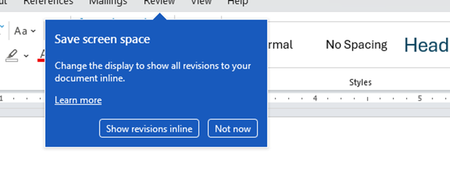
Disable incessant nagware popups
I don't know about everyone else, but I am sick and tired of the nagware pop ups in Word, Excel, PowerPoint, Outlook, etc. Every single product harasses me with pop ups trying to tell me "hey, did you know this feature was here?", "you can do this if you click that", "let me hold your hand through using products you've used for decades even though you don't want daddy Microslop to do that". This is a prime example. I keep getting the same ones again and again and again and everything I've read indicates they should only appear once. But they don't. They keep coming back like a psychotic stalker ex who wants alimony even though you were never married. How do I get this nagware to stop?!205Views1like1CommentI built a free, open-source M365 security assessment tool - looking for feedback
I work as an IT consultant, and a good chunk of my time is spent assessing Microsoft 365 environments for small and mid-sized businesses. Every engagement started the same way: connect to five different PowerShell modules, run dozens of commands across Entra ID, Exchange Online, Defender, SharePoint, and Teams, manually compare each setting against CIS benchmarks, then spend hours assembling everything into a report the client could actually read. The tools that automate this either cost thousands per year, require standing up Azure infrastructure just to run, or only cover one service area. I wanted something simpler: one command that connects, assesses, and produces a client-ready deliverable. So I built it. What M365 Assess does https://github.com/Daren9m/M365-Assess is a PowerShell-based security assessment tool that runs against a Microsoft 365 tenant and produces a comprehensive set of reports. Here is what you get from a single run: 57 automated security checks aligned to the CIS Microsoft 365 Foundations Benchmark v6.0.1, covering Entra ID, Exchange Online, Defender for Office 365, SharePoint Online, and Teams 12 compliance frameworks mapped simultaneously -- every finding is cross-referenced against NIST 800-53, NIST CSF 2.0, ISO 27001:2022, SOC 2, HIPAA, PCI DSS v4.0.1, CMMC 2.0, CISA SCuBA, and DISA STIG (plus CIS profiles for E3 L1/L2 and E5 L1/L2) 20+ CSV exports covering users, mailboxes, MFA status, admin roles, conditional access policies, mail flow rules, device compliance, and more A self-contained HTML report with an executive summary, severity badges, sortable tables, and a compliance overview dashboard -- no external dependencies, fully base64-encoded, just open it in any browser or email it directly The entire assessment is read-only. It never modifies tenant settings. Only Get-* cmdlets are used. A few things I'm proud of Real-time progress in the console. As the assessment runs, you see each check complete with live status indicators and timing. No staring at a blank terminal wondering if it hung. The HTML report is a single file. Logos, backgrounds, fonts -- everything is embedded. You can email the report as an attachment and it renders perfectly. It supports dark mode (auto-detects system preference), and all tables are sortable by clicking column headers. Compliance framework mapping. This was the feature that took the most work. The compliance overview shows coverage percentages across all 12 frameworks, with drill-down to individual controls. Each finding links back to its CIS control ID and maps to every applicable framework control. Pass/Fail detail tables. Each security check shows the CIS control reference, what was checked, what the expected value is, what the actual value is, and a clear Pass/Fail/Warning status. Findings include remediation descriptions to help prioritize fixes. Quick start If you want to try it out, it takes about 5 minutes to get running: # Install prerequisites (if you don't have them already) Install-Module Microsoft.Graph, ExchangeOnlineManagement -Scope CurrentUser Clone and run git clone https://github.com/Daren9m/M365-Assess.git cd M365-Assess .\Invoke-M365Assessment.ps1 The interactive wizard walks you through selecting assessment sections, entering your tenant ID, and choosing an authentication method (interactive browser login, certificate-based, or pre-existing connections). Results land in a timestamped folder with all CSVs and the HTML report. Requires PowerShell 7.x and runs on Windows (macOS and Linux are experimental -- I would love help testing those platforms). Cloud support M365 Assess works with: Commercial (global) tenants GCC, GCC High, and DoD environments If you work in government cloud, the tool handles the different endpoint URIs automatically. What is next This is actively maintained and I have a roadmap of improvements: More automated checks -- 140 CIS v6.0.1 controls are tracked in the registry, with 57 automated today. Expanding coverage is the top priority. Remediation commands -- PowerShell snippets and portal steps for each finding, so you can fix issues directly from the report. XLSX compliance matrix -- A spreadsheet export for audit teams who need to work in Excel. Standalone report regeneration -- Re-run the report from existing CSV data without re-assessing the tenant. I would love your feedback I have been building this for my own consulting work, but I think it could be useful to the broader community. If you try it, I would genuinely appreciate hearing: What checks should I prioritize next? Which security controls matter most in your environment? What compliance frameworks are most requested by your clients or auditors? How does the report land with non-technical stakeholders? Is the executive summary useful, or does it need work? macOS/Linux users -- does it run? What breaks? I have tested it on macOS, but not extensively. Bug reports, feature requests, and contributions are all welcome on GitHub. Repository: https://github.com/Daren9m/M365-Assess License: MIT (free for commercial and personal use) Runtime: PowerShell 7.x Thanks for reading. Happy to answer any questions in the comments.4.1KViews2likes2Comments
Always‑on Diagnostics for Purview Endpoint DLP: Effortless, Zero‑Friction troubleshooting for admins
Historically, some security teams have struggled with the challenge of troubleshooting issues with endpoint DLP. Investigations can often slow down because reproducing issues, collecting traces, and aligning on context can be tedious. With always-on diagnostics in Purview endpoint data loss prevention (DLP), our goal has been simple: make troubleshooting seamless, and effortless—without ever disrupting the information worker. Today, we’re excited to share new enhancements to always-on diagnostics for Purview endpoint DLP. This is the next step in our journey to modernize supportability in Microsoft Purview and dramatically reduce admin friction during investigations. Where We Started: Introduction of continuous diagnostic collection Earlier this year, we introduced continuous diagnostic trace collection on Windows endpoints (support for macOS endpoints coming soon). This eliminated the single largest source of friction: the need to reproduce issues. With this capability: Logs are captured persistently for up to 90 days Information workers no longer need admin permissions to retrieve traces Admins can submit complete logs on the first attempt Support teams can diagnose transient or rare issues with high accuracy In just a few months, we saw resolution times drop dramatically. The message was clear: Always-on diagnostics is becoming a new troubleshooting standard. Our Newest Enhancements: Built for Admins. Designed for Zero Friction. The newest enhancements to always-on diagnostics unlock the most requested capability from our IT and security administrators: the ability to retrieve and upload always-on diagnostic traces directly from devices using the Purview portal — with no user interaction required. This means: Admins can now initiate trace uploads on demand No interruption to information workers and their productivity No issue reproduction sessions, minimizing unnecessary disruption and coordination Every investigation starts with complete context Because the traces are already captured on-device, these improvements now help complete the loop by giving admins a seamless, portal-integrated workflow to deliver logs to Microsoft when needed. This experience is now fully available for customers using endpoint DLP on Windows. Why This Matters As a product team, our success is measured not just by usage, but by how effectively we eliminate friction for customers. Always-on diagnostics minimizes the friction and frustration that has historically affected some customers. - No more asking your employee or information worker to "can you reproduce that?" and share logs - No more lost context - No more delays while logs are collected after the fact How it Works Local trace capture Devices continuously capture endpoint DLP diagnostic data in a compressed, proprietary format, and this data stays solely on the respective device based on the retention period and storage limits configured by the admin. Users no longer need to reproduce issues during retrieval—everything the investigation requires is already captured on the endpoint. Admin-triggered upload Admins can now request diagnostic uploads directly from the Purview portal, eliminating the need to disrupt users. Upload requests can be initiated from multiple entry points, including: Alerts (Data Loss Prevention → Alerts → Events) Activity Explorer (Data Loss Prevention → Explorers → Activity explorer) Device Policy Status Page (Settings → Device onboarding → Devices) From any of these locations, admins can simply choose Request device log, select the date range, add a brief description, and submit the request. Once processed, the device’s always-on diagnostic logs are securely uploaded to Microsoft telemetry as per customer-approved settings. Admins can include the upload request number in their ticket with Microsoft Support, and sharing this number removes the need for the support engineer to ask for logs again during the investigation. This workflow ensures investigations start with complete diagnostic context. Privacy & compliance considerations Data is only uploaded during admin-initiated investigations Data adheres to our published diagnostic data retention policies Logs are only accessible to the Microsoft support team, not any other parties We Want to Hear From You Are you using always-on diagnostics? We'd love to hear about your experience. Share your feedback, questions, or success stories in the Microsoft Tech Community, or reach out to our engineering team directly. Making troubleshooting effortless—so you can focus on what matters, not on chasing logs.Microsoft Ignite 2025: Top Security Innovations You Need to Know
🤖 Security & AI -The Big Story This Year 2025 marks a turning point for cybersecurity. Rapid adoption of AI across enterprises has unlocked innovation but introduced new risks. AI agents are now part of everyday workflows-automating tasks and interacting with sensitive data—creating new attack surfaces that traditional security models cannot fully address. Threat actors are leveraging AI to accelerate attacks, making speed and automation critical for defense. Organizations need solutions that deliver visibility, governance, and proactive risk management for both human and machine identities. Microsoft Ignite 2025 reflects this shift with announcements focused on securing AI at scale, extending Zero Trust principles to AI agents, and embedding intelligent automation into security operations. As a Senior Cybersecurity Solution Architect, I’ve curated the top security announcements from Microsoft Ignite 2025 to help you stay ahead of evolving threats and understand the latest innovations in enterprise security. Agent 365: Control Plane for AI Agents Agent 365 is a centralized platform that gives organizations full visibility, governance, and risk management over AI agents across Microsoft and third-party ecosystems. Why it matters: Unmanaged AI agents can introduce compliance gaps and security risks. Agent 365 ensures full lifecycle control. Key Features: Complete agent registry and discovery Access control and conditional policies Visualization of agent interactions and risk posture Built-in integration with Defender, Entra, and Purview Available via the Frontier Program Microsoft Agent 365: The control plane for AI agents Deep dive blog on Agent 365 Entra Agent ID: Zero Trust for AI Identities Microsoft Entra is the identity and access management suite (covering Azure AD, permissions, and secure access). Entra Agent ID extends Zero Trust identity principles to AI agents, ensuring they are governed like human identities. Why it matters: Unmanaged or over-privileged AI agents can create major security gaps. Agent ID enforces identity governance on AI agents and reduces automation risks. Key Features: Provides unique identities for AI agents Lifecycle governance and sponsorship for agents Conditional access policies applied to agent activity Integrated with open SDKs/APIs for third‑party platforms Microsoft Entra Agent ID Overview Entra Ignite 2025 announcements Public Preview details Security Copilot Expansion Security Copilot is Microsoft’s AI assistant for security teams, now expanded to automate threat hunting, phishing triage, identity risk remediation, and compliance tasks. Why it matters: Security teams face alert fatigue and resource constraints. Copilot accelerates response and reduces manual effort. Key Features: 12 new Microsoft-built agents across Defender, Entra, Intune, and Purview. 30+ partner-built agents available in the Microsoft Security Store. Automates threat hunting, phishing triage, identity risk remediation, and compliance tasks. Included for Microsoft 365 E5 customers at no extra cost. Security Copilot inclusion in Microsoft 365 E5 Security Copilot Ignite blog Security Dashboard for AI A unified dashboard for CISOs and risk leaders to monitor AI risks, aggregate signals from Microsoft security services, and assign tasks via Security Copilot - included at no extra cost. Why it matters: Provides a single pane of glass for AI risk management, improving visibility and decision-making. Key Features: Aggregates signals from Entra, Defender, and Purview Supports natural language queries for risk insights Enables task assignment via Security Copilot Ignite Session: Securing AI at Scale Microsoft Security Blog Microsoft Defender Innovations Microsoft Defender serves as Microsoft’s CNAPP solution, offering comprehensive, AI-driven threat protection that spans endpoints, email, cloud workloads, and SIEM/SOAR integrations. Why It Matters Modern attacks target multi-cloud environments and software supply chains. These innovations provide proactive defense, reduce breach risks before exploitation, and extend protection beyond Microsoft ecosystems-helping organizations secure endpoints, identities, and workloads at scale. Key Features: Predictive Shielding: Proactively hardens attack paths before adversaries pivot. Automatic Attack Disruption: Extended to AWS, Okta, and Proofpoint via Sentinel. Supply Chain Security: Defender for Cloud now integrates with GitHub Advanced Security. What’s new in Microsoft Defender at Ignite Defender for Cloud innovations Global Secure Access & AI Gateway Part of Microsoft Entra’s secure access portfolio, providing secure connectivity and inspection for web and AI traffic. Why it matters: Protects against lateral movement and AI-specific threats while maintaining secure connectivity. Key Features: TLS inspection, URL/file filtering AI Prompt Injection protection Private access for domain controllers to prevent lateral movement attacks. Learn about Secure Web and AI Gateway for agents Microsoft Entra: What’s new in secure access on the AI frontier Purview Enhancements Microsoft Purview is the data governance and compliance platform, ensuring sensitive data is classified, protected, and monitored. Why it matters: Ensures sensitive data remains protected and compliant in AI-driven environments. Key Features: AI Observability: Monitor agent activities and prevent sensitive data leakage. Compliance Guardrails: Communication compliance for AI interactions. Expanded DSPM: Data Security Posture Management for AI workloads. Announcing new Microsoft Purview capabilities to protect GenAI agents Intune Updates Microsoft Intune is a cloud-based endpoint device management solution that secures apps, devices, and data across platforms. It simplifies endpoint security management and accelerates response to device risks using AI. Why it matters: Endpoint security is critical as organizations manage diverse devices in hybrid environments. These updates reduce complexity, speed up remediation, and leverage AI-driven automation-helping security teams stay ahead of evolving threats. Key Features: Security Copilot agents automate policy reviews, device offboarding, and risk-based remediation. Enhanced remote management for Windows Recovery Environment (WinRE). Policy Configuration Agent in Intune lets IT admins create and validate policies with natural language What’s new in Microsoft Intune at Ignite Your guide to Intune at Ignite Closing Thoughts Microsoft Ignite 2025 signals the start of an AI-driven security era. From visibility and governance for AI agents to Zero Trust for machine identities, automation in security operations, and stronger compliance for AI workloads-these innovations empower organizations to anticipate threats, simplify governance, and accelerate secure AI adoption without compromising compliance or control. 📘 Full Coverage: Microsoft Ignite 2025 Book of News3.2KViews2likes0CommentsWhat’s New in Microsoft Purview eDiscovery
As organizations continue to navigate increasingly complex compliance and legal landscapes, Microsoft Purview eDiscovery is adapting to address these challenges. New and upcoming enhancements will improve how legal and compliance teams manage cases, streamline workflows, and reduce operational friction. Here’s a look at some newly released features and some others that are coming soon. Enhanced Reporting in Modern eDiscovery The modern eDiscovery experience now offers comprehensive reporting capabilities that capture every action taken within a case. This creates an auditable record of actions, enabling users to manage case activities confidently and accurately. These enhancements are critical for defensibility and audit readiness, and they also help users better understand the outcomes of their searches based on the options and settings they selected. Recent improvements include: Compliance boundary visibility: The Summary.csv report now includes the compliance boundary settings that were applied to the search query. This helps clarify search results, especially when different users have varying access permissions across data locations. Decryption settings: Visibility has been added to the Settings.csv report to indicate if a specific process has Exchange or SharePoint decryption capabilities enabled. This ensures users can verify whether encrypted content can be successfully decrypted during the process of adding to a review set or export. Visibility into Premium feature usage: There is a new value in the Settings.csv report that indicates whether Premium features were enabled for the process. Improved clarity: The Items.csv report now includes an "Added by" column to understand how the item was identified. This column shows if items were included by direct search (IndexedQuery), partial indexing (UnindexedQuery), or advanced indexing (AdvancedIndex). Contextual information: The Summary.csv report helps users understand their exported data by providing contextual explanations. For instance, it explains how the volume of exported data may be greater than the search estimate due to factors such as cloud attachments or multiple versions of SharePoint documents. Copy Search to Hold: Reuse with Confidence Another commonly requested feature that is now available is the ability to create a hold from a search. If your workflow starts with searches before creating holds, you can use the new, “Create a hold” button to create a new hold policy based on that search. Depending on your workflow, it can be effective to start off with a broad, high-level search across the entire data source to quickly surface potentially relevant content and gauge the approximate amount of data that may need review. For example, in a litigation scenario, you may want to search across the entire mailbox and OneDrive of custodians that are of interest. Once the preservation obligation is triggered, this new feature easily allows you to copy your search and create a hold to preserve the content, streamlining your workflow and enhancing efficiency. Whether you begin with a highly targeted search or something broader, this feature reduces duplication of effort and ensures consistency across processes when you want to turn an existing search into a hold. Retry Failed Locations: Easily Address Processing Issues Searches can occasionally encounter issues due to temporarily inaccessible locations. The new “Retry failed locations” feature introduces a simple, automated way to reprocess those issues without restarting the entire job. When you retry the failed locations, the results will be aggregated with the original job to provide a comprehensive overview. This feature is particularly beneficial for administrators, allowing them to efficiently retry the search while ensuring continuity in their workflow. Duplicate Search: Consistency Made Easy Save time and reduce rework by duplicating an existing search with just a few mouse clicks. Whether you're building on a previous query or rerunning it with slight adjustments, this new feature lets you preserve all original parameters, such as conditions, data sources, and locations, so you can move faster with confidence and consistency. Administrators and users simply click the “Duplicate search” button while on an existing search and then rename it. Case-Level Data Source Management: The New Data Sources Tab We recently introduced a new case-level Data Sources view in Purview eDiscovery, allowing data sources to be reused in searches and holds within a case. This enhancement allows case administrators to map and manage all relevant data locations, including mailboxes, SharePoint sites, Teams channels, and more, directly within a case. Once data sources have been added, it greatly simplifies the process of creating searches. Adding data sources within the Data Sources tab enables administrators to select from a list of previously added sources when creating new searches, rather than searching for them each time. This feature is especially useful for frequent searches across the same data sources, which happens often within eDiscovery. With this feature, users can: Visualize all data sources tied to a case. Use data source locations to populate searches and eDiscovery hold policies. Simplify the search creation process for administrators and users. This new functionality empowers teams to make more informed decisions about what to preserve, search, and review. Delete Searches and Search Exports: Keep Your Case Well Organized A newly released feature is one that helps you remove outdated or redundant searches from a case, helping keep the workspace clean and focused. With just a few clicks, you can delete searches that are no longer relevant, helping you stay focused on what matters most without extra clutter. Whether you're tidying up after a project or clearing out test runs, deletion helps keep you organized. hot showing how to delete a search. Another new feature enables users to delete search exports. This functionality is intended to assist with the management of case data and to remove unnecessary or outdated search exports, including sensitive information that is no longer required. Condition Builder Enhancements for Logical Operators (AND, OR, NEAR) The Condition Builder now supports logical operators—AND, OR, and NEAR—all within the same line, or grid. These enhancements empower users to construct more targeted search conditions and offer increased control over the use of phrases, enabling additional options over how terms are combined and matched, and proving greater flexibility to keyword queries. Tenant level control over Premium Features An upcoming enhancement will introduce a tenant-level setting to allow organizations to set the default behavior for new case creation and whether to use Premium features by default. This will provide greater flexibility and control, especially for customers that are in a mixed-license environment. Export Naming and Controlling Size of Exports A couple more upcoming enhancements are intended to give users more control and additional options over the export process, increasing flexibility for legal and compliance teams. First, export packages will include the user-defined export name directly in the download package. This small but impactful change simplifies tracking and association of exported data with specific cases. This is especially useful when managing multiple exports across different cases. Second, a new configuration setting will allow administrators to define a maximum export package size. This gives teams greater control over how data is partitioned, helping to optimize performance and reduce the risk of download issues or browser timeouts during large exports. Takeaways These updates are part of a broader modernization of the Purview eDiscovery experience, which includes a unified user experience, enhanced reporting, and a more streamlined and intuitive workflow for teams managing regulatory inquiries, litigation, or investigations. These enhancements aim to reduce friction, streamline workflows, and accelerate productivity. To learn more about thew new eDiscovery user experience, visit our Microsoft documentation at https://aka.ms/ediscoverydocsnew For more updates on the future of eDiscovery, please check out our product roadmap at https://aka.ms/ediscoveryroadmap To become a Purview eDiscovery Ninja, check out our eDiscovery Ninja Guide at: https://aka.ms/ediscoveryninja
Arcihtekt M365 // Ogłoszenie pracy
Kim jesteśmy? Technologia to nasza pasja, ale nie tylko! Wspieramy inicjatywy społeczne, ekologiczne i promujące aktywny styl życia. Jesteśmy laureatem prestiżowych nagród posiadamy certyfikat Great Place to Work, a na co dzień współpracujemy z globalnymi liderami IT - VMware, Fortinet, IBM, HPE, Dell, Hitachi, Microsoft, AWS. Nasz zespół tworzą utalentowani inżynierowie i doświadczeni architekci IT. Dołącz do nas i zostań częścią #ITSFteam! Kogo szukamy? Arhitekta M365, który dołączy do naszego zespołu i będzie odpowiedzialny za projektowanie, wdrażanie oraz zarządzanie rozwiązaniami opartymi na Microsoft 365. Idealny kandydat to osoba z doświadczeniem w architekturze chmurowych rozwiązań Microsoft, posiadająca umiejętność kompleksowego projektowania i optymalizacji procesów w obrębie aplikacji i usług M365, takich jak Teams, Sharepoint, Exchange Online, OneDrive, Power Platform czy Microsoft 365 Copilot. Warto od razu zaznaczyć, będzie to praca w modelu hybrydowym 4/1 w Warszawie. Co oferujemy? Współpaca bezpośrednio z nami na okres długofalowy (5+ lat); Możliwość rozwoju przy pracach dla największych klientów Enterprise w całym kraju; Pakiet medyczny Medicover; Karta Multisport; Program PPK; Lekcje angielskiego; Dodatkowy dzień urlopu z okazji urodzin; Około 8 integracji frmowych w roku :) Jeśli propozycja brzmi interesująco i chciałbyś poznać więcej szczegółów na temat wymagań, bądź zakresu obowiązków — to śmiało aplikuj przez link niżej: https://itsf.traffit.com/public/an/0ed08bcedcd522af2936290b48d33a9e4869756561Views0likes0Comments