internet explorer
54 Topics
Site to Zone Assignment List - Powershell
I need to replicate the steps of adding a list of URLs to the Site to Zone Assignment List of a GPO. Is there a way to edit that GPO via PowerShell, enable Site to Zone Assignment List, and pass the list of URLs to it? - Open the Group Policy Management Editor. Go to User Configuration > Policies > Administrative Templates > Windows Components > Internet Explorer > Internet Control Panel > Security Page. Select the Site to Zone Assignment List. Select Enabled and click Show to edit the list. The zone values are as follows: 1 — intranet, 2 — trusted sites, 3 — internet zone, 4 — restricted sites. Click OK. Click Apply and OK.Solved23KViews0likes1Comment
Requesting CHM Viewer upgrade
It appears that the latest release of Adobe Acrobat Reader DC has caused an issue when a PDF is https://community.adobe.com/t5/acrobat/acropdfimpl64-dll-crashes-when-pdf-is-accessed-via-activex-webbrowser-control-x64/m-p/12133227, such as the control that the CHM Viewer (hh.exe) uses. We create a CHM file that opens an embedded PDF so the users don't have to print topic-by-topic, and now they can't open the PDF to print. A CHM file is part of the requirements, so we can't send them the PDF directly. We can recompile the CHM to open the PDF in a new window, but it will only open in Internet Explorer, which the users aren't allowed to use. I tried uninstalling IE locally, and now the new window link doesn't do anything. I'm requesting that the CHM Viewer be upgraded to work without relying on ActiveX controls. Since IE11 support will be dropped from M365 apps in August, I hope that the CHM viewer can be upgraded as well.1.2KViews0likes0CommentsWill Desktop version of Office 365 (Word/Excel) affected by Internet Explorer 11 retirement?
We are using ActiveX control to open Desktop version of Microsoft Word 365 from Internet Explorer. We are planning to use Edge + IE Mode going forward after Internet Explorer 11 retirement announcement. Does this announcement regarding Internet Explorer 11 retirement affect Desktop version of Office 365 (Word/Excel) in anyway? Will we be able to open Desktop version of Microsoft Word 365 using ActiveX control in Edge + IE Mode after August 17, 2021?726Views0likes0Comments
Edge Chromium doesn't import ALL favorites from IE
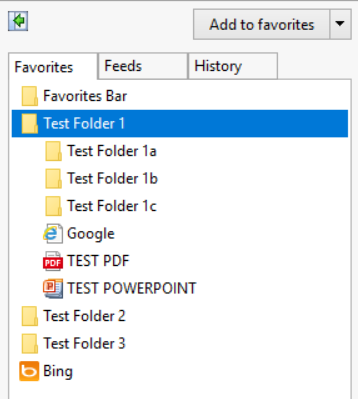
Hello, We are making the migration for our users from IE to Edge Chromium and have the GPO in place "Automatically import another browser's data and settings at first run" to import the Favorites from IE into Edge Chromium. We do this since we manage the favorites, and it's easier for us to drag/drop/change extensions in the Favorites folder of our Mandatory Profiles as the favorites will change from time to time. Alongside the internet shortcuts (.url) are .ppt/.pptx and .pdf files we drop in the favorites for ease of access. We also do this because we disable access to File Explorer for these terminal users. We found that only the .url extensions are copying over into Edge. We also noticed that Edge does not import folders recursively, as we have folders within folders at the root that do not transfer over. I have attached an example of our setup. In IE you can see our three folders, within 'folder 1' I have three subfolders, a .PDF, a .PPTX, and an internet shortcut to Google.com. Next we'll import the browser data from IE After the import, only folders with found content in it are transferred over. Recursive folders are not copied and even 'Test Folder 2' and 'Test Folder 3' were not transferred since they were empty of content. We found that no extension outside of .URL would copy over into Edge. For testing, we successfully added the .pptx and .pdf files manually. The PDF opens in Edge and even though the .pptx does not open, Edge still asks us what we would like to do with it. Is there a way we can transfer all of the contents from IE into Edge Chromium currently with a GPO? Or will this be a feature added in a future release? For enterprise that deny access to File Explorer for security reasons this is one of the few options we've relied on in the past with IE. Thank you. We are using Edge Version 87.0.664.75 64-bit2KViews0likes2Comments
MS Teams External Meeting - IE to Edge redirection
Hi, Recently moved to Chromium Edge 80.0.361.54 (Official build) (64-bit), with IE11 remaining as default browser. We only use the browser client for MS Teams. Upon receiving the hyperlink to an External Teams meeting, I click and it opens in IE11 and asks to open in Edge - all fine so far. However, whene clicking the link to re-direct us to Edge, it just loads are Internal Edge channels as doesn't join the meeting. If I copy the hyperlink directly from the invite and paste into Edge, it works fine. Changing default browser is not currently an option (this also fixes the issue though). It also worked fine with legacy Edge browser It appears to be an issue passing the link through from IE to Edge Any ideas?2.3KViews0likes4CommentsServer 2019 User Profile Disks and IE 11 Roaming
I'm posting in the hope someone may be able to help me - we are setting up a new Remote Desktop Services farm using Server 2019 Datacenter and are utilising User Profile Disks (UPD) for storing some profile data. The only items in the UPD are the Roaming AppData, user registry hive and a couple of bits of Local AppData (to support the start menu tiles and also an internal application). The problem is that Internet Explorer 11 seems to store its' key data (primarily Cookies) in the Local AppData area so they don't roam. I have included the AppData\Local\Microsoft\Windows WebCache and iNetCookies folders in the roaming, and that works until the folder name changes in C:\Users (usually due to something not clearing down correctly at log off) - i.e. folder "username" becomes "username.000" and then it breaks the Cookies again. I have tested with a Roaming Profile (the 'old school' type) and in this case it seems to work - it seems, from what I have read, that Windows behaves differently with a Roaming profile to a Local one (as a UPD is seen as) Any help/guidance with this would be appreciated4.2KViews0likes3Comments
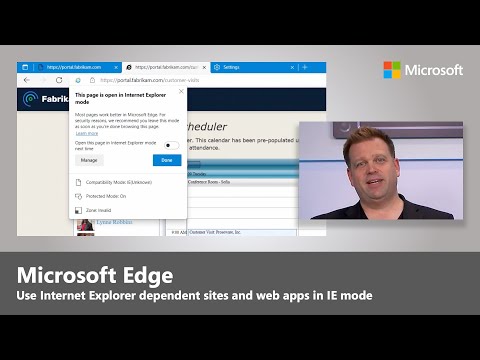
Unable to get IE mode working through Intune
Hello all, I am trying to get IE mode working with Chromium Edge through Intune. I have enabled the "Configure Internet Explorer integration" policy to be in IE Mode (I have also tested open in IE 11 which also does not work) and enabled and set the "Configure the Enterprise Mode Site List" policy. With the latter policy, I have configured using an XML file in a network location, URL location or just list the URLs out. For a test, I have added google.com. No matter what I do, nothing works.2.6KViews2likes2Comments
MS Edge 79.0.309.65 on Windows 7 - Internet Explorer mode: unsupported
Running Windows 7 Professional x64. All updates from Microsoft Update installed, optional or not. As per advice on https://docs.microsoft.com/en-US/deployedge/edge-ie-mode, I made sure both https://support.microsoft.com/help/4507437/windows-7-update-kb4507437 and https://support.microsoft.com/help/4511872/cumulative-security-update-for-internet-explorer updates are installed (they already have been), I also manually installed the latest security rollup for IE 11. And yet, edge://compat/iediagnostic still shows "Internet Explorer mode: unsupported", and shows me the "Windows Update" button. Group policies seem to have been applied, "Group policy settings" are "on" according to the diagnostic page.Solved2.5KViews0likes5Comments