image
20 Topics
Identify plants, landmarks, products and more, using Search in Sidebar for Image!
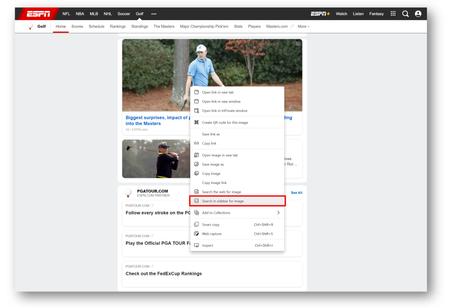
Search in Sidebar is one of the many in-context search features that Microsoft Edge users love when performing text search. However, we know that some users have asked for equivalent search features for those wishing to perform a visual search - searching using an image as their input. We are glad to introduce Search in Sidebar for Images, an in-context visual search experience that can be invoked from any page. Here is how it works: When browsing on a webpage, just right-click any image to see the "Search in sidebar for image", which will appear if the embedded image is supported. Clicking on this option will perform a Bing visual search, displaying the results in a sidebar: Depending on the image, different results types will appear - from landmark identification to shopping results - so do try out different images to learn about everything searching with an image can do! Search in sidebar for image is a Bing-only search feature. Learn more about Bing visual search here. The feature has been rolled out to the Dev and Canary channels as part of the CFR, available from 91.0.846.0. Please leave us your valuable feedback around new in-browser search features like this one by leaving a comment below or sending us feedback via the browser (… menu > Help and feedback > Send feedback). We hope you enjoy Search in Sidebar for Image and look forward to hearing from you!13KViews7likes15Comments
Image Webpart that is not clickable. How to remove link?
Hello, I’d like to thank you in advanced for your assistance. I’d think something so basic would be easy to figure out, but I’ve been breaking my head with this all week and I’m now at a dead end. I have a normal page in a communication site and I would like to add an image without a link and which is not clickable. Just an image to be displayed. I’m currently using the image we parts but although I do not add a link, the user can still click on it, and the image enlarges. How do I disable this, Thank you so much, I really appreciate it.20KViews5likes15CommentsWeb Capture "copy" button should copy an image file, ready to be pasted into a folder
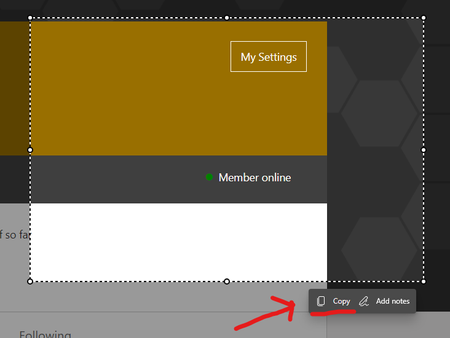
after using Web capture and snipping part of the screen, when you use the Copy button, you don't get an image file in the clipboard, you still need to open a new program like Paint to paste it in there and then save it as a file to desktop or folder. I'm suggesting to change this and simplify it, when we press Copy, then copy the actual image file ready to be pasted in a folder or desktop. you can still get the old way of copying if you press "add notes" and then press copy. I'm sending this as feedback using feedback button on Edge, if you like this, do the same. more feedback = higher priority11KViews4likes6Comments110 character limit on hyperlinks, on images in Text web part?
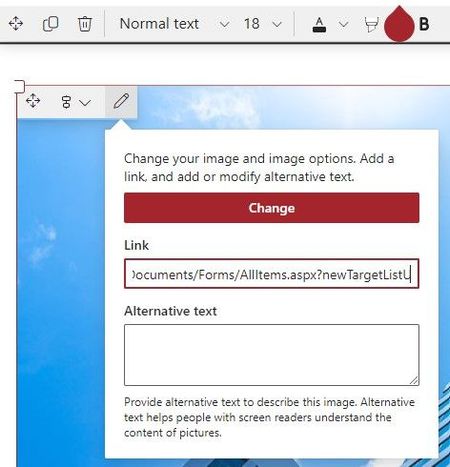
Hi all, I've hit what looks a very basic problem that I can't find much information about. In a modern SharePoint page, when inserting an image into the Text web part, the option to add a link limits the input at a measly 110 characters. This means many links I'm trying to add get cut short and won't work. If there was going to be a logical limit it could be 400 or at the very least 255 (like elsewhere is SharePoint). Is there a reason for this? Is there a workaround? Also seems short-sighted to not allow the user to browse for pages/files in the site like other web parts do? The Image web part itself doesn't have this character limit but that takes away the ability to place the image within the body of text, which must be the most common requirement. Cheers, AlanSolved3KViews2likes2Comments
Cannot group image and caption together
Hello, I am writing my masters thesis and experience the following issue: I have several images in my document (all with text wrapping, NOT in line) and want to add numbered captions for my automatically generated table of figures. The problem is, when right-clicking on an image and selecting "add caption", the text box of the caption is not groupable with the image. The text box has a different kind of border than one would expect, see image: For reference, I tried to recreate the issue in a new document, and there the caption has a "normal", groupable textbox, see: Does any one of you have an idea how to move forward and fix this issue? The upper version of the caption box isnt groupable and moveable, so it is very hard to work with and it messes up the document at serveral points. Thanks a lot and have a great day! Tobi18KViews2likes12Comments
Stock SVG images
Does Microsoft offer stock SVG images that could be used in Teams apps? If not, is it ok to reuse the default ones displayed in Microsoft Teams? Here are some examples I came across: https://statics.teams.cdn.office.net/hashedassets/fre_bringteam_desktop-0edd9ff.svg https://statics.teams.cdn.office.net/hashedassets/fre_videocall_desktop-c6546ef.svgSolved3.6KViews2likes3Comments
OneDrive Photos Restyle with AI-now rolling out on mobile and web
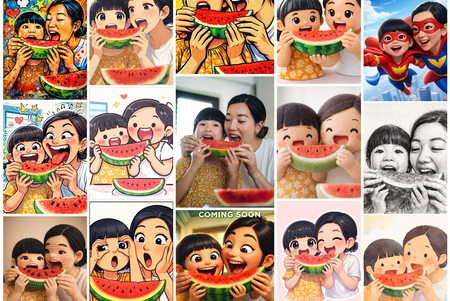
Photos capture real moments. With AI Restyle in OneDrive, you can reimagine them in fresh new styles-right where your photos already live. Meet AI Restyle Photos capture real moments. With AI Restyle in OneDrive, you can reimagine those moments in expressive new styles-right where your photos already live. With just a tap, transform everyday photos into cinematic posters, hand‑painted artwork, pencil sketches, anime‑inspired scenes, and more. Choose a style, watch a new version appear in seconds, and keep exploring until it feels just right. Through it all, the people, places, and memories you care about stay unmistakably yours-just seen in a fresh new light. Your photos stay private When you use AI Restyle in OneDrive, your photos remain under your control and are processed only to generate the style you choose. For more information on how AI Restyle works, its intended uses, and limitations, see Transparency note for AI Restyle in OneDrive - Microsoft Support. What you can do with AI Restyle Create something beautiful instantly. Choose from a rotating set of one‑tap styles designed to match the content of your photo-so it’s easy to get a great result right away. New styles are added regularly, giving you fresh ways to reimagine your photos. Add a personal touch when you want. Include an optional prompt to guide the look-no design skills required. Explore until it feels right. Try multiple restyles, undo or redo changes, and keep experimenting until you find the look you love. Share in just a few taps. Go from viewing to restyling to sharing with your favourite apps-without ever leaving OneDrive Photos. Availability AI Restyle is rolling out on OneDrive for iOS, Android, and web for customers with a Microsoft 365 Premium subscription. Availability may vary by region as rollout continues. What’s next We’re continuing to expand AI-powered photo experiences in OneDrive-bringing AI Restyle to additional platforms and investing in new editing capabilities that help you create with confidence while keeping your photos authentic. Try it today Open OneDrive on iOS, Android, or web, sign in with a Microsoft 365 Premium account, open a photo, and tap on ‘AI Restyle’ to start exploring new styles. Have fun creating something new today! Try it on the OneDrive mobile app. iOS: Download Microsoft OneDrive from the App Store Android: Download Microsoft OneDrive from Google Play We’d love your feedback-use 👍👎 to help us improve AI Restyle. #Microsoft #OneDrive #Photos #iOS #Android #Web #AI * This blog was updated on April 7, 2026 to inform how AI Restyle in OneDrive protects users’ privacy and ensures their photos remain secure and under their control.2.3KViews1like1Comment
Foundry Agent deployed to Copilot/Teams Can't Display Images Generated via Code Interpreter
Hello everyone, I’ve been developing an agent in the new Microsoft Foundry and enabled the Code Interpreter tool for it. In Agent Playground, I can successfully start a new chat and have the agent generate a chart/image using Code Interpreter. This works as expected in both the old and new Foundry experiences. However, after publishing the agent to Copilot/Teams for my organization, the same prompt that works in Agent Playground does not function properly. The agent appears to execute the code, but the image is not accessible in Teams. When reviewing the agent traces (via the Traces tab in Foundry), I can see that the agent generates a link to the image in the Code Interpreter sandbox environment, for example: `[Download the bar chart](sandbox:/mnt/data/bar_chart.png)` This works correctly within Foundry, but the sandbox path is not accessible from Teams, so the link fails there. Is there an officially supported way to surface Code Interpreter–generated files/images when the agent is deployed to Copilot/Teams, or is the recommended approach perhaps to implement a custom tool that uploads generated files to an external storage location (e.g., SharePoint, Blob Storage, or another file hosting service) and returns a publicly accessible link instead? I've been having trouble finding anything about this online. Any guidance would be greatly appreciated. Thank you!