gpo
73 Topics
Gpo question
Hi, if i set DownloadRestrictions to 2 for preventing Drive by Downloads, it also Block all ZIP files. Is this normal? If i deactivate SmartScreen, it is possible to Download ZIP files, even with this GPO. Is this a bug? Thanks for Feedback/Help in Advanced! best regards Wolle113Views0likes0Comments
GPO's not applying at startup for users
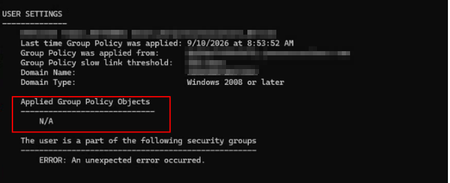
I have an environment with a Windows 10 AVD. When users sign into this environment there are no issues. I have created a new VM with Windows 11 AVD. Both Win 10 and Win 11 are domain joined. On the Win 10 the GPO's pushed have no issues but on the Win 11 AVD the GPO's are not populating. Running gpresult /r has this output: Running gpupdate /force then brings up the GPO's. So my frustration is I do not understand why the GPO's do not apply to user on sign in to their Win 11 instance. Anyone have any idea?271Views0likes2CommentsHow are you managing Group Policy changes after AGPM end of support?
Hi, I’m interested in how organizations are handling Group Policy change management now that AGPM is no longer supported. In environments where GPOs are still heavily used, what are you relying on today for version history, change tracking, rollback and approvals? Are you continuing with AGPM, moving to products such as GPOADmin or Cayosoft, or mainly using native GPMC backups and PowerShell? I’m also interested in whether there is still a gap around having a clear web-based view of GPO history and changes, especially being able to understand exactly what changed and which users or computers may be affected before a change is applied. I’d be interested to hear how this is handled in real production environments and what parts of the process are still manual or difficult.394Views0likes2CommentsWindows 10 11 Enterprise Restrict access to MS Store via group policy
Issue presented: Multiple users are downloading and installing Remote Access tools that are deemed not supported as well as other applications in the environment. We want to restrict access to the MS Store to Administrators or a specific AD group without using AppLocker or InTune. I have seen various threads in multiple sources that are conflicting about disabling the store or setting to the Company Portal for Windows 10/11. If you set the MS Store to Company Portal, in Windows 11 it disables the store. Turn off the Store application GPO: Denies or allows access to the Store application. If you enable this setting, access to the Store application is denied. Access to the Store is required for installing app updates. Other threads as well as the gpo verbiage itself indicate that if you disable the store, all installed applications will no longer update. There are some threads that state the opposite. https://learn.microsoft.com/en-us/windows/configuration/store/?tabs=gpo Has anyone configured a way to restrict users or a specific group of users from using the MS Store while allowing existing applications the ability to update?577Views0likes0Comments
Windows 11 automatically restarting after install security Update — With GPO and WSUS.
Hi everyone, I’m facing a strange behavior with Windows 11 devices that receive updates through WSUS and are fully managed via Group Policy. Here’s the scenario: We have a GPO configured as follows: -Configure Automatic Updates → 4 (Auto download and schedule the install) -Scheduled installation every day at 10:00 -Install during automatic maintenance → disabled -Active Hours configured -Turn off auto-restart for updates during active hours → Enabled -Update deadlines set to 0 (to avoid any forced restart) -No other restart-related policies set in the domain Even with this configuration, after updates are installed, Windows 11 shows the following message: “Your organization manages update settings. We will restart and install this update at X minutes.” And then the device automatically restarts, even when: -a user is logged in -it is outside Active Hours -deadlines are disabled -no-auto-restart is enabled This behavior does not happen on Windows 10 — only on Windows 11.3.6KViews1like1CommentWindows Essentials 2022 Remote Access for nonadmins
Hello everyone, This topic is already asked several times but I did not find any working answer. I am administrating a Windows Essentials 2022 server. One user need to work on the Remote Desktop temporary. I should create a seperate virtual terminal server on the Essentials server but currently I do not have time for that and it costs some money. So I want to take advantage of the grace periode that this user can work by RDP. It is the only existing server in this network and the network has only two staff and me ;-) The wellknow issue is that only administrator users can access this domain controller. I do not want to make the user an domain administrator. I have added the user by GPO to the people which are allowed to connect and I have added the user manually by system settings -> remote. After the second step at leaste RDP is opening but then I am getting a message that the user is still not allowed. Is there any option?215Views0likes0Comments
WuFB GPO options missing
I'm running into a problem where the Windows Update for Business options do not appear under Windows Update in the GPME. I just installed the Windows 11 24H2 ADMX files today on our Central Store but still don't see them. But according to this MS article, it should still be an option? https://learn.microsoft.com/en-us/windows/deployment/update/waas-wufb-group-policy201Views0likes0Comments
Unusual Behavior using GPO PowerShell Scripts During Restart/Shutdown in Hyper-V – Need Help
I have noticed strange behavior in Hyper-V. Group Policy is configured to execute PowerShell scripts for logon, logout, startup, and shutdown. The typical sequence of script execution is: startup → logon → logout → shutdown. However, an issue arises when a restart is initiated while logged in (i.e., after startup and logon scripts have already been executed). Upon clicking the restart button from the GUI, the following occurs: after the logout and shutdown scripts run as expected, the startup script is executed and the logon script (!) is triggered. This happens despite the fact that the lock screen is displayed after the restart, and no user has logged in yet. This phenomenon consistently occurs when restarting or shutting down from the GUI while logged in. It does not occur when restarting via the command line using shutdown /r /t 0 or shutting down with shutdown /s /t 0. Why does Hyper-V behave in this inexplicable manner, executing the logon script in such cases? Is it possible to configure something within the virtual machine to address this issue? Or are there specific Group Policies for script execution that could control this behavior? Could there be certain Registry entries that influence the shutdown or restart process to prevent this issue in Hyper-V? Alternatively, could the problem be resolved by modifying the startup or logon scripts, for instance, by adding conditions to verify if an actual login has occurred? Any ideas or suggestions to explain or resolve this behavior would be greatly appreciated.100Views0likes0CommentsAzure VMs Not Applying GPOs Correctly
Hi everyone, Quick question… if my Azure VMs are joined to my domain, they should be applying all my configured GPOs, right? For some reason, my VMs are not applying the GPOs, even after running a GPUPDATE /force. At the moment, I am testing some simple GPOs like: Creating a folder on the desktop Setting the time format to Brazilian (dd/mm/yyyy) Adjusting the timezone to Brasília When I run gpresult /r, it shows that the GPOs are being applied, but for some reason, the VM just doesn’t reflect them. Any idea what might be causing this?467Views0likes1Comment